Units Missing in Custom View Tabs Fix
Last modified on:
Overview
This document addresses the issue of units not appearing in custom view tabs and provides a solution to ensure newly created units are displayed correctly.
Prerequisites
- Access to the system where the custom view tabs are configured.
Steps
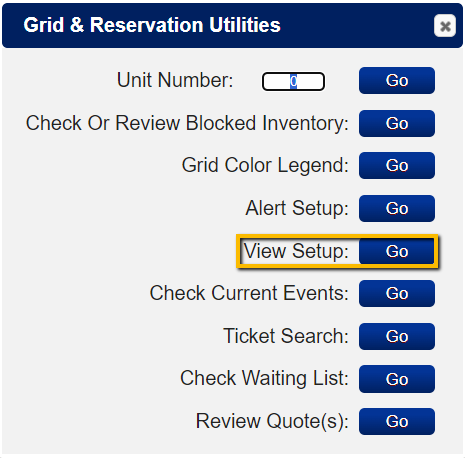
- Access Utilities:
- Press the Utilities button located above the grid. - View Setup:
- Click on the Go button for View Setup.

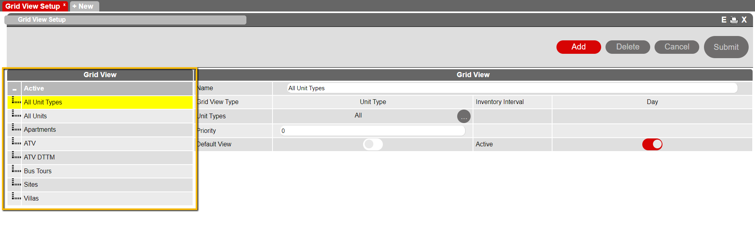
- Select Grid View:
- On the Grid View Setup Landing page, select the Grid View option on the left side of the page.
- Configure Units:
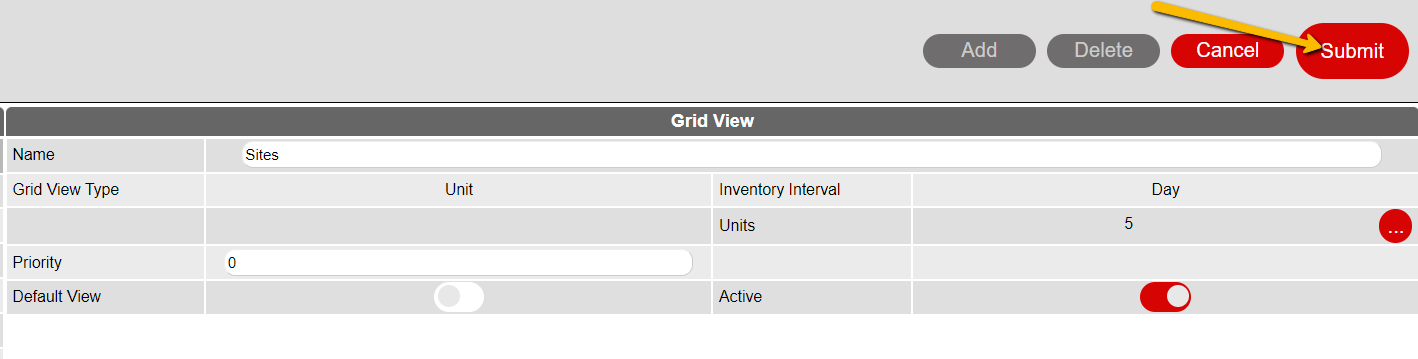
- After selecting the Grid View, click on the three-dot button for Units.
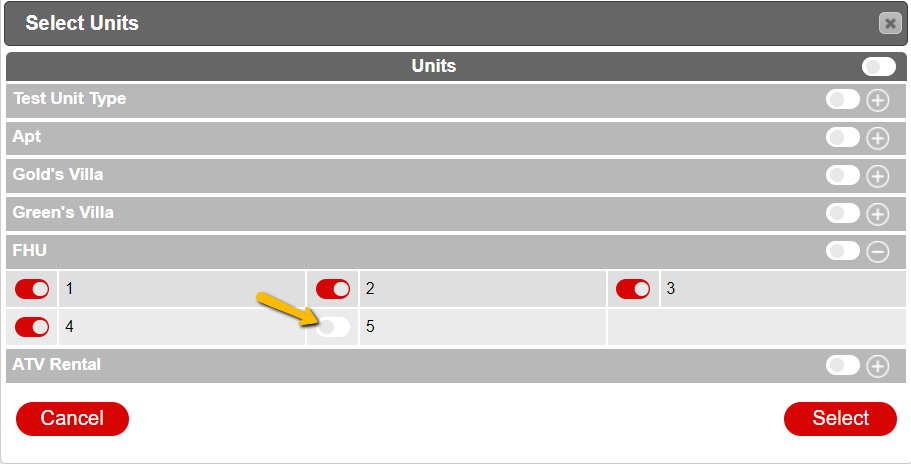
- In the Select Units section, expand the Unit Type and select the unit(s) to be shown on this custom view by toggling the selectors.
- Note: The checkbox at the Unit Type name is used to select all units within the type.
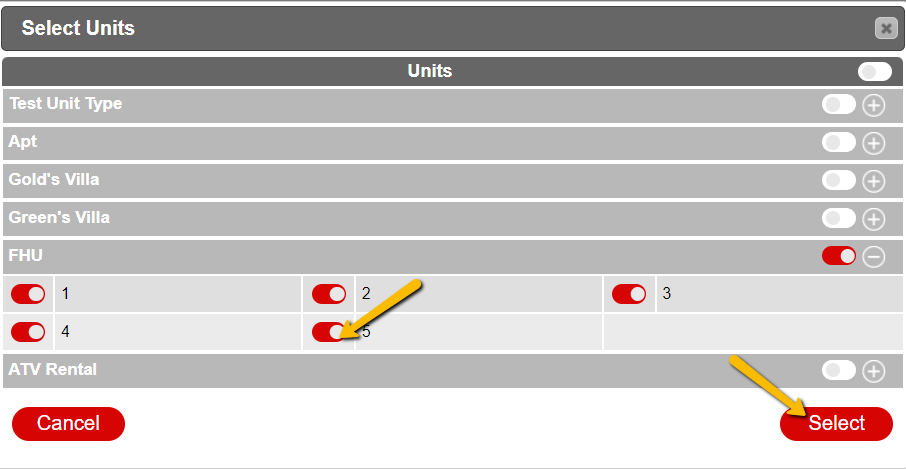
- Finalize Selection:
- Click on the Select button.
- Submit Changes:
- Finally, click on the Submit button.
Troubleshooting
If the units do not appear in the custom view tabs after following the steps, ensure that:
- The correct units are selected in the Grid View Setup.
- The changes have been submitted successfully.