SiteMinder Integration with RezExpert Configuration
Last modified on:
Overview
The Channel Manager provider SiteMinder has integrated with RezExpert. All bookings made on any of the SiteMinder channels, such as Booking.com and Expedia, will be automatically entered into the RezExpert Availability Grid. Unit Type Inventory is polled between SiteMinder and RezExpert. SiteMinder allows you to offer unique booking rates, minimum stay requirements, etc., that differ from those set up in RezExpert. Contact DigitalRez if you wish to integrate SiteMinder into your RezExpert system.
Prerequisites
- A unique hotel code provided by SiteMinder.
- API URL to connect to SiteMinder.
- Requestor ID, which is the name of the software using SiteMinder.
- Occupant Maps linking occupants between SiteMinder and RezExpert.
- Ensure SiteMinder is active in your system.
Steps
General Setup
- Create a profile for your business.
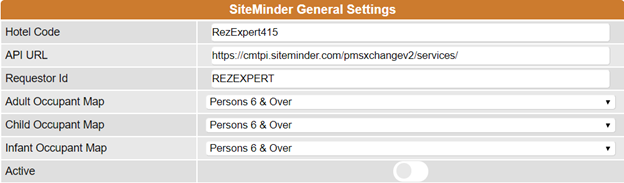
- Ensure the hotel code, API URL, and Requestor ID are correctly set.
- Link occupants using the Occupant Maps.
- Activate SiteMinder.
Codes
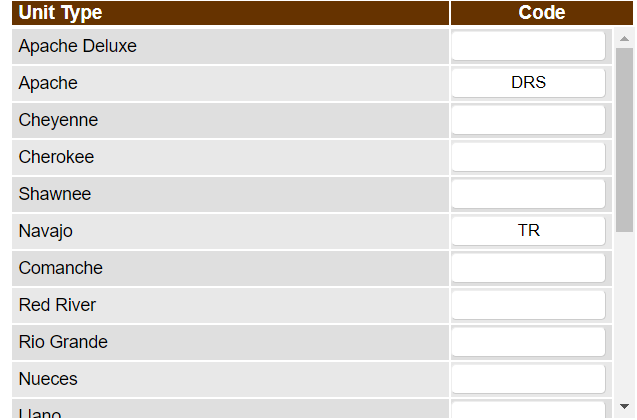
- Assign Unit Types and Rate Plan codes in the SiteMinder setup.
- Enter Unit Type Codes for the Unit Types available through SiteMinder.
- Leave the Code field blank if a Unit Type should not be available in SiteMinder.
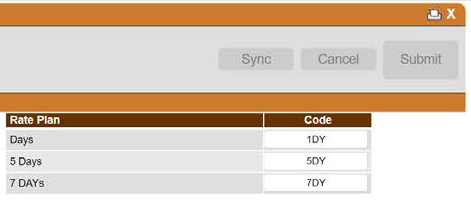
- Assign Rate Codes based on configured time periods to make rate plans available.
Note: These rate codes also need to be assigned in SiteMinder.
Rate Plans
- Configure and manage rates for each Rate Plan, either manually or automatically synced with RezExpert's rates.
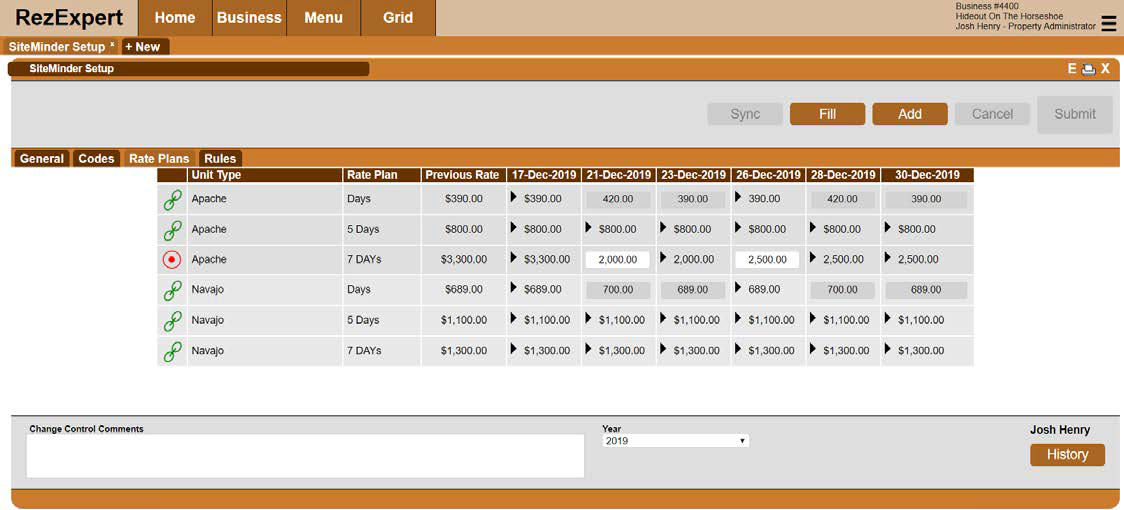
- Icons indicate whether a Rate Plan is linked with RezExpert's Rates Setup:
- Not linked:

- Linked:

- To link a rate plan, click the icon and select the rate group for assignment.
- To remove the link, click on the linked icon and confirm removal.
Action Buttons
- Sync: Initiate a manual sync with SiteMinder to update inventory and rates.
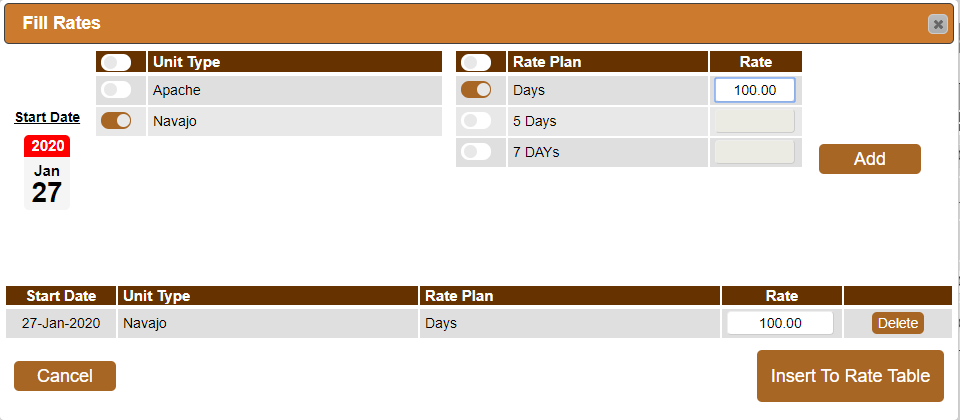
- Fill: Auto-fill rates for multiple types and rate plans simultaneously. Applicable only to rate plans not linked to RezExpert's rates.
To fill the rates:
1. Select the applicable Unit Type(s), Rate Plan(s), and the Start Date of the rate.
2. Enter the appropriate rate in the rate field and click Add.
3. Repeat steps 1 and 2 for any additional rates.
4. Click Insert to Rate Table once completed.
- Add: Add another date column for quick manual entry of a rate change for a rate plan not linked to RezExpert's rates.
Troubleshooting
- Ensure all codes and links are correctly configured.
- Verify that SiteMinder is active and properly integrated with RezExpert.
- For issues with rate syncing, check the linkage status of rate plans.