RezExpert SMS Setup and Management Guide
Last modified on:
Overview
This document provides detailed instructions on setting up and managing SMS functionalities within the RezExpert system. It includes information on SMS account creation, setup, sending locations, and history tracking.
Prerequisites
- Contact your RezExpert Support Tech to enable the SMS Module and create the SMS Account within RezExpert.
- For Australian or New Zealand businesses, documentation is required to comply with the Telecommunication Act to set up the SMS Account within RezExpert. The required documentation includes:
- Business Name Proof of Identity
- Business Address Proof of Address (e.g., Tax notice, Utility bill, Commercial registry)
- Business ID Number
For more information about the required documentation, click here.
Steps
SMS Account
- Contact RezExpert Support: Enable the SMS Module and create the SMS Account.
- Documentation for Australia/New Zealand: Provide necessary documentation to comply with the Telecommunication Act.
SMS Setup
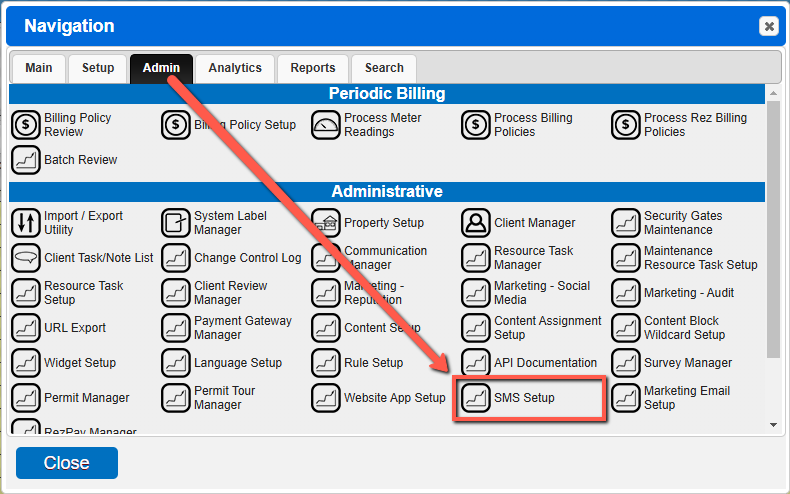
- Location: Access the SMS Setup from the Menu button, select the Admin tab, and click the SMS Setup button.
- Tabs: The setup is divided into three tabs: General, Purchase, and Account.
- General Tab: Displays main account information such as Name, Total Messages Purchased, Total Messages Pending, Total Messages Remaining, and Phone Number to Send From.
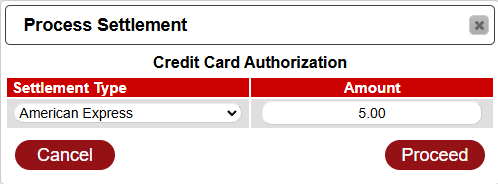
- Purchase Tab: Interface to buy message credits. Enter the number of messages to purchase and view the calculated cost.
- Account Tab: Shows the purchase history of message credits.



Sending SMS Locations
- Permissions: Employees with the RXC 10 Security Group – Property Administrator can send SMS and access the SMS Setup panel.
- Locations:
- Bulk SMS: Arrivals/Departures panel.
- Individual SMS: Print Selector boxes (Guest Folios, POS Invoices, and Account Manager).
Arrivals/Departures Panel
- Sending Bulk SMS:
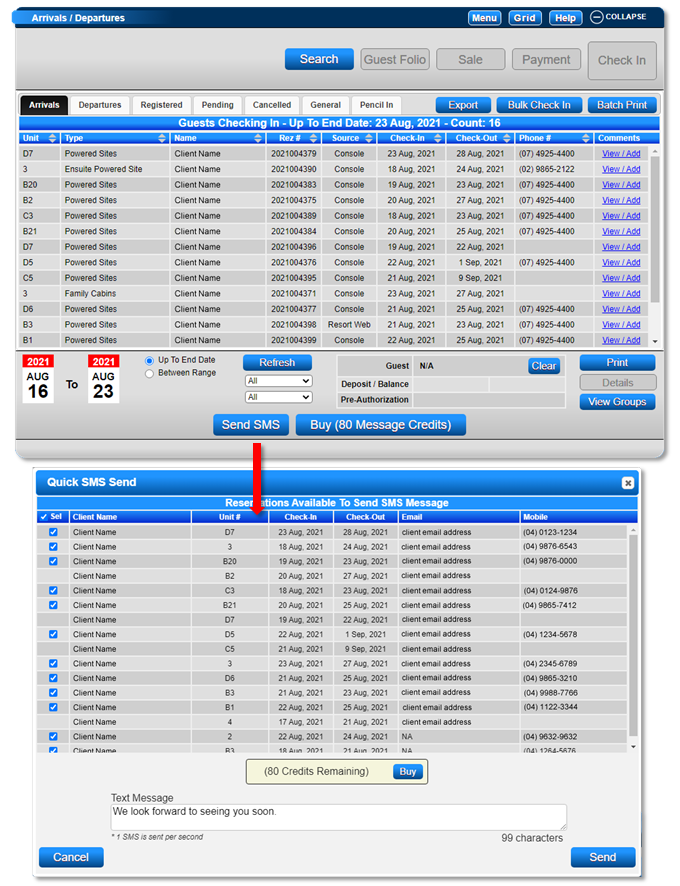
- Use the Send SMS button in the Arrivals/Departures panel to send bulk messages.
- Adjust date range and radio button, then click Refresh.
- Use the Quick SMS Send box for message sending.
- Ensure clients have valid mobile numbers to receive SMS.
SMS History
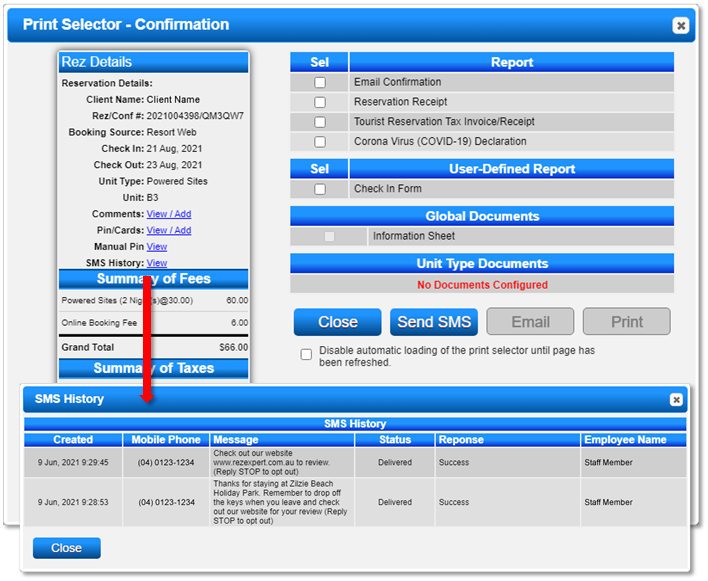
- Access: View SMS History within the Till Tape of a reservation.
- Details Displayed:
- Created date
- Mobile Phone number
- Message content
- Status (Successfully sent or Failed)
- Response (Success or Failed)
- Employee Name
Communication Manager
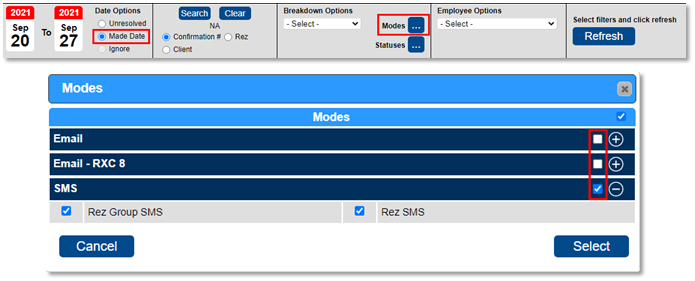
- Functionality: Logs all SMS messages sent out of RezExpert.
- Filtering: Narrow display to SMS only by adjusting the Made Date and Modes options.
- Read Messages: Use the Read button to view sent messages.
Troubleshooting
- Ensure all documentation is submitted for account setup.
- Verify client mobile numbers are valid to avoid message failures.
- Check SMS credit balance to ensure sufficient credits for sending messages.
For additional help, click here to print the Help Document.