Rez Object Type Setup Instructions
Last modified on:
Overview
This document provides instructions on creating different categories/types for the Rez Objects being utilized.
Prerequisites
- Access to the system's Menu button.
- Permission to modify settings in the Business Setup section.
Steps
Location
- Click on the Menu button.
- Select the Setup tab.
- Click on Rez Object Type Setup within the Business Setup section.
Setup
- Add a Rez Object Type:
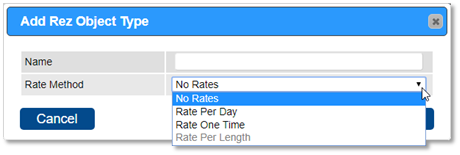
- Click Add to create a new Rez Object Type.
- Name: Enter the label of the Object Type.
- Rate Method: Choose how charges are applied:
- No Rates: No additional charges applied.
- Rate Per Day: Charges calculated based on the number of days (days x price per unit).
- Rate One Time: A flat amount charged regardless of the number of days (1 x price per unit).
- Rate Per Length: Charges calculated based on length entered (future development).
Note: Once a Rate Method is selected, it cannot be adjusted for the Object Type. The Object Type must be deleted to change it. Rates are entered into Product Rate Setup.
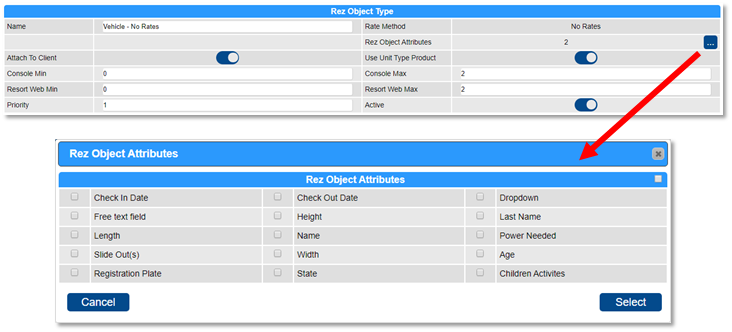
- Attach to Client:
- Will be associated with the assigned Client’s record/file. - Rez Object Attributes:
- Select the attributes associated with the Object type. Custom Attributes can be created in Rez Object Attribute Setup. - Use Unit Type Product:
- Revenue associated with the Unit Type. If disabled, a product is created for each object associated with the Object Type.
- Note: Ensure a GL Revenue Code is assigned to the Product for reporting on Trial Balance and other financial reports. - Console Min:
- Minimum number that can be assigned to a reservation.
- 0 = not mandatory
- 1 or greater = mandatory/forced field. - Console Max:
- Maximum number that can be assigned to a reservation. - Resort Web Min:
- Minimum number that can be assigned to an online reservation at the time of booking. - Resort Web Max:
- Maximum number that can be assigned to an online reservation at the time of booking.
- If information is not available for Online Bookings (staff entered only), leave both as 0. - Priority:
- Order of appearance within the Guest Folio. - Active:
- Active/available; inactive/no longer available.
Object Type - Objects
- Once an Object Type has been created, individual Objects can be created to be assigned the Object Type settings.
Troubleshooting
For further assistance, refer to the Help Document.