Analytics Module: Revenue and Occupancy Tracking
Last modified on:
Overview
The Analytics Module allows businesses to track statistical information across multiple areas in relation to the RezExpert system. Analytics - Revenue/Occupancy tracks the statistical information surrounding reservation revenue and/or occupant revenue.
Prerequisites
- Access to the RezExpert system.
- Permissions to view analytics data.
Steps
Location
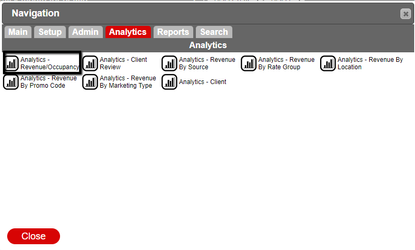
- Click any Menu button.
- Click on the Analytics tab.
- Select Analytics - Revenue/Occupancy in the Analytics section.
Overview
- The Overview Tab is home to your chart-based analytic information.
- The table at the top of the panel displays figures related to various types of information for a particular month.

- Key metrics include:
- Occupancy: Percentage of available units occupied. (Occ # divided by Avail #)
- Total Rev: Amount of revenue (reservation charges) charged.
- ADR: Average Daily Revenue. (Total Revenue divided by Occ #)
- Rev PAR: Revenue per available room. (Total Revenue divided by Avail #)
- Avg Length of Stay: Average length of time for reservations made.
- Avail Unit Days: Total number of Units available for the days selected. (# of units X # of days)
- Total Rez Days: Number of days reservations were made for, within the searched date range.
- Total # Rez: Total number of reservations made.
- Use the drop-downs to select the year and rate group for viewing chart information.
- Two panels are available side by side for data comparison.
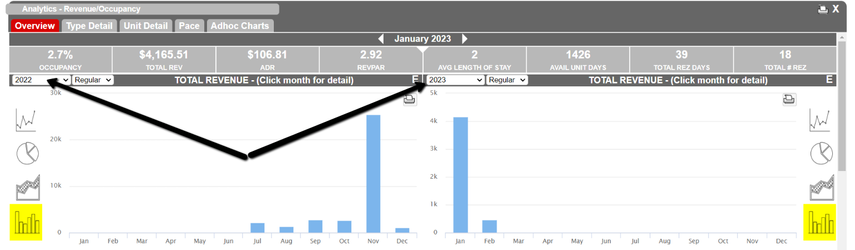
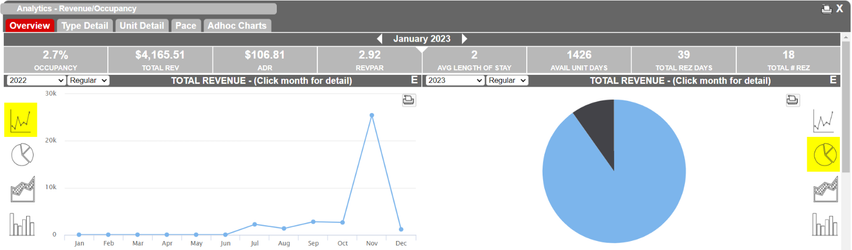
- View information in different chart styles including bar charts, pie charts, line charts, and area charts.
- The charts are interactive for detailed information by clicking on them.
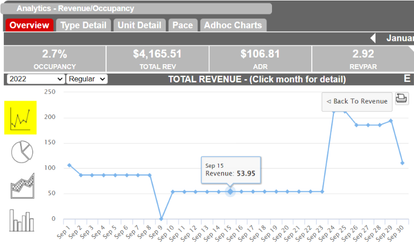
- Charts for both Total Revenue and Total occupancy are available.
Type Detail
- The Type Detail tab loads the Type Revenue & Occupancy information, allowing you to view statistics for all Unit Types for a selected date range. The data can also be broken down to each Unit.
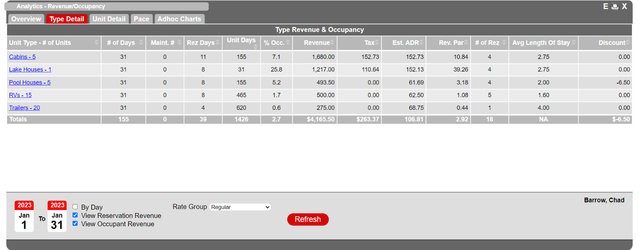
- Definitions of Columns:
- # of Days: Number of days within the searched date range.
- Maint. #: Number of Maintenance pencil ins made.
- Rez Days: Number of days reservations were made for, within the searched date range.
- Unit Days: Number of Units available for the days selected.
- Avail #: Total number of Units available for the days selected.
- % Occ.: Percentage of available units occupied.
- Revenue: Amount of revenue (reservation charges) charged.
- Tax: Amount of Tax on charges.
- Est. ADR: Estimated Average Daily Revenue. (Total Revenue divided by Occ #)
- Rev. PAR: Revenue per available room. (Total Revenue divided by Avail #)
- # of Rez: Total number of reservations made.
- Avg Length of Stay: Average length of time for reservations made.
- Discount: Amount of money discounted.
- Displays Revenue statistics related to the Unit Type as a whole.
- Select the date range (maximum of 366 days can be searched at any one time).
- Select Reservation Revenue only, Occupant Revenue only, or both.
- Click Refresh.
- To see information based on daily statistics, select By Day and click Refresh.
- Filter information by Rate Group using the Rate Group drop-down.
Unit Detail
- The Unit Detail tab loads the Type Revenue & Occupancy information for a selected Unit for a selected date range.
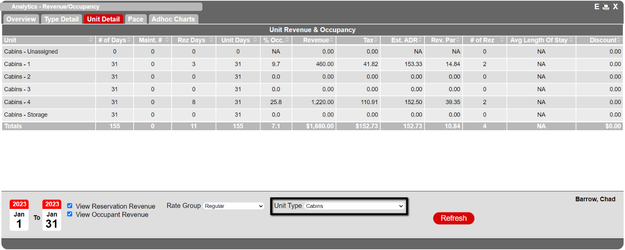
- Shows unit exclusive Revenue & Occupancy information, including assigned and unassigned units.
- Filter information by Rate Group using the Rate Group drop-down.
Pace
- The Pace tab loads the Type Revenue & Occupancy information for comparative statistics for occupied Units for selected date ranges.
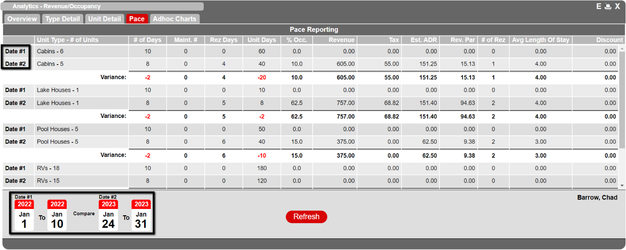
- Date #1: Information for the first selected date.
- Date #2: Information for the second selected date.
- Variance: Calculated difference between the two units.
Adhoc
- The Adhoc tab is currently not available.
Troubleshooting
- Ensure you have the necessary permissions to access the Analytics Module.
- Verify the date range does not exceed 366 days for a single search.
- Check if the Rate Group filter is correctly applied if data is not displaying as expected.