Right Click Menu Options for Reservations
Last modified on:
Overview
Operators can access quick additional options for a selected reservation by using the right-click button on the mouse or pad. This feature allows for multiple options to quickly change or access reservation details, thereby speeding up reservation handling within the Availability Grid.
Prerequisites
- Access to the Availability Grid.
Steps
- On the Availability Grid, select the reservation using the right-hand button on the mouse or pad.
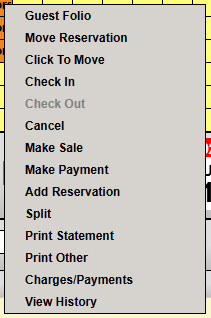
- The Right Click menu will appear with the following options:
- Guest Folio – Opens the reservation’s Guest Folio.
- Move Reservation – Opens the Available Units box to select a new site/unit.
- Click To Move - Allows the user to move a reservation by selecting the desired grid cell.
- Check In – Opens the Rez Status box to check in a reservation. Available for reservations due to check in – past their check-in date.
- Check Out – Opens the Rez Status box to check out a reservation. Only available on checked-in reservations past their check-out date.
- Cancel – Opens the Rez Status box to cancel the reservation.
- Make Sale – Opens the New Sale/Quote screen to process a sale.
- Make Payment – Opens the Charges/Payments tab to process a payment.
- Add Reservation - Add another reservation to the selected reservation, creating a group reservation.
- Split - Splitting reservation.
- Print Statement – Opens the Print Statement print selector screen to print/email a Reservation Statement Summary/Detail.
- Print Other - Opens the Print Other print selector screen to print/email a Tax Invoice/Receipt, Check-in form, etc.
- Charges/Payments – Opens the Charges/Payments tab.
- View History – Opens the History tab of the Guest Folio.
Troubleshooting
- Ensure the right-click functionality is enabled on your device.
- Verify that you have the necessary permissions to access the Availability Grid and perform reservation actions.