Rez Object Setup Instructions
Last modified on:
Overview
Rez Object provides the ability to create objects/items of the Object Type, with selected attributes assigned. Rez Objects can be assigned to selected Unit Types, if applicable.
Prerequisites
- Access to the Menu button
- Access to the Setup tab within the Business Setup section
Steps
Location
- Click on a Menu button.
- Select the Setup tab.
- Click on Rez Object Setup within the Business Setup section.
Setup
- Click Add to create a Rez Object.
- Name: Enter the label of the object.
- Note: The name cannot start with a numeral value, e.g., 4.

- Rez Object Type: Select the type of object. The settings and attributes of the Object Type will be available for the object.
- Link To Unit Type:
- Can be available for all unit types or only selected unit types.
- If no settings are applied, it is available for all unit types.
- If enabled, Unit Types need to be selected for the Object to display in the Guest Folio.
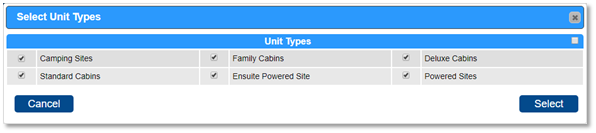
- Rez Object Attributes: Select the attributes that apply to the object. Only the attributes selected for the Object Type (in Rez Object Type setup) will display for selection.
- Content: Once the Rez Object is created, a wildcard is also generated in the Content Setup for the object and its attributes.
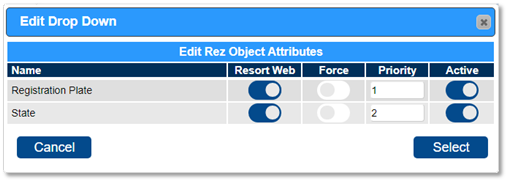
- Priority: Set the order of appearance within the Object dropdown.
- Active: Mark as available.
Troubleshooting
Rez Object Wildcard
- A wildcard for each Object will be available to be inserted into Email templates in the Content Setup.
- The wildcard label will be listed under the Object label for easy identification.
For further assistance, click here to print the Help Document.