Capturing and Uploading Client Images via Webcam
Last modified on:
Overview
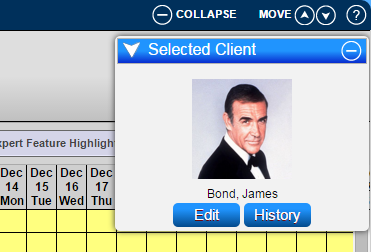
Client images can be uploaded to store in their Client File for identification purposes. This document explains how to use your webcam to capture and upload client images.
Prerequisites
- Webcam with accompanying software
- Access to RezExpert Client Editor
Steps
Webcam Software
- Install the software provided with your webcam. This can usually be downloaded from a URL link or web address.
- Follow the installation instructions provided by the webcam software.
Capture Image
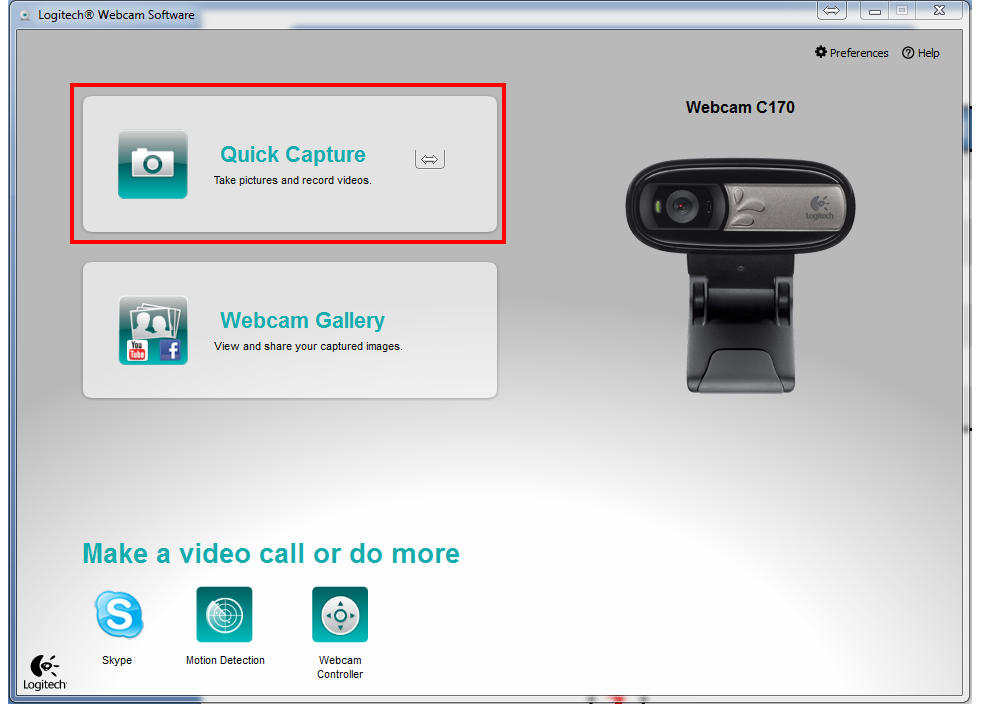
- Open the Webcam Software application interface.
- Capture the image of the client/pet/boat, etc.
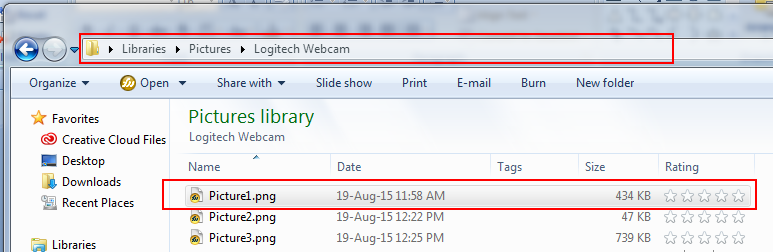
- The image will be saved in a folder on your computer or in your My Pictures folder, depending on your selection or the program default.
Uploading the Image
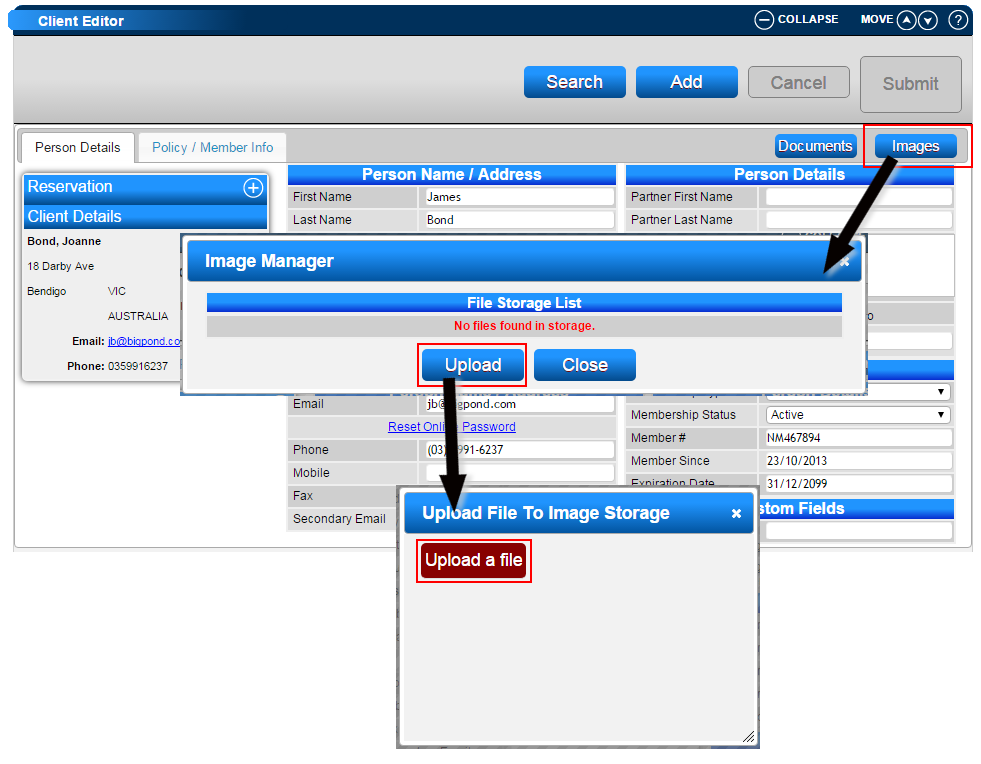
- Within RezExpert, scroll down and expand the Client Editor panel.
- Search for the client by clicking Search and entering the client's details.
- On the right, click the Images button to upload the image.
- Click Upload within the Image Manager box.
- Click Upload a file and select the image from the Webcam folder location.
Troubleshooting
For additional help, click here to print the Help Document.