Change Policy Setup for Online Reservations
Last modified on:
Overview
Set up the Change Policies to apply when a reservation is modified by the customer on the Online Guest Portal.
Note: Contact your support tech to discuss this module.
Prerequisites
- Access to the Online Guest Portal
- Permissions to modify Change Policies
Steps
Location
- Click on the Menu button.
- Click on the Setup tab.
- Select Change Policy Setup.
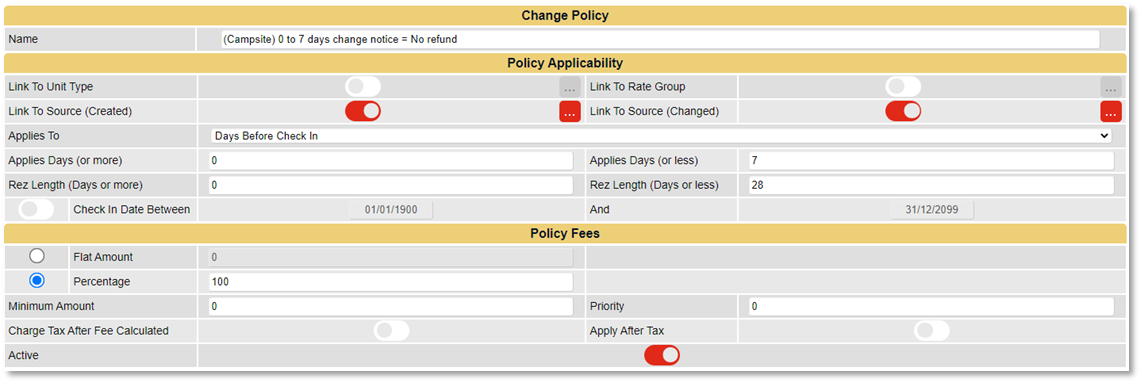
Add
- Click Add to create a Change Policy.
- Enter the Name.
- Character Limit: 100 characters.
- Press Submit.
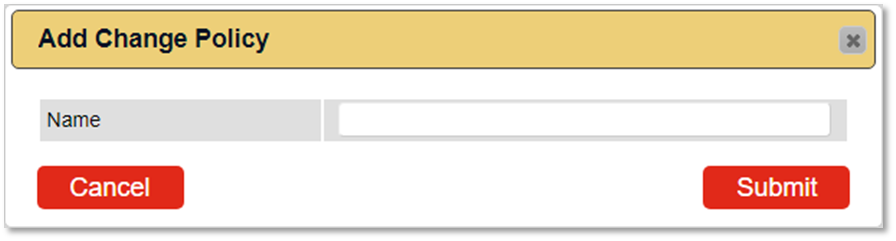
Policy Applicability
- Enter the Policy Applicability – when the Change Policy will apply.

- Link to Unit Type: The policy can be Global (applies to all Unit Types) or specific to selected Unit Types. Click on the slider and the box to select the specific Unit Type(s).
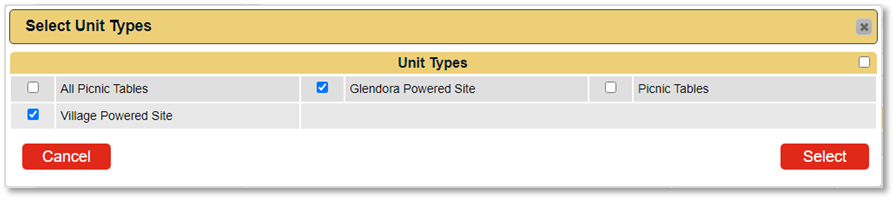
- Link to Rate Group: The policy can be Global (applies to all Rate Groups) or specific to selected Rate Groups. Click on the slider and the box to select the specific Rate Group(s).
- Link to Source (Created): The policy can be Global (applies to all Sources that the reservation was created via – Console, Resort Web, and Resort Web API/Channel) or specific Sources. Click on the slider and the box to select the specific Source(s).
- Link to Source (Changed): The policy can be Global (applies to all Sources that the reservation will be changed/modified via – Console, Resort Web, and Resort Web API/Channel) or specific Sources. Click on the slider and the box to select the specific Source(s).

- Applies To: Select the policy applicability on how you want the policy to apply – Any Reservation, Days Before Check In, or Days After Made Date.
- Applies Days (or more) and Applies Days (or less): Number of days for the policy applicability, e.g., 14 days prior to Check In.
- Rez Length (Days or more) and Rez Length (Days or less): Length of reservation.
- Check In Date Between: Check In date range.
Policy Fees
- Enter the Policy Fee – charges relating to the Change/Modification.
- Flat Amount: A set flat amount to be charged, e.g., $25.00.
- Percentage: Percentage of the Reservation Charges, e.g., 50%.
- Minimum Amount: A Minimum amount is charged, ideal when Percentage is used.
- Priority: Priority of the Change policy.
- Charge Tax After Fee Calculated: Tax is charged after the policy fee has been calculated.
- Apply After Tax: The policy fee is applied after tax has been calculated.
- Active: Enable to make the policy active/available.

Troubleshooting
- Ensure all fields are correctly filled and within the character limits.
- Verify that the policy is active if not applying as expected.
- Contact support if issues persist.