Season Setup and Management Instructions
Last modified on:
Overview
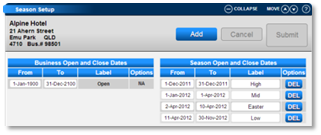
The Season Setup allows you to configure your seasons for the business. Users can add, edit, or remove business and season open and closed dates.
Prerequisites
- Access to the Season Setup within the Business Setup section.
Steps
Action Buttons
- Add Button: Click to add a new business or season setting.
- Cancel Button: Click to cancel any unsaved changes and refresh the page.
- Submit Button: Click to save changes you have made.
- DEL Button: Click to remove the desired business/season date setting.
Business Open and Close Dates
- Set the dates when the business will be opened and closed.
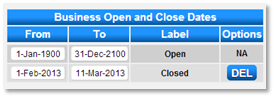
- Multiple closed dates can be set by typing “closed” in the Label field when Add is clicked.
- During closed dates, the grid will be unavailable for bookings on the property management grid and web interface.
Season Open and Close Dates
- The season panel maintains the dates for specific ‘seasons’ at your property.
- Press the Add button to create a season.
- You can create as many seasons as required for your business and for any future dates.
- Creating multiple seasons (e.g., high, low, and mid seasons) will automatically create the same seasons columns to input your property rates in the Rates Setup Panel.
- Creating seasons will create an additional label on the Reservation Charge on the Reservation's Till Tape (e.g., Powered Site 1 Day(s) @$30.00 @Peak).
Location
- Click on a Menu button, select the Setup tab, and click on Seasons within the Business Setup section.
- Alternatively, click on Setup within the Menu Bar, expand Business Setup, and select Season Setup.
Adding a Season
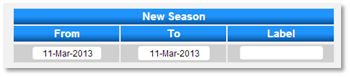
- Click Add.
- Click on the From and To dates to select the start and end date of the season.
- Enter a Label to display on the Reservation Charge.
- Press Submit to finalize.
- You can create as many seasons as required for your business, for any future dates.
Note: If the rates change for the different seasons, go to Rates Setup to enter the new rates. Click on a Menu button, select the Setup tab, and click on Rates Setup within Pricing and Rates.
Deleting a Season
- If a season is no longer required, click on the DEL button next to the Season.
Open and Closed Periods
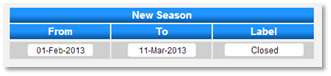
- If your property is closed for a period during the year, create a closed period covering these dates by entering "Closed" into the Label.
- Click Add.
- Select the date range to represent the closed period and enter "Closed" into the label.
Troubleshooting