Setting Up Down To The Minute Reservations
Last modified on:
Overview
The Down To The Minute (DTM) feature allows users to manage time-based inventory by creating specific time intervals for reservations. This document provides guidance on setting up DTM units, configuring inventory intervals, and managing reservations.
Prerequisites
- Access to the Inventory Interval Setup
- Access to the Inventory Setup
- Access to the Grid View Setup
Steps
Create DTM Units
- Inventory Interval Setup
- To create time-based inventory, first set up the time interval for reservations.
- Navigate to:
- Menu => Setup => Inventory Interval Setup
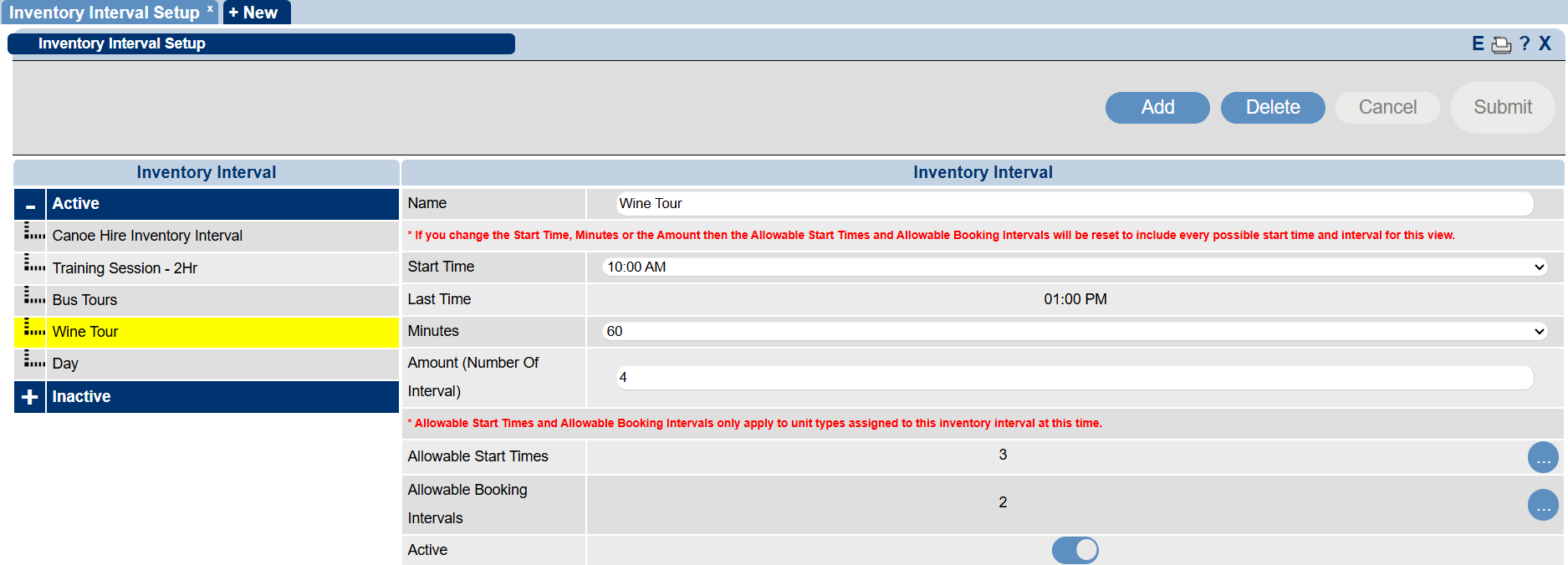
- Inventory Setup
- Once the Inventory Interval is created, proceed to create the Unit Type and Units.
- Navigate to:
- Menu => Setup => Inventory Setup
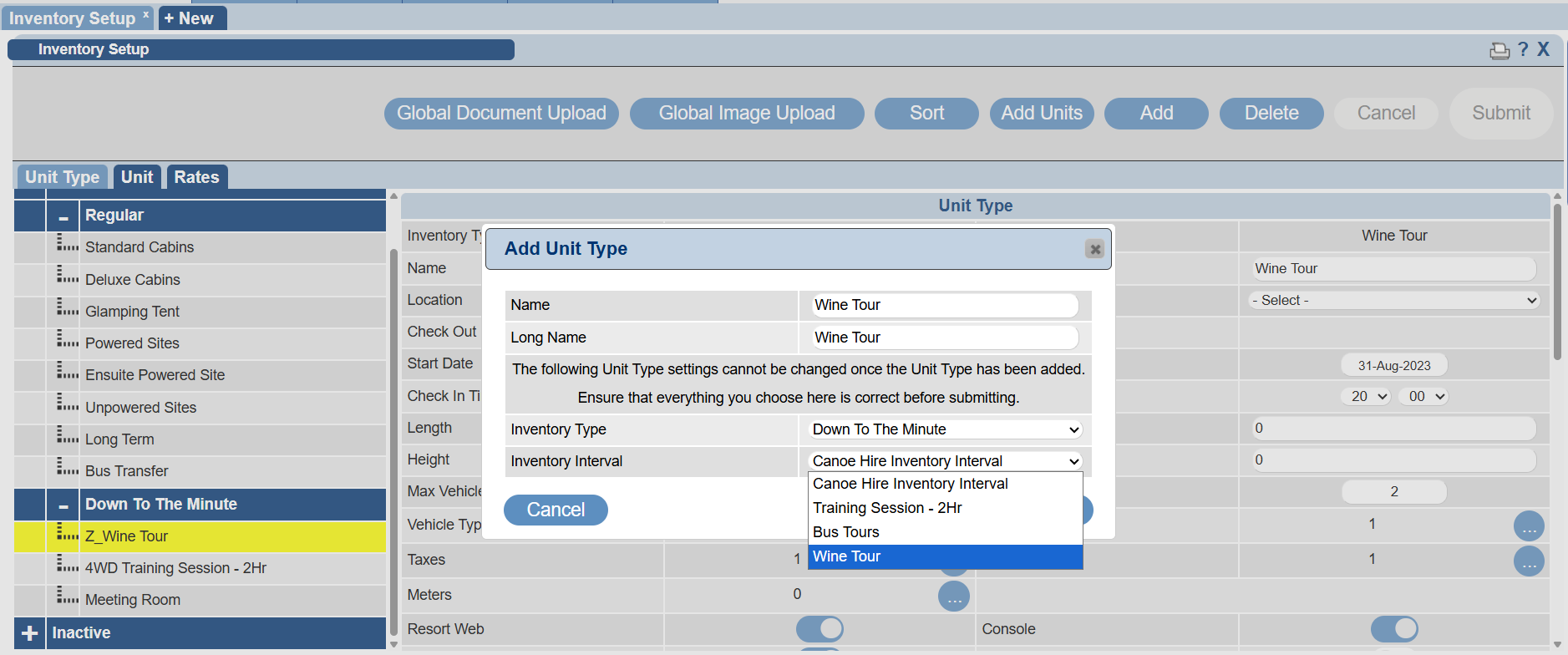
- Select Inventory Type as Down To The Minute and choose the applicable Inventory Interval.
- Help documentation on creating Unit Type/Units
Add To Grid - Grid View Setup
- To make DTM units available on the grid, create a Grid View with the DTM units assigned.
- Navigate to:
- Menu => Setup => Grid View Setup
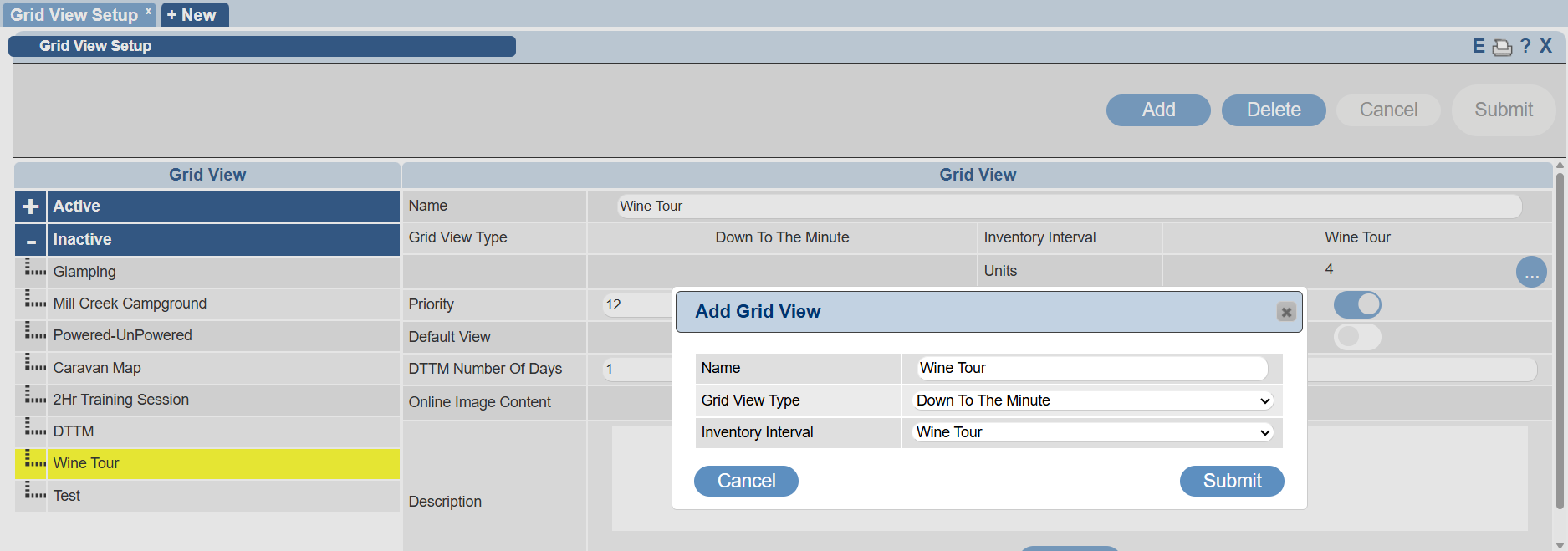
- Select Grid View Type as Down To The Minute and choose the applicable Inventory Interval.
- Help Documentation on creating a Grid View
Create and Manage DTM Reservations
- From the DTM Grid View, users can make reservations for the applicable unit and time.
- Reservation creation follows the same steps as regular reservations using the Rez Quote or the Calendar tool.
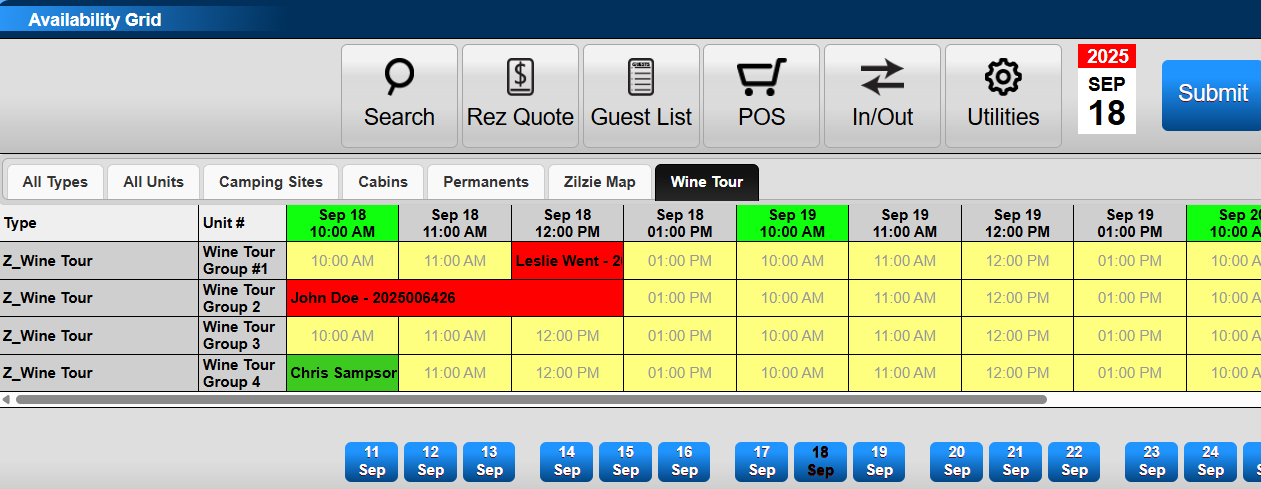
Modify Date and Time
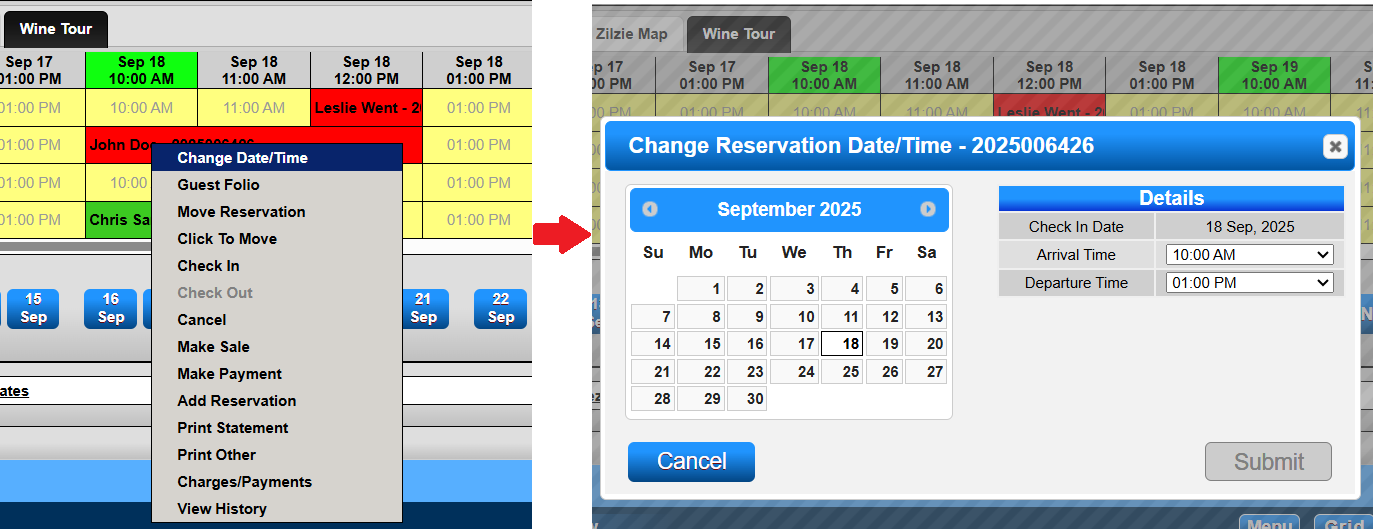
- To change the Date/Time of a DTM reservation, modifications can be made from:
- The Grid
- Right-click the reservation and select Change Date/Time.
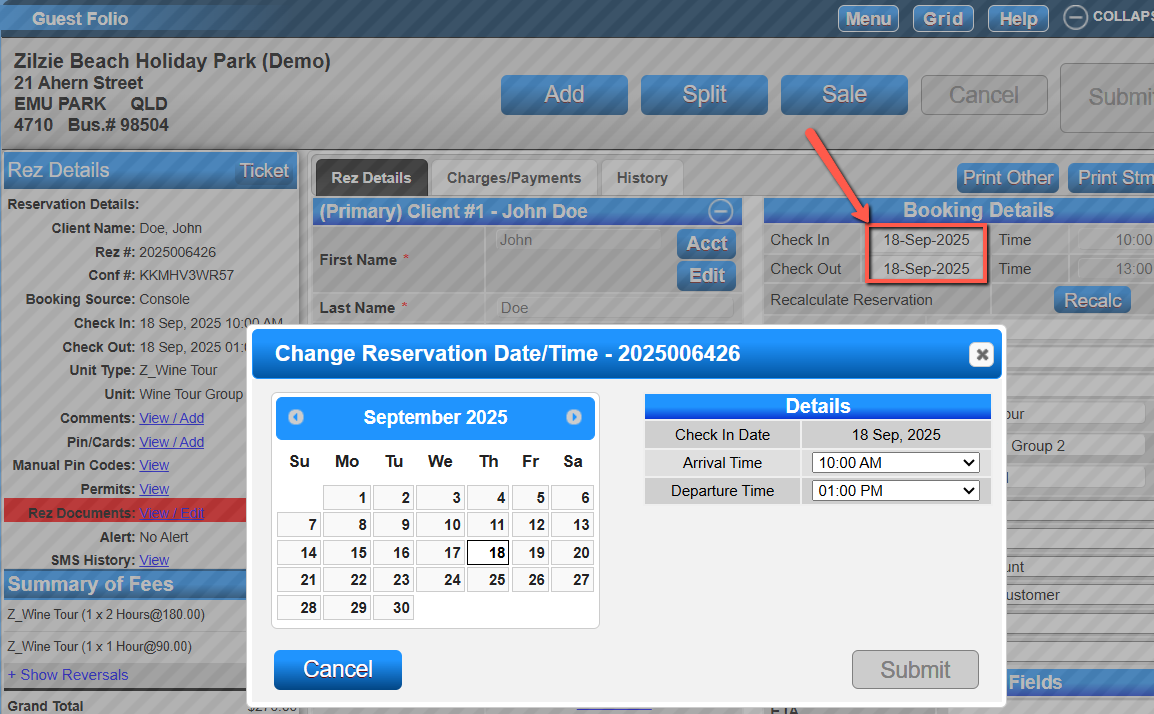
- Guest Folio
- Click on either the Check In or Check Out date to modify the Arrival or Departure Time or day.
Troubleshooting
For any issues encountered during the setup or management of DTM units and reservations, refer to the linked help documentation or contact support for further assistance.