Searching for Checked-In Clients in System
Last modified on:
Overview
The system facilitates easy tracking of guest status, with checked-in clients highlighted in green. This provides immediate visual confirmation of current guests, ensuring quick and efficient service. Whether managing reservations or locating a specific guest, this feature is essential.
Prerequisites
- Access to the Availability Grid
- Access to the Search Button
Steps
Access the Search Function
- Expand the Availability Grid.
- Click the Search Button.
This action will direct you to the Client Search window.

Enter Search Criteria
- In the Client Name field, enter the desired search criteria.
- The system searches by last name. To broaden the search, select the Any Part of Field option.
Execute the Search
- Click Search.
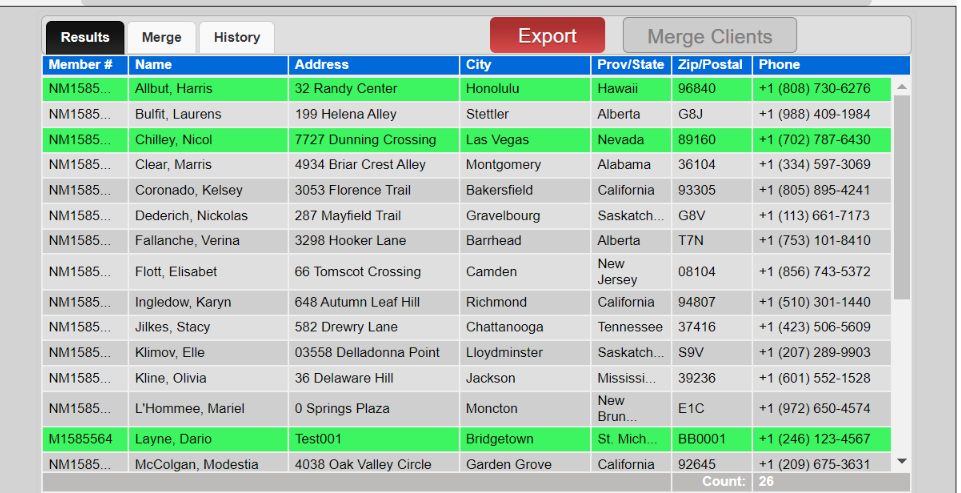
If multiple results are found, a list will be displayed based on the entered criteria.
Rows highlighted indicate clients who are checked in.
How to Review a Reservation
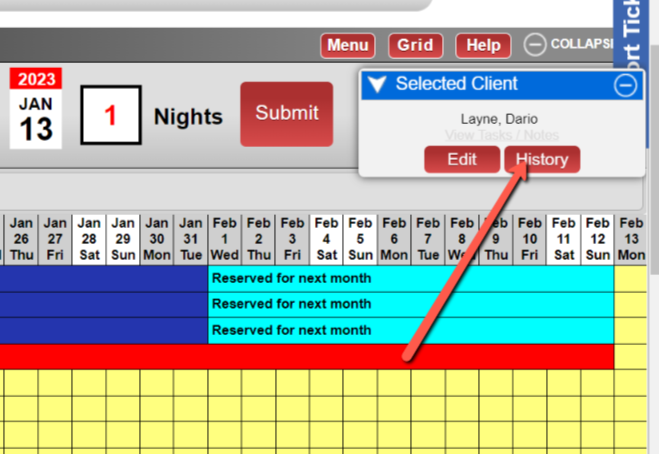
- Select the desired client to review more information, such as Reservation History.
- Select History to access the Reservation History.
- Use the calendars and list at the bottom of the Reservation History table to filter data.
- This interactive panel allows entry into the Guest Folio of any reservation by selecting the row and clicking the select button.
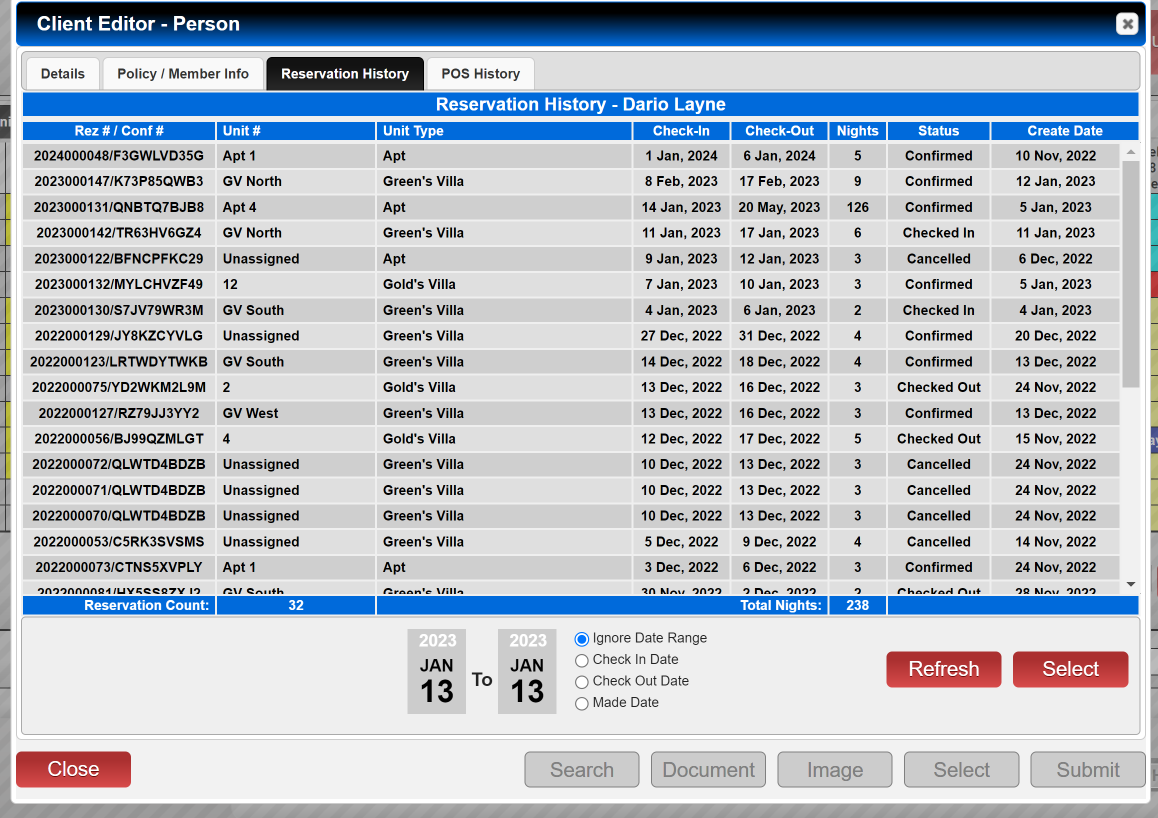
Filtering Options
- Ignore Date Range: Excludes reservations between specified start and end dates.
- Check In Date: Filters by the check-in date.
- Check Out Date: Filters by the check-out date.
- Made Date: Filters by the reservation creation date.
Troubleshooting
- Ensure the Availability Grid is expanded before attempting to search.
- Verify that the correct search criteria are entered in the Client Name field.
- If no results are found, try broadening the search criteria using the Any Part of Field option.