Product Rate Setup Instructions
Last modified on:
Overview
This document provides a step-by-step guide for setting up product rates for the first time.
Prerequisites
- Access to the menu and setup options within the system.
- Permissions to modify product rates.
Steps
- Navigate to Setup:
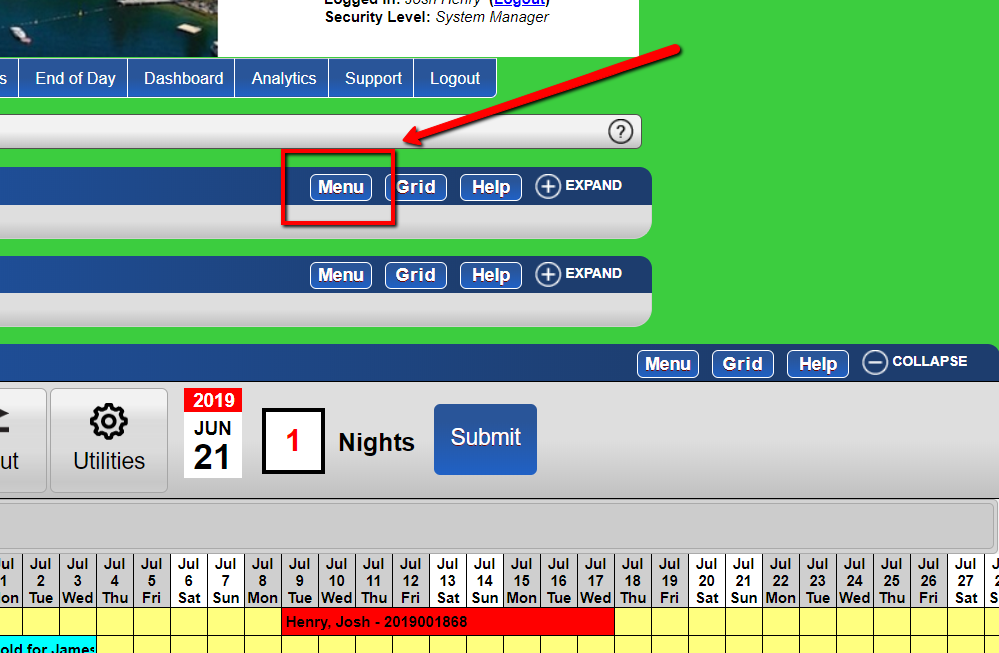
- Go to the menu.
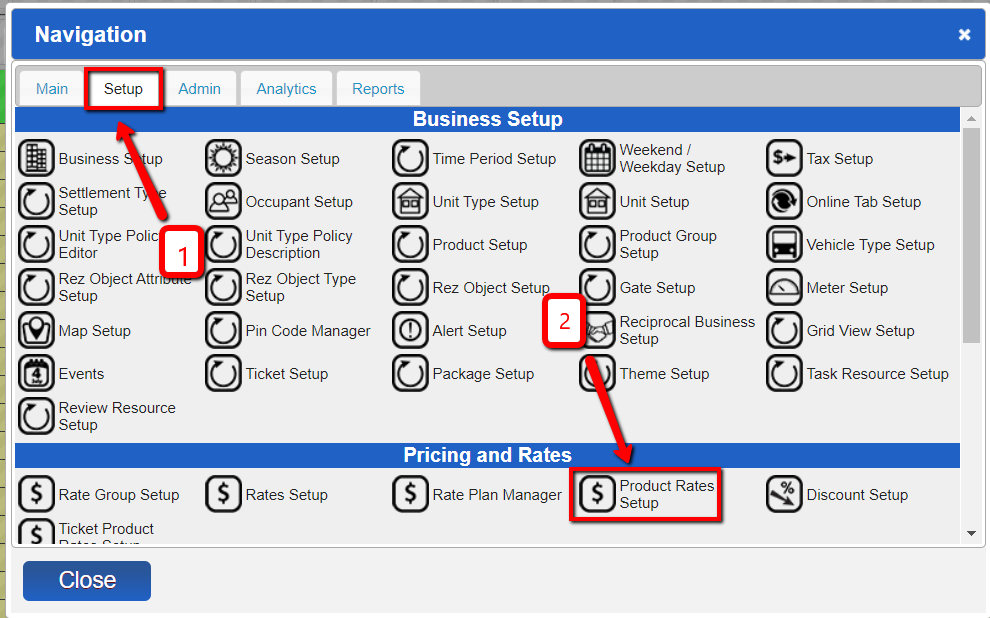
- Select "Setup" and under "Pricing and Rates," choose "Product Rates Set up." - Select Product and Enter Rate:
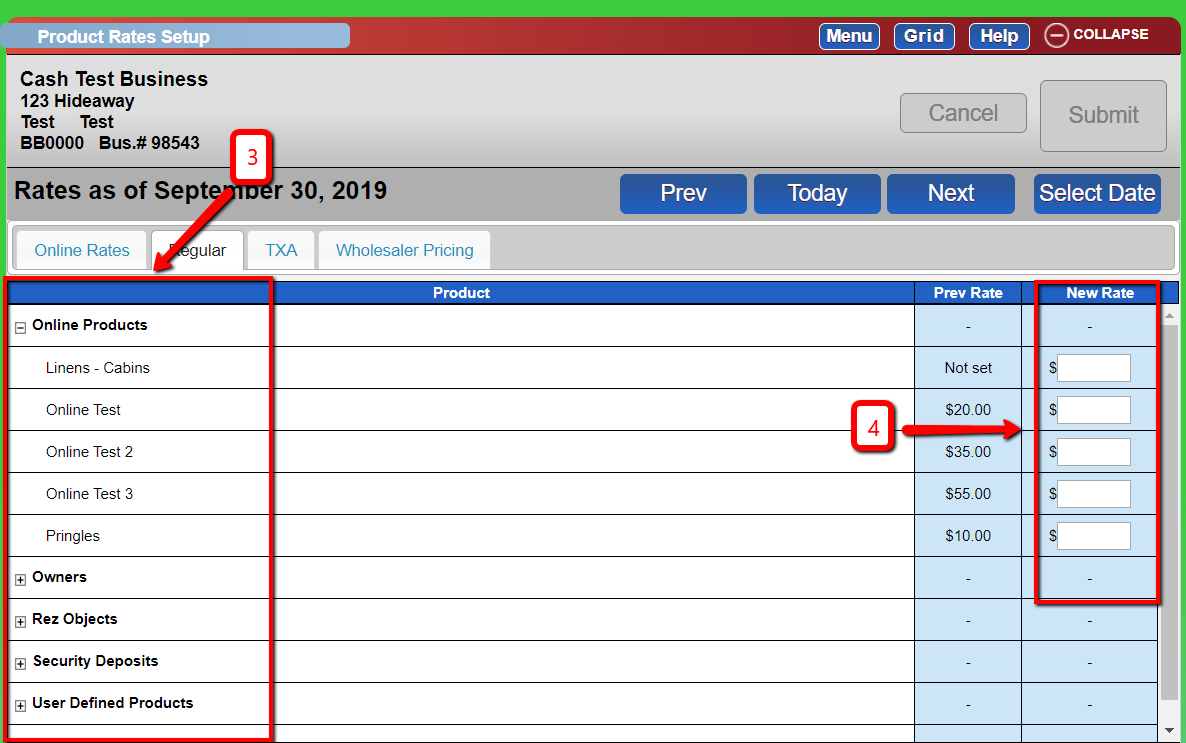
- Select the product for which you want to add the rate.
- Enter the desired rate. - Set Effective Date for Rate Changes:
- To have rate changes take effect on a specific date:
- Select 'Select Date.'
- Choose the desired date on the calendar.
- Note: 'Rates as of the current date' will change to 'Rates as of the date selected.'
- Add Change Control Comment:
- Add a comment for change control. - Submit Changes:
- Click "Submit." - View Rates:
- To see the rates at present, click "Today."
- To see the previous rates, click "Prev."
Troubleshooting
- Ensure you have the necessary permissions to modify product rates.
- Verify that the correct product is selected before entering the rate.
- If the rate changes are not reflecting, check if the correct effective date is selected.
Images