Adding New Alert Colours in Grid Interface
Last modified on:
Overview
This document provides a step-by-step guide on how to add a new alert colour.
Prerequisites
- Access to the grid interface where alert colours can be managed.
Steps
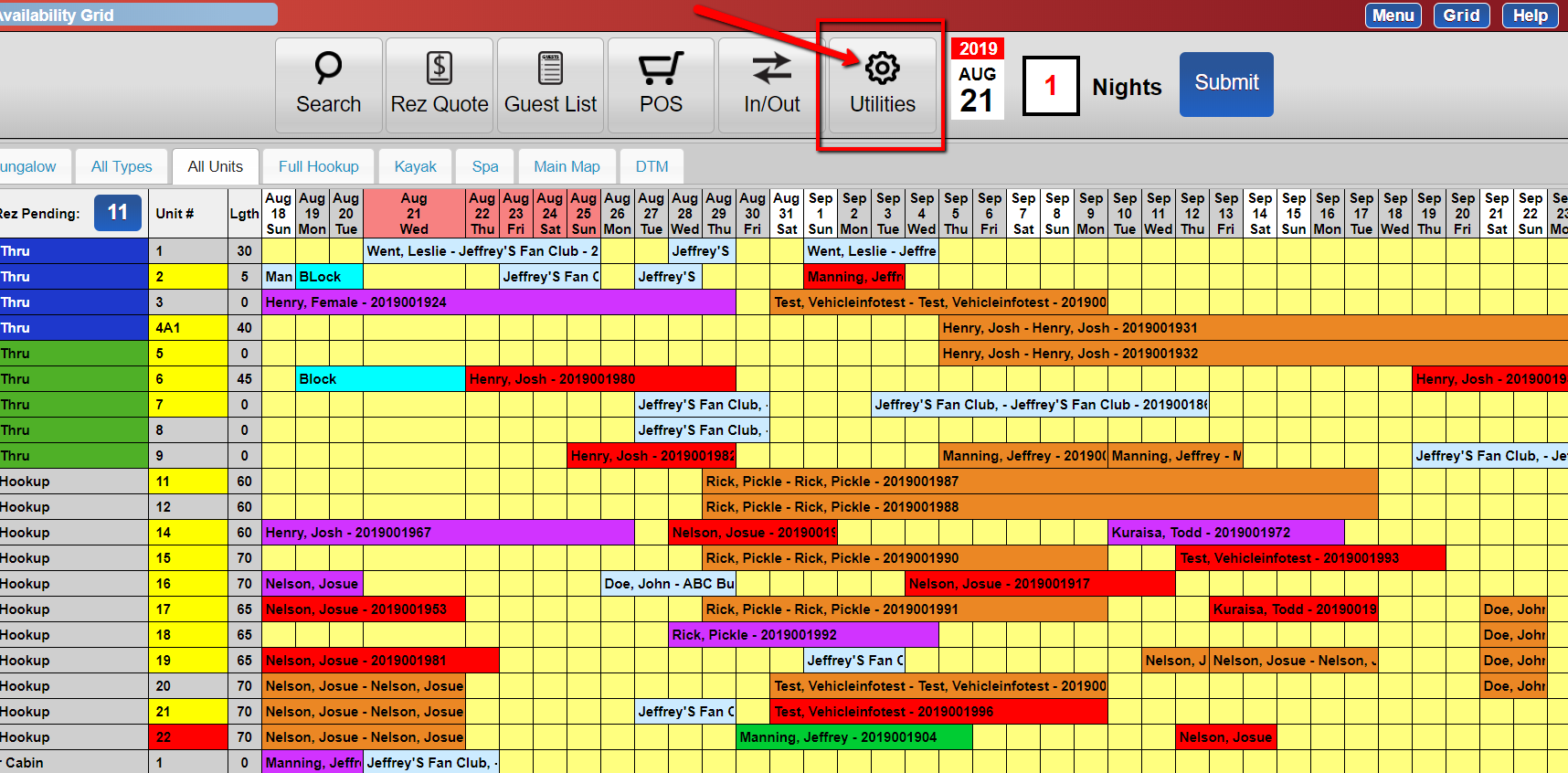
- From the grid, click the Utilities button.
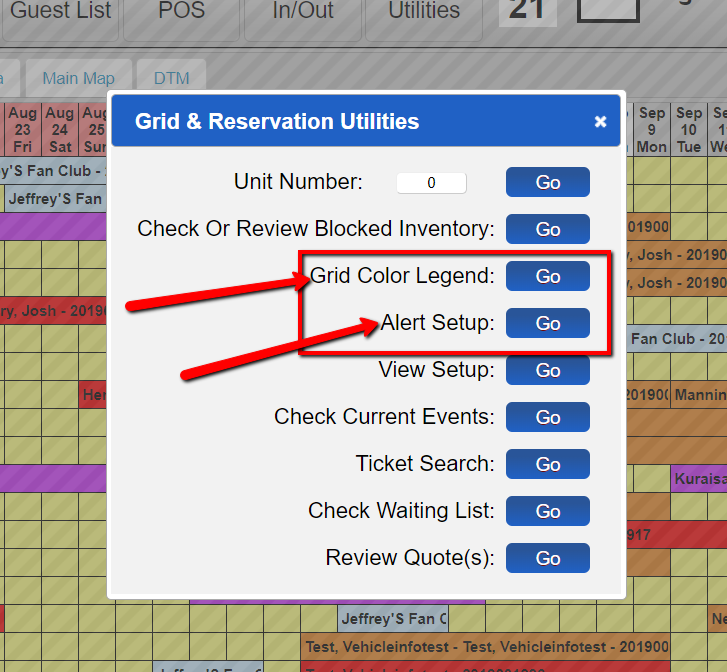
- Choose either:
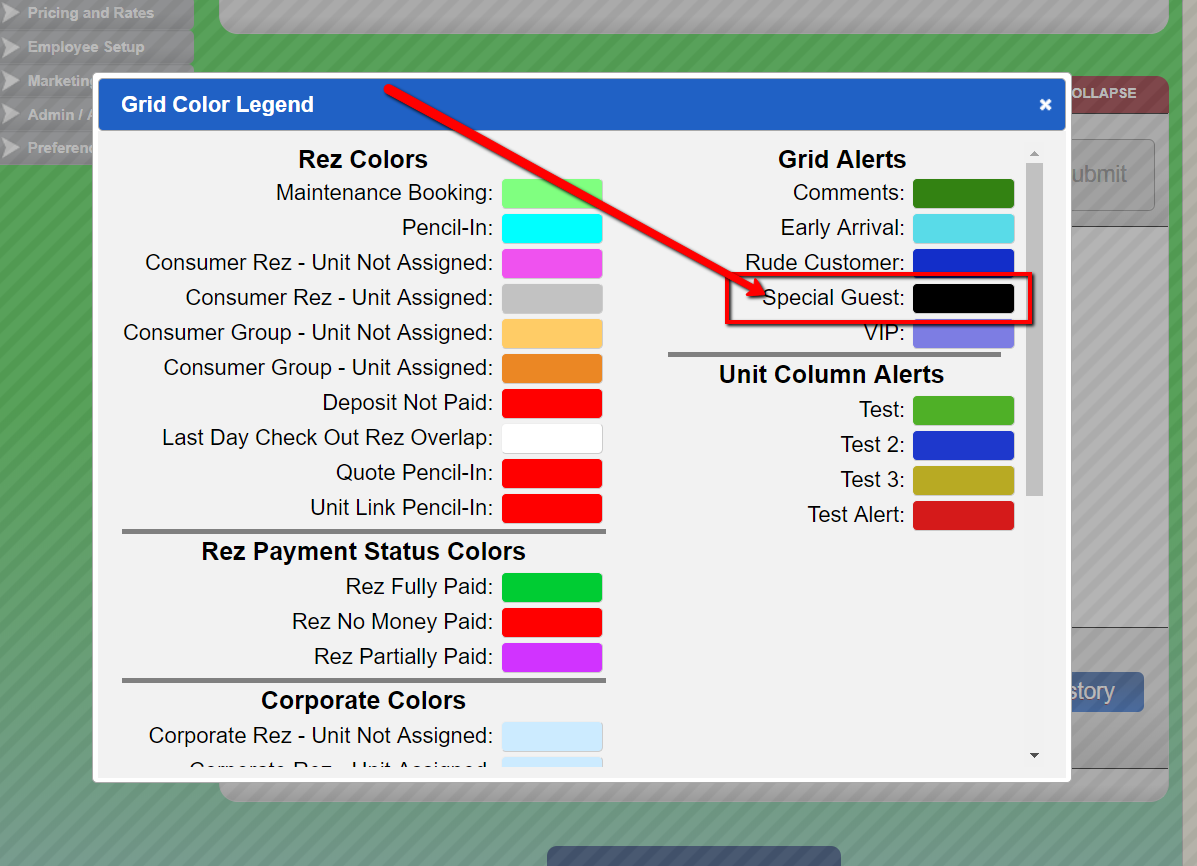
- Grid color legend to view the list of alert colours.
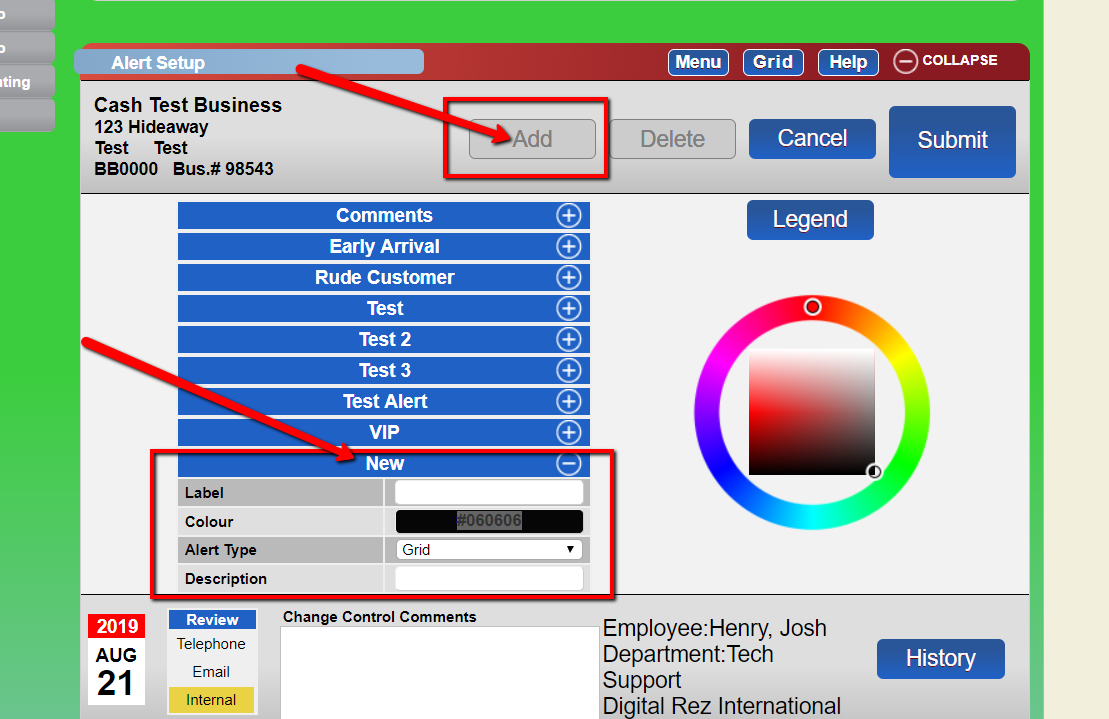
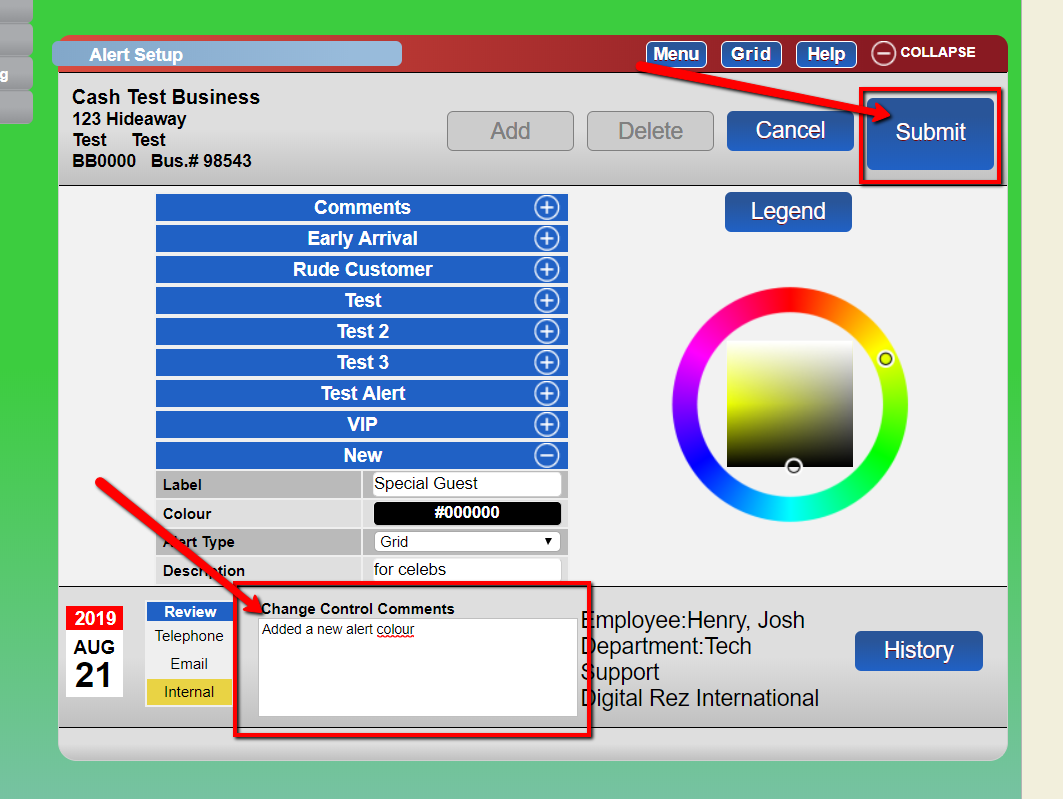
- Alert setup to add a new alert colour. - Click the Add button and enter the following details:
- Label
- Alert type
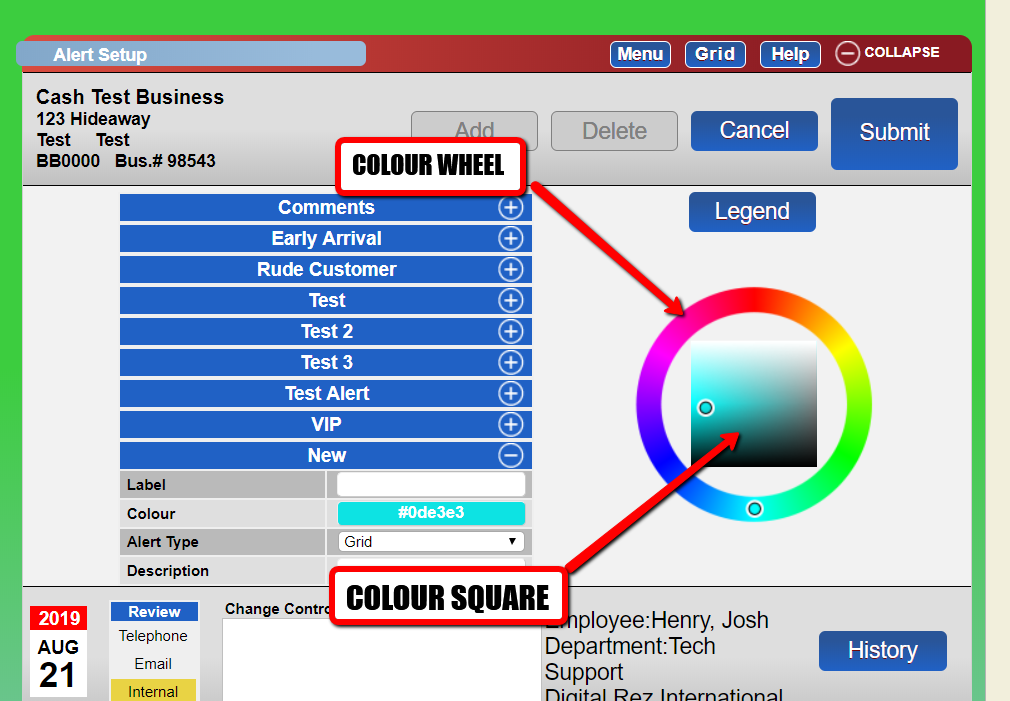
- Description - Use the colour wheel and the colour square to select your base colour and its shade.
- Enter your change control comments and submit.
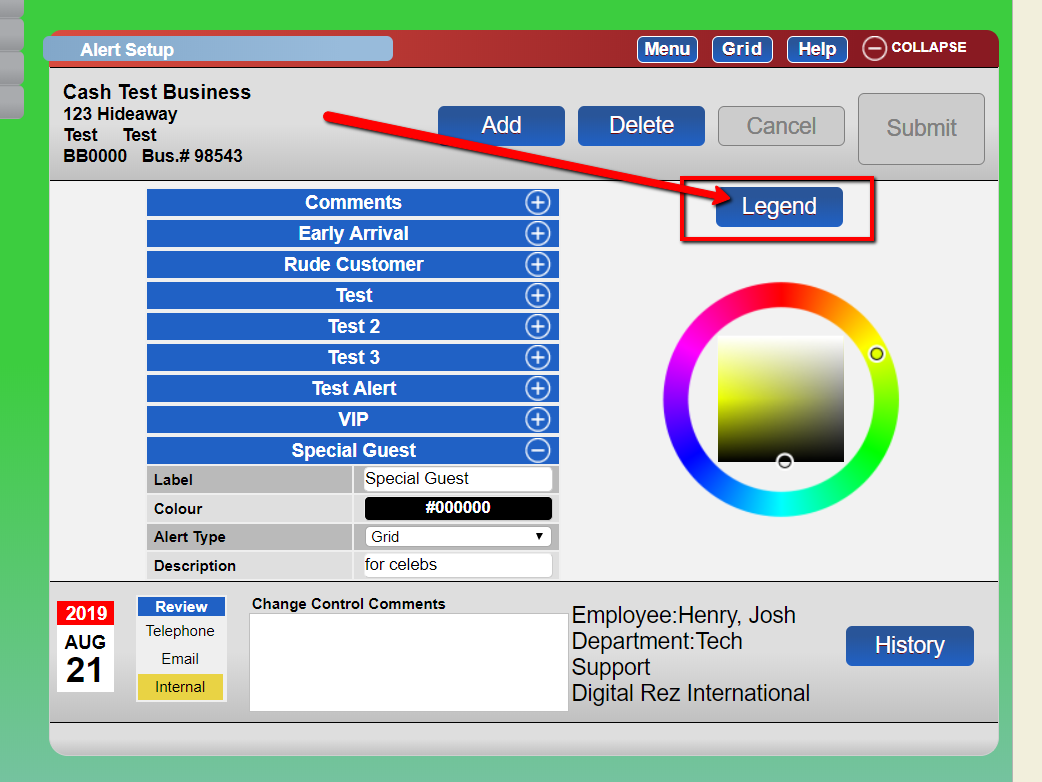
- Use the Legend button to view your list of alert colours.
- The grid color legend will now include the alert colour you just created.
Troubleshooting
- Ensure you have the necessary permissions to access the grid and make changes.
- Verify that all required fields are filled out correctly when adding a new alert colour.
- If the colour does not appear in the legend, double-check the submission process and refresh the grid interface.