Managing Monthly Electricity Rebates for Residents
Last modified on:
Overview
This document provides guidance on handling the monthly Electricity Rebates for Long Term/Permanent pension residents. There are two main options available:
- Individually processing through a POS transaction into each Guest Folio.
- Setting up a second Billing Policy for Electricity Rebates.
Prerequisites
- Ensure you have access to the POS system and billing setup.
- Familiarity with the guest folio and billing policy setup processes.
Steps
1. POS Transactions
- Process Each Rebate Individually:
- Right-click on the Guest Folio and select Make Sale.
- Select the Product Group and Product Label for the Electricity Rebate product.
- Enter the amount as a negative (e.g., -$26.50) and click Post.
- Ensure the Payment Type is Guest Folio Transfer and click Post and Submit to finalize.
- Repeat these steps for other clients who receive the rebate.
- If a Product Has Not Been Set Up:
- Click on a Menu button, select the Setup tab, and click on Product Setup.
- Click Add.
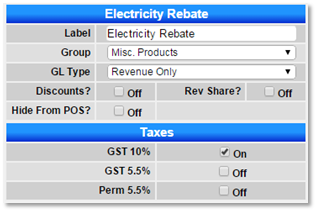
- Fill in the following:
- Label: Electricity Rebate (or desired name for statements)
- Group: Select an appropriate Product Group (e.g., Long Term Products)
- GL Type: Revenue
- Taxes: Select the appropriate tax
- Assign the GL Code in GL Ref #1
- Press Submit to finalize.
- Enter the Rate for the Electricity Rebate:
- Click on a Menu button, select the Setup tab, and click on Product Rate Setup within Pricing and Rates.
- Press Select Date and choose the 1st of the Month.
- Enter the Rate into the New Rate column and press Submit to finalize.
- Note: Ensure the rate is entered as a negative amount to discount off (e.g., -26.50).
2. Set up a Second Billing Policy
- Create a Second Billing Policy:
- Click on a Menu button, select the Setup tab, and click on Billing Policy Type Setup.
- Click Add.
- Fill in the following:
- Label: Enter a label for the Policy Type (e.g., Electricity Rebate or Meter Billing)
- Policy Type: Property
- Default Invoice Label: Enter a label for the charge (e.g., Electricity Rebate)
- Destination Account Type: Reservation
- Press Submit to finalize.
- Creating the Policy for a Resident:
- Click on a Menu button, select the Admin tab, and click Billing Policy Setup.
- The Billing Policy Review panel will display all residents’ current rental billing policy.
- Select the first resident and press Add to set up the policy.
- Fill in the following:
- Policy Type: Select the Electricity Rebate Policy
- Unit #: Select the resident’s Unit Type and Unit #
- Reservation #: Select the resident’s reservation number
- Start Date: Select today’s date
- End Date: Select a future date
- Next Billing Date: Select the next date the Electricity Rebate is to be applied (ensure this is the previous month’s date)
- Time Period/Interval: Month/1
- Under the Products/Services tab, click Add to add the Electricity Product.
- In the Add Billing Policy Product panel, select:
- Product Group: Select the appropriate Product Group (e.g., Long Term Products)
- Product Label: Electricity Rebate
- Rate Type: Pull from Product Rate – the rate will automatically appear in the Base Rate.
- Press Add to apply to the policy.
- Review the Policy to ensure all is correct, then press Submit.
- Press Activate to activate the policy.
- Processing the Electricity Rebate Policies:
- Processing the Rebate Policies follows the same procedure as processing Rental Billing policies.
- Click on a Menu button, select the Admin tab, and click on Process Billing Policies.
- Select the 1st of the previous month and select the Policy Type: Electricity Rebate and press Search.
- All Active policies will display to process – select ALL and press Process.
- Scroll down and expand the Batch Review panel to confirm the batch.
Troubleshooting
- Ensure all rates are entered as negative amounts for discounts.
- Verify that all billing policies are activated before processing.
- Confirm that the correct dates are selected for billing and rebates.
For further assistance, click here to print the Help Document.