RezPay Manager Payment Tracking and Auditing
Last modified on:
Overview
RezPay Manager provides RezPay users with the ability to track and audit all payments completed through RezExpert’s RezPay processor. Users can filter the list based on different criteria.
Prerequisites
To access the RezPay Manager, navigate through the following menu path:
- Menu
- Admin
- RezPay Manager
Steps
Panel
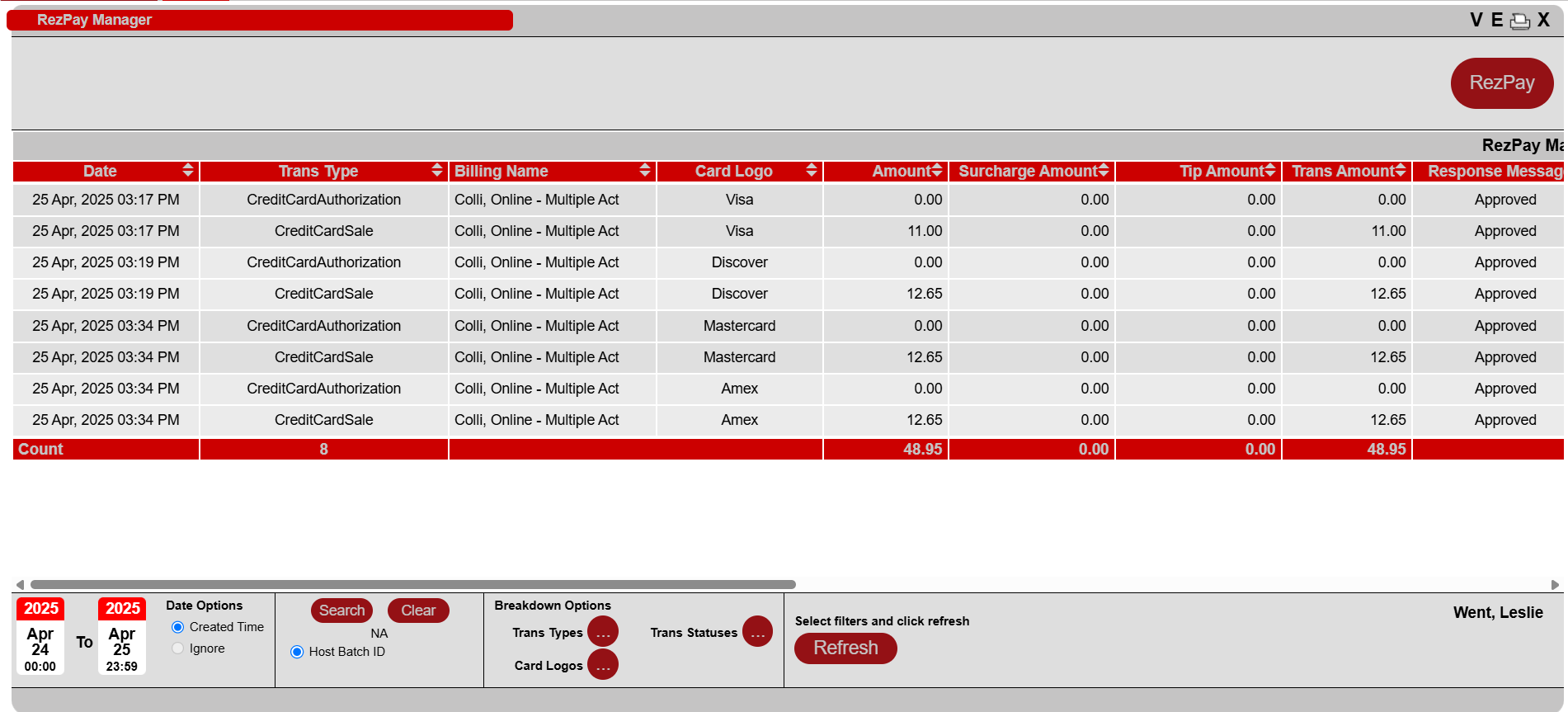
The panel provides the following information for each transaction:
- Date: Date the transaction was made.
- Trans Type: Type of transaction being completed.
- Billing Name: Name entered by user/customer when manually processing the card.
- Card Logo: Represents the Card Brand.
- Amount: Base amount before any additional fees (Surcharge or Tip).
- Surcharge: Amount of surcharge applied to the customer. If surcharging is not done by the business, this value remains zero. Note: A surcharge cannot be applied to Debit cards.
- Trans Amount: Total amount charged to the customer, including fees (Surcharge and Tip).
- Response Message: Response received by the processor regarding the transaction.
- Trans Status: Status of the transaction.
- Card Number: Displays the last 4 digits of the card number.
- Ticket #: Confirmation number within RezExpert associated with the transaction. Can be used to search in the Grid. Note: For group reservations, it directs to the group itself.
- Host Batch ID: Payment batch the transaction is associated with.
- Batch Status: Status of the batch containing the transaction. Note: Authorizations do not show a batch status.
- Reference #: Payment reference number.
- Approval #: Approval number for the transaction.
- Transaction ID: Transaction ID for the transaction.
- Terminal ID: Terminal ID for the transaction.
- Response Code: Response code for the transaction.
Filters
- Date Range: Set the Date Range to return transaction list. Max range is 31 days. Time is in military format (00:00:00).
- Date Options:
- Created Time: Allows modification of Date Range calendars.
- Ignore: When specific criteria (e.g., batch ID search) is used, the date range is not editable.
- Host Batch ID Search: Search by specific Host Batch ID. Click the Search button and enter the Host Batch ID value. To remove the filter, click Clear.
- Breakdown Options:
- Trans Types: Filter transactions based on transaction types.
- Trans Statuses: Filter transactions based on transaction statuses.
- Card Logos: Filter transactions based on Card Brands.
Buttons
- RezPay button: Redirects to the backend of RezPay for Processor specific information and reporting.
- V: Displays help videos associated with the RezPay Manager.
- E: Export raw data from transactions/Print custom report based on raw data.
- Print: Print a summary or details report of the transaction.
- X: Close the RezPay panel.
Troubleshooting
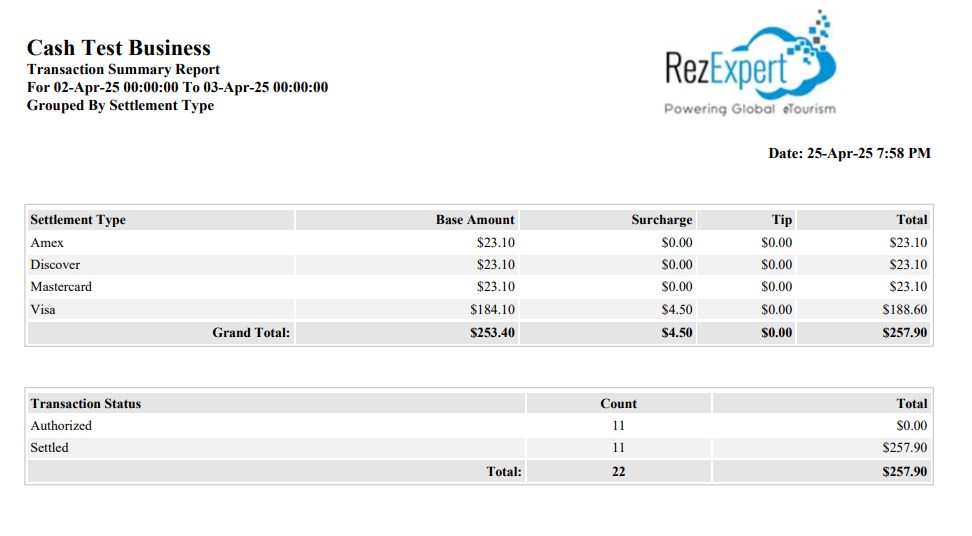
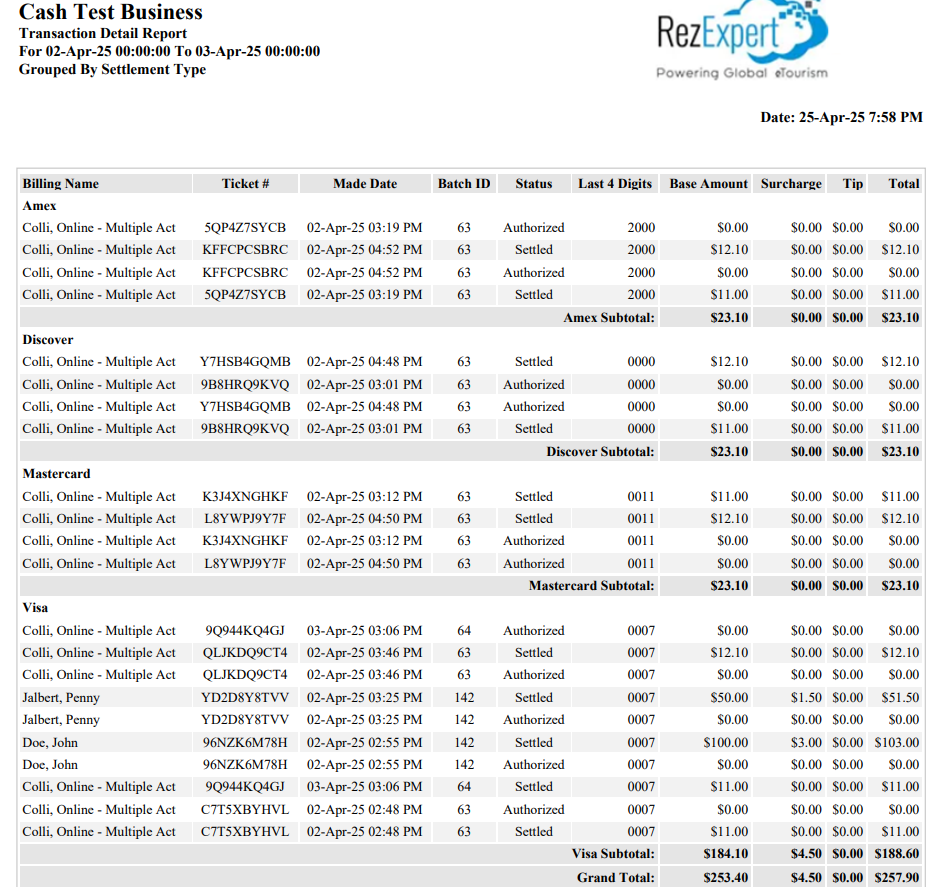
For further assistance, refer to the RezPay Summary Report and RezPay Detail Report for detailed transaction information.