Pin Code Manager Setup and Usage Instructions
Last modified on:
Overview
Once Pin Code Gates are set up, Pin Codes are managed from the Pin Code Manager panel.
Prerequisites
- Ensure that Pin Code Gates are set up.
Steps
Location
- Click on a Menu button.
- Select the Setup tab.
- Click on PIN Code Manager.
Pin Code Manager
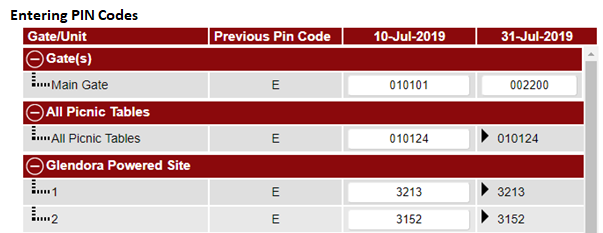
- To enter the PIN Codes:
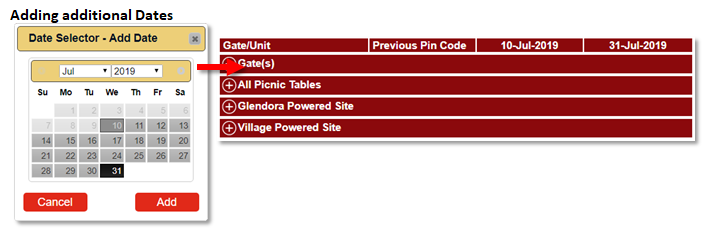
- A) Click the Add button to select the first date the PIN Code is effective from. If the PIN Code is effective from today and will not have a code change predicted at a future date, proceed to Step B.
- Click Submit to finalize.
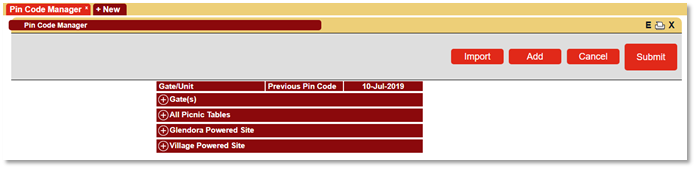
- Repeat with additional dates if required.
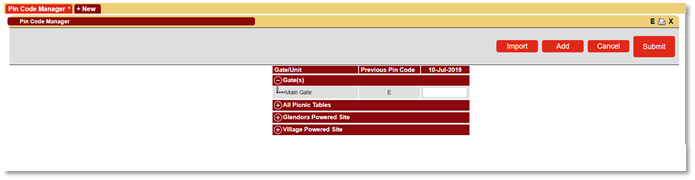
- B) Click on the + symbol next to the Gates to expand.
- Click on the E within the selected date column and enter the PIN Code value.
- Repeat with all additional dates if required.
- If the code doesn’t adjust for an additional date column displaying, the previous pin code doesn’t need to be entered into the upcoming date, and the previous pin code will continue through.
- Click Submit to finalize.
- Repeat for all active gates and date ranges.
- To adjust an entered Pin Code, click on the code field and enter the new pin code.
Import Button
- The Import button allows bulk insertion of codes entered onto a CSV file.
- Click on the Import button to access the Import/Export Utility panel. Alternatively, click on any Menu button, select the Admin tab, and click on Import/Export Utility.
- Click on the Data Tab and select Import.
- Click on the Data Type dropdown list to select Security Gate Pin.
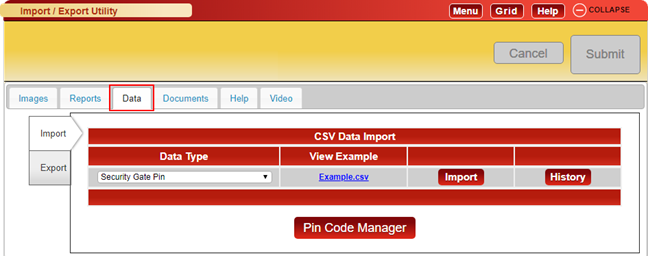
- Click on the Import button to select the Upload File button and choose the required CSV file.
Note:
- The input file needs to be in CSV format.
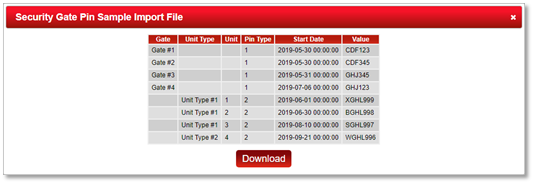
- The file must contain the exact column header labels: Gate; Unit Type; Unit; Pin Type; Start Date; Value.
- Gates, Unit Types & Unit numbers listed within the file MUST match the exact label used in Unit Type Setup.
- Pin Type 1 = Gates, Pin Type 2 = Units.
- Start Date needs to be in yyyy-mm-dd 00:00:00 format.
- Value: Pin Code. Can be numerical and also contain alphanumeric and symbols, e.g., #.
- Download the example.csv for guidance.
- The Pin Code Manager button will direct back to the Pin Code Manager panel.
Troubleshooting
- For detailed guidance, click here to print the Help Document.