Managing Reservations with Availability Grid
Last modified on:
Overview
The availability grid serves as the central hub for viewing and managing reservations. It is color-coded to visually represent different reservation statuses.
Prerequisites
- Familiarity with the reservation system interface
- Access to the availability grid
Steps
Interface Layout
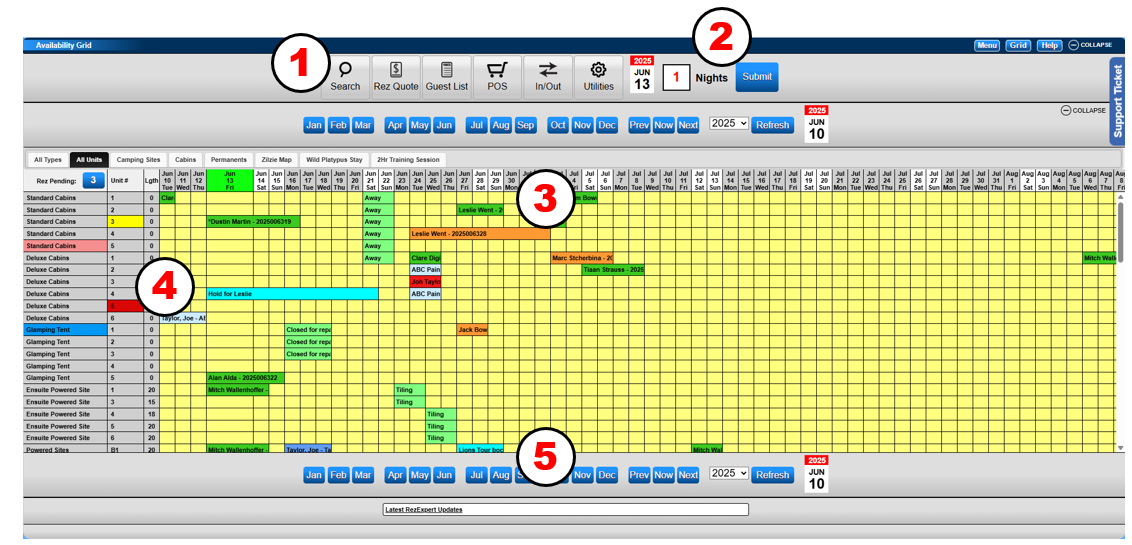
1 - Action Header
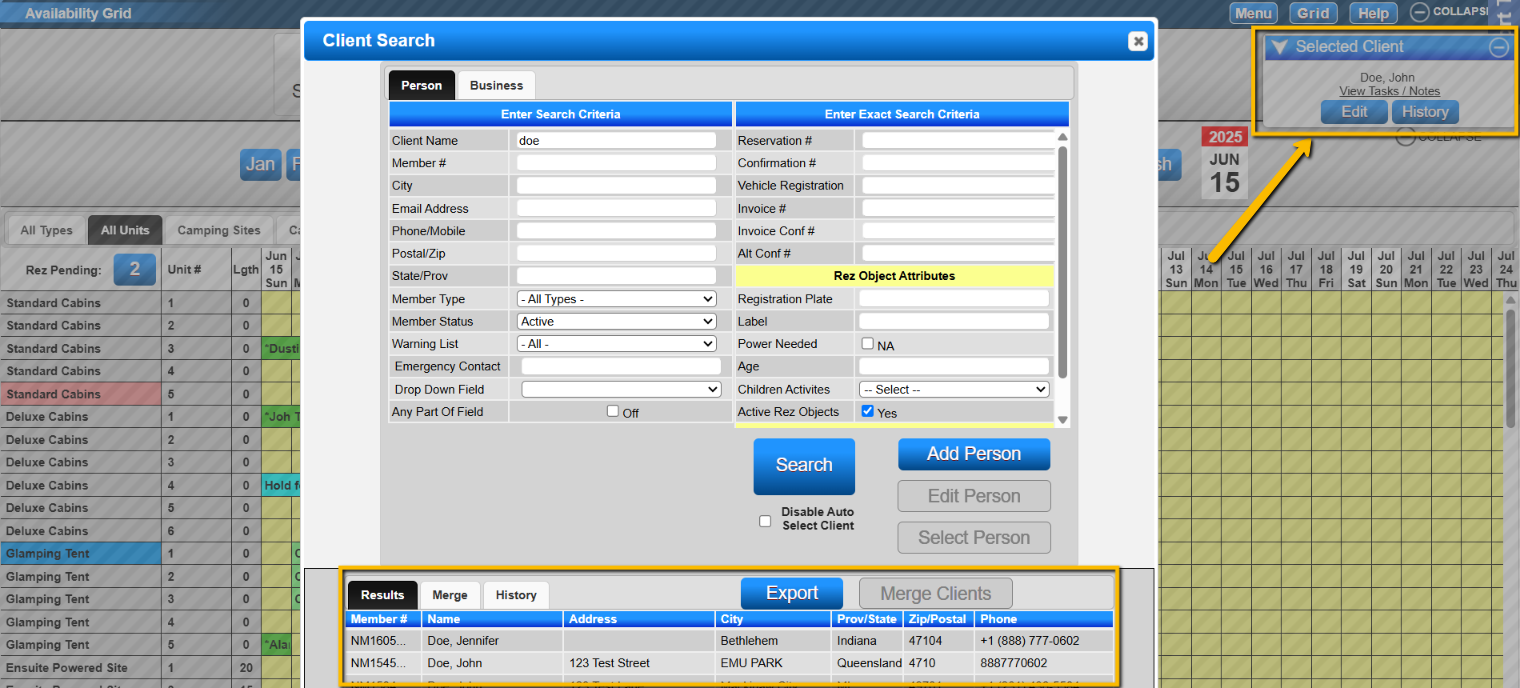
- Search: Provides the Client Search panel for searching persons or businesses.
- Help document on using the Search
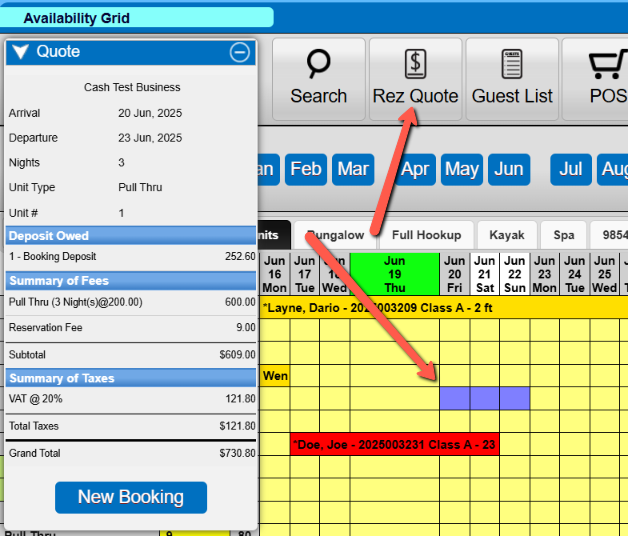
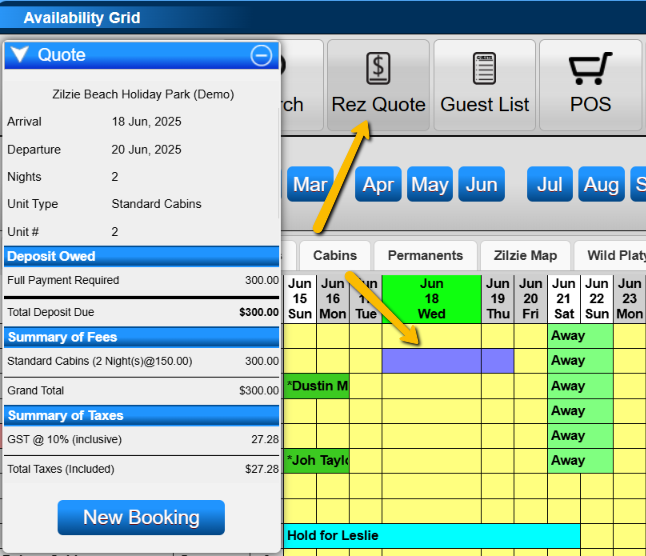
- Rez Quote: Select dates on the grid and click Rez Quote for a quick quotation.
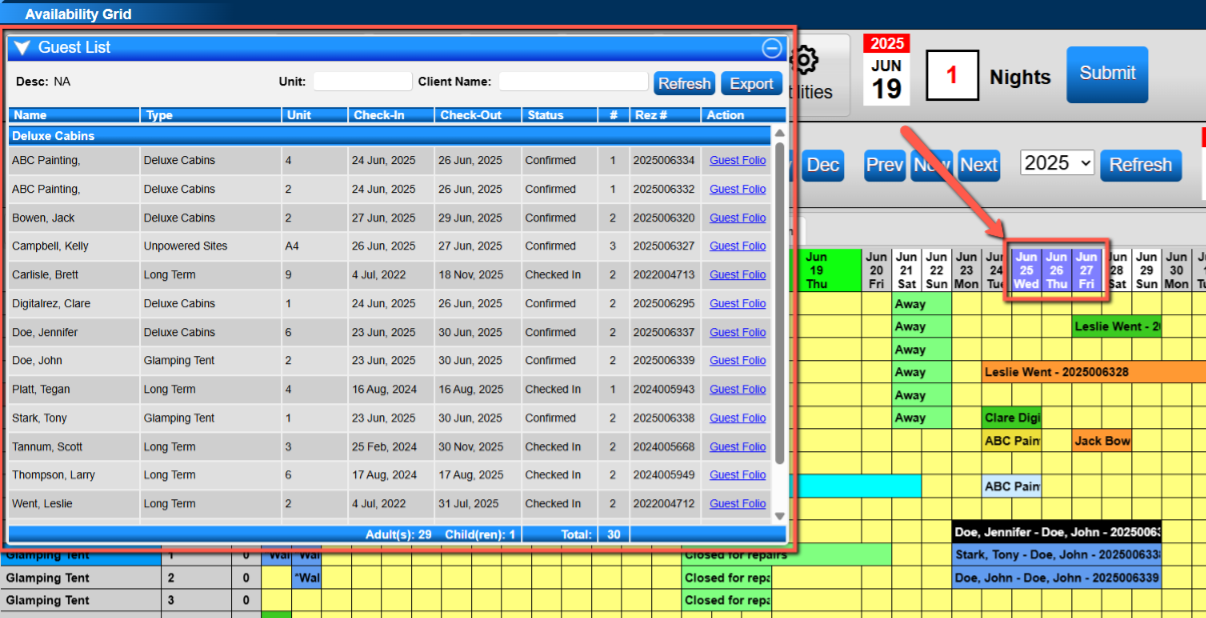
- Guest List: Highlight the Date Row and click Guest List to view reservations onsite between selected dates.
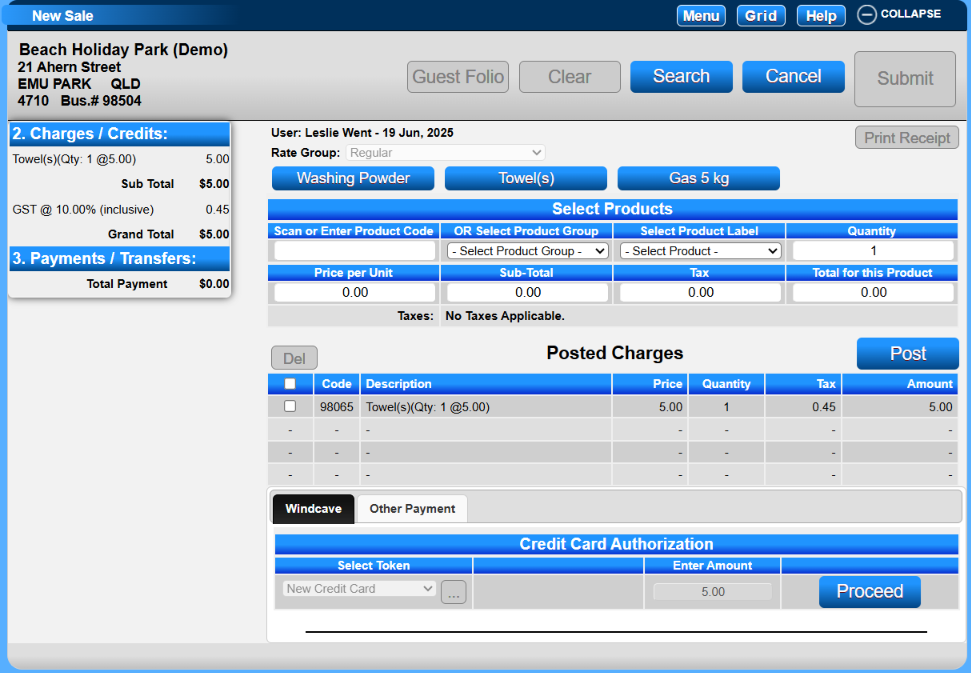
- POS: Opens the Point Of Sale panel for product sales.
- In/Out: Opens the Arrivals/Departures panel to track reservations.
- Utilities: Opens a panel for managing multiple processes.
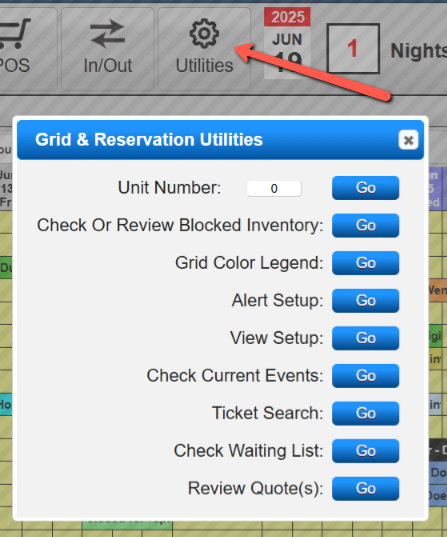
- Unit Number: Enter the unit number/name to jump to that Unit on the Grid.
- Check Or Review Blocked Inventory: Displays 3 weeks of inventory.
2 - Calendar Tool
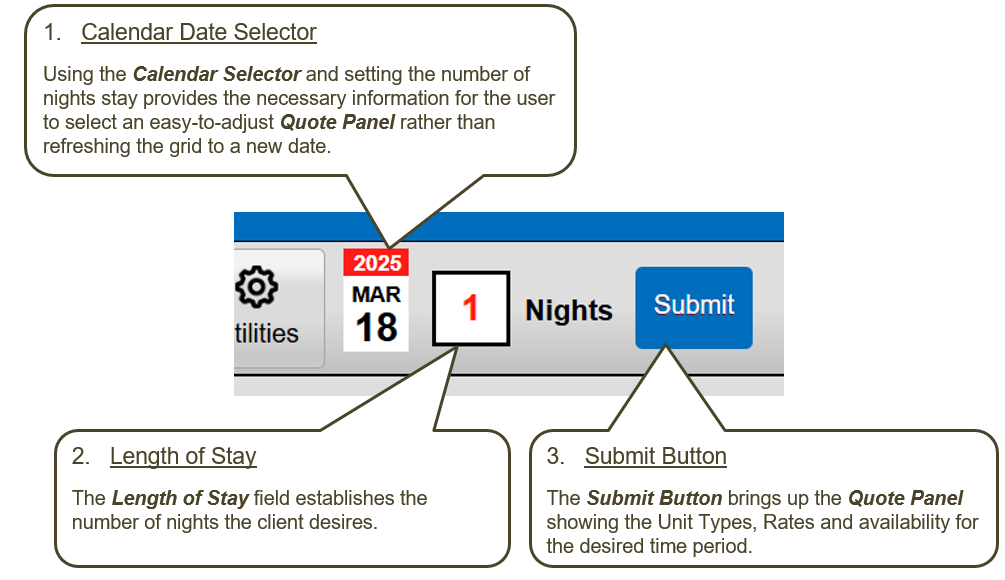
- Provides a tool to create Single and Group reservations by selecting a Date and # of nights stay.
3 - Date Row
- Provides a reference for the reservation grids. Check the header or footer for the year.
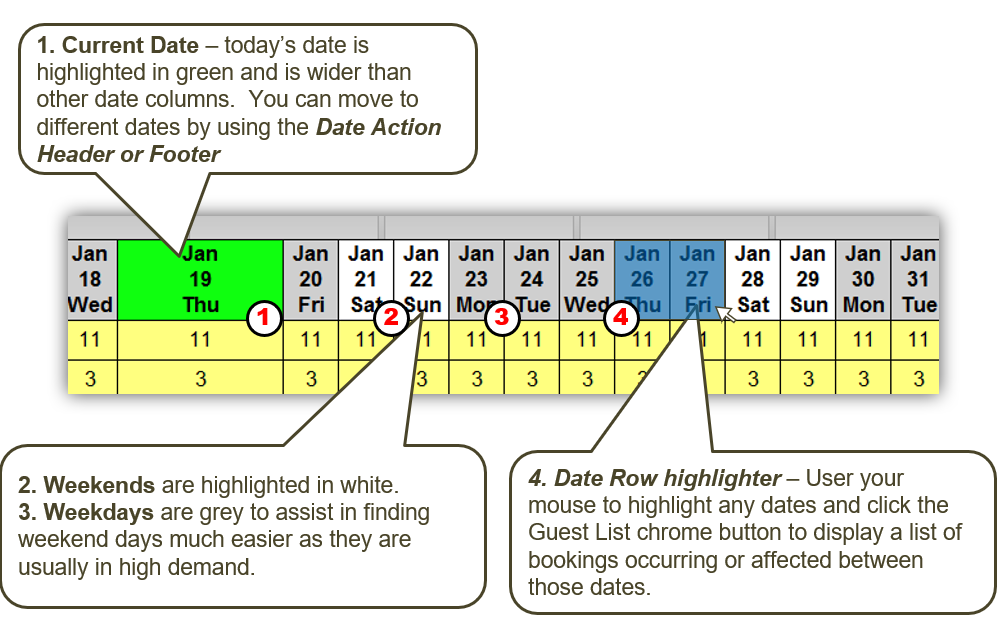
4 - Grid
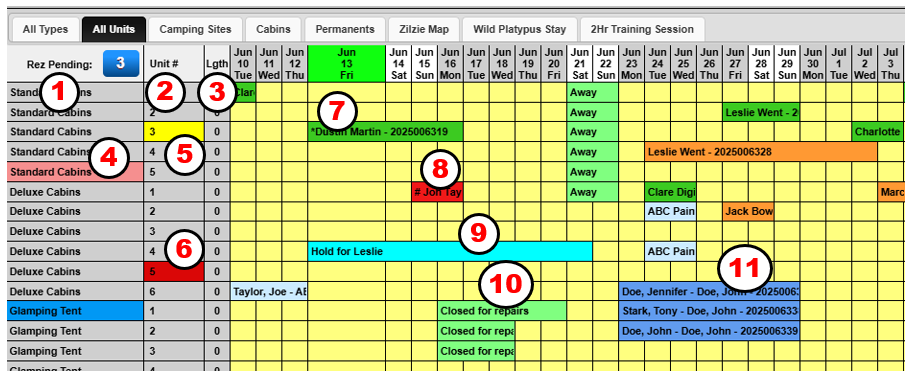
- Displays active Unit Types, Units, and length. Adjust based on Alert colors, Checked In Status, and Clean status.
Rez Pending
- Shows reservations with a deposit policy and no payment. Click to redirect to the Pending tab.
Availability Grid - Grid View tabs
- Allows display by Unit Type, Unit, Map, and Down To The Minute. Create custom Grid Views for specific Units.
Help document on creating Grid Views

Availability Grid - Sections
- Unit Types: Shows the Unit Type name. Click for description and Booking Conflicts.
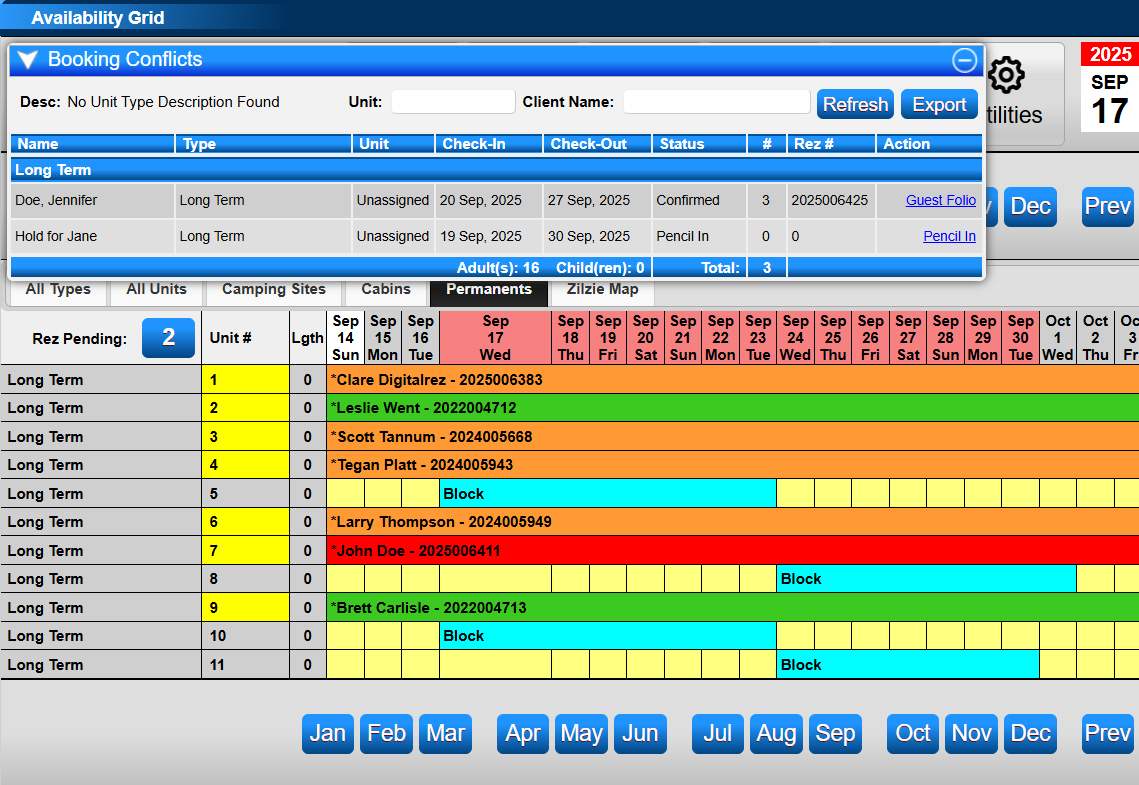
- Unit #: Shows the unit number/name. Click to display Upcoming Bookings & Pencil Ins slider.
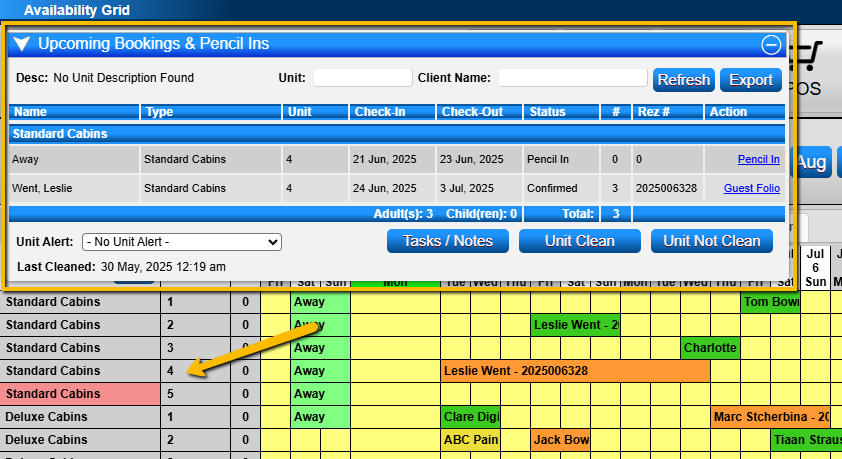
- Length: Displays the length of the Unit if applicable.
- Unit Alert: Displays alert color assigned to a unit.
- Checked In Alert: Yellow alert for checked-in reservations.
- Housekeeping: Red alert for units requiring cleaning.
- Checked In Rez: Displays a * for checked-in reservations.
- Unassigned Rez: Displays a # for unassigned reservations.
- Regular Pencil In: Blocks inventory without affecting occupancy.
- Maintenance Pencil In: Blocks inventory for maintenance, affecting occupancy.
- Group Reservations: Connects multiple reservations into a group.
5 - Date Header/Footer
- Allows quick navigation to a desired time on the grid.

- Month Selector Buttons: Jumps the grid to the selected month.
- Prev: Refreshes the grid backward by one week.
- Next: Refreshes the grid forward by one week.
- Now: Returns to Today’s Date.
- Year: Changes the Grid to the desired Year.
- Refresh: Updates the grid with the latest changes.
- Date Calendar: Selects a date to start the grid from.
Making a Reservation
There are four ways to make reservations:
Rez Quote
- Highlight on the grid and click Rez Quote for a quick quotation. Click New Booking to start data entry.
Calendar Tool
- Create single or group reservations by highlighting on the Grid and clicking Submit.
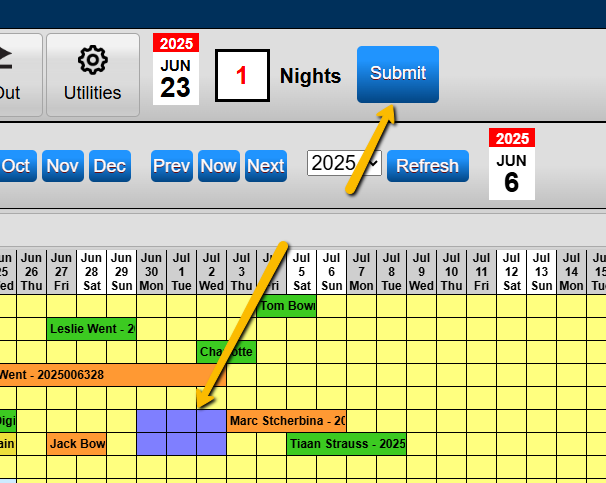
- Select Arrival date, enter nights, and click Submit for Booking Quote.
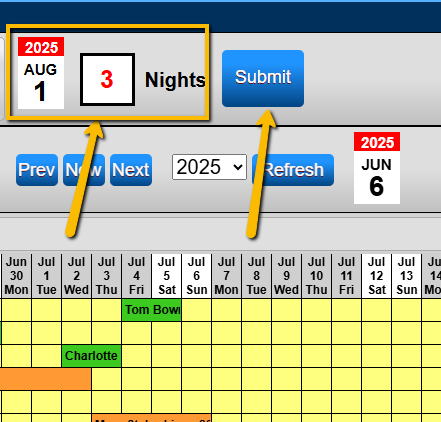
- Note: If the unit is highlighted, it will be assigned in the Booking Quote.
- Help document on creating a group reservation
Map Booking
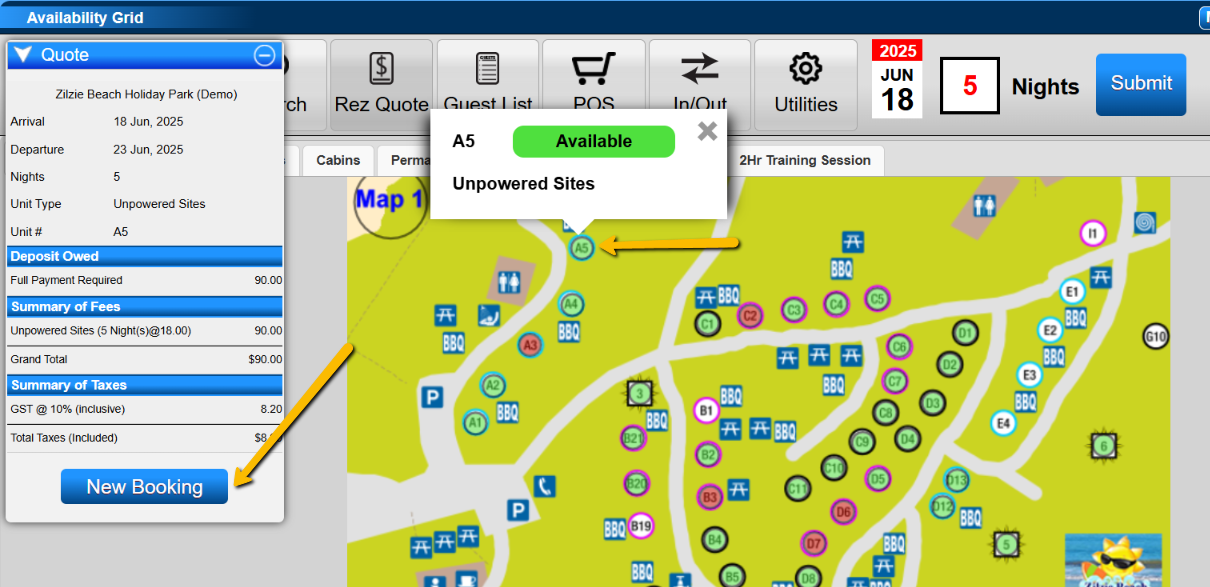
- Use the map to make bookings by setting dates and time frame, then click Submit.
Pencil-In Conversion
- Convert a Pencil In into a reservation by selecting it and clicking Convert.
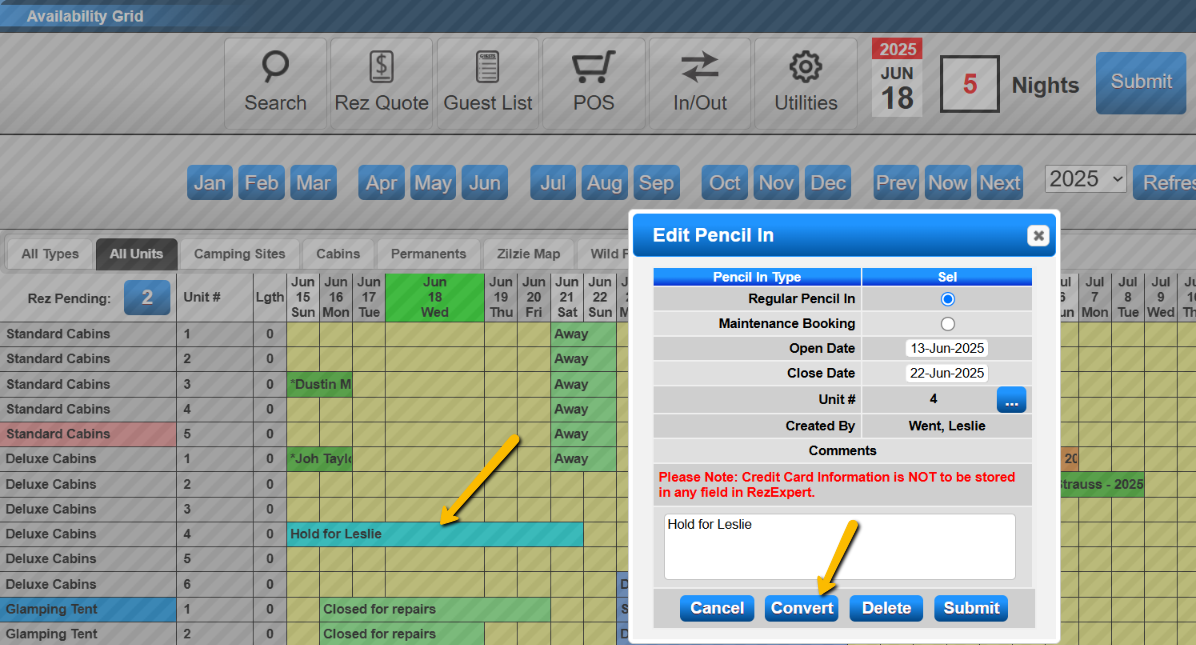
- Note: The comment from the Pencil In will be applied to the reservation comments.
Troubleshooting
- Ensure all prerequisites are met before accessing the availability grid.
- Verify that the correct dates and units are selected when making reservations.
- Check for any alert colors indicating issues with units or reservations.