RezExpert Analytics Panel Usage Instructions
Last modified on:
Overview
The new Analytics panel in RezExpert provides users with data on Percentage Occupancy across multiple Unit Types through charts. Users can choose how the chart will display (Line, Column, and Chart) over the selected Time Period and Unit Types. For more in-depth or dynamic Analytics reporting, contact Tech Support to enable the dynamic Analytics module.
Prerequisites
- Access to the RezExpert system.
- Permissions to view the Analytics panel.
Steps
Location
- Accessing the Analytics Panel:
- Click Home from the Breadcrumb below the Menu Bar.
- Alternatively, click on Dashboard in the Menu Bar and scroll down to expand the Analytics panel.
- Another option is to click on a Menu button, select the Admin tab, and click on Analytics within the Analytics section.
Dashboard Options
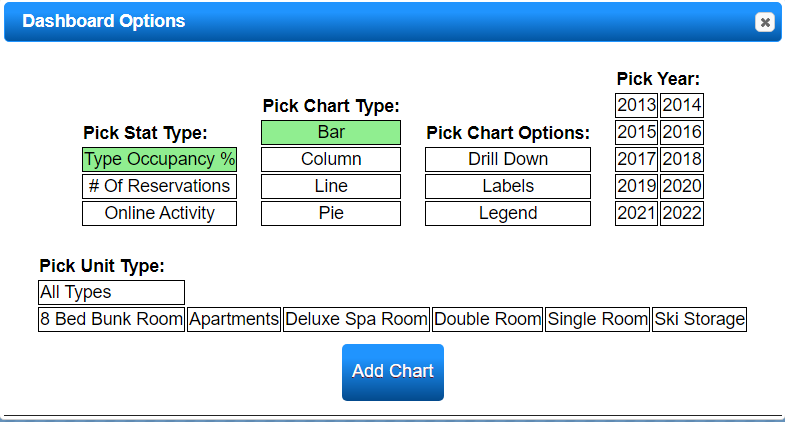
- Selecting Data for Charts:
- Pick Stat Type:
- Occupancy %: Displays monthly occupancy percentages for selected Unit Type(s) and Year(s).
- # of Reservations: Displays the number of reservations on site.
- Online Activity: Displays Online Activity for the Online Booking Interface - Page Load, Availability Check, Booking Quote, Booking Complete.
- Pick Chart Type: Select the Chart Design.
- Pick Chart Options:
- Drill Down: View individual days' % within a selected month (not available on Bar or Line Chart Type).
- Labels: Displays the % figure.
- Legend: Displays the color legend to help identify the Chart Unit Type colors.
- Pick Year: Select the desired year. A comparison of two years can be accomplished by selecting two different years.
- Pick Unit Type: Select the desired Unit Type(s) to report on. All Unit Types will display if currently Open or Closed.
- After making selections, click Add Chart to view.
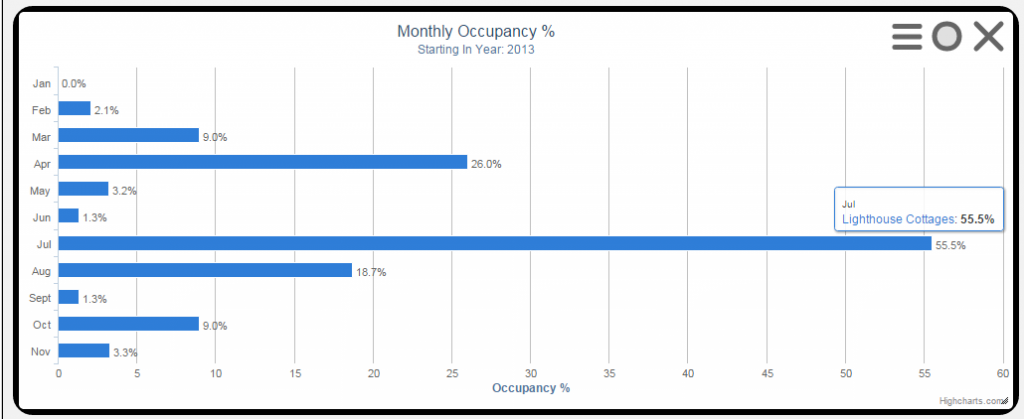
Analytics Chart
- After clicking Add Chart, the chart will display for review.
- Print or Download the Chart:
- Download Options: PNG or JPEG image, PDF Document, or SVG vector image.

- Load Options: Allows you to create more charts.

- Remove Chart:

- Click on the chart to zoom into a particular period. A Reset Zoom option is available to remove the zoom.
Troubleshooting
For any issues accessing or using the Analytics panel, contact your Tech Support team for assistance.