Shopping Cart Functionality for Resort Sales
Last modified on:
Overview
The Shopping Cart functionality allows for the full or partial purchase of one or multiple products/reservations. To use it, the Shopping Cart Module must be enabled. Currently, it is reserved for resort web product sales.
Prerequisites
- Ensure the Shopping Cart Module is enabled.
Steps
Accessing the Shopping Cart
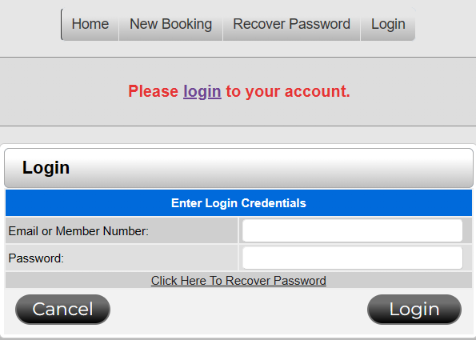
- Log in to the online portal.
-
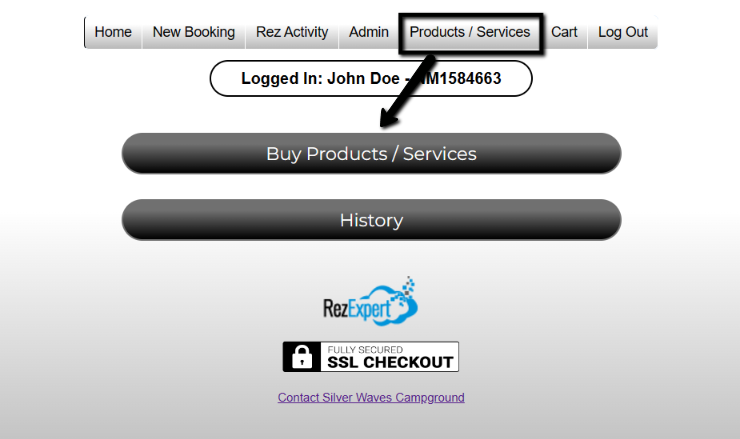
- Select Product/Services.
- Click the "Buy Products/Services" button.
-
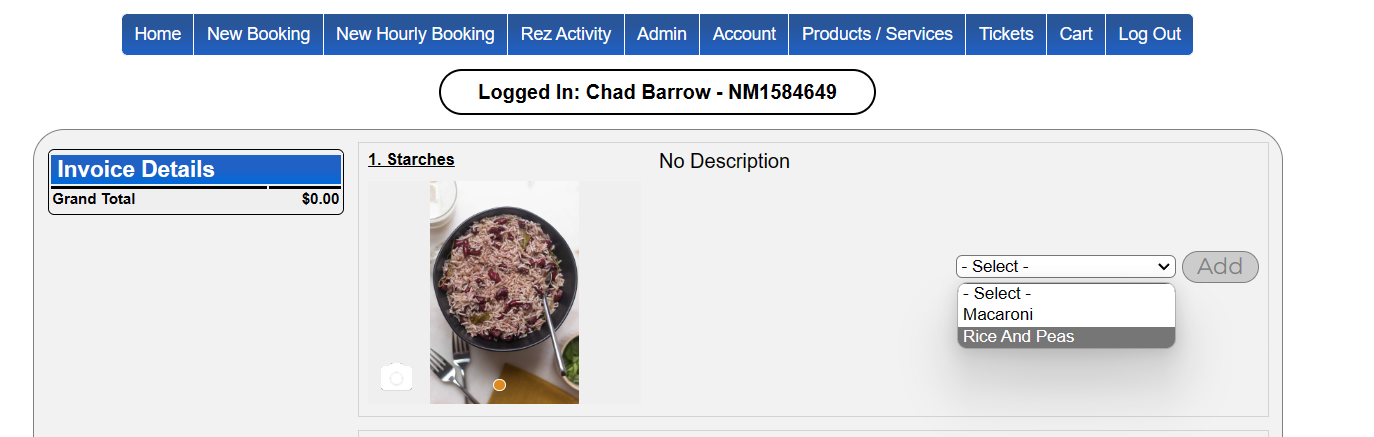
- The product categories should load onto the screen.
- If your desired product belongs to a Product Category:
- Select your desired product from the product dropdown to the right.
- Click the "Add" button.
-
- Otherwise:
- Select your desired quantity using the -/+ button.
- You can do this for multiple products before proceeding to cart or pay now.
- Click the checkbox above “Add to Cart” to accept and agree to the Business Policies provided (after reading them).
-
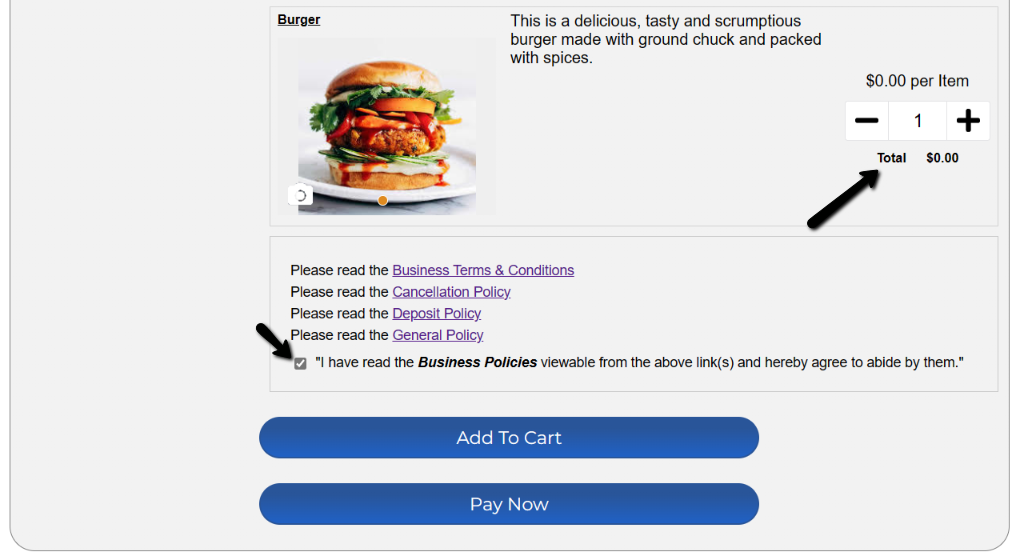
- The "Add to Cart" and "Pay Now" options are now available to be clicked.
- Click "Add to Cart" to open the Shopping Cart interface on the right.
Shopping Cart Interface
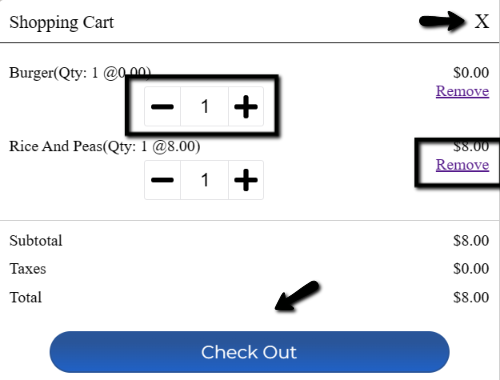
- You can increase or decrease product quantity using the -/+ controls.
- To remove an item from the shopping cart, click the “Remove” button to the right.
- To collapse the Shopping Cart panel, click the X to the top right.
- You can also add to the cart by going back to the main products page to redo an order.
- To pay for your cart items, click "Check Out".
Check Out Interface
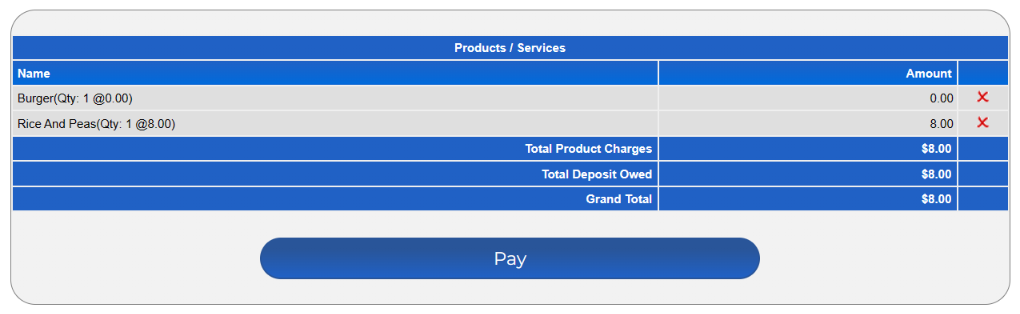
- The Check Out Interface loads your products selected for checkout.
- It shows the product names on the left, costs on the right, and balances below on the right.
- The X on the far right can be used to remove a product before paying.
- Click "Pay" to proceed to the Payment Interface.
Payment Interface
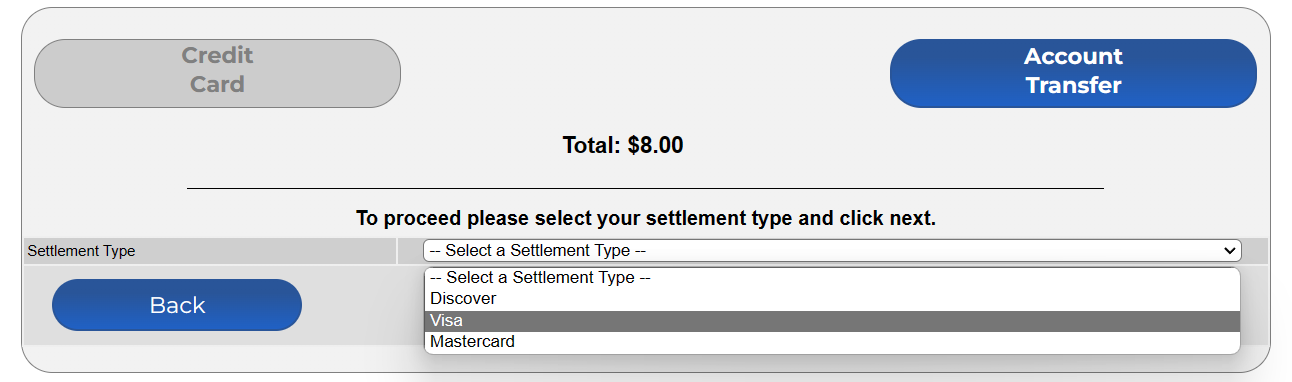
- The Payment Interface is where you select the type of payment.
- Options are Credit Card and Account Transfer (Account Transfer appears if enabled for settling charges to Account Receivable).
For Credit Card:
- Select your Settlement Type.
- Click "Next".
- Click "Proceed" and enter your information to pay for your products.
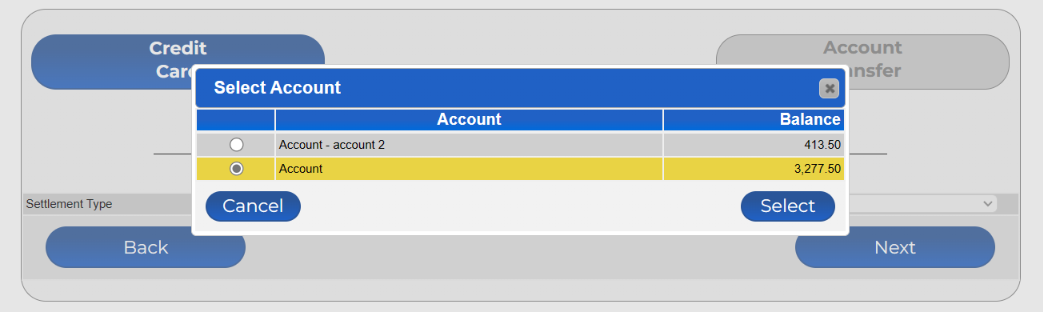
For Account Transfer:
- Click "Next".
- Select the Account you are using for the transfer (if multiple).
Shopping Cart Review
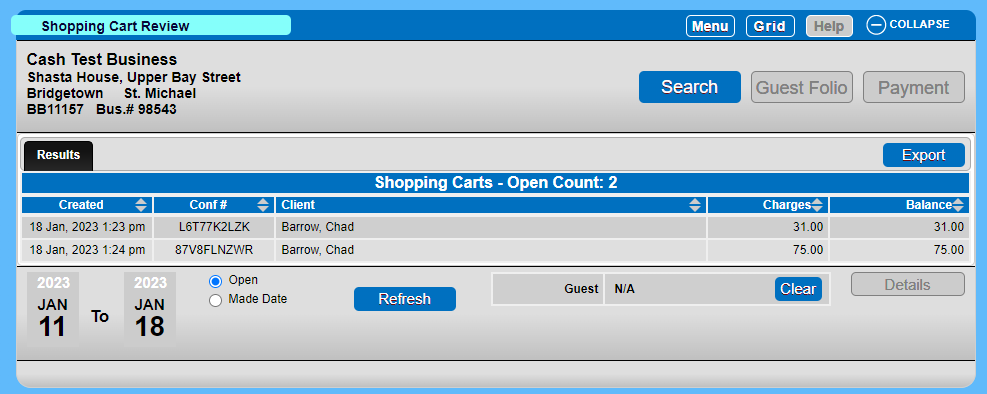
- The Shopping Cart Review Panel displays all registered shopping carts. Those with an outstanding balance will display by default.
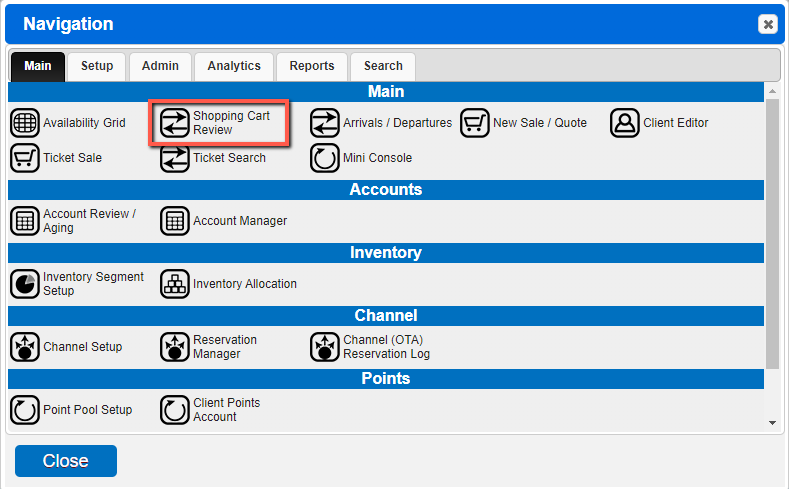
Location:
- Click "Menu".
- Main.
- Shopping Cart Review.
- The panel is also located below the Availability Grid on your RezExpert System.
- Click "Expand" on the right to view your Shopping Cart Results.
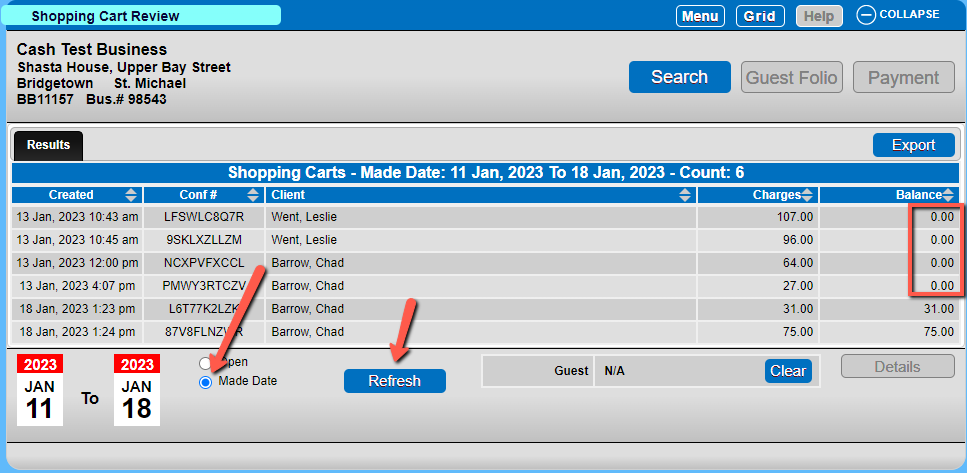
- By default, the Results panel shows all Shopping Carts with an outstanding balance.
To include Paid for transactions:
- Click the “Made Date” filter in the bottom left.
- Adjust the calendars to your desired time frame.
- Click the "Refresh" button.
To show only Shopping Carts with a balance:
- Click the “Open” filter in the bottom left.
- Click the "Refresh" button.
To view the details of a Shopping Cart:
- Select the row of the Cart you wish to view.
- Click the "Details" button on the bottom right.
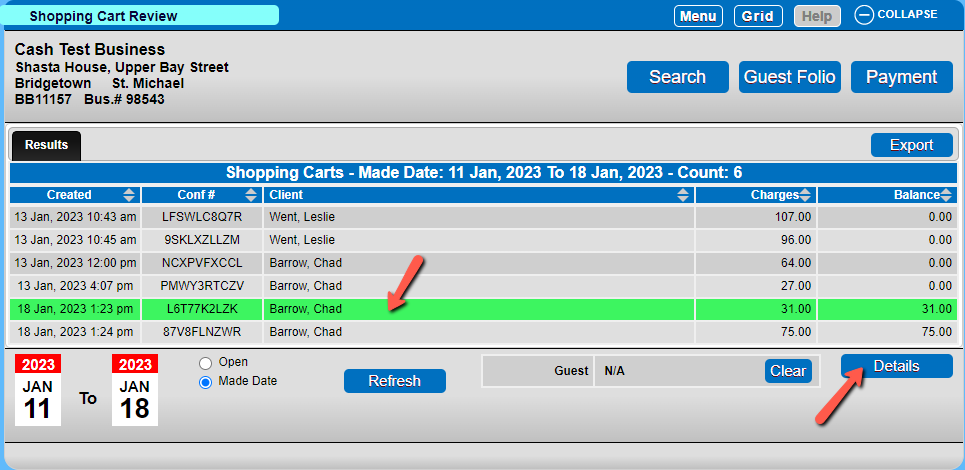
- The POS Details panel loads on the left, showing the details of the chosen Shopping Cart in a Till Tape.
- To collapse the panel, select the "–" sign at the top right of the Till Tape.
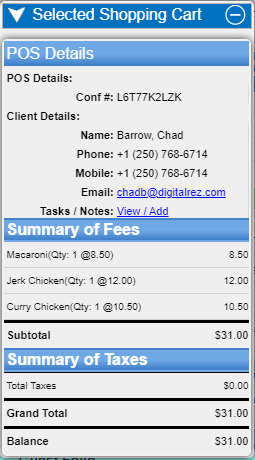
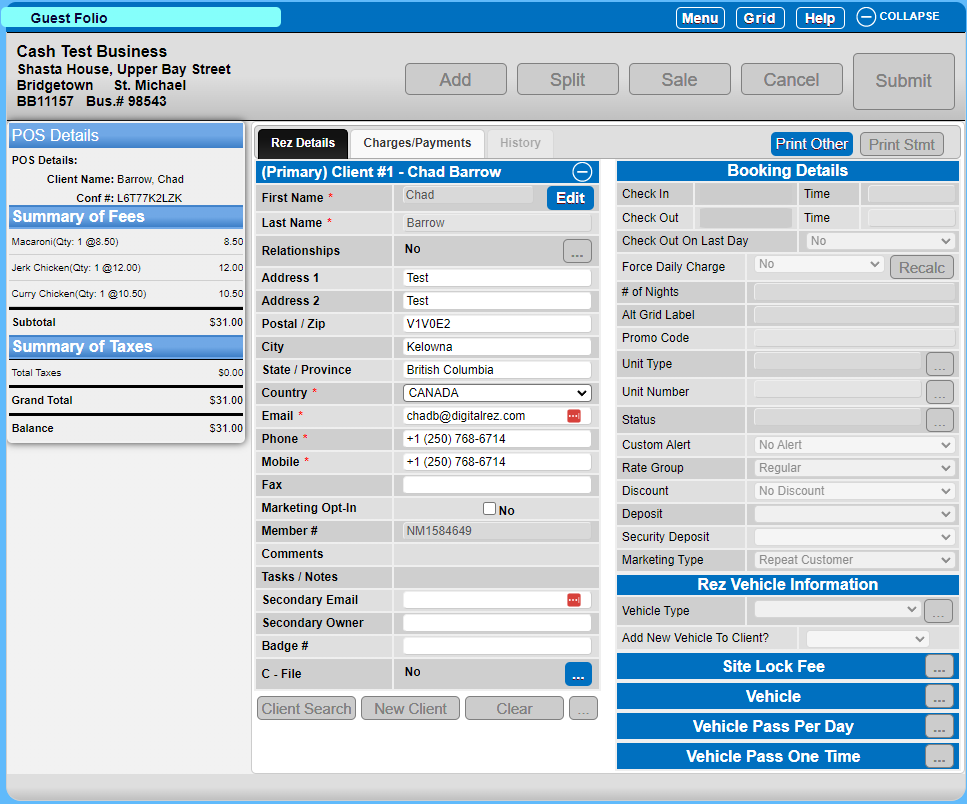
- You can also view the details by selecting the "Guest Folio" button at the top, which activates when a Results row is selected.
- In the Guest Folio, the Till Tape with the Shopping Cart details shows on the left.
- The client information, which is editable, shows in the middle.
Settling a Shopping Cart
To settle your outstanding Shopping Cart balance by card:
- Select the desired Shopping Cart.
- Click the “Payment” button in the top right.
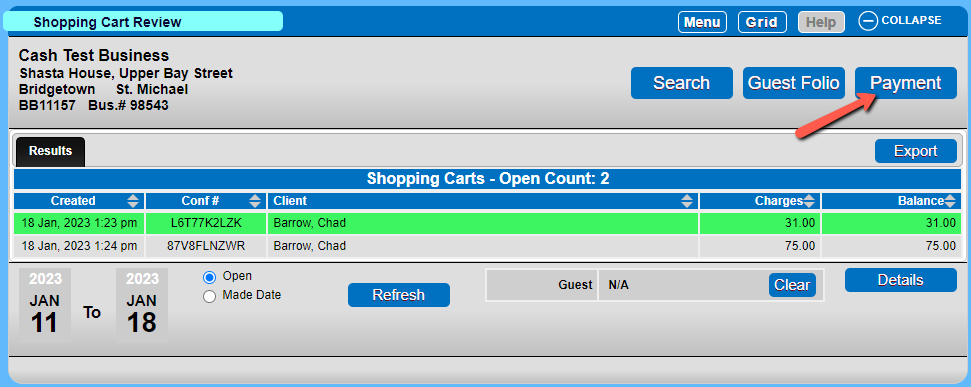
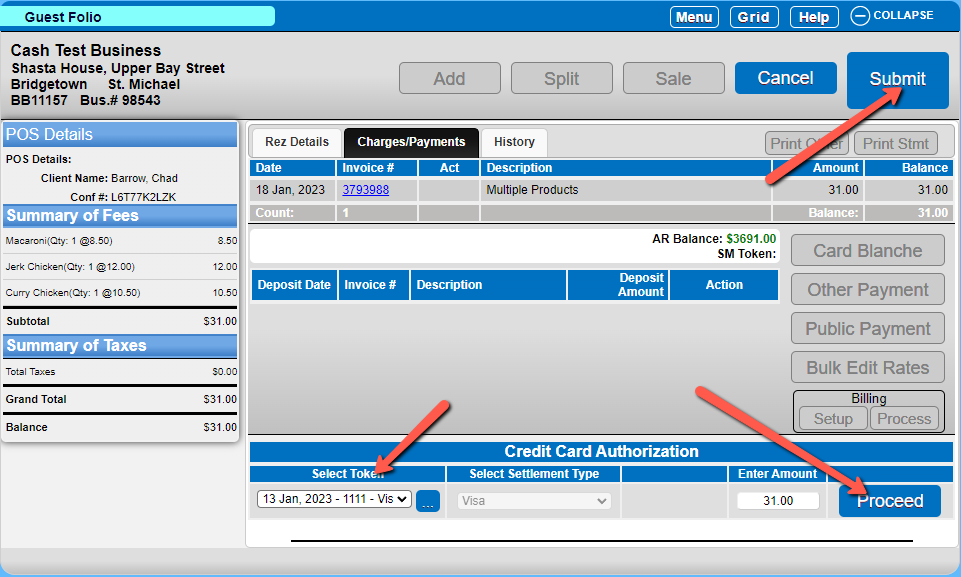
- This loads the Guest Folio Charges/Payments panel.
- Select token and Settlement type in the Credit Card Authorization section (New Credit Card if this is your first time).
- Click "Proceed".
- Enter the required details and submit.
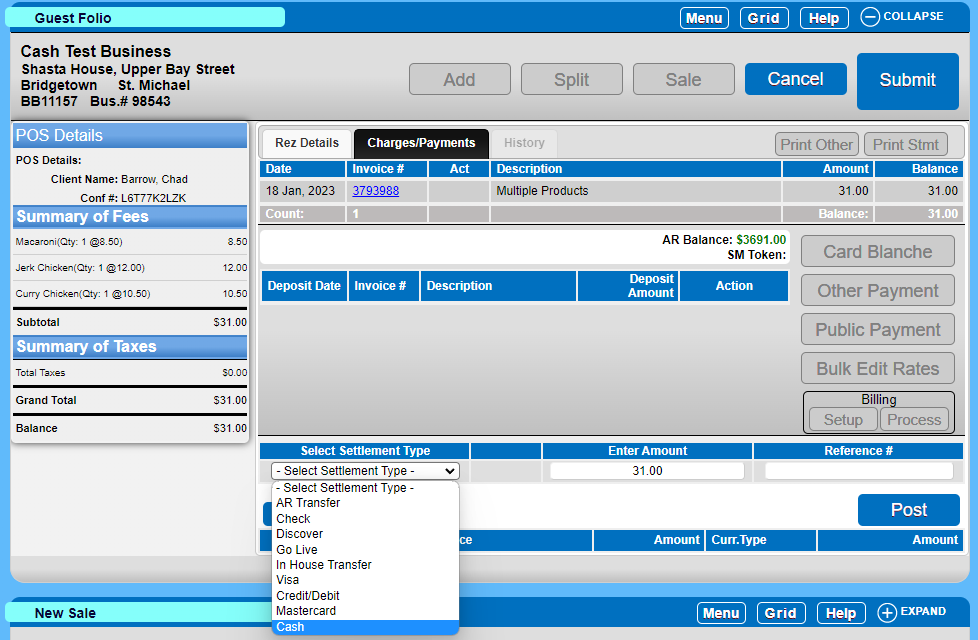
To Pay by Cash/Other Payment type:
- Click the "Other Payment" button.
- Select Settlement Type below.
- Enter desired payment amount.
- Click the "Post" button.
- Click the "Submit" button at the top right.
Troubleshooting
- Ensure the Shopping Cart Module is enabled if you cannot access the Shopping Cart.
- Verify product categories are loading correctly; refresh the page if necessary.
- Check your internet connection if images or interfaces do not load properly.