Billing Policy Review Overview and Management
Last modified on:
Overview
The Billing Policy Review allows you to view all billing policies according to their Policy Type and status.
Prerequisites
- Access to the Admin tab in the menu.
Steps
Location
- Click on a Menu button, select the Admin tab, and choose Billing Policy Review.
- Alternatively, click on the Admin button within the Menu Bar.
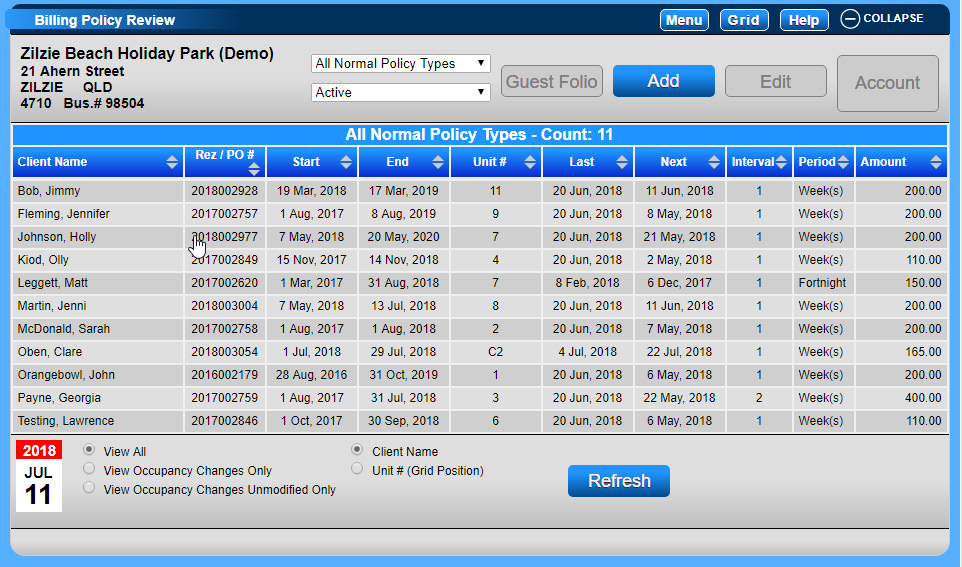
Panel
- Policy Type dropdown: Allows you to narrow the display to a selected policy type. By default, all Policy Types are displayed.
- Status: Select a specific policy status (e.g., Active or Pending). By default, Active is displayed.
- A total count of billing policies is displayed at the top of the panel.
Columns
- Client Name: Displays the client (or Business) name assigned to the Billing Policy.
- Rez/PO #: Displays the reservation number or the Account/PO # number assigned to the billing policy.
- Reservation policy types display the reservation number.
- Account policy types display the PO # if entered; otherwise, the column is blank.
- Start: Start Date of the billing policy.
- End: End Date of the billing policy.
- Unit #: Unit # assigned to the billing policy. Displays "Unassigned" if the destination is Account.
- Last: Last date that billing was processed for the billing policy. Displays "N/A" if none has been processed.
- Next: Next Date of the Billing Policy.
- Interval: Billing Interval set up within the billing policy.
- Period: Time Period set up within the billing policy.
- Charges: Total of the billing product rates to be charged for the next billing date.
- Payments: (Recur Pay Policies only) Payment amount of the recurring payment policy.
Each column is sortable by clicking on the column header.
Panel Footer
- Client Name: Displays billing policies by Client Name. Default display is by Client Name.
- Unit # (Grid Position): Displays billing policies by Unit # Grid position. Select the radio button and click Refresh to sort by Unit #.
Billing policies with recent adjustments (processed or edited) are highlighted in yellow.
- View Occupancy Changes Only: Displays policies with modified Occupancy Logs.
- View Occupancy Changes Unmodified Only: Displays policies with unmodified Occupancy Logs.
The calendar on the right allows you to select the date of Occupancy Changes.
Panel Buttons
- Add: Directs you to the Billing Policy Setup panel to search for the client and create a new billing policy. If an existing policy is selected, the new policy is assigned to the selected Client Name.
- Edit: Allows you to edit a selected billing policy. Directs you to the Billing Policy Setup panel for edits.
- Guest Folio: Directs you to the reservation’s Guest Folio.
- Account: Directs you to the attached Account Receivable account.
Troubleshooting
- Ensure you have the necessary permissions to access the Admin tab.
- Verify that the correct policy type and status are selected if policies are not displaying as expected.
- Check for recent adjustments if policies are highlighted in yellow.