Feature Setup for Resort Web Portal
Last modified on:
Overview
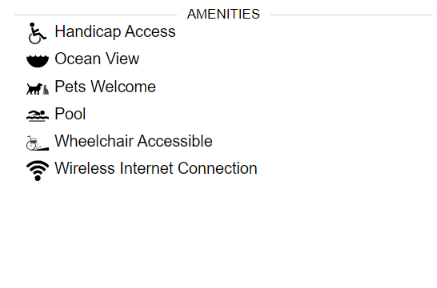
The Feature Setup allows you to add an icon that symbolizes a useful and/or applicable feature included with the Unit Type(s). These features are displayed on the Online Portal (Resort Web). For example, if your unit type allows for Handicap Access, this can be easily displayed on your unit type description under amenities.
Prerequisites
- Access to the Menu
- Access to the Setup section
- Access to the Feature Setup (located below the Business Setup section)
Steps
How To Activate A Feature
- To add a feature, select the activate button.
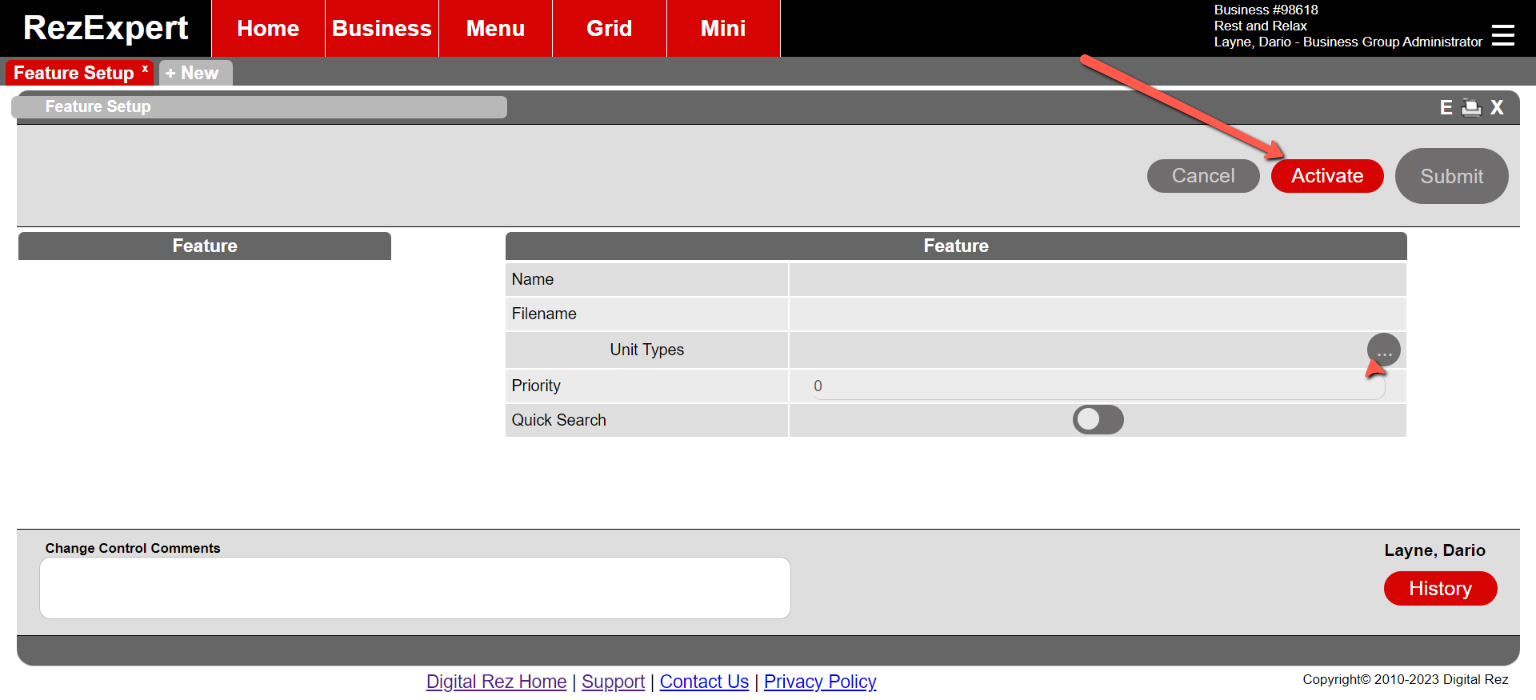
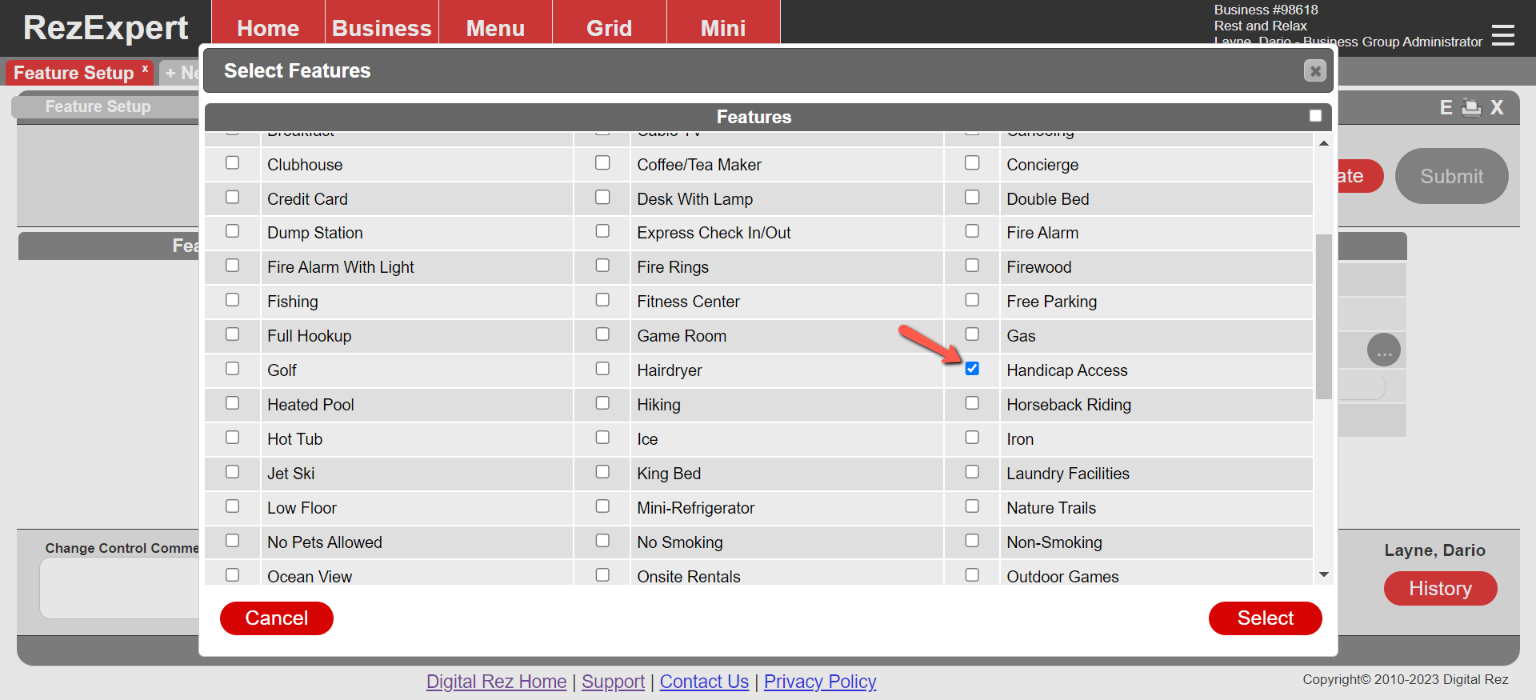
Select Features
- Check the feature(s) to be displayed on the Resort Web Portal.
- Click Select, then Submit when finished.
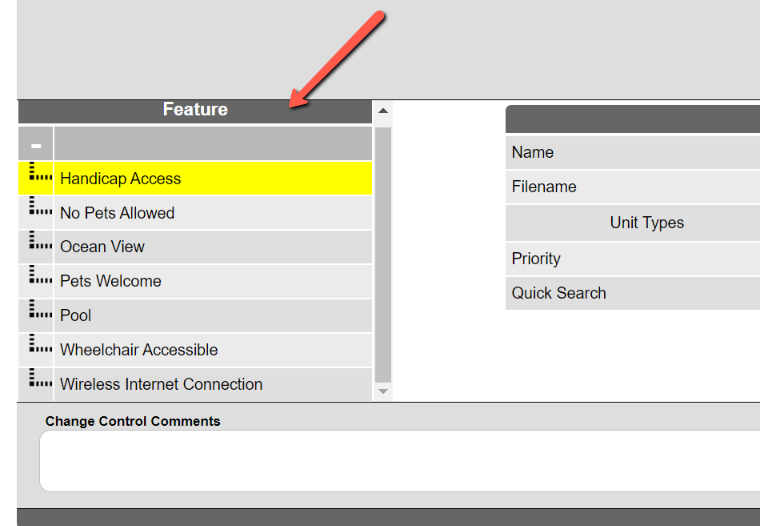
Adding Features to Unit Types
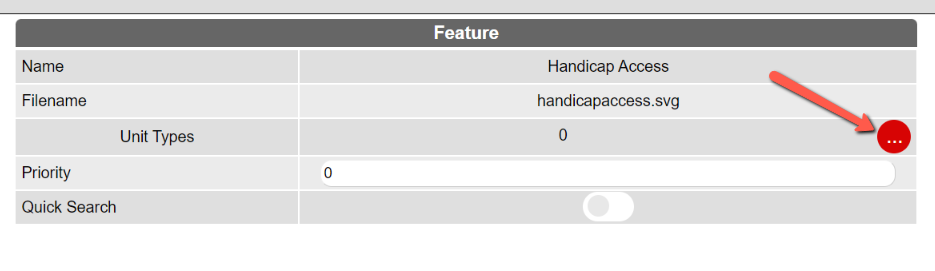
- Click on the Feature from the left side of the page to add features to unit types.
- Next, click on the three-dot button.
- Check the Unit Types that are applicable, click Select, and then Submit.
- Note: Priority orders the arrangement of the list.
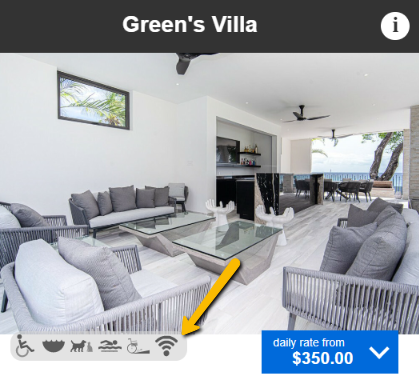
Mobile - Online portal sample image
Troubleshooting
- Ensure that all prerequisites are met before attempting to activate or add features.
- Verify that the correct features are selected and submitted for display on the Resort Web Portal.