Credit Card Preauthorization Process Steps
Last modified on:
Overview
This document provides a step-by-step guide to completing a credit card preauthorization through the guest folio.
Prerequisites
- Access to the guest reservation and folio.
- Necessary permissions to process payments.
Steps
1. Open the Guest Reservation
- Navigate to the Guest Folio of the reservation you wish to process.
2. Go to Charges & Payments
- Click on the Charges & Payments tab within the folio.
3. Open the Payment Gateway
- Click the Gateway button.
4. Enable Preauthorization
- In the payment window, check the box labeled "Preauthorization."
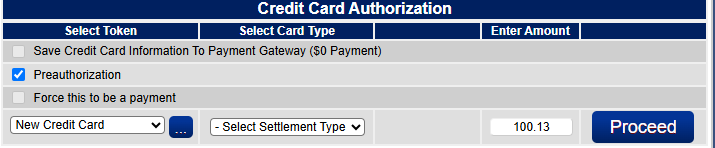
5. Select the Payment Method
- Choose one of the following:
- New Credit Card: Manually enter the guest’s credit card information.
- Stored Token: Select an existing saved card from the dropdown menu.
6. Enter the Hold Amount
- Type in the amount you wish to place on hold.
7. Process the Hold
- Click Proceed to initiate the hold.
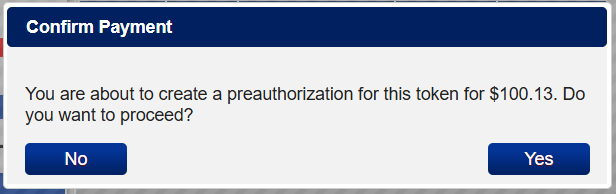
- When the Confirm Payment prompt appears, click Yes to complete the preauthorization.
Completed PreAuth
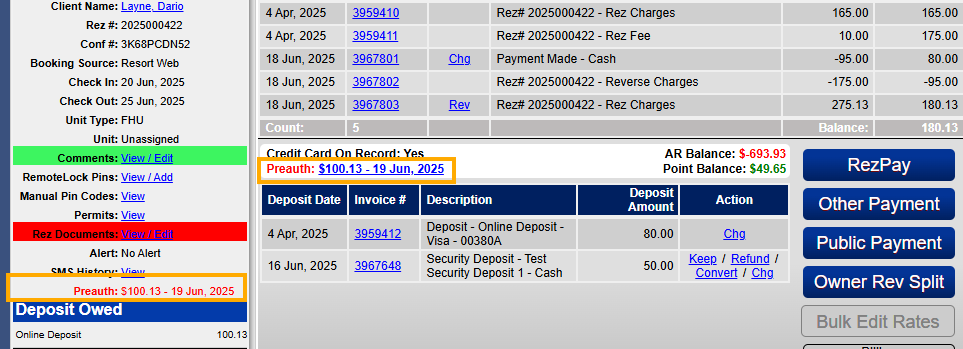
Troubleshooting
Capturing or Voiding a Preauthorization
After a preauthorization has been placed, follow these steps to either capture the funds or void the hold:
1. Open the Guest Folio
- Navigate to the reservation and go to the Charges & Payments tab.
2. Click the Gateway Button
- Open the Gateway dialog as you would for any payment action.
3. Select the Preauthorization Token
- From the list, choose the token labeled with "Preauth."
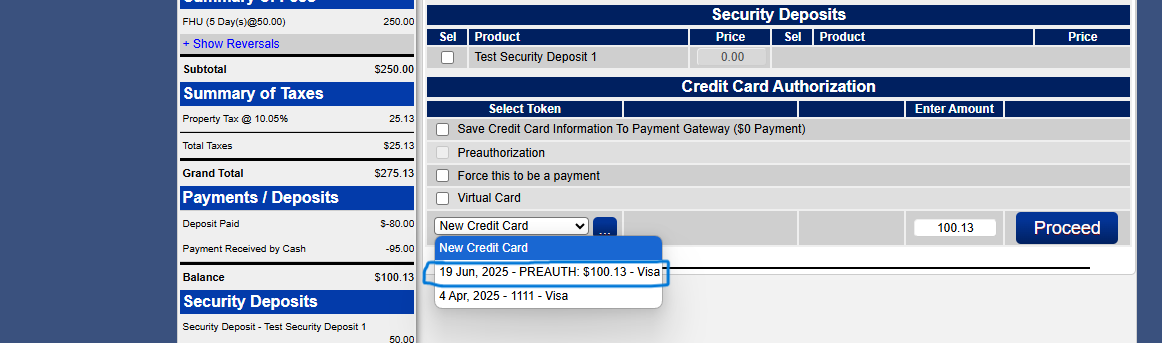
4. Choose an Action
- Capture: Charges the card for the preauthorized amount.
- Void: Cancels the preauthorization and releases the hold.
