Creating and Managing Custom Alerts
Last modified on:
Overview
Custom Alerts can be created to adjust the color of a reservation or a unit to advise operators of special requirements for that reservation or unit.
Prerequisites
- Access to the Availability Grid
- Access to the Setup tab
Steps
Location
There are two ways to access the Alert Setup panel:
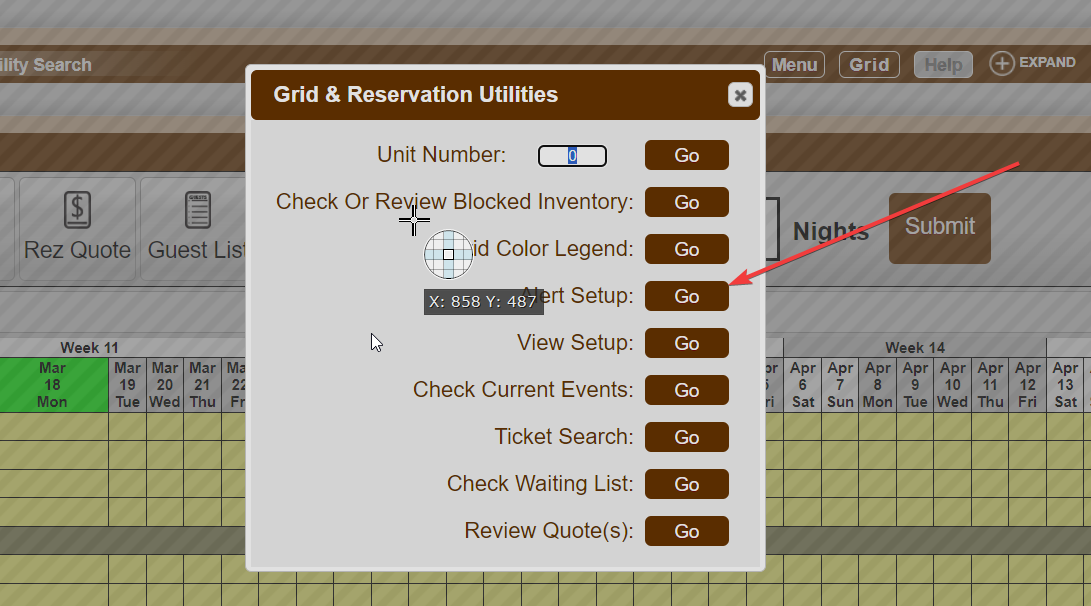
- Click the Utilities button from the Availability Grid and select Go next to Alert Setup.

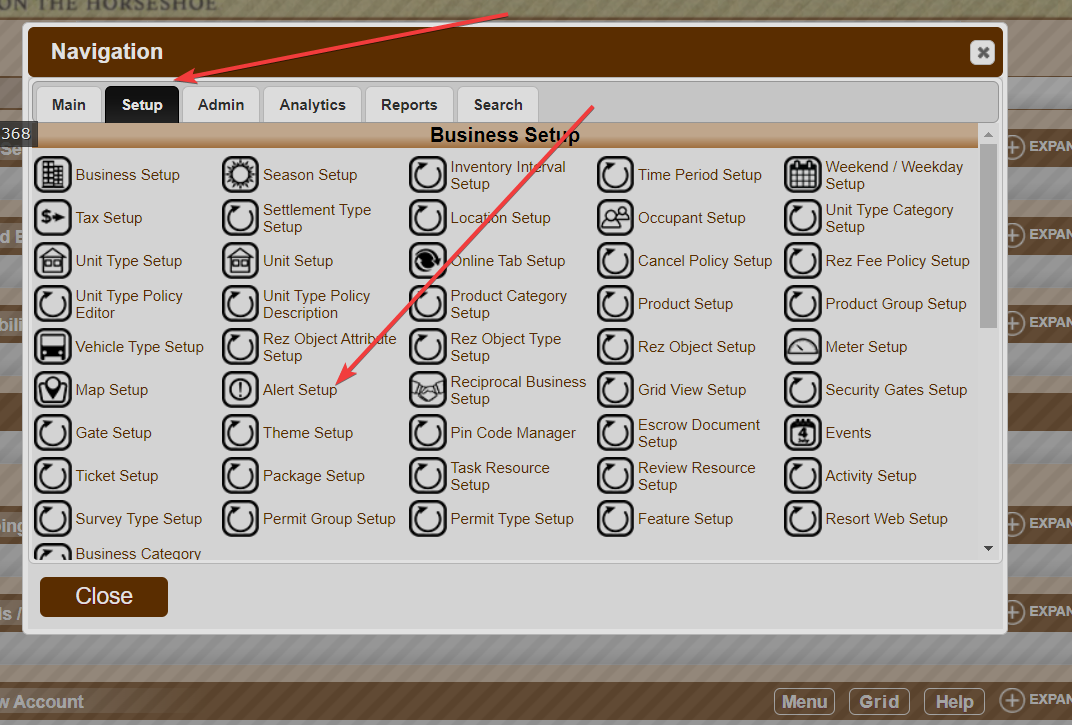
- Click on a Menu button, select the Setup tab, and click on Alert Setup.

Creating a Custom Alert
- Click Add to create a Custom Alert.

- Enter the following details:
- Label: Enter the name of the Alert.
- Colour: Select the color of the Alert from the Colour Wheel.
Note: As the reservation/unit text is black, avoid dark shades as this will make the text unreadable.
- Alert Type: Select the destination of the Alert – Reservation or Unit.
- Description: Enter the description of the Alert.
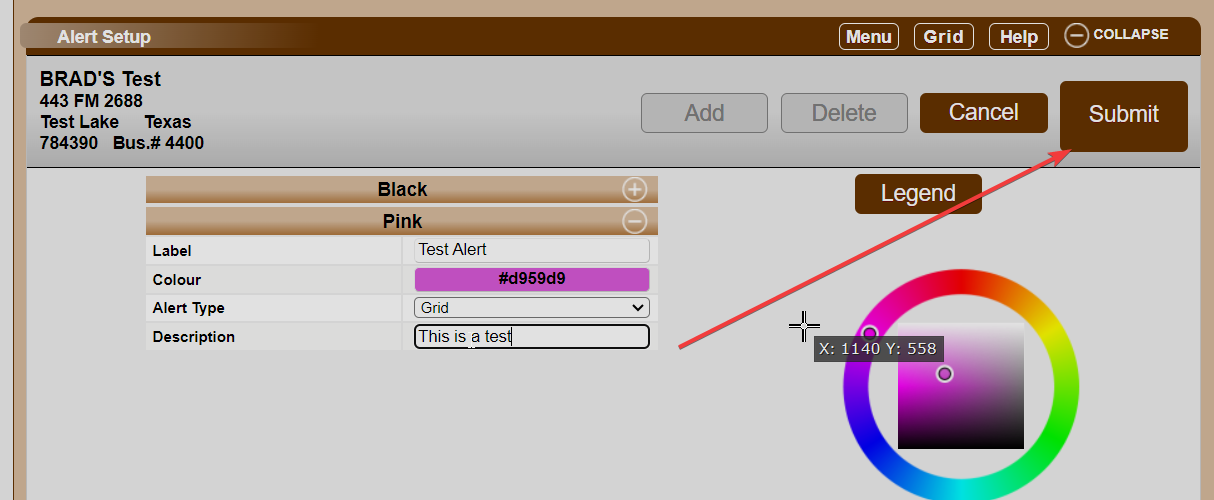
- Press Submit to finalize.
Setting an Alert to a Unit
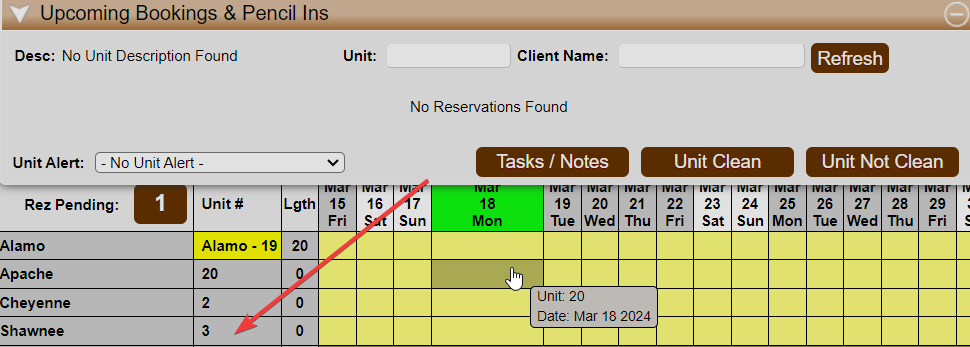
- Click on the Unit # within the Availability Grid.
- The Upcoming Bookings & Pencil Ins dropdown will appear.
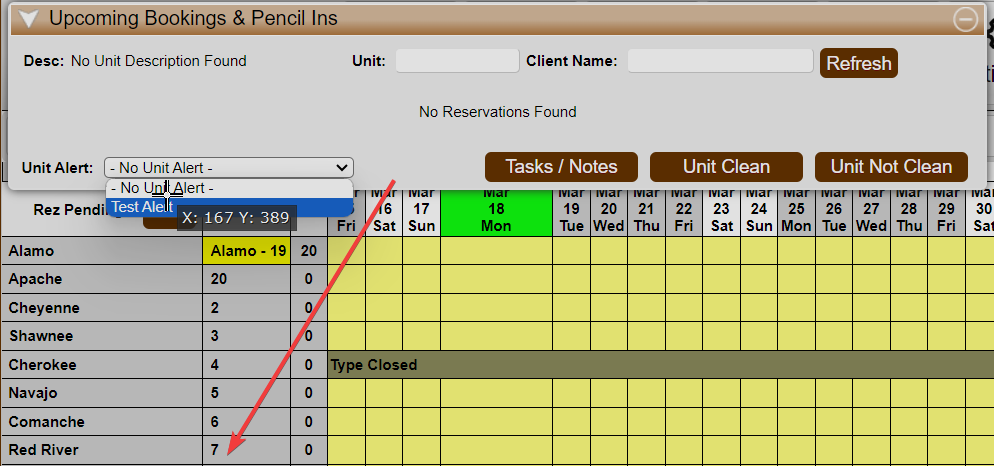
- Select the desired alert from the Alert dropdown.
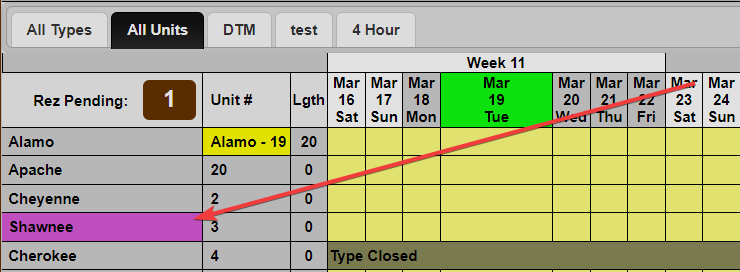
- The Unit Type color will change for the selected Unit.
Setting an Alert to a Reservation
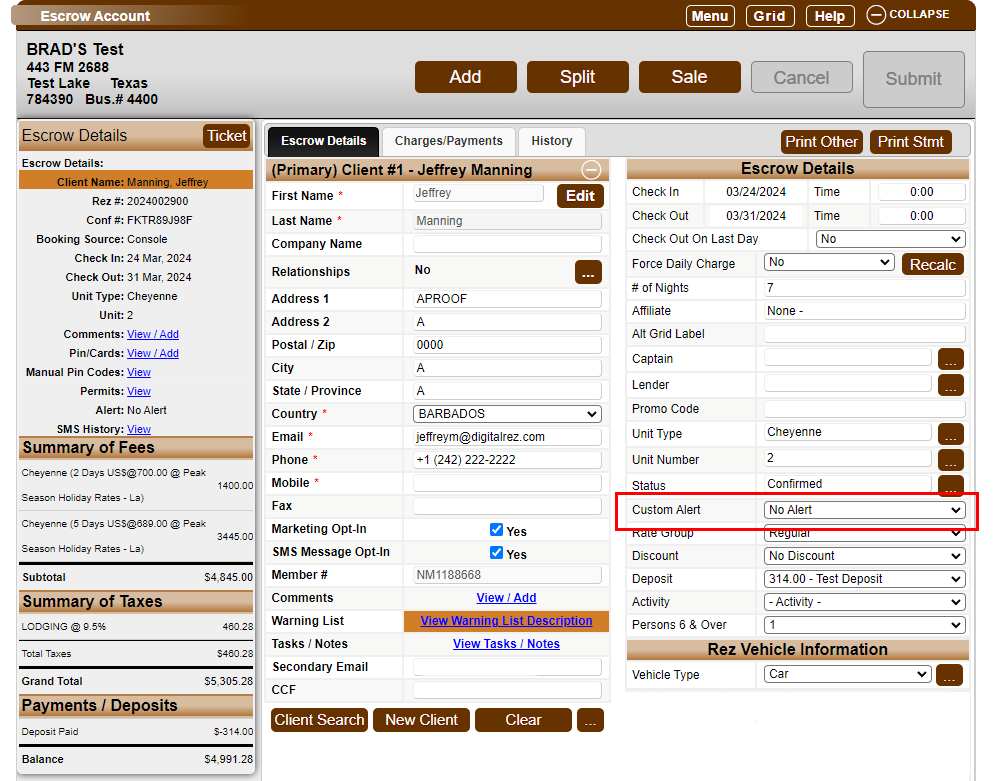
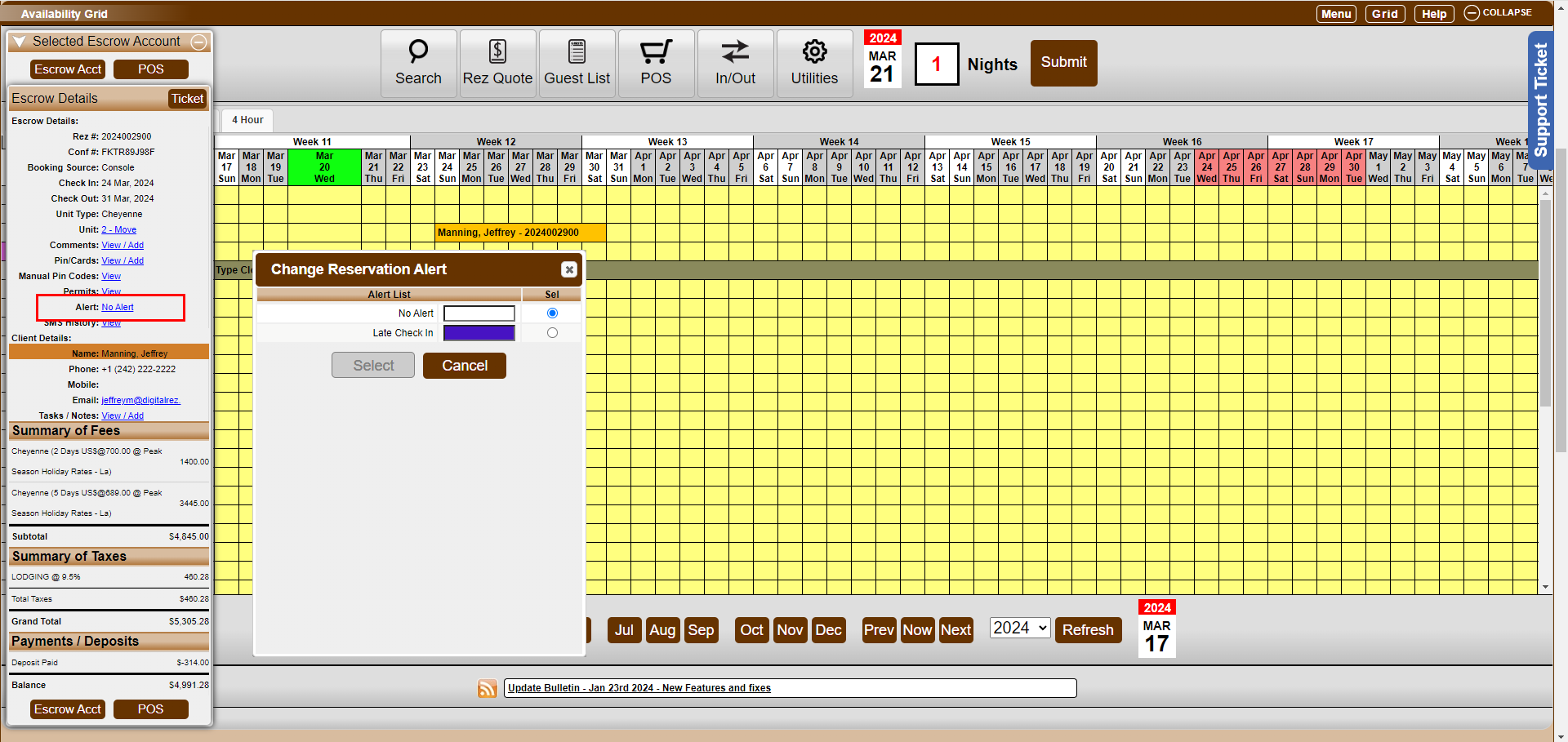
After creating the alert, you can select the desired alert from the Guest Folio of the reservation. Alerts can also be viewed from the dropdown till tape when the reservation is selected.
Troubleshooting
For additional help, refer to the help document.
Help Video
Watch the Alerts Setup video for a visual guide.