Adjusting Rates for Seasonal Reservation Changes
Last modified on:
Overview
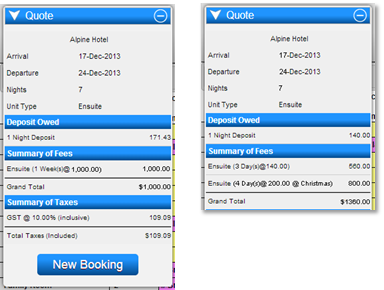
Week-long reservations made over a season or rate change will be charged the weekly rate of the check-in date. However, you may require each day to be charged according to the correct season daily rate. For example, 3 days at a low rate and 4 days at a high rate, instead of 1 week at a low rate.
Prerequisites
- Access to the Rates Setup within the Pricing and Rates section.
Steps
- Location
- Click on a Menu button.
- Select the Setup tab.
- Click on Rates Setup within the Pricing and Rates. - Select Date for Rate Change
- Click on the Select Date button.
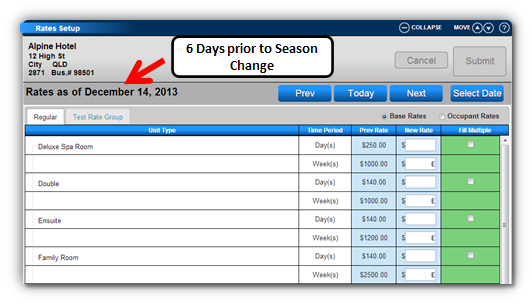
- Select 6 days prior to a season change (e.g., 14th December for a new season/rate change beginning on 20th December).
- In the Week(s) time period, enter E in the New Rate column.
- Press Submit to finalize.
- New Season Rate
- Press Select Date and select the date of the start of the season.
- Ensure that the new season rates have been entered for all applicable time periods.
Troubleshooting
- When a week-long reservation is created over a season change, the reservation is charged at the daily rates of each season. The number of days in the first season will be charged at that season's daily rate, and the remaining days are charged at the new season's daily rate.