Making Unit Types Length Sensitive
Last modified on:
Overview
This guide provides step-by-step instructions on how to make your unit type length sensitive.
Prerequisites
- Access to the system where unit types are managed.
Steps
To Adjust the Unit Type’s Length Dimensions:
- From the grid, click the Menu button.
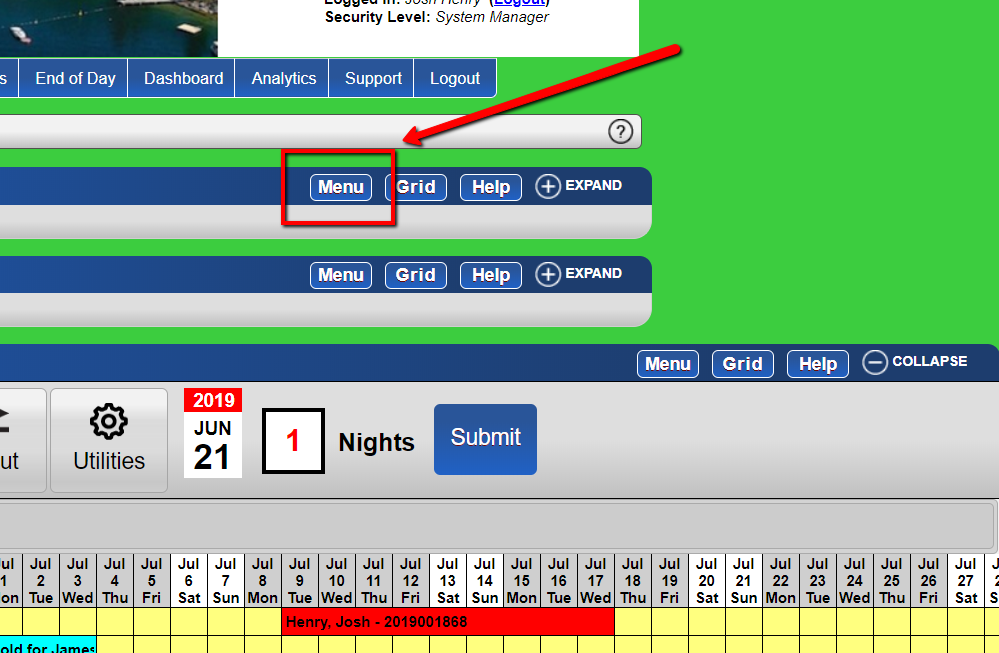
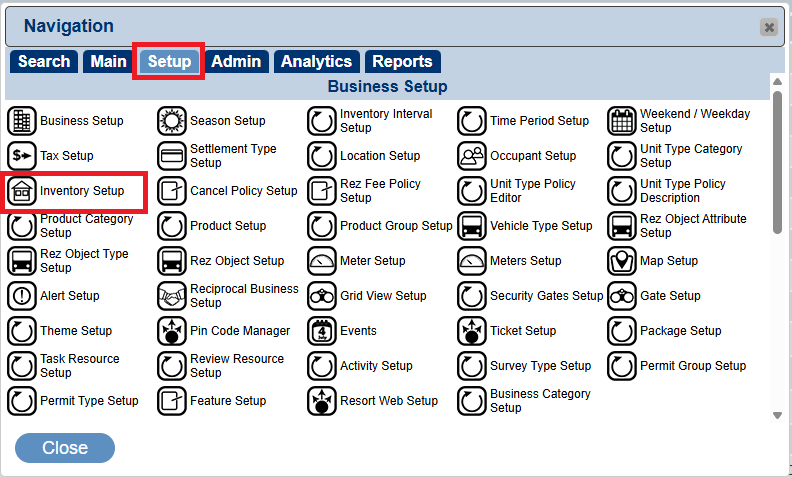
- Type in Inventory Setup into the Panel Field Name box; alternatively, click on the Setup tab and click on Inventory Setup.
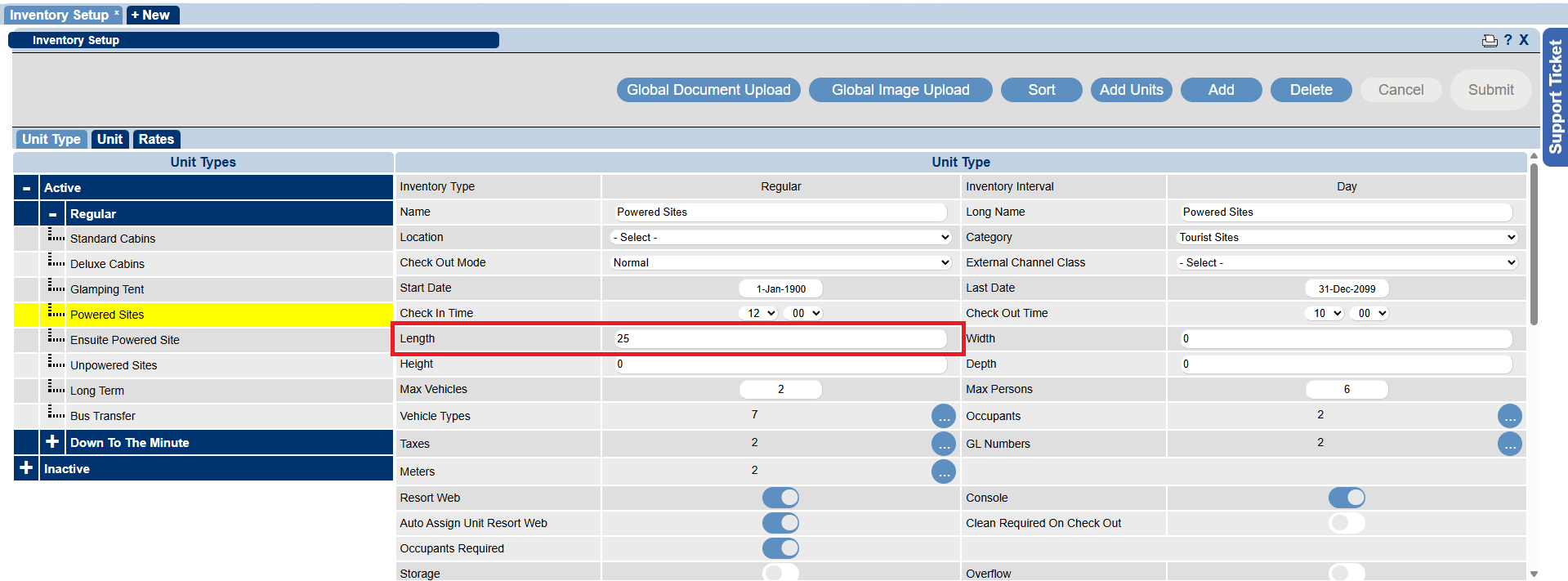
- Select the unit type on the left and enter the Maximum length (in feet) into the Length field.
- Click Submit to finalize.
To Adjust Individual Unit’s Length Dimensions:
- Click on a Menu button.
- Type in Inventory Setup into the Panel Field Name box; alternatively, click on the Setup tab and click on Inventory Setup.
- Click on the Unit tab to view the units.
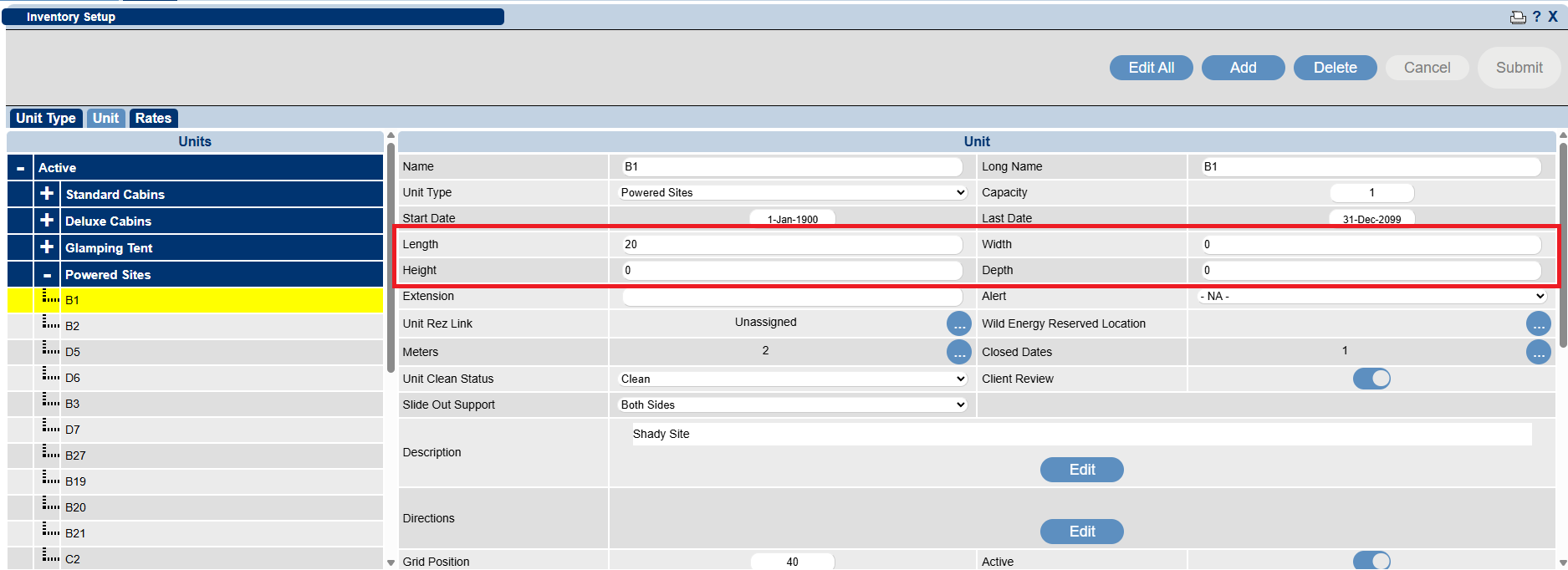
- On the left side, click on the unit type to expand the unit listing and select the required unit. Enter the unit’s dimensions.
- Click Submit to finalize.
To Adjust Multiple Individual Units at One Time:
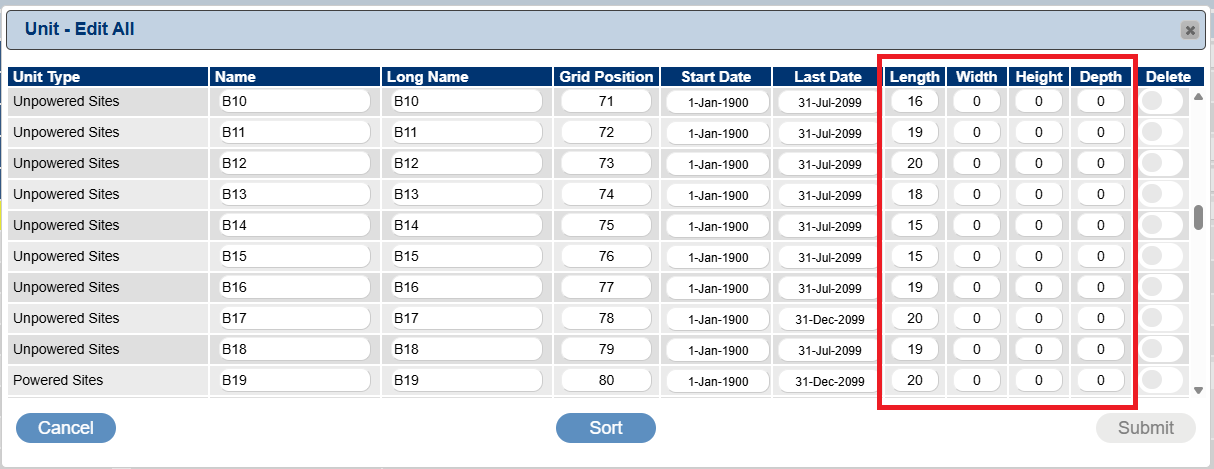
- Click on the Edit All button.
- The Edit All box will appear allowing you to enter/adjust multiple units’ dimensions.
- Click Submit to finalize.
Troubleshooting
- Ensure you have the necessary permissions to access and modify unit types.
- Verify that the correct unit type is selected before making adjustments.