Assigning General Ledger Numbers in Accounting System
Last modified on:
Overview
The General Ledger panels allow you to assign General Ledger Numbers to Revenue and Expense types, including Payment, Taxes, Unit Types, Rate Groups, and Time Periods. GL Codes (or Accounting Codes) are used to track revenue and expenses for your accounting and reporting purposes.
Prerequisites
- Access to the Admin/Accounting section of the system.
Steps
Location
- Click on a Menu button.
- Select the Setup tab.
- Click on GL Number Setup within the Admin/Accounting section.
Creating a GL Number
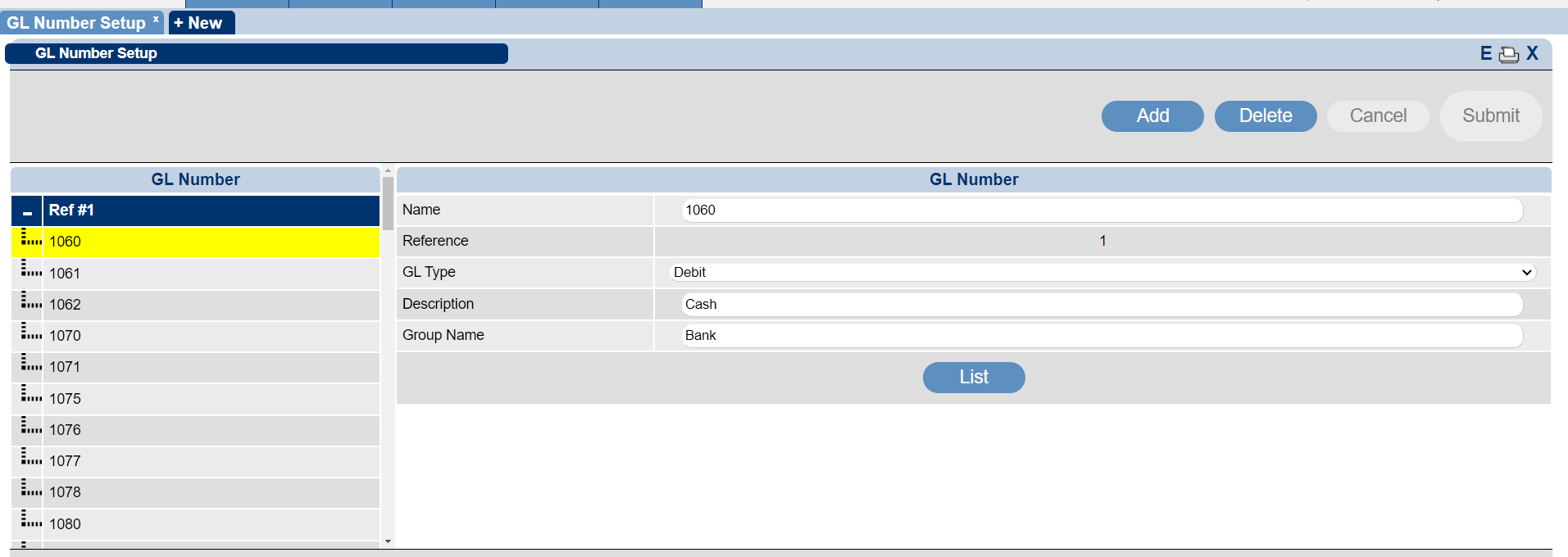
- The GL Number Editor panel allows you to view and add General Ledger numbers.
- Click the Add button to create a new General Ledger Number.
- Name: Enter the General Ledger # (e.g., 1020).
- Reference: Indicate whether this will be Ref#1 or Ref#2 general ledger number. Ref#2 indicates a secondary general ledger.
- GL Type: Specify if the default category for this GL is a debit or credit.
- Description: Provide a brief description of the GL (e.g., Banking Cash Deposits).
- Group Name: Group General Ledger Numbers together for alternative reporting in the ‘Trial Balance – Extended’ report (e.g., Bank, Asset, Liability, and Income).
- List: After GL Numbers have been assigned to Products, view a list of products associated with that GL Number. It will display the Product Group(s), Product(s), the percentage, and Fee value for the product associated with the GL Number.
- Note: Click the E to the top right of the screen to view a list of all configured GLs with their details.
Assigning GL Numbers
Location
- Click on a Menu button.
- Select the Setup tab.
- Click on Product/GL Setup within the Admin/Accounting section.
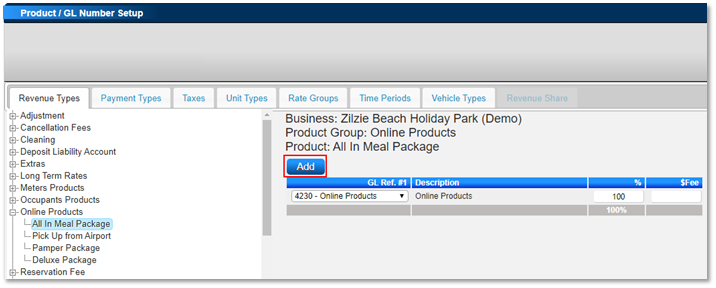
- The Product/GL Number Setup panel allows you to assign GL Numbers to all revenue and expense types.
- The tab displays all the created products/payment types/unit types, etc.
- Revenue Types: All system and created products.
- Click on the + symbol next to the first Product Group to select the product.
- Select the first product and click Add within GL Ref. #1.
- Select the GL Number required from the drop-down selection.
- Repeat until all Revenue Products have GL numbers assigned.
- NOTE: For Cash Accounting businesses, Payment Type – Guest Folio Transfer MUST NOT have a GL Number assigned. Only assign when using Accrual Accounting.
- Clicking Print will display the Product assignment, with any products that do not have a GL Number assigned at the top.
Troubleshooting
- For further assistance, click here to print the Help Document.