Payment Gateway Manager Panel Overview
Last modified on:
Overview
The Payment Gateway Manager panel provides users with data returned from the processor, which is not always visible from the console. Users can filter the search by numerous criteria for a refined search. This allows users to better determine the outcome of a payment when not easily indicated, whether associated with a reservation or not, due to numerous reasons. By default, the filter will be on unresolved, to display scenarios where the process was not completed.
Prerequisites
- Access to the Admin tab in the Menu.
- Knowledge of payment transaction details.
Steps
Location
- Click on the Menu button.
- Select the Admin tab.
- Choose Payment Gateway Manager from the Administrative section.
Displaying Payment Data
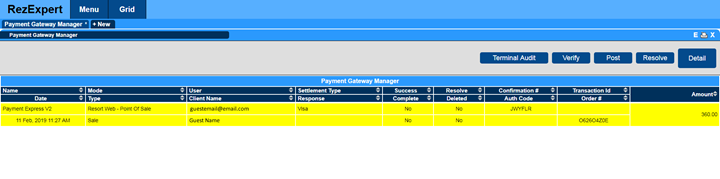
- Each payment transaction is logged in the Payment Gateway Manager panel.
- Information displayed includes:
- Name: Displays the Credit Card Processor.
- Date: Date and Time stamp of the payment transaction.
- Mode: Indicates where the payment was attempted/made.
- Public – Rez: Online Booking
- Public – Rez Mobile: Online Booking made on a mobile device
- Console – Guest Folio: Payment on Guest Folio
- Console – Guest Folio Token: Token procedure on a Guest Folio
- Migrated – Payment taken prior to the Payment Gateway Manager panel being introduced.
- Use the Modes button in the Breakdown options to select which Modes to display.
- User: Displays who made the payment transaction.
- Online Booking: Client’s Email address.
- Console: Employee’s Username listed in Employee Setup.
- Client Name: Client who the payment is for.
- Settlement Type: Credit Card type.
- Response: Result of the payment transition.
- Success: Yes or No.
- Complete: Yes or No.
- Resolve: Yes or No.
- Delete: Yes or No.
- Confirmation #: Merchant Ref transaction # of the payment.
- Auth Code: Authorisation code from payment processor.
- Transaction Id: Transaction Id from payment processor.
- Order #: Order # from payment processor.
- Amount: Amount of the payment.
Search Parameters
- Date Range limit: 30 days.
- Date Options are available to narrow down the payment transaction search.
- Unresolved: Unsuccessful payments.
- Made Date: Date the payment was made on.
Buttons
When an unresolved payment transaction is selected, the following buttons become available:
- Terminal Audit: Used for EFTPOS terminal processed payments.
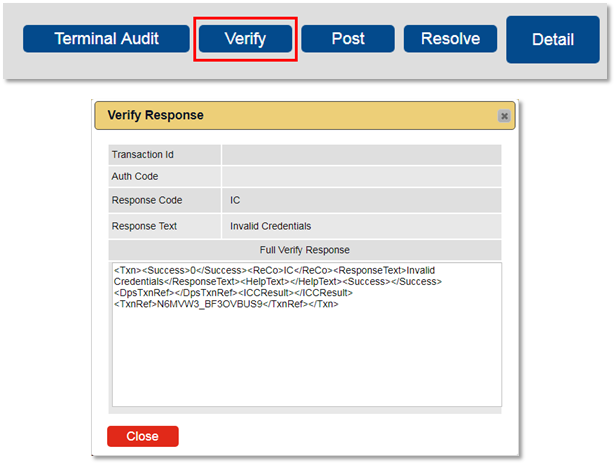
- Verify: Displays the response from the Payment Gateway processor.
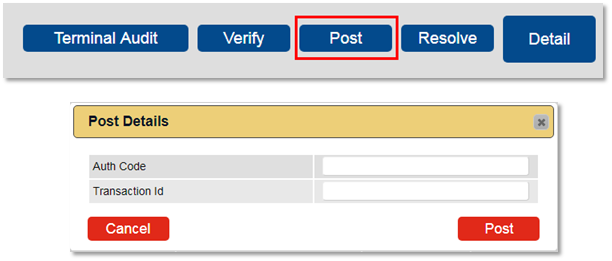
- Post: Posts the payment to the Guest Folio.
- Resolve: Indicates the payment has been identified within the Payment Gateway processor.
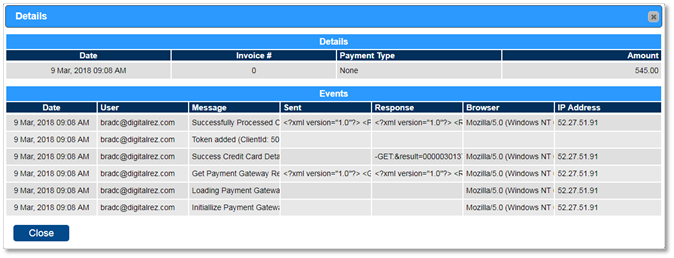
- Detail: Outlines the payment transaction communication between RezExpert and the Payment Gateway processor.
Verify Button
- Available to view the credit card processor information on the selected transaction.
- Select a payment transaction, the Verify button will appear.
- Displays the Response data sent from the Credit Card processor.
- Available for Resort Web and Console made payment transactions; Approved or Unresolved.
Post Button
- Available for Resort Web credit card payment transactions that were successful in Payment Express but not posted to the Guest Folio in RezExpert.
- Select an unresolved payment transaction, the Post button will appear.
- When clicked, the Post Details box will appear, allowing the operator to enter the Auth Code and Transaction Id for the payment.
- After entering the information, click the Post button to apply the payment to the Guest Folio.
Detail Button
- Outlines the payment transaction communication between RezExpert and the Payment Gateway processor.
- Details include:
- Initialize Payment Gateway
- Loading Payment Gateway
- Get Payment Gateway Redirect Information
- Success Credit Card Details
- Token added
- Successfully Processed Credit Card
- Resolve Flag updated
- Cancel Transaction
- Get No Response
- Failed To Process Credit Card
- Failed Credit Card Details
Troubleshooting
- Ensure the correct transaction is selected before using the buttons.
- Verify the payment details if the transaction is unresolved.
- Use the Modes button to filter the display for easier troubleshooting.
For further assistance, refer to the Help Document PDF.