Document Manager: Upload and Assign PDFs
Last modified on:
Overview
The Document Manager panel allows you to upload PDF documents and assign them to selected emails.
Prerequisites
- Access to the Setup tab in the application menu.
- PDF documents ready for upload.
Steps
Location
- Click on the Menu button.
- Select the Setup tab.
- Scroll down to the Admin/Accounting section.
- Click on Document Manager.
Uploading Document(s)
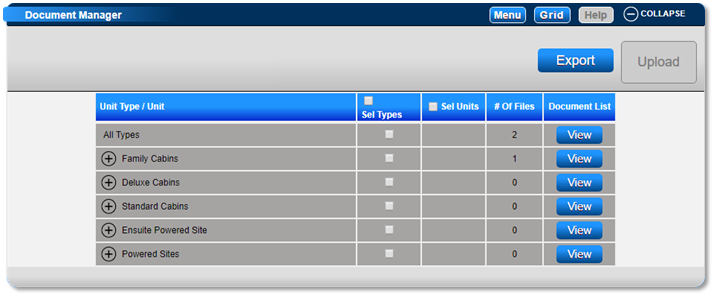
- Documents can be uploaded to "All Types" or individual "Unit Types" and "Units".
- Documents uploaded to "All Types" will display in the Global Document section within the Print Selector.
- Documents uploaded to an individual Unit Type or Unit(s) will display in the Unit Type section.
- Steps to upload:
- Click on the View button next to the required destination.
- The Document Manager box will display. Click Upload File to select the PDF file from your computer.
- Enter a File Display Name that will display for the document.

Note: Ensure the file name of the document doesn't contain any special characters such as - / > etc. This will cause the document to fail when trying to upload.
Apply To
- Documents can be assigned to automatically attach to selected Confirmation and Marketing Emails:
- Console Conf.: Email confirmation sent out via the console.
- Online Conf.: Email confirmation automatically sent after an online booking has been made.
- Pre-Auto: Before Reservation Marketing email.
- Post-Auto: After Reservation Marketing email.
- Tick on the required emails.
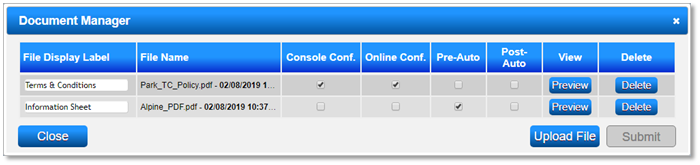
- Once the document has been uploaded, click on the X to close the Document Upload box.
- The "# of Files" column will display the number of files uploaded.
- Document List: Clicking View will display the uploaded documents, with the ability to edit the File Display Name and the applied emails.
Individual Units Documents
- Documents can be uploaded to selected Units within a Unit Type.
- Click on the + symbol next to the Unit Type to expand the list and select the required Units before uploading the document.
Documents Previously Uploaded in Unit Type Setup
- Any documents uploaded into Unit Type setup will automatically display in the Document Manager panel.
- These can be assigned to automatically attach to selected Confirmation and Marketing emails.
Troubleshooting
- Ensure that the file name does not contain special characters to avoid upload failures.
- For further assistance, click here to print the Help Document.