Marketing Email Automation Setup Guide
Last modified on:
Overview
Marketing Email Setup allows you to create automated marketing emails that are sent to customers either before Check-In, before Check-Out, or after a reservation has Checked Out. It also allows you to use custom-created email body contents.
- Note: The Email Body needs to be created first in the Content Setup and assigned to the appropriate category to complete the Marketing Email setup. Click Here to find out how to create your content.
- Marketing Emails are sent automatically at 1 AM Pacific Time.
Prerequisites
- Ensure that the Email Body is created in the Content Setup and assigned to the appropriate category.
Steps
Location
- Navigate to the Menu.
- Go to Admin.
- Select Marketing Email Setup (located below the Administrative section).
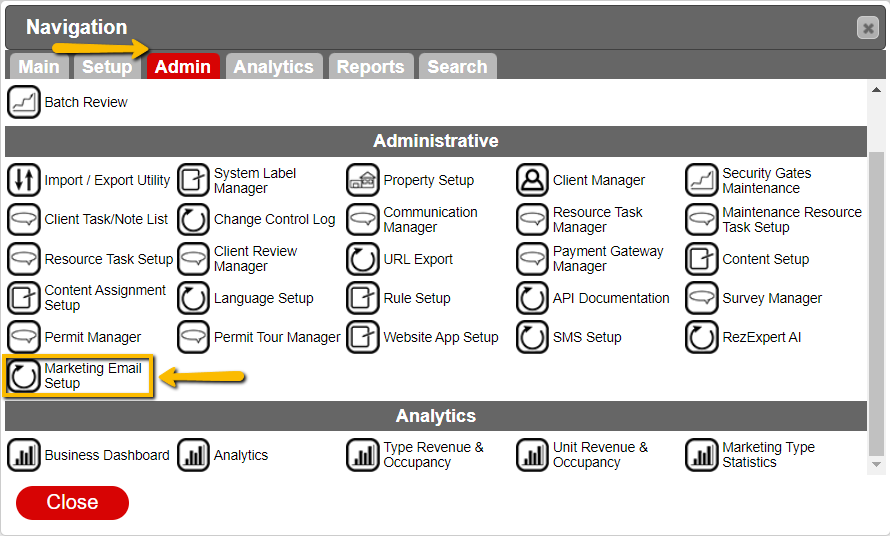
Marketing Email Setup
How to Create a Marketing Email
- Click on the Add Button.
- Provide a name for your Email and select the Marketing Email type:
- After Reservation Checked Out: Sends emails after the reservation has been checked out.
- Note: The number of days should be at least 1 day since a reservation would likely not have been checked out at 1 AM Pacific Time.
- Before Reservation Check-In: Sends emails before the reservation has been checked in.
- Before Reservation Checked Out: Sends emails based on the number of days before the reservation is due to Check-Out.
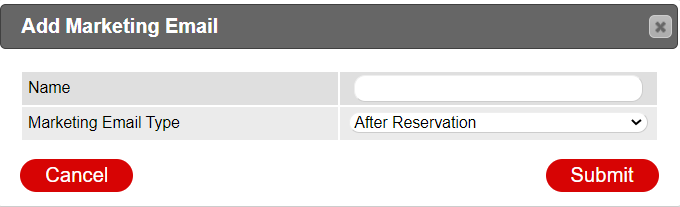
Configuring your Marketing Email
- Email Subject: Automated Subject of the emails.
- Target Reservation Type: For the type of reservation, e.g., regular reservations (RezHTML), group reservations (ShoppingCartHTML).
- Email Body Content: This list will show content assigned based on the Target Reservation Type.
- Number Of Days: Based on the Email type, this is the number of days before Check-In, before Check-Out, or after Check-Out date.
- Link to Unit Type: If not toggled on, will be associated with all Unit Types.

Creating Email Body Content
Location
- Navigate to the Menu.
- Go to Admin.
- Select Content Setup.
- Click on the Add button.
- Select Content Type (Rez HTML for Single Reservations; Shopping Cart HTML for Group Reservations).
- Click Edit.
- Add the contents for the body of your email. *Remember you can use wildcards to automatically generate information, e.g., Client name, etc.
- Once finished, toggle the Active selector and click Submit.
Click Here to see the Content Setup Help document for more detailed information.
Assigning Email Body Content
Location
- From the email body created in the Content Setup, select the 3-dot button for Content Assignments and select the desired category.

- OR
- Navigate to the Menu.
- Go to Admin.
- Select Content Assignment Setup.
- Expand Console.
- Select Marketing Email.
Based on the use of the content, select the applicable category. If done through the Content Setup, then enable the appropriate category. If done through the Content Assignment Setup, then select the category and assign the applicable document(s).
- Marketing - Auto Assign After Reservation: Content will be automatically attached to any created marketing email for regular reservations which are assigned to be sent after the reservation has checked out.
- Content Type: Rez HTML
- Marketing - Auto Assign After Shopping Cart: Content will be automatically attached to any created marketing email for shopping cart (Group Bookings) which are assigned to be sent after the reservation has checked out.
- Content Type: Shopping Cart HTML
- Marketing - Auto Assign Before Reservation: Content will be automatically attached to any created marketing email for regular reservations which are assigned to be sent before the reservation's Check-In date.
- Content Type: Rez HTML
- Marketing - Auto Assign Before Reservation Check Out: Content will be automatically attached to any created marketing email for regular reservations which are assigned to be sent before the reservation's Check-Out date.
- Content Type: Rez HTML
- Marketing - Auto Assign Before Shopping Cart: Content will be automatically attached to any created marketing email for shopping cart (Group Bookings) which are assigned to be sent before the Shopping Cart's Check-In date.
- Content Type: Shopping Cart HTML
- Marketing - Auto Assign Before Shopping Cart Check Out: Content will be automatically attached to any created marketing email for Shopping Cart (Group Bookings) which are assigned to be sent before the Shopping Cart's Check-Out date.
- Content Type: Shopping Cart HTML
- Marketing For Corporate: Email content/templates for Corporate marketing emails.
- Content Type: Shopping Cart HTML
- Marketing For Permits: Email content/templates for Permit marketing emails.
- Content Type: Shopping Cart HTML
- Marketing For Regular Reservation: Email content/templates for single reservation marketing emails.
- Content Type: Rez HTML
- Marketing For Standard Group: Email content/templates for Group Bookings marketing emails.
- Content Type: Shopping Cart HTML
- Marketing For Travel Agent: Email content/templates for Travel Agent marketing emails.
- Content Type: Shopping Cart HTML
- Marketing For Wholesaler: Email content/templates for Wholesaler marketing emails.
- Content Type: Shopping Cart HTML
Click here to jump back to creating your Marketing Email.
Troubleshooting
Reviewing Marketing Emails
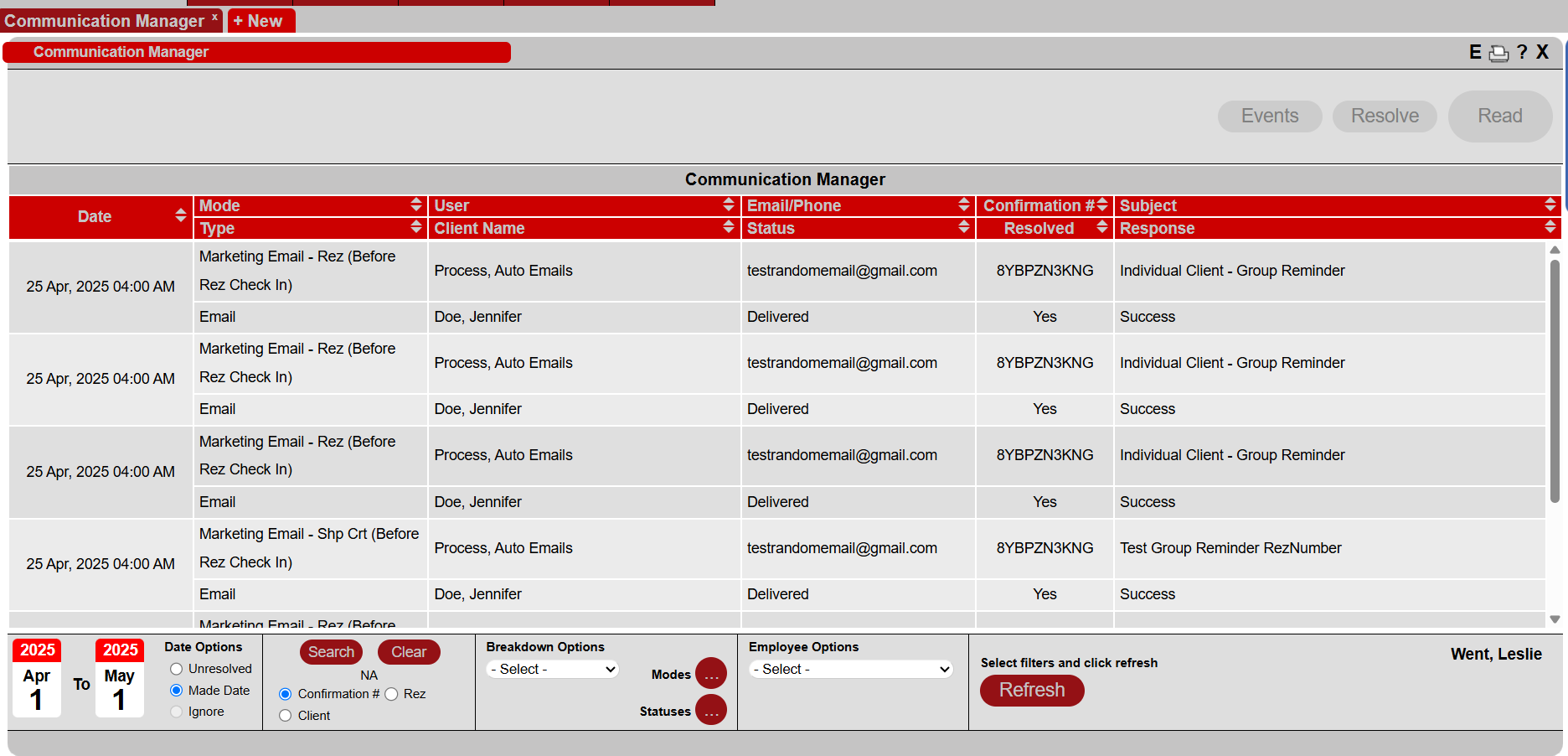
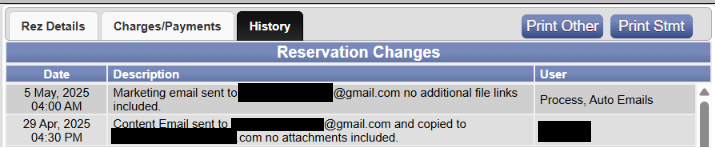
- Emails sent to customers will NOT send an email copy back to the business. These can be reviewed from within the Communication Manager, and a log is also assigned to the reservation to indicate a marketing email was sent.
- Guest Folio - History tab
- Communication Manager