Communication Manager Usage in RezExpert
Last modified on:
Overview
The Communication Manager is used to track or monitor emails, SMS, and any communication sent through RezExpert. It allows users to view sent communications and verify if an email has been sent successfully.
Prerequisites
- Access to RezExpert
- Permissions to view the Communication Manager
Steps
Location
- Navigate to:
- Menu
- Admin
- Communication Manager
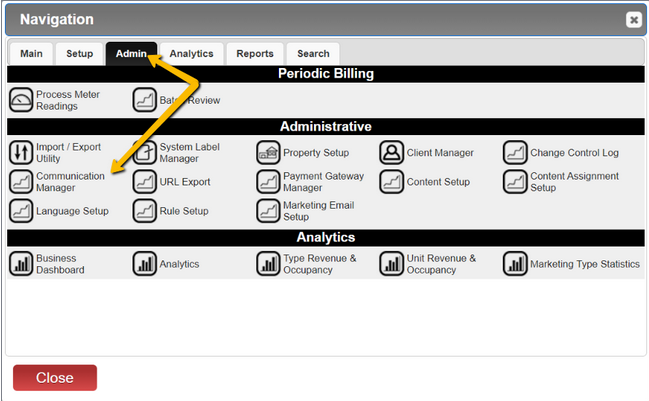
OR
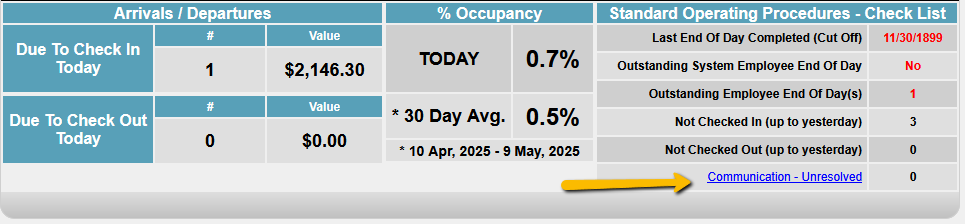
- From the Dashboard, which appears upon login, locate unresolved communication issues on the right side. Click the hyperlink to access the Communication Manager panel.
Viewing Sent Emails
- Click on the Made Date under Date Options.
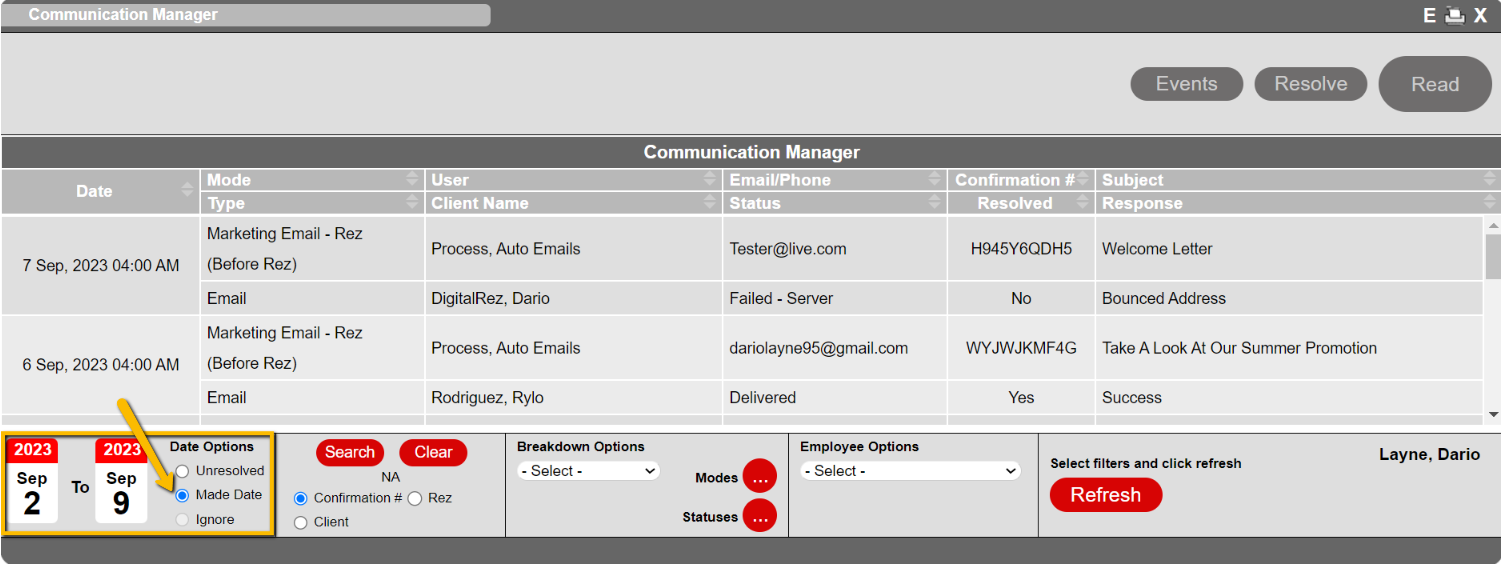
- Use the Calendars to select a start and end date for communications (maximum range: 30 days). Click "Refresh".
- Search: Allows searching by options such as confirmation #, Rez #, and Client.
- Breakdown Options: Further refines the search.
- Employee Options: Select an employee to search by.
- Refresh: Updates information after selections.
Available options for each communication include viewing details/status, resolving, removing from the unsolved list, and reading contents.
To preview communication content, select it from the list and click "Read". A new window will open for preview.
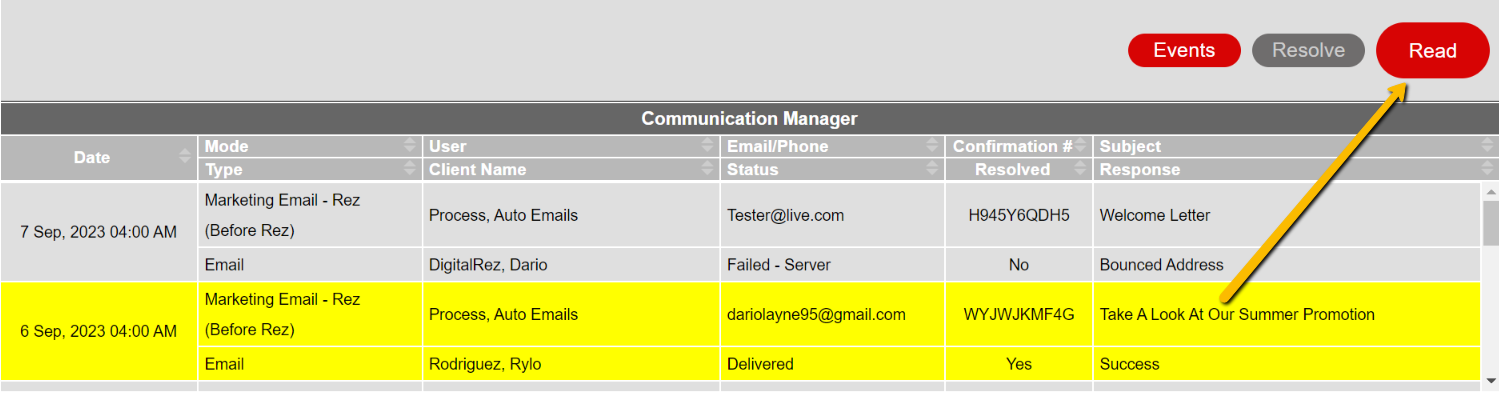
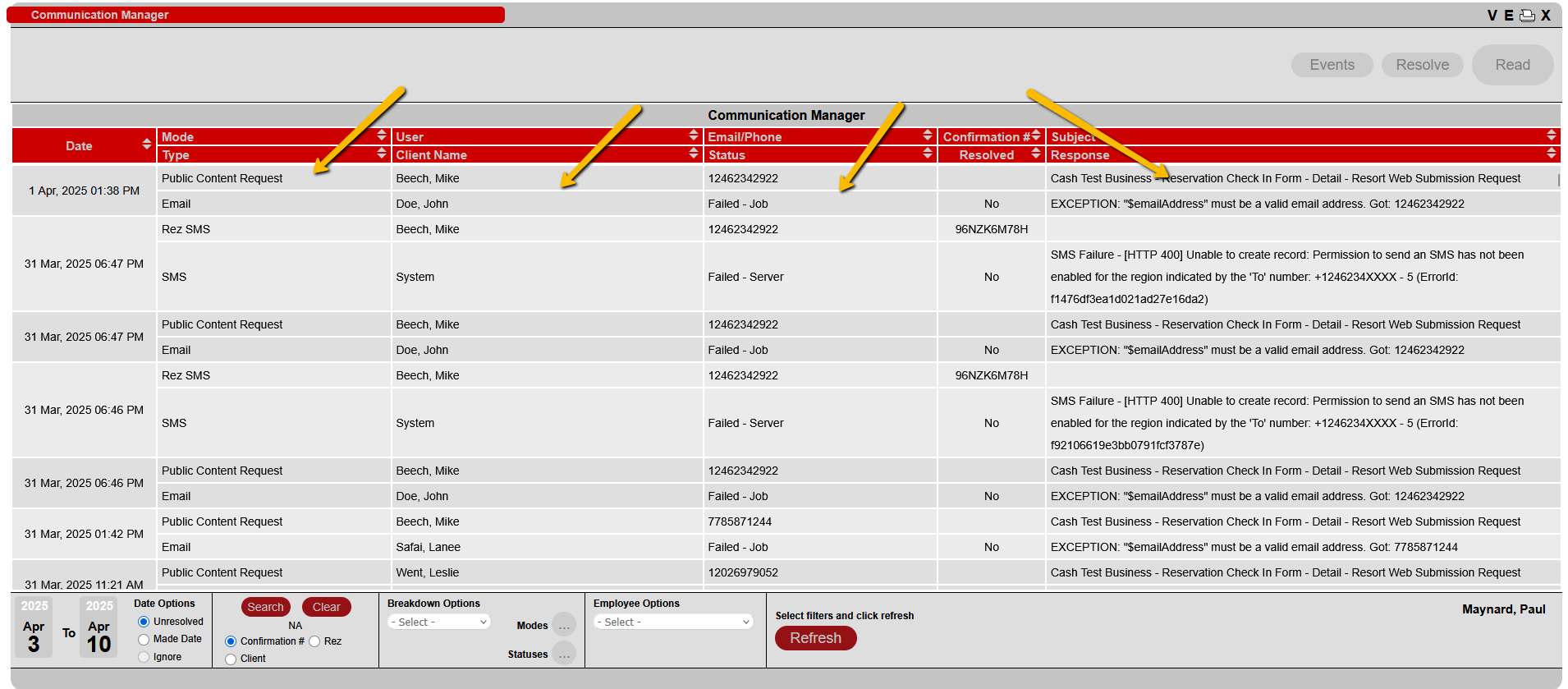
Communication Manager Labels
- Date: Date when the communication was sent.
- Mode: Assigned Category of content (e.g., Password Recovery, Resort Web - Check In).
- Type: Method of communication (Email or SMS).
- User: Employee/System that initiated the communication.
- Client Name: Receiver of the communication.
- Email/Phone: Receiver's email address or phone number.
- Status: State of the communication (Delivered, Failed, Pending).
- Resolved: Yes (successfully sent or manually resolved) / No (unresolved).
- Subject: Subject of the communication sent.
- Response: Mail server response and failure reason if applicable.
Regularly review the Communication Manager to prevent system slowdowns and identify issues such as incorrect email addresses or full mailboxes.
Filtering and Searching for Specific Emails
- Use the Search and Breakdown Options to filter your search.
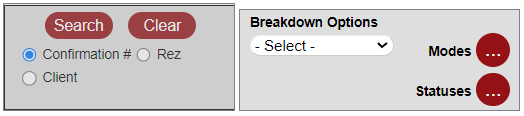
- Search using criteria like Confirmation #, Rez #, or Client. Click "Search", input the information, and click "Refresh".
- Breakdown Options: Apply additional filtering based on email category.
- Modes: Emails/SMS
- Statuses: Communication status (Pending, Delivered, Failed).
Verifying Email Delivery
- Check the "Status" and "Response" to determine if an email was delivered successfully.

- The first communication in the image has not been delivered due to a bounce. The second communication was sent successfully.
Unresolved Communications
- By default, the panel loads all unresolved communications (failed deliveries).
- The "Response" row shows the reason for failure.

Buttons
- Read button: View contents of the sent communication.
- Resolve button: Remove an unresolved communication after review.
- Events: Shows the communication log.
