Housekeeping Module: Managing Unit Cleanliness Status
Last modified on:
Overview
The Housekeeping module provides users with the ability to manage the status of units where Clean/Dirty status and tracking of Check Ins, In-house, and Check Outs.
Prerequisites
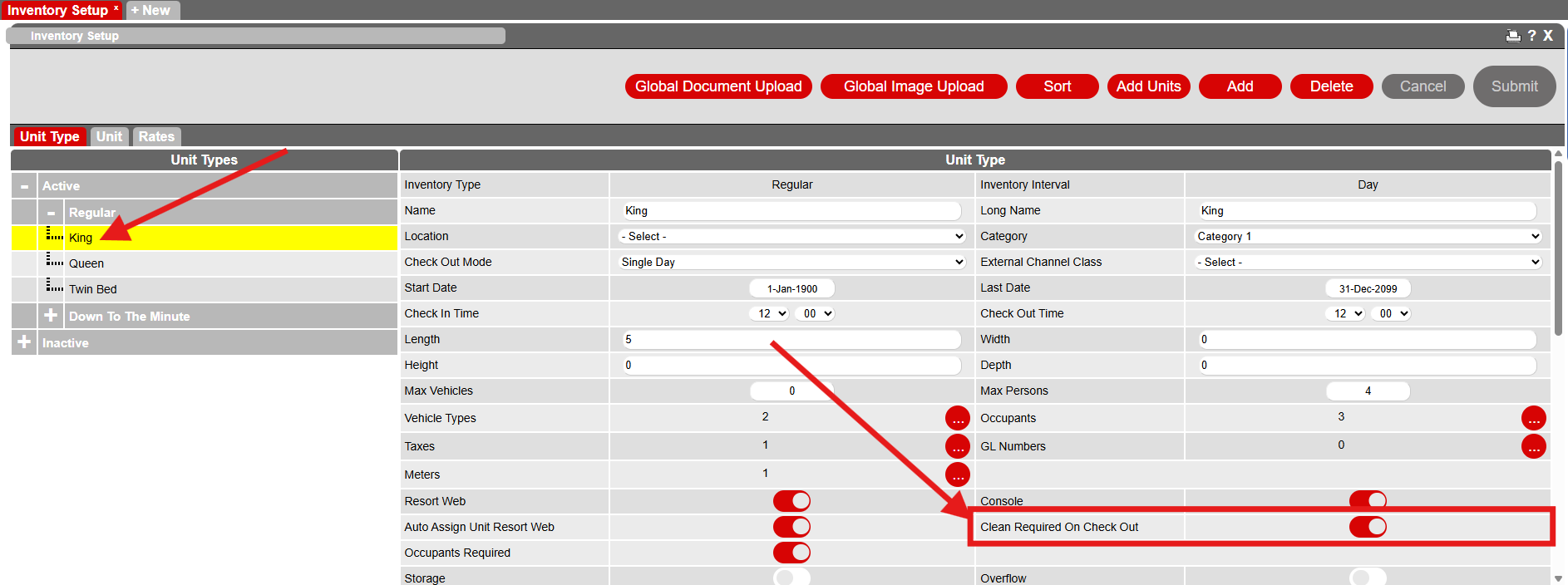
- Ensure that the setting Clean Required On Check Out is enabled on the Unit Type to manage which units require cleaning.
Steps
Cleaning Required Setting
- Navigate to:
- Menu
- Setup
- Inventory Setup - Select the applicable Unit Type.
- Enable Clean Required On Check Out.
When a reservation is checked out, the unit will automatically change to the Unit Not Clean color on the Availability Grid and will also display within the Cleaning Report.
Manual Clean Unit Alert
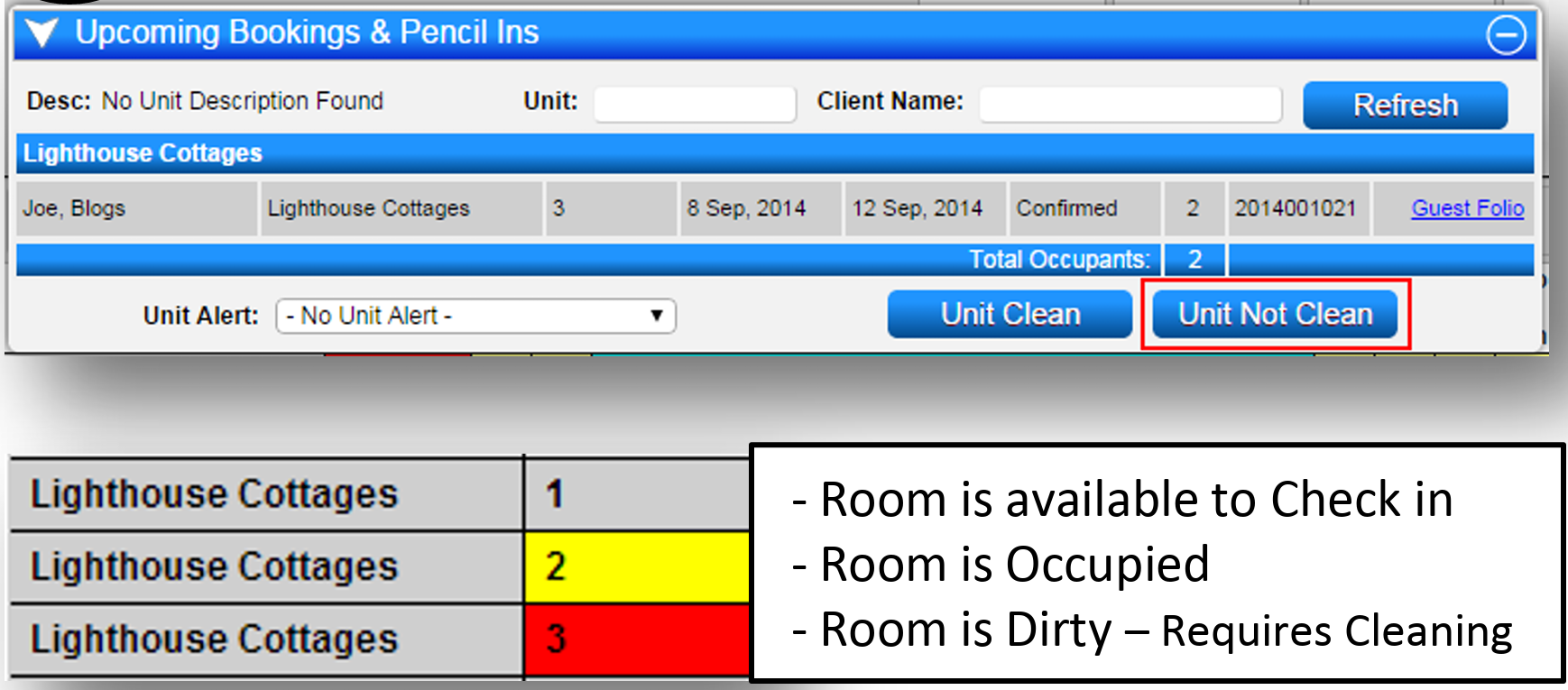
- A unit/room can manually be set to "Dirty" from within the Availability Grid.
- Click on the Unit # within the Unit # column on the Availability Grid.
- Within the Upcoming Bookings and Pencil Ins dropdown, click the Unit Not Clean button. This will automatically turn the room to "Dirty".
- No reservation can be checked into this unit while it is indicated as "Dirty".
- If an operator attempts to check in a reservation into a "Dirty" room, a message will display to state the room is "Dirty".
- To indicate the unit/room has been cleaned, click on the Unit # again and click the Unit Clean button.
- Reservations can now be checked into this unit.
Reports
Once the reports have been enabled, they can be accessed from the Arrivals/Departure panel or from the Manager section of the Reports.
N.B Please contact digitalrez to have the reports enabled if not seen.
- From the Arrivals tab of the Arrivals/Departures Panel, click Print to see a list of available reports.
- Select the Cleaning Report and press Print.
OR
- Navigate to:
- Menu
- Reports tab
- Manager section, select desired report
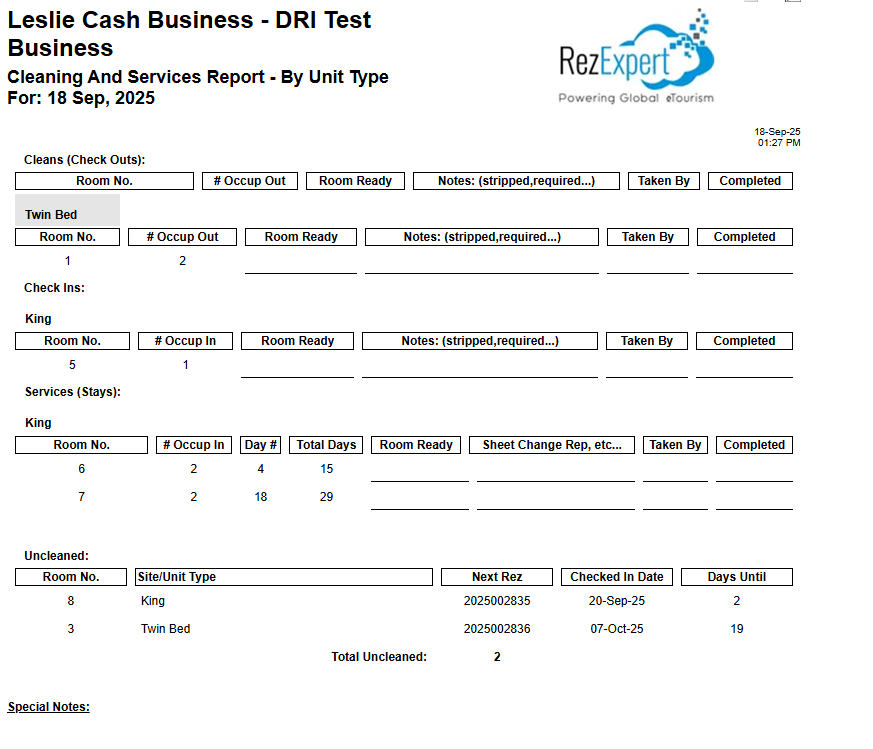
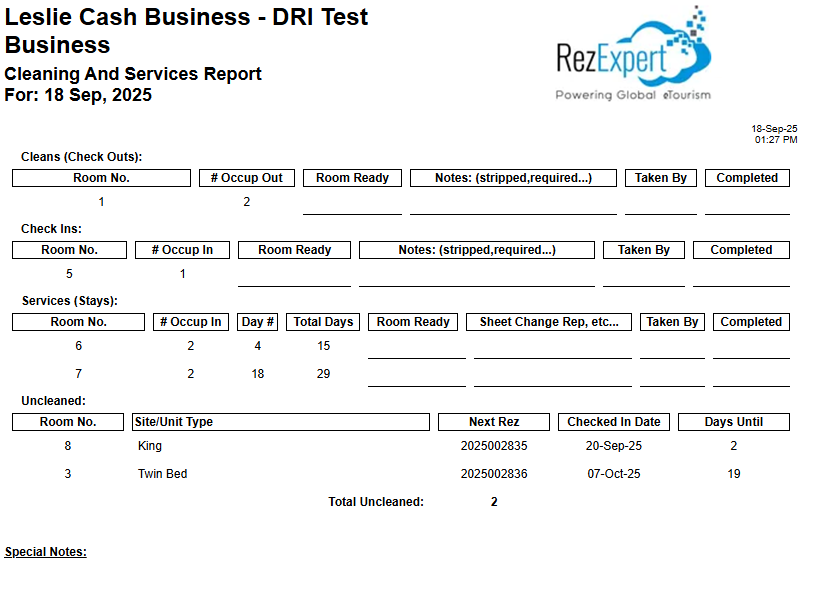
Displayed on the report will be all units/rooms that are requiring cleaning for that day. Once the units/rooms have been cleaned, you need to indicate this on the system.
- Click on each Unit # within the Unit # column on the Availability Grid.
- Within the Upcoming Bookings and Pencil Ins dropdown, click the Unit Clean button.
This will turn the unit/rooms from "Dirty" to "Clean".
Cleaning And Services Report - By Unit Type
Cleaning And Services Report
Troubleshooting
- Ensure that the Clean Required On Check Out setting is enabled for the correct Unit Type.
- If reports are not visible, contact digitalrez to enable them.