Creating and Managing Events in System
Last modified on:
Overview
Events and associated notes can be created for your staff's knowledge. Alert your staff of upcoming Holidays, Major Public Holidays, and the associated business booking requirements. Color-coded dates and pop-up message boxes will help inform staff of any required information for the Event's date range.
Prerequisites
- Access to the system's menu and setup tabs.
Steps
Location
- Click on a Menu button, select the Setup tab, and click Events.
- Click Add to create a new Event.
- (Clicking Delete will allow you to delete old events)
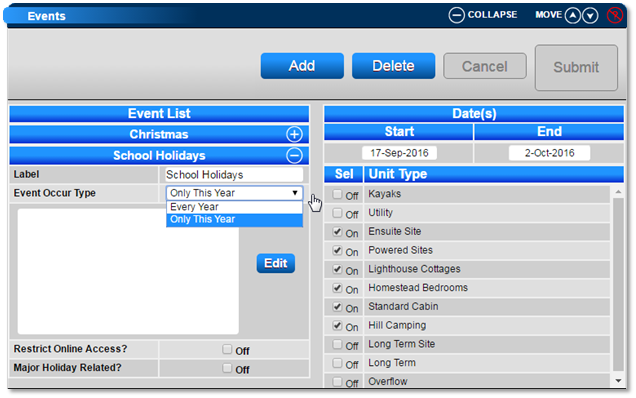
- Enter the Start and End dates for the Events.
- Select the Unit Types that will be involved in the Event.
Event Label and Note
- Label: Enter the name of the event, e.g., School Holidays.
- Event Occur Type: Select the frequency of the Event – Only This Year or Every Year.
- Comments Box: Record additional comments or notes for your staff’s knowledge.
- Restrict Online Access: When enabled, online bookings will not be possible during the specified dates.
- Major Holiday Related: Applicable for Holiday Trail Businesses or Businesses with Memberships enabled.
- Tick if you wish to have the date range on the Availability Grid highlighted.

Utilities Button
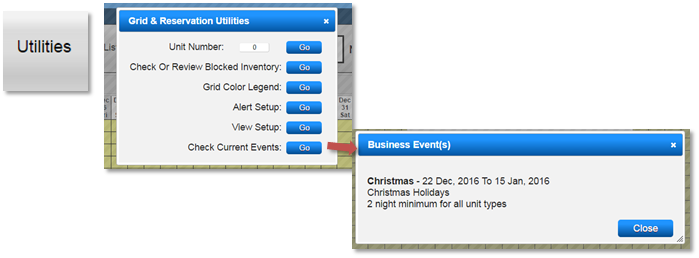
- Once events are set up, staff can view them by clicking on the Utilities button.
- Select Check Current Events to display any setup for the Date Range on the Grid.
- If a single date is selected on the grid, and the staff clicks the Check Current Events button, the Events set for the selected date will display.
- To check future events, select the required month from the Date Footer at the bottom of the Availability Grid.
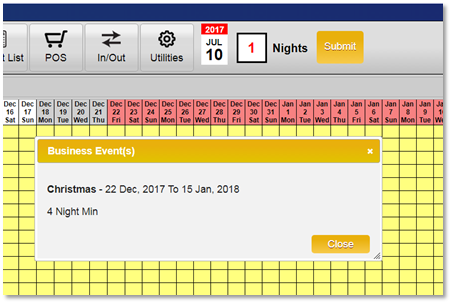
- Dates on the Availability Grid will display in a different color to indicate an Event.
- When an operator makes a reservation during the Event's Date Range, the message box will display the Event.
Bookings
- Walk In Reservations:
- When a “Walk In” reservation is created, the Events pop message will not display. As the Check-In date is during the Event’s date range, the Event check will not occur.
- Online Bookings:
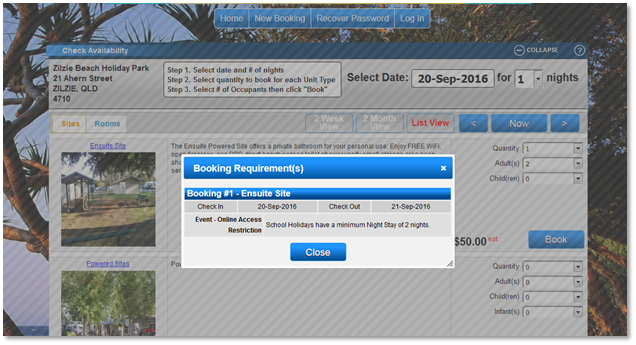
- When the Restrict Online Bookings flag is enabled for a period, a message will appear if an Online Booking falls within the period. For example, if the Check-Out date of the booking is within the Event’s date range, the message will pop up.
Troubleshooting
For additional help, refer to the Help Document.