Reservation Manager Panel Overview and Usage
Last modified on:
Overview
The Reservation Manager panel displays a breakdown of reservations based on their booking source.
Prerequisites
- Access to the system's Menu button.
- Access to the Channel section.
Steps
Location
- Click on the Menu button and select Reservation Manager within the Channel section.
- Alternatively, click on Channel within the Menu Bar.
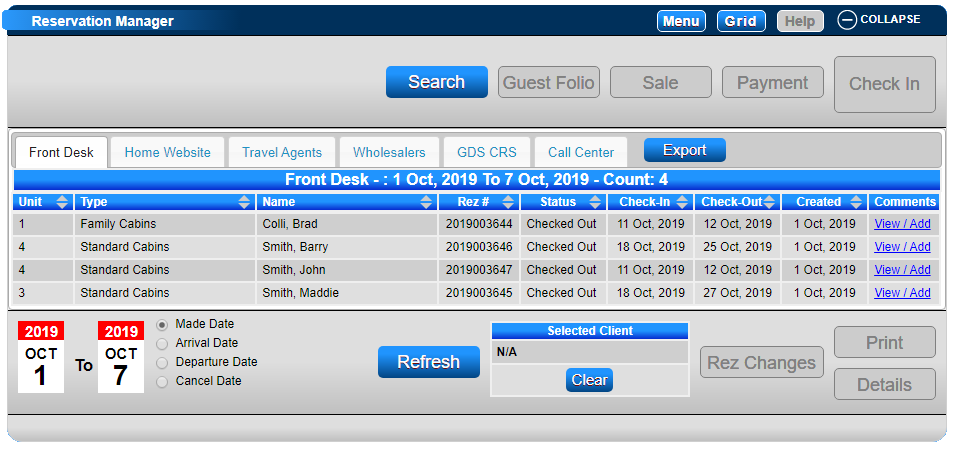
Tabs
The tabs display reservations based on their booking source:
- Front Desk: Reservations made on the console.
- Home Website: Reservations made through the Online Booking Interface (Resort Web).
- Travel Agents: Travel Agency based reservations. The Agency column displays the Travel Agent assigned to the reservation.
- Wholesalers: Wholesaler based reservations. The Wholesaler column displays the Wholesaler assigned to the reservation.
- GDS/CRS: All Channel based reservations (e.g., Booking.com, Expedia). The Provider column displays the Booking Channel the reservation was made through.
- Call Center: Future development.
By default, the date range is set for the current date. This can be adjusted to list reservations created between the selected time period after clicking the Refresh button.
Search Radio Buttons
- Made Date: Reservations made/created during the selected date range.
- Arrival Date: Reservations with a Check-In Date during the selected date range.
- Departure Date: Reservations with a Check-Out Date during the selected date range.
- Cancel Date: Reservations cancelled during the selected date range.
Reservations
Once a reservation is selected from within the Channel Reservation Manager, the following buttons become available:
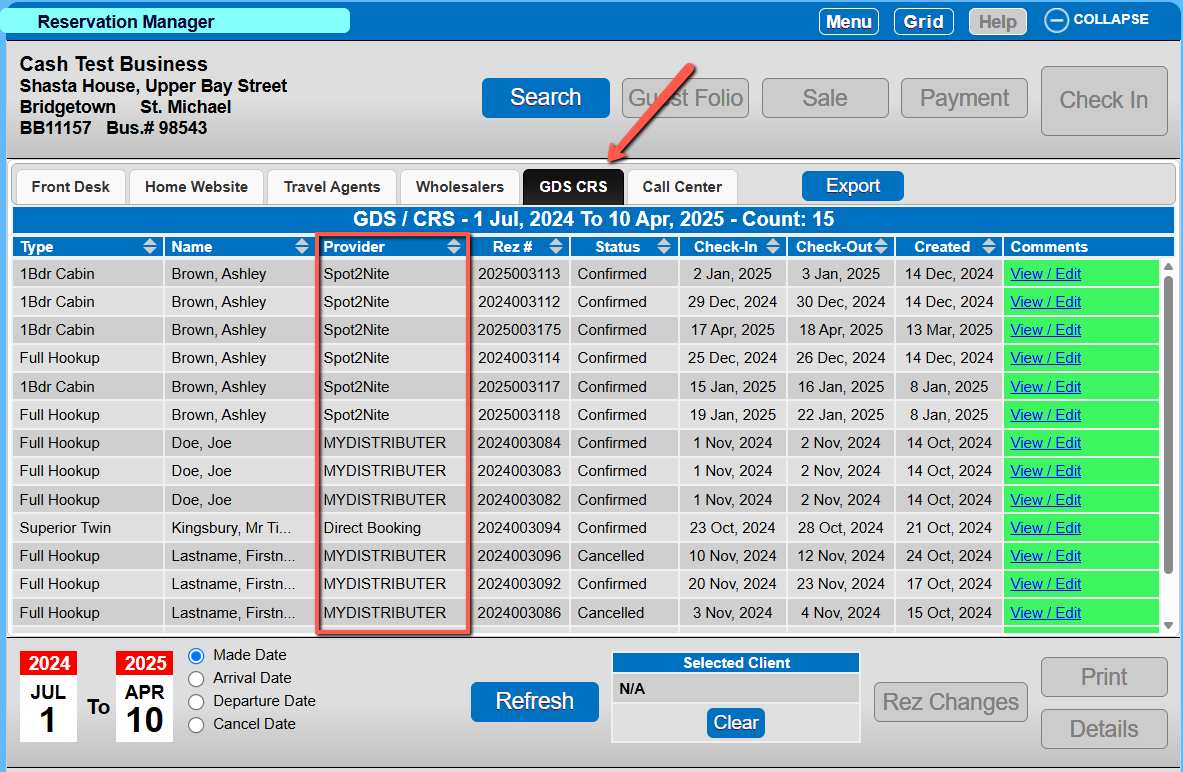
- Rez Changes: View the Reservation Change History.
- Details: View the Reservation Till Tape.
- Guest Folio: Open the Reservation Guest Folio.
- Sale: Process a POS transaction onto the reservation.
- Payment: Process a payment.
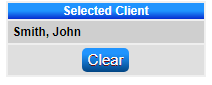
- Search: Search for the Client Name or Reservation/Confirmation #. Any reservations meeting the searched criteria will display. Once a client has been searched for, the Client Details will display within the Selected Client.
- Clear: Clears the client from the Selected Client and returns to displaying all.
Troubleshooting
For further assistance, click here to view/print the Help document.