RezExpert Content Setup Instructions
Last modified on:
Overview
The Content Setup feature in RezExpert is used to create custom reports, forms, emails, and repositories to be provided to customers. This functionality allows for the inclusion of various content types such as:
- Terms and conditions for access
- Reports and statements
- Special reports or forms
- Videos and referral links
- Image and text listings
Prerequisites
To access the Content Setup, follow these steps:
- Click the Menu.
- Select the Admin tab.
- Under the Administrative tab, select Content Setup.
Steps
Create a New Content
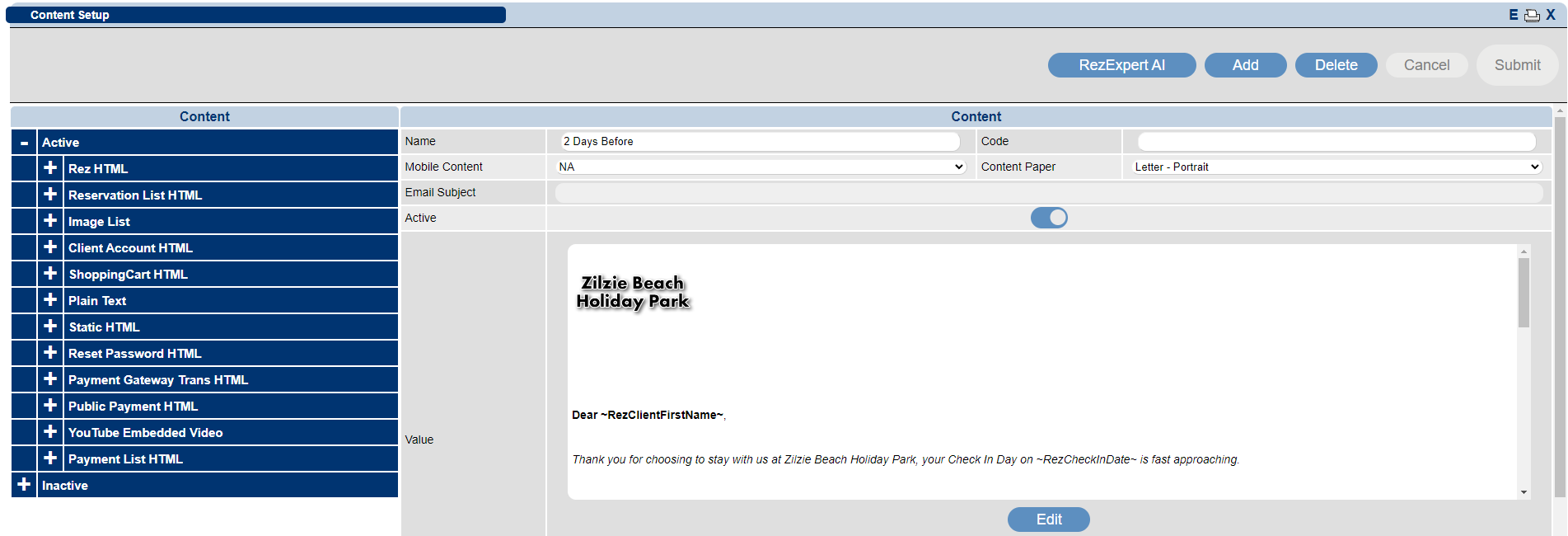
- Click Add to create new content.
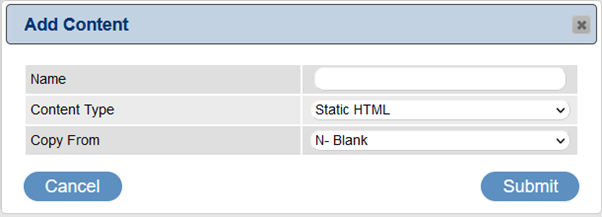
- Fill in the following details:
- Name: Name of the content.
- Content Type: Select the type of content to be created. This will affect what data is available and where this content is available to be displayed.
- Copy From: Use existing content as a template.
Content Type Options
- Reservation List HTML: Forms related to reservation listing, e.g., Arrival, Departure, and Who's here reports.
- Rez HTML: Reports, forms, emails linked to reservations, available to the online portal or console.
- Client Account HTML: Custom reports, forms, or emails linked to a client's account receivable.
- Ticket HTML: Ticket-related report.
- Shopping Cart HTML: Online and group reports and forms for customers.
- Image List: Images.
- Static HTML: Plain text with no reference links.
- Plain Text: Short plain text with no references.
- Client HTML: Create custom forms or emails linked to customer information (e.g., Username and client custom fields for password reset).
- YouTube Embedded Video: Related to Campfire Travel Magazine. Provide YouTube links displayed on the Campfire Travel Portal.
- Public Payment HTML: Available if using the Public Payment functionality. Allows creating/modifying the email template associated with this function.
- Video URL List: Video links displayed on the Campfire Travel portal.
- Payment Gateway Trans HTML: Create or edit custom emails associated with payment references, completed or incomplete.
Content Breakdown
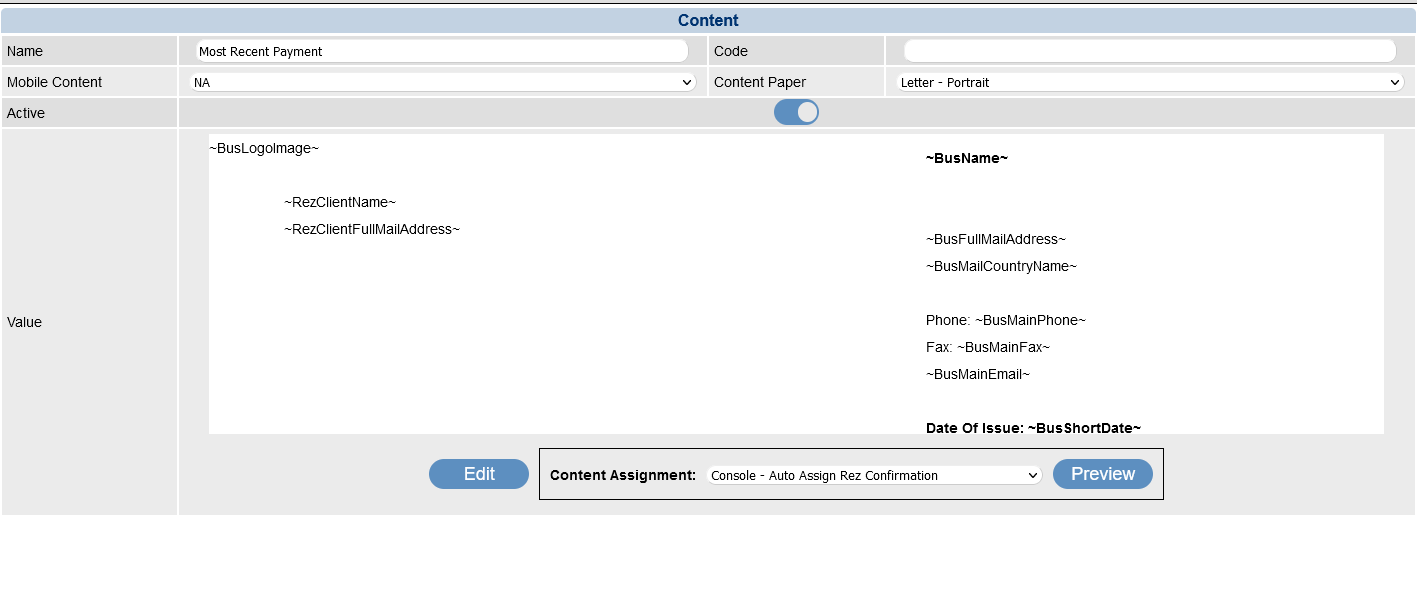
- Name: Label for the content.
- Code: No functionality - for future development.
- Mobile Content: Select the report or form to be printed.
- Content Paper: This is the print mode.
- Active: Makes it active or disabled.
- Value: The body of the form.
- Edit: Allows you to edit the body of the form.
- Preview: Allows for a selected form to be previewed.
Editing and Wildcards
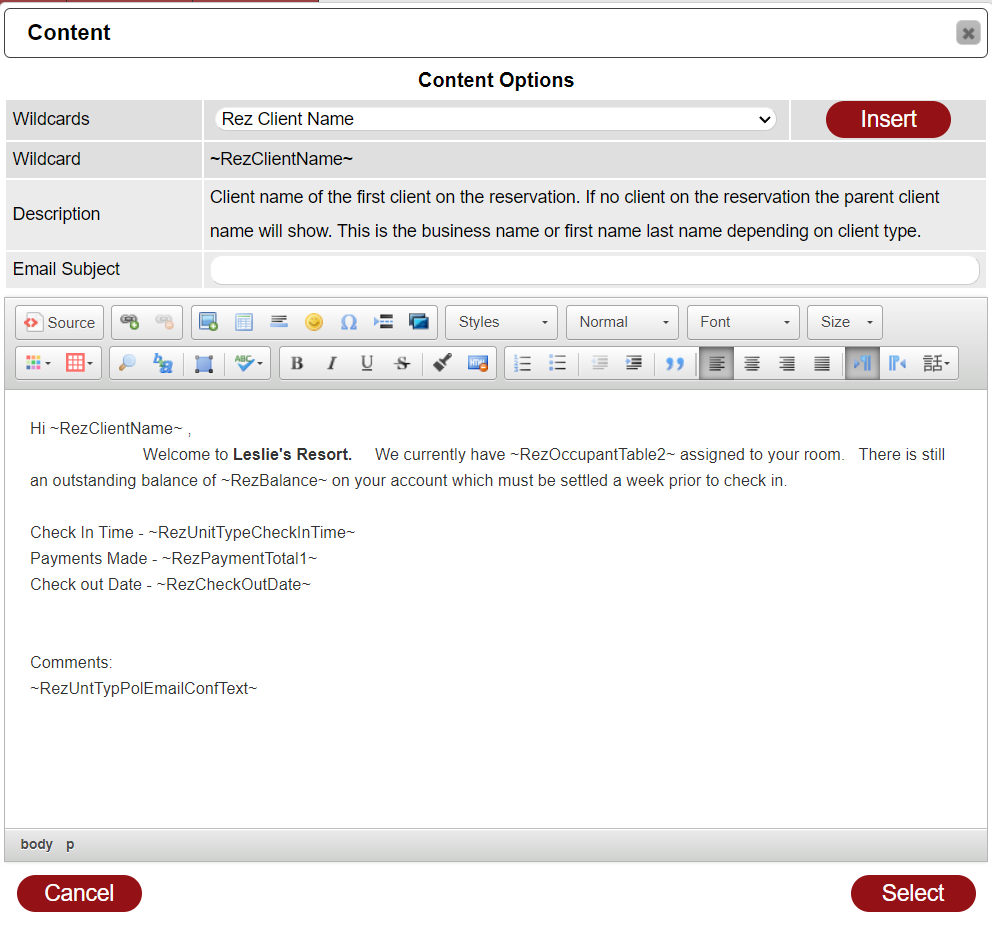
- By clicking the Edit button at the bottom of the form/report/email, the editor will become available to allow the user to edit the document.
- Wildcards: Provides a dropdown list of all available wildcards, which can be used to pull specific information from the business, client, or reservation depending on the type of document being created. Select the desired wildcard and click the Insert button to place it where the cursor was placed.
Email Subject
- Fill in this field to assign a customized email subject if used as an email. If left blank and used as an email, it will append the name of the content document after the business name.
Troubleshooting
For any issues encountered during the content setup process, ensure all fields are correctly filled and the appropriate content type is selected. If problems persist, consult the RezExpert support team for further assistance.