Processing PayTrace Refunds in RezExpert
Last modified on:
Overview
This document provides a step-by-step guide for making a refund through PayTrace in RezExpert for the first time.
Prerequisites
- Access to RezExpert
- Necessary permissions to process refunds
Steps
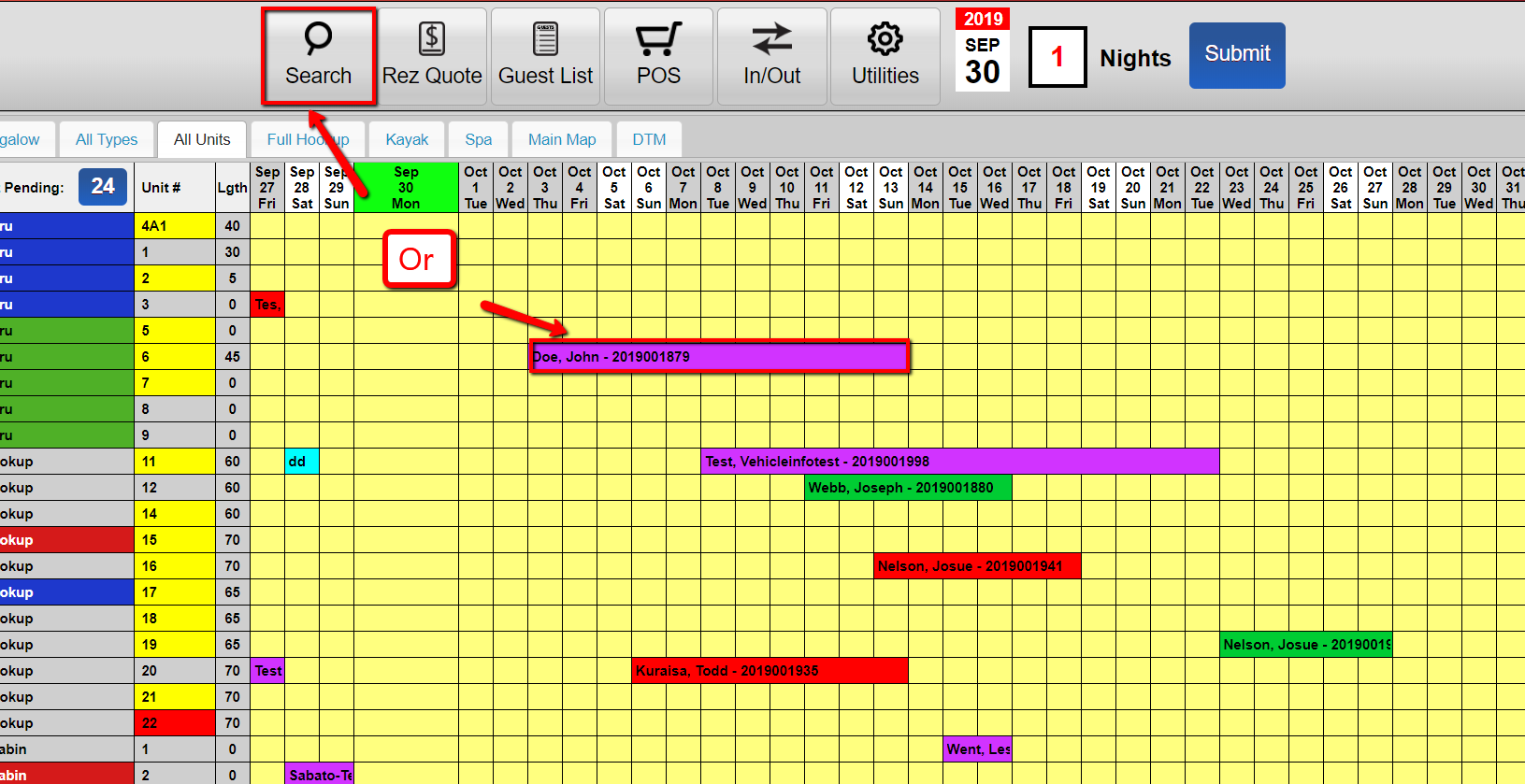
- Select Reservation or Search for the Client
- Navigate to the reservation or search for the client in the system.
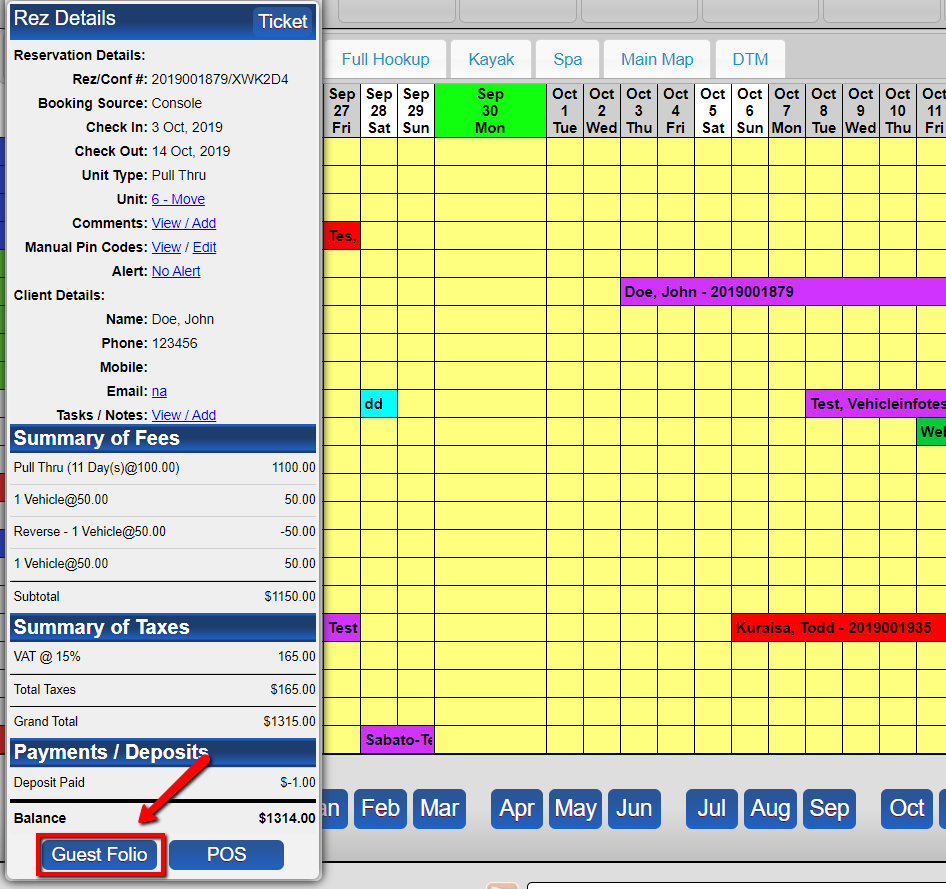
- Select Guest Folio
- Access the guest folio associated with the reservation.
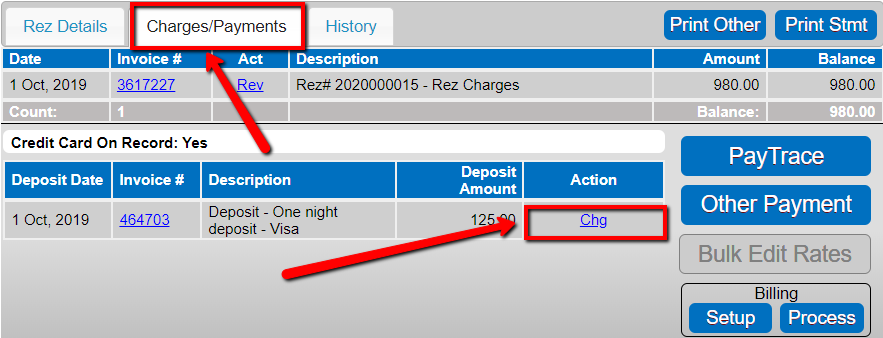
- Go to Charges/Payment
- Click on "Charges/Payment" and select "change" on the transaction that is to be refunded.
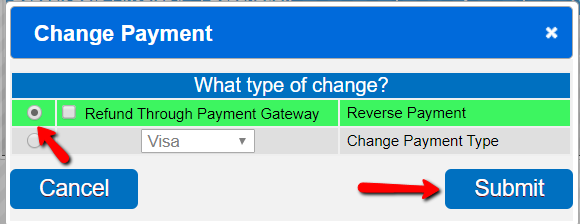
- Ensure ‘Reverse Payment’ is Selected
- When prompted, ensure that the ‘Reverse Payment’ option is selected.
- Submit and Confirm
- Click "Submit" to process the refund.
- Confirm the action by clicking ‘yes’ when prompted.
Troubleshooting
- Ensure that you have the correct permissions to process refunds.
- Verify that the correct transaction is selected for refund to avoid errors.