Setting Min and Max Stay Rules
Last modified on:
Overview
This document provides guidance on setting up Date Rules, specifically Minimum and Maximum lengths of Stay, which are booking restrictions for creating reservations. These rules allow users to restrict the Minimum and Maximum allowed length of reservations between specified time frames based on configured criteria.
Prerequisites
- Access to the Admin tab in the system.
- Ability to navigate to Rule Setup.
Steps
Location
- Click on a Menu button.
- Select the Admin tab.
- Click on Rule Setup.
Add - Min Stay Rules
- Click Add.
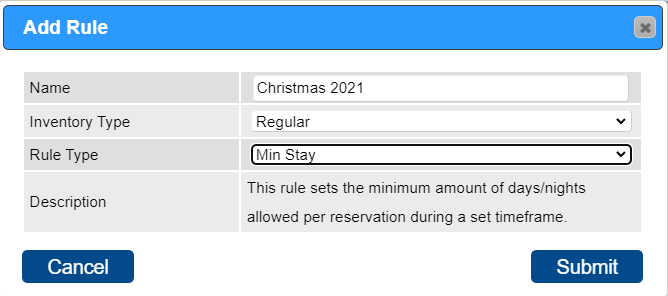
- Enter a name for reference (e.g., Christmas 2022 Min Stay).
- Click on the Inventory Type dropdown and select Regular.
- Select the rule type – Min Stay.
- View changes.
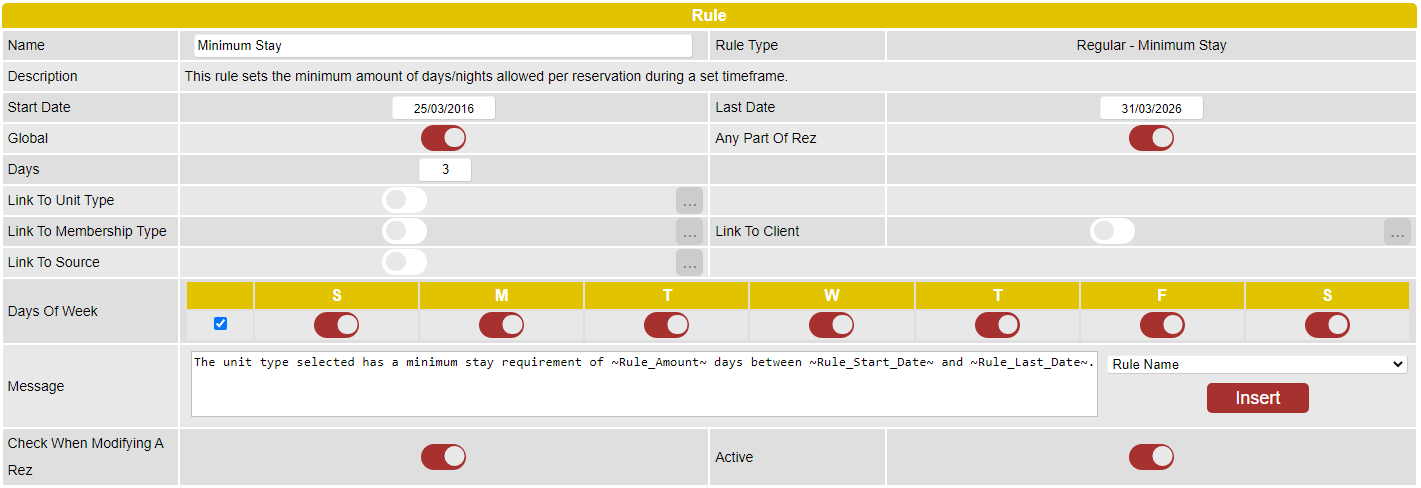
- Configure the following:
- Start Date: Select the start date of the period.
- Last Date: Select the end date of the period.
- Global: Enable if this rule is a secondary rule. This rule will only take effect if there aren't any non-global rules set for that time frame. Non-global rules take priority over global rules.
- Days: Enter the number of days/nights required.
- Link To Unit Type: Click on the slider and select the required Unit Types.
- Link To Membership Type: Click on the slider and select the required Membership Types.
- Link To Client: Click on the slider and search/select the required Client(s).
- Link To Source: Click on the slider and select the booking source.
- Days of Week: Tick/untick the required days.
- Message: Adjust the default message if required.
- Check When Modifying a Rez: Enable if the rule is to be checked when a confirmed reservation is modified.
- Active: Enable to make the rule active.
- Click here to print the Help Document.
Add - Max Stay Rules
- Click Add.
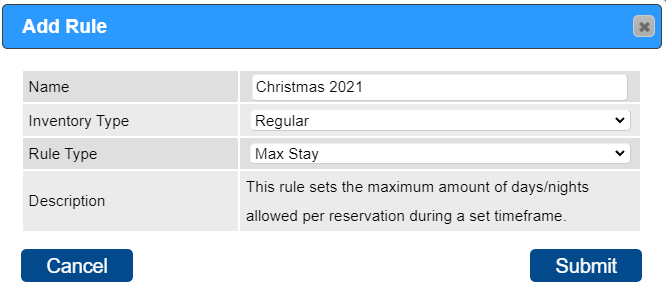
- Enter a name for reference (e.g., Maximum Stay Rule).
- Click on the Inventory Type dropdown and select Regular.
- Select the rule type – Max Stay.
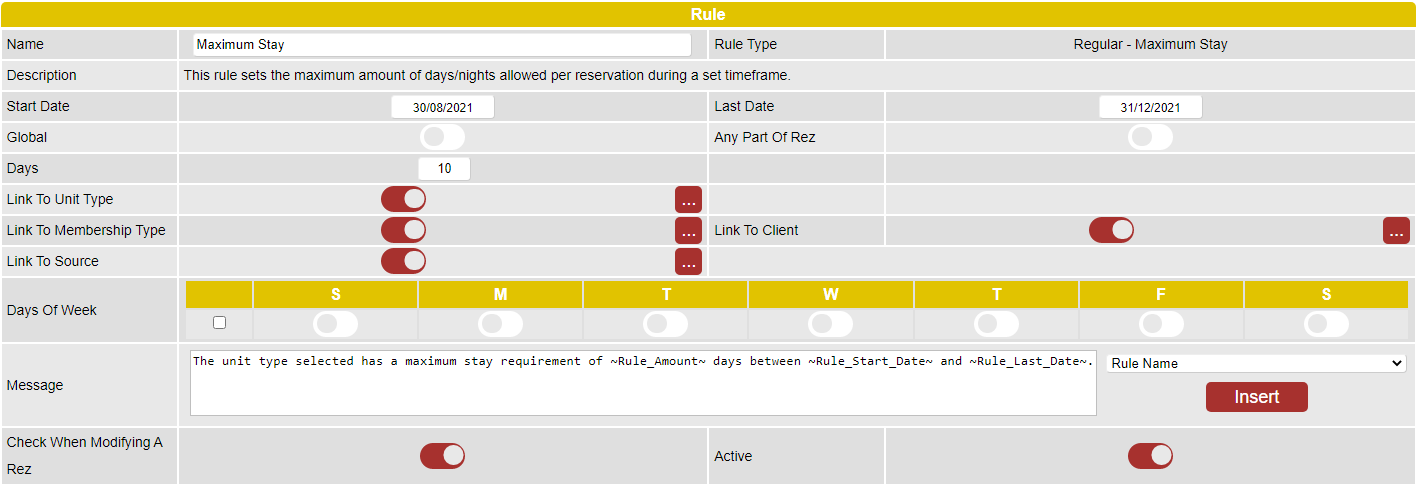
- Configure the following:
- Start Date: Select the start date of the period.
- Last Date: Select the end date of the period.
- Global: Enable if this rule is a secondary rule.
- Days: Enter the number of days/nights required.
- Link To Unit Type: Click on the slider and select the required Unit Types.
- Link To Membership Type: Click on the slider and select the required Membership Types.
- Link To Client: Click on the slider and search/select the required Client(s).
- Link To Source: Click on the slider and select the booking source.
- Days of Week: Tick/untick the required days.
- Message: Adjust the default message if required.
- Check When Modifying a Rez: Enable if the rule is to be checked when a confirmed reservation is modified.
- Active: Enable to make the rule active.
- Click here to print the Help Document.
Troubleshooting
- Additional Date Rules: Additional Date Rules can be created, such as Prescribed Check In Days and Check Out Days rules.
- Click here to view how to create Prescribed Check In Days rules.
- Click here to view how to create Prescribed Check Out Days rules.