Shopping Cart Feature for Online Reservations
Last modified on:
Overview
The Shopping Cart feature allows guests to book multiple reservations at different times and pay their total in one payment. Additional online products can also be made available for purchase and added to their upcoming reservations via the Shopping Cart. To enable the Shopping Cart module, contact DigitalRez.
Prerequisites
- Ensure that the Shopping Cart module is enabled by contacting DigitalRez.
- Review the Resort Web Setup Preferences for Group Bookings before enabling the Shopping Cart module.
Steps
Online Booking Interface Menu Button
- A new button labeled "Cart" will appear on the Online Booking Menu Bar after a guest has logged in or completed their reservation.

- During the online booking process, guests have an additional option in the Comments/Terms & Conditions panel. The "Add To Cart" button allows them to add the booking to the Shopping Cart. Instead of the "Pay" button, the "Accept" button will display to pay for the reservation immediately.
Shopping Cart
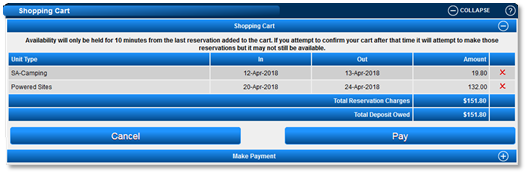
- After pressing the "Add To Cart" button, the Shopping Cart will display with reservation details:
- Unit Type
- Check-In and Check-Out date
- Reservation Total Amount
- An "X" button is available to remove reservations from the Shopping Cart.
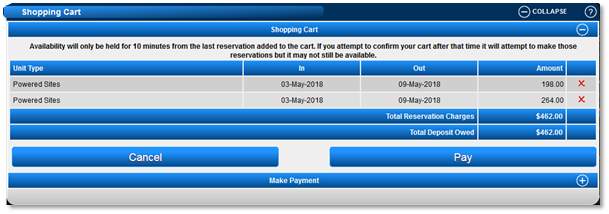
- Reservations in the Shopping Cart are not confirmed until payment is applied. Availability is held for 10 minutes from the last reservation added. If a guest attempts to confirm after this time, availability may no longer be guaranteed.
Adding Products/Services to a Shopping Cart
- If online products are set up, they can be added to the Shopping Cart.
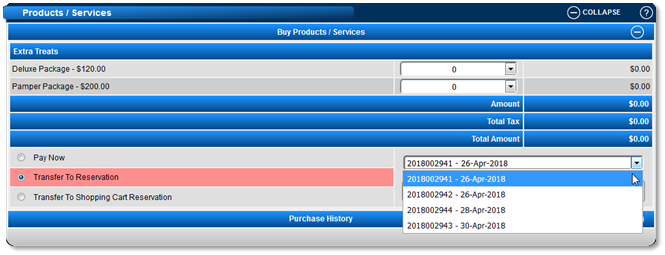
- Clicking the "Products/Services" button on the Online Menu Bar will display all available products for purchase.
- Payment options for products/services:
- Pay Now: Pay immediately, making the product a standalone purchase.
- Transfer to Reservation: Transfer the product charge to an upcoming reservation.
- Transfer to Shopping Cart Reservation: Transfer the product charge to a reservation in the Shopping Cart, to be paid for with the reservation/shopping cart total.

Paying Shopping Cart Charges
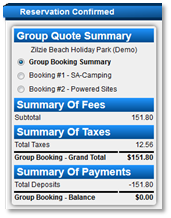
- Clicking "Pay" on the Shopping Cart transfers the guest to the Payment Gateway screen to select their credit card type and process the payment.
Resort Web Setup Preferences
- Review the Resort Web Setup Preferences for Group Bookings before enabling the Shopping Cart module.
- The Resort Web settings apply even with the Shopping Cart enabled.
- To review settings, click on a Menu button, select the Setup tab, and click on Resort Web Setup.
- Multiple reservations can be added to the Shopping Cart only if the Resort Web Group Bookings flag is enabled. If disabled, a message will indicate that Group Bookings are not available.
- Group bookings across different Unit Types are available if the Group Booking Allow Multiple Unit Types flag is enabled.
- The Group Booking Max Number of Reservations value restricts the number of reservations a guest can add to the Shopping Cart.
Troubleshooting
- If group bookings are not available, ensure that the Resort Web Group Bookings flag is enabled.
- Verify that the Group Booking Allow Multiple Unit Types flag is enabled for bookings across different Unit Types.
- Ensure the Group Booking Max Number of Reservations value is set appropriately to allow the desired number of reservations.
For more information, click here to print the Help Document.