Change Alert Colours in Grid Interface
Last modified on:
Overview
This document provides a step-by-step guide on how to change alert colours.
Prerequisites
- Access to the grid interface where the alert colours need to be changed.
Steps
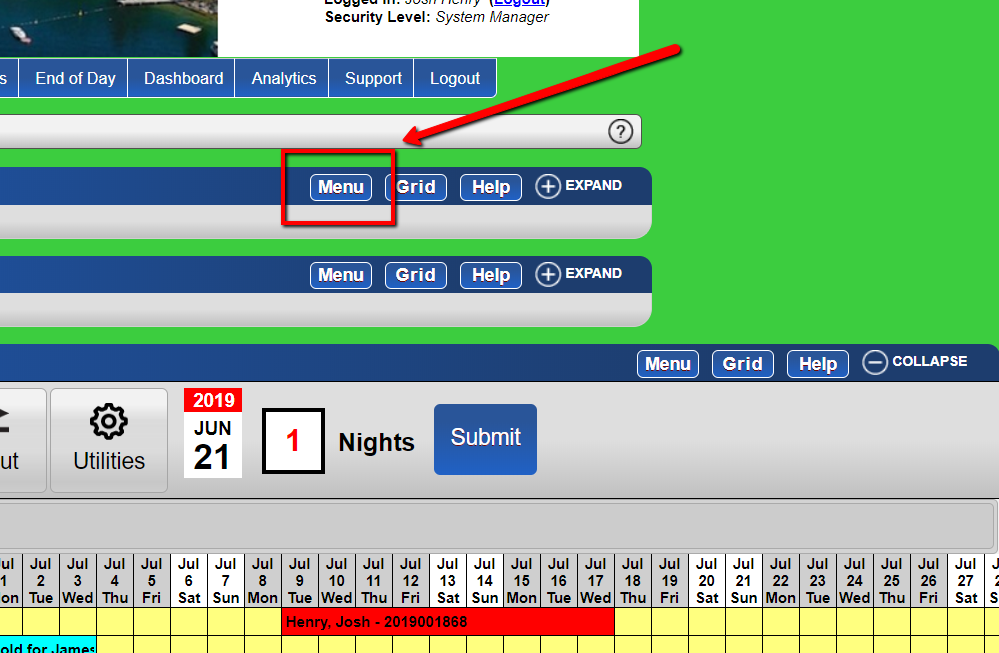
- Click the "Menu" button from the grid.
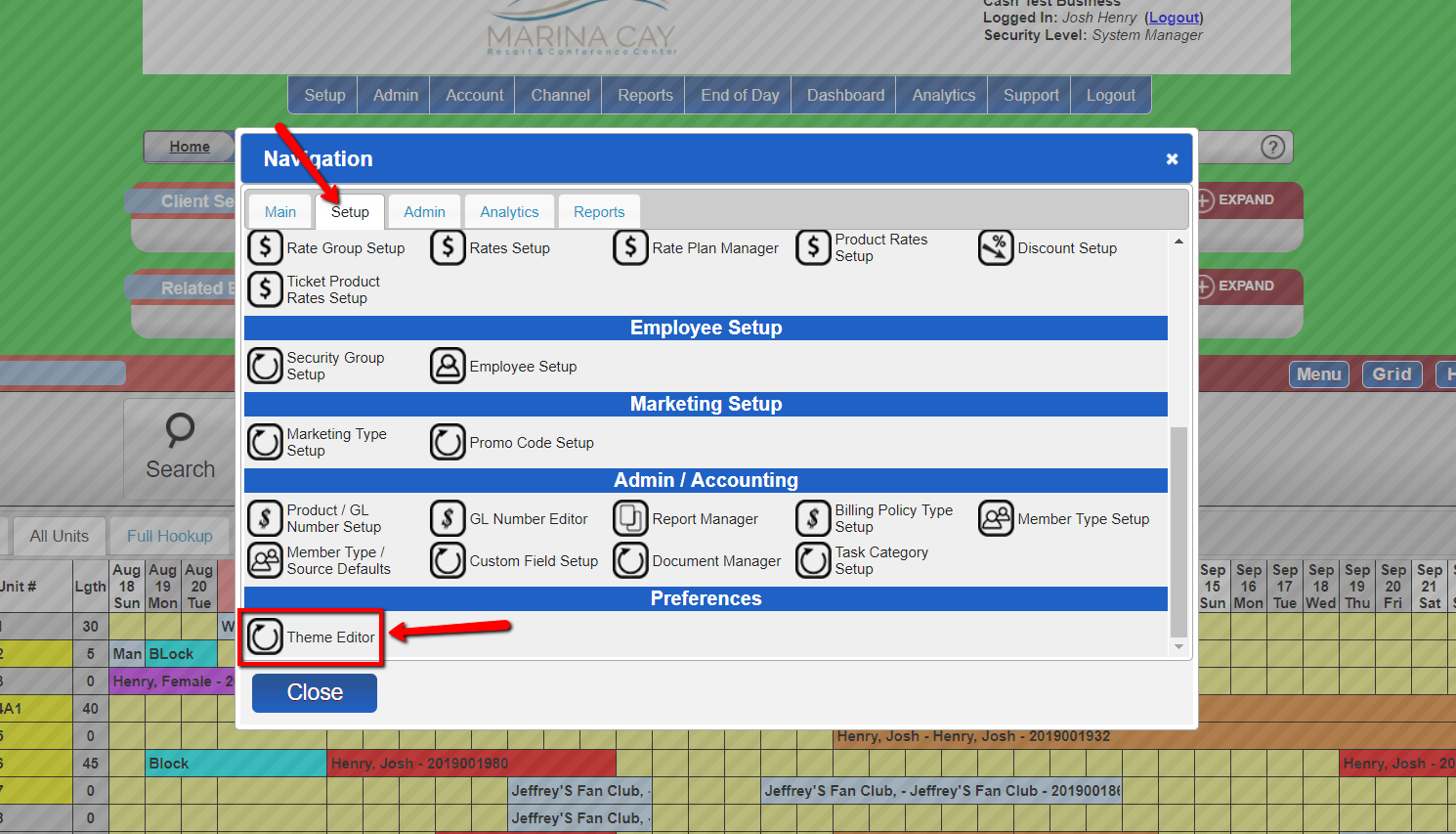
- Under the setup tab, scroll to the bottom and select the "Theme Editor" option.
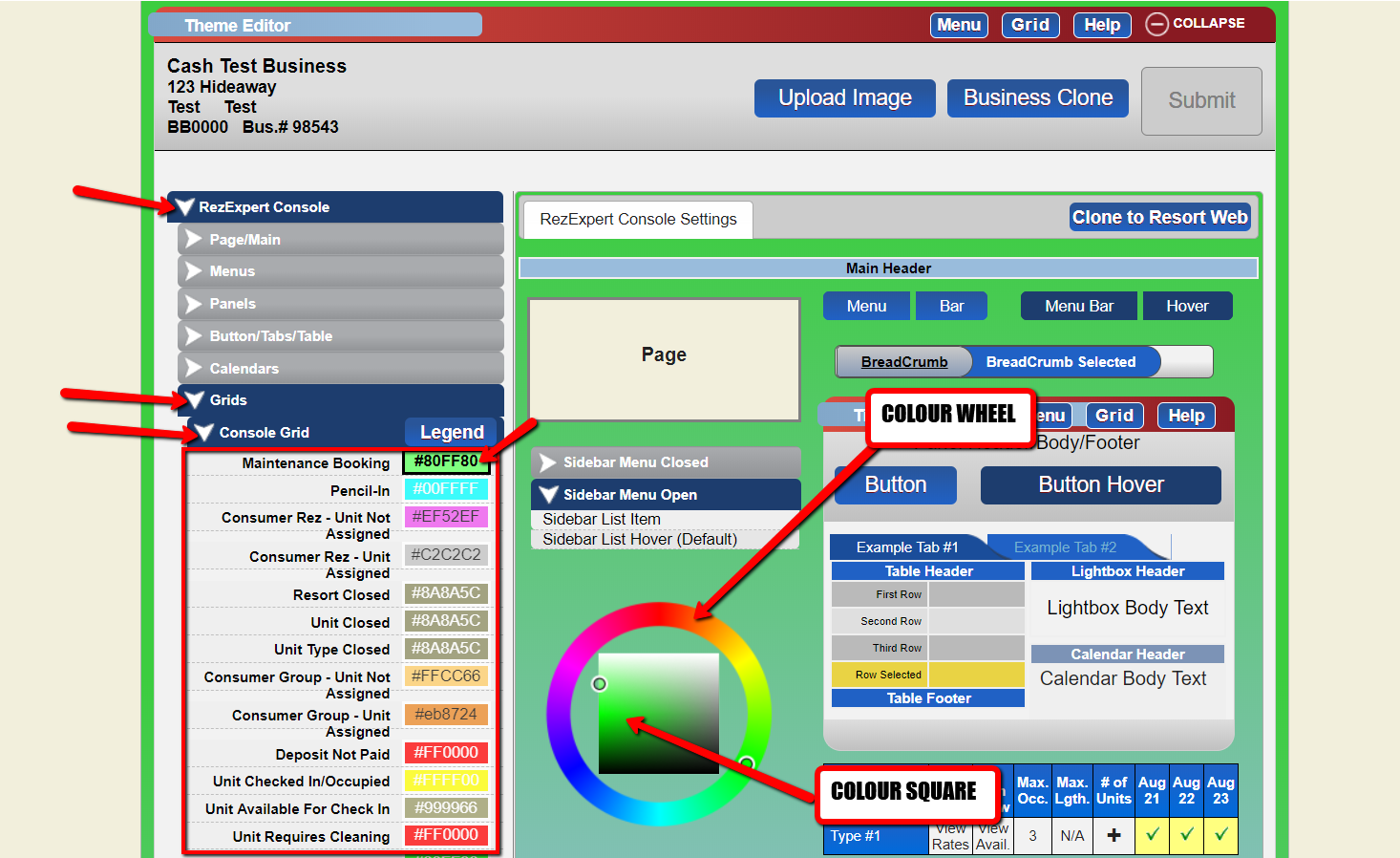
- On the left, navigate to:
- RezExpert Console
- Grids
- Console Grid - Select the alert you wish to change.
- Use the colour wheel and square to make the desired changes.
- Once satisfied with the changes, click the submit button to save them.
Troubleshooting
- Ensure you have the necessary permissions to access the Theme Editor.
- Verify that the changes are saved by checking the alert colours after submission.