Prescribed Length of Stay Rule Setup
Last modified on:
Overview
Prescribed Length of Stay rules set a specific length of stay for all reservations occurring during a set timeframe, such as 3 nights, 4 nights, or 7 nights only.
Prerequisites
- Access to the Admin tab within the Administrative section.
Steps
Location
- Click on a Menu button.
- Select the Admin tab.
- Click on Rule Setup within the Administrative section.
Add
- Click Add.
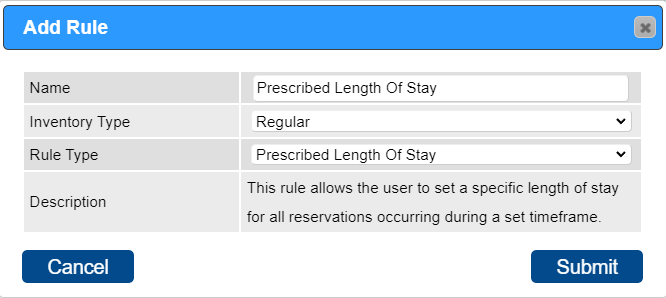
- Enter a name for reference, e.g., Prescribed Length of Stay.
- Click on the Inventory Type dropdown and select Regular.
- Select the rule type – Prescribed Length of Stay.
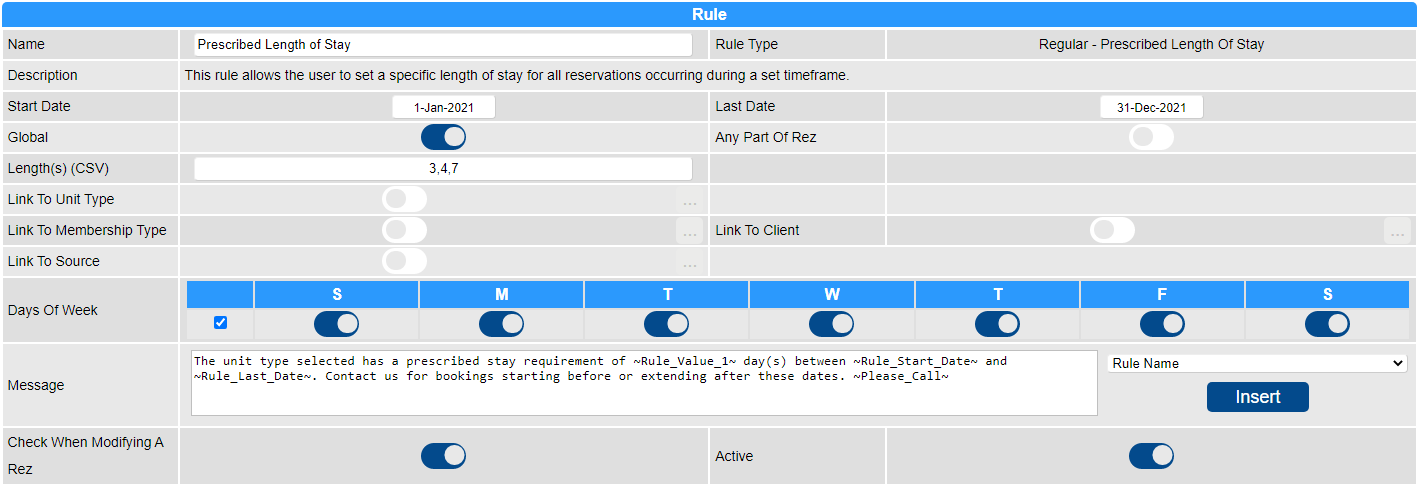
- Start Date: Select the start date of the period.
- End Date: Select the end date of the period.
- Global: Enable the flag if the rule applies to all Unit Types.
- Any Part of Rez: Enable the flag if the rule applies to reservations that have any part of the stay within the Start and End date range.
- Length(s) (CSV): Enter the required lengths of stay, e.g., 3, 4, 7.
- Link To Unit Type: If the rule applies to particular Unit Types, click on the slider and select the required Unit Types. By default, the slider will be on with no Unit Types enabled.
- Link To Membership Type: If the rule applies to particular Membership Types, click on the slider and select the required Membership Types. By default, the slider will be on with no Membership Types enabled.
- Link To Client: If the rule applies to particular Clients, click on the slider and search/select the required Client(s). By default, the slider will be on with no Clients enabled.
- Link To Source: If the rule applies to a particular booking source (e.g., Online Bookings only), click on the slider and select the booking source. By default, the slider will be on with no Source enabled.
- Days of Week: If the rule applies to particular days of the week, tick/untick the required days. If the rule applies to all days, tick the box to the left.
- Message: A default message will display when a booking does not meet the required amount of days/nights. The message can be adjusted if required.
- Check When Modifying a Rez: Enable the flag if the rule is to be checked when a confirmed reservation is modified.
- Active: Enable the flag to make the rule active.
Troubleshooting
- For additional help, click here to print the Help Document.