Editing Automated Emails in System Manager
Last modified on:
Overview
This document provides a step-by-step guide on how to edit an automated email within the system.
Prerequisites
- Access to the system with appropriate permissions to edit automated emails.
Steps
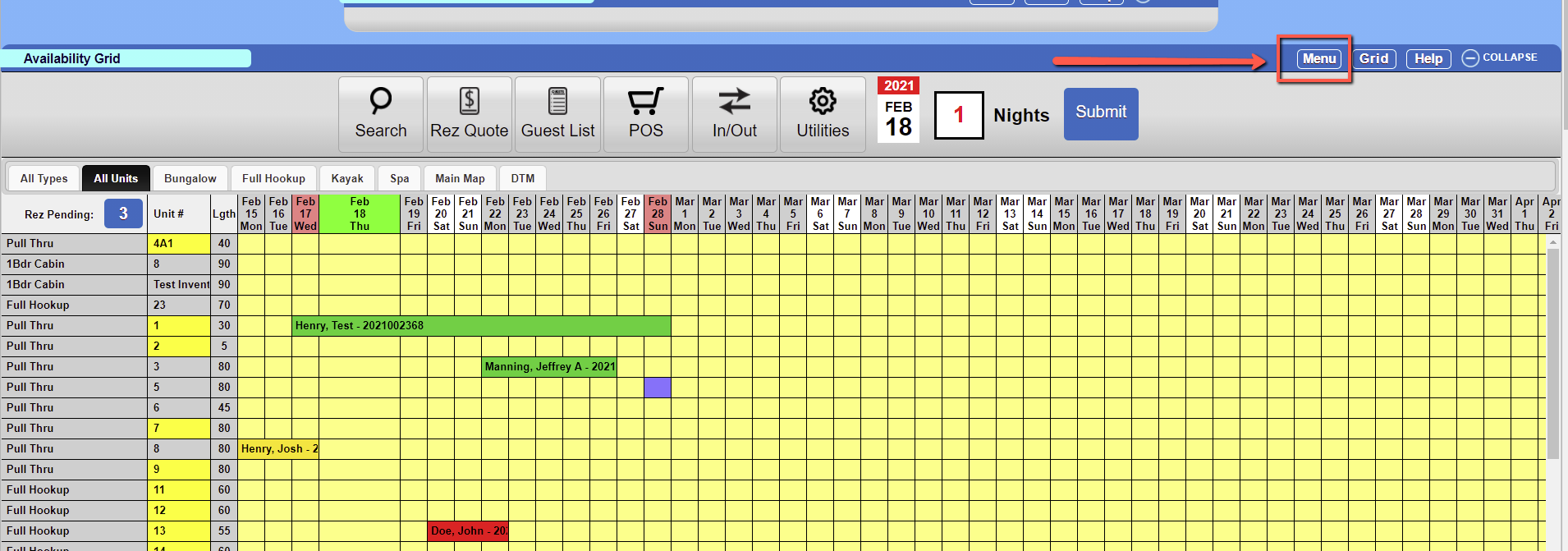
- Access the Menu
- Click the Menu button.
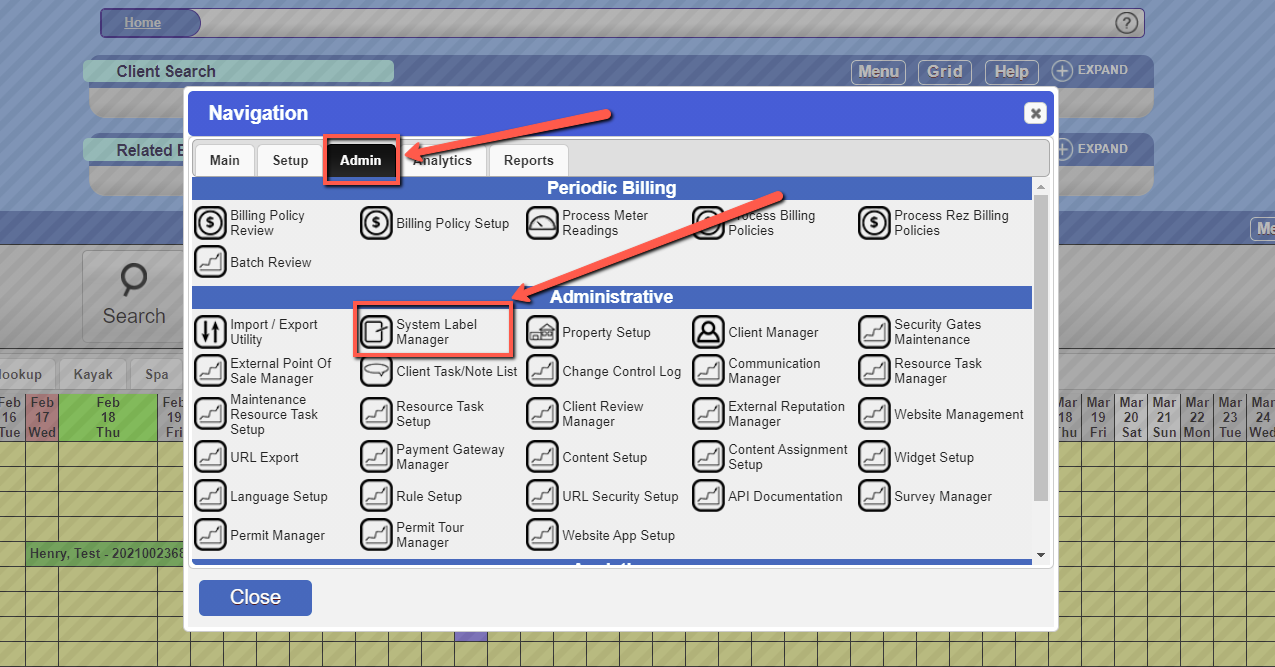
- Navigate to System Label Manager
- Go to the Admin tab.
- Select System Label Manager.
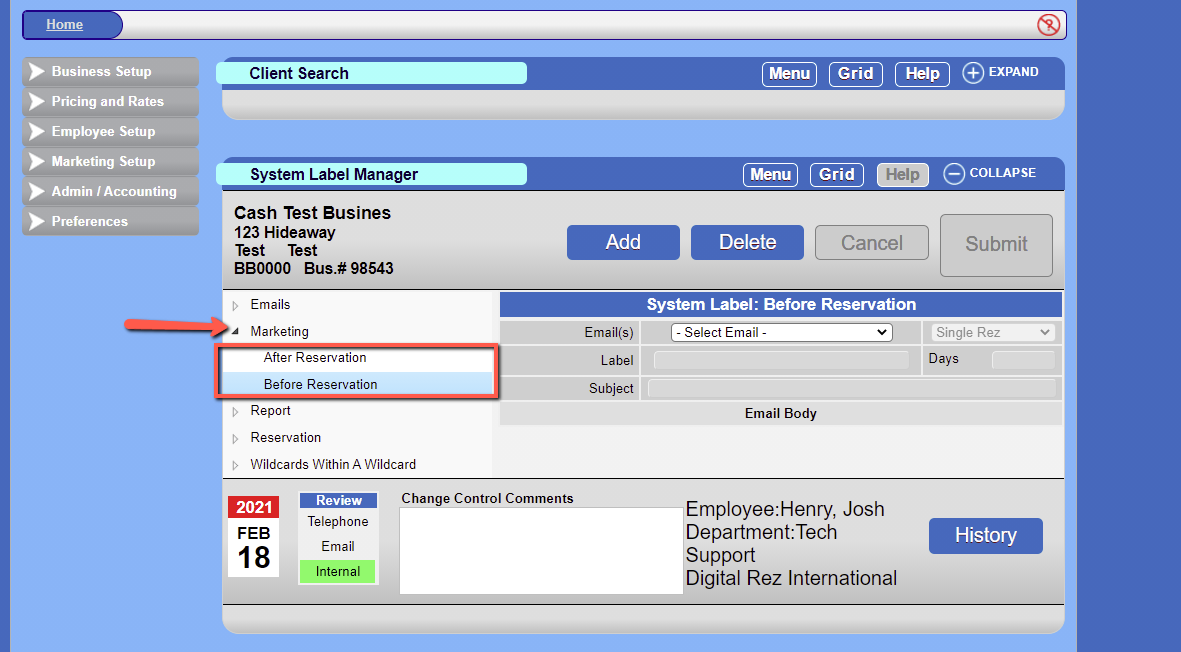
- Select Marketing Option
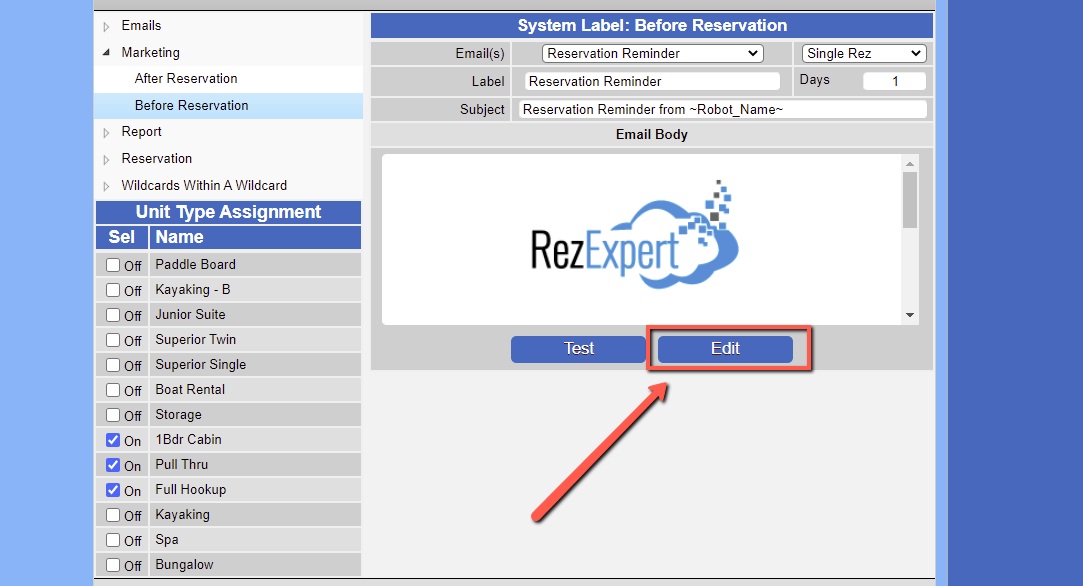
- Expand Marketing on the left.
- Choose either Before Reservation or After Reservation, depending on which email you want to edit.
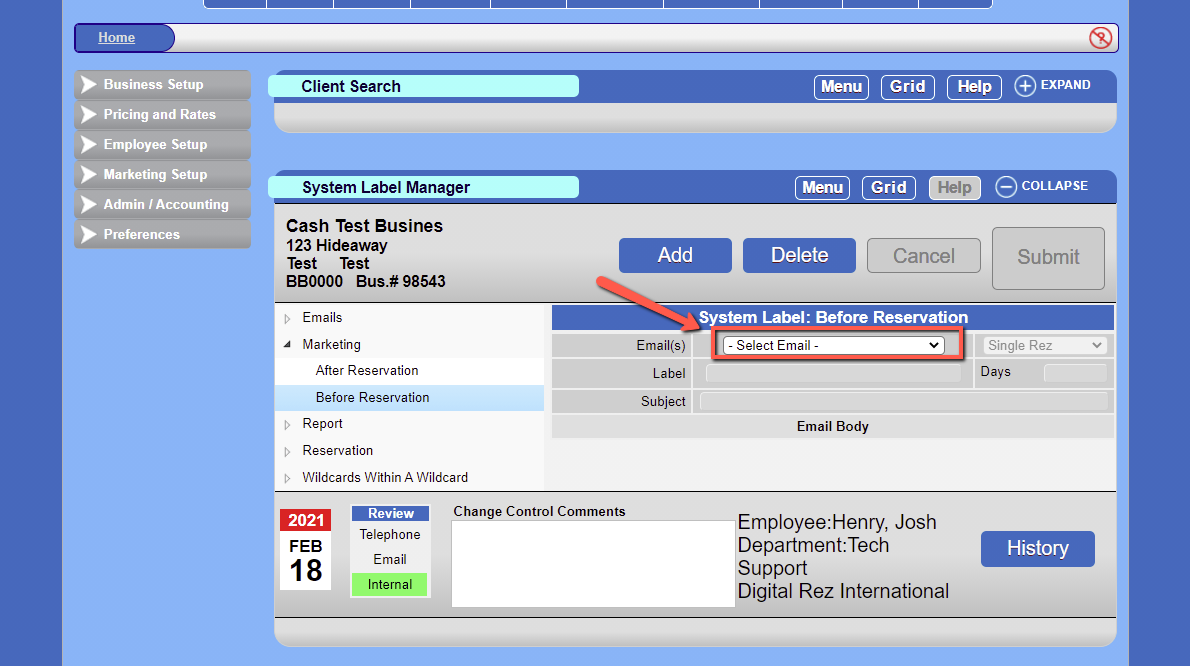
- Choose the Email
- Select the existing email from the drop-down menu.
- Edit the Email
- Click the Edit button.
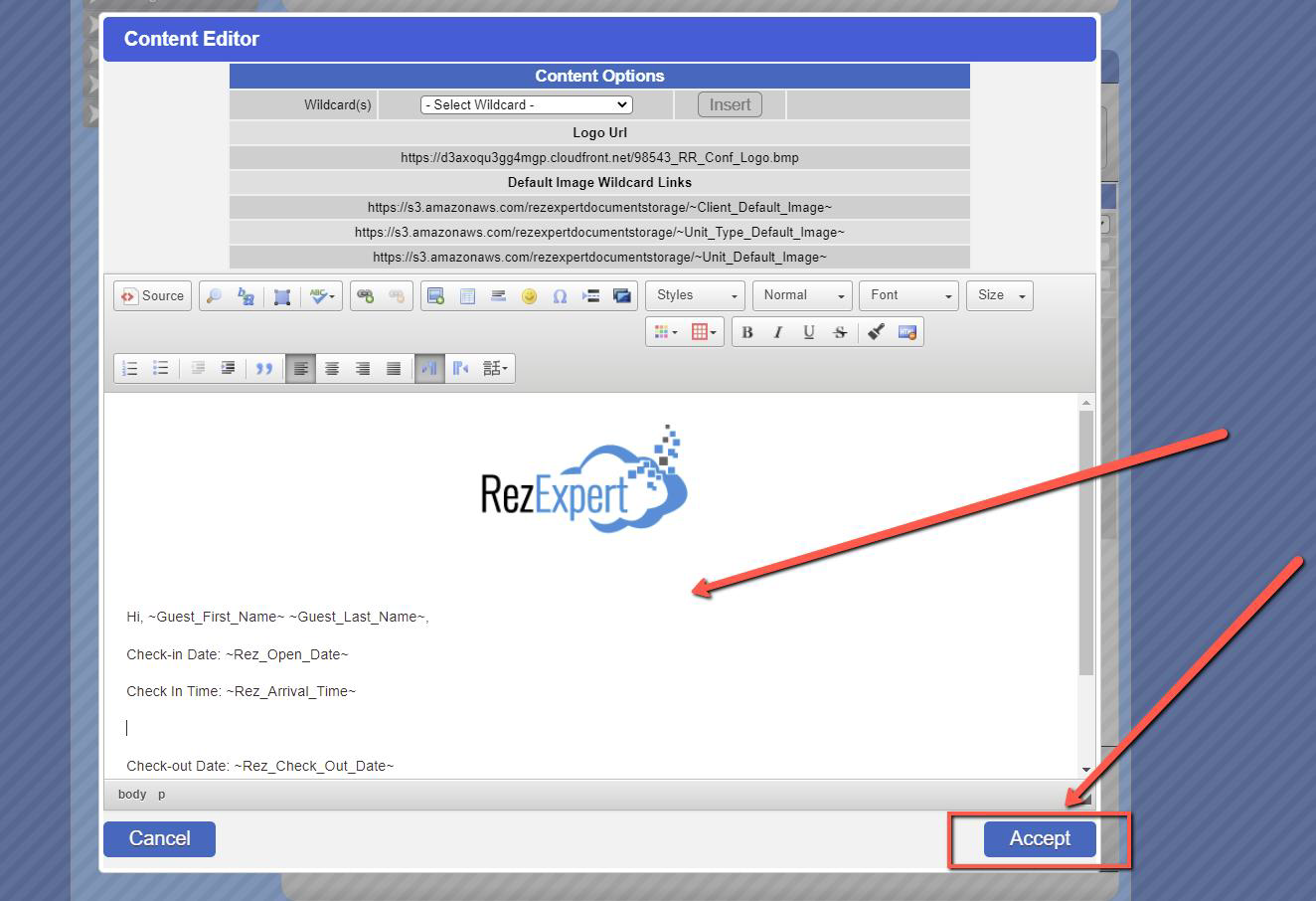
- Apply Changes
- Make the necessary changes to the email.
- Click Accept when finished.
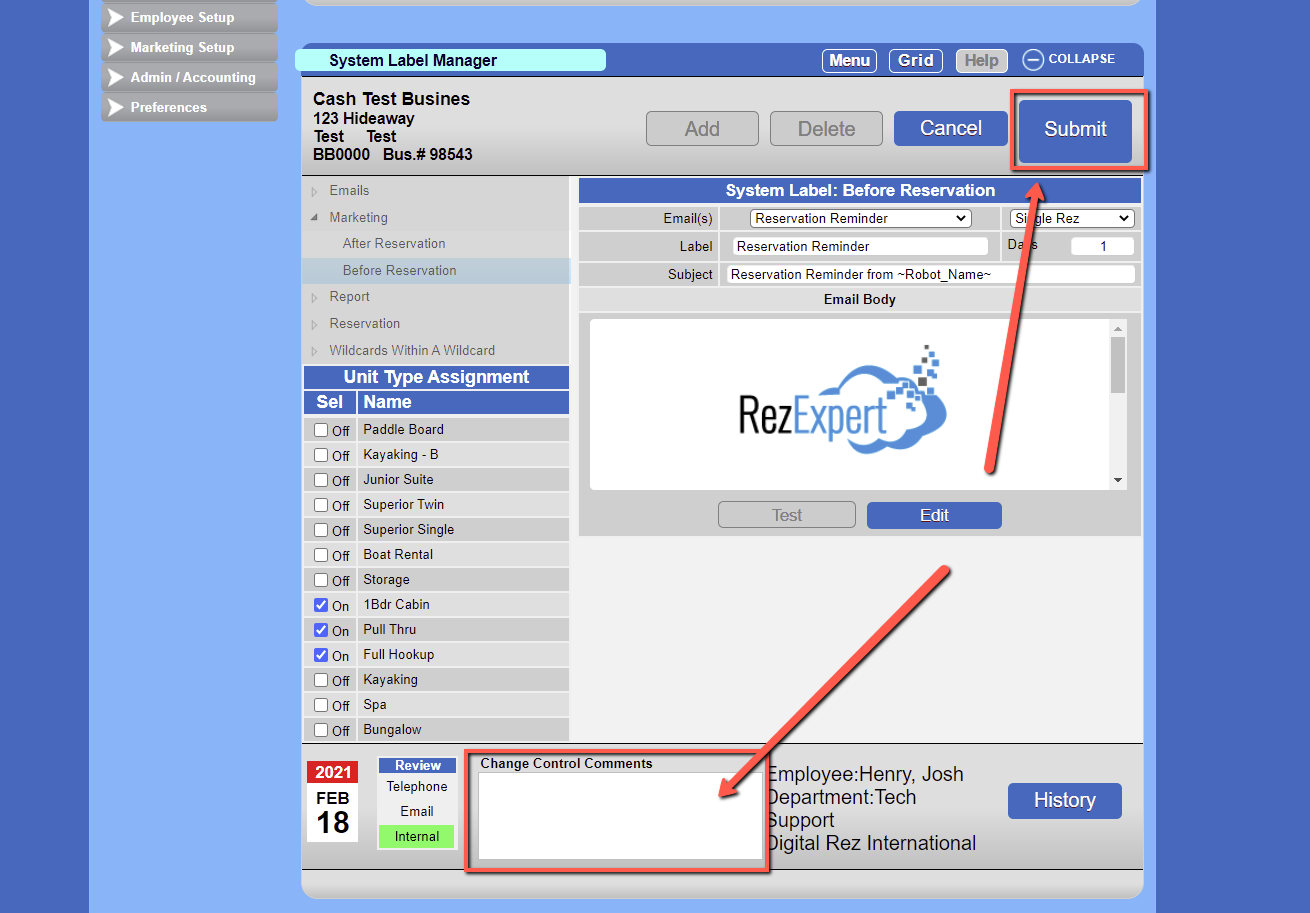
- Submit Changes
- Enter Change Control Comments.
- Click Submit.
Troubleshooting
- Ensure you have the necessary permissions to edit emails.
- Verify that you are selecting the correct email template from the drop-down menu.
- If changes do not save, check for any error messages or contact system support.