Change Payment Type on Reservation Payments
Last modified on:
Overview
When the wrong payment type is selected for a payment, it can be corrected prior to the End of Day Cutoff being completed.
Prerequisites
- Access to the reservation's Charges/Payments tab.
Steps
If the Description displays as "Deposit Converted":
- Reverse the Deposit:
- Navigate to the reservation's Charges/Payments tab.
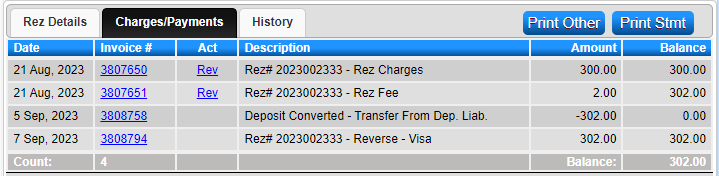
- If it displays as "Deposit Converted" within the Description section, the deposit needs to be reversed.
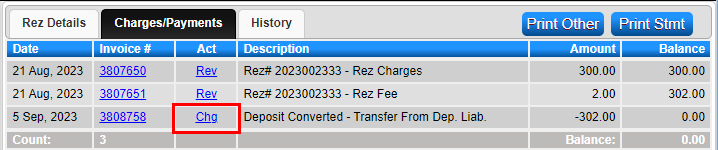
- Click on "Chg" next to "Deposit Converted - Transfer From Dep. Liab."
- Change Payment:
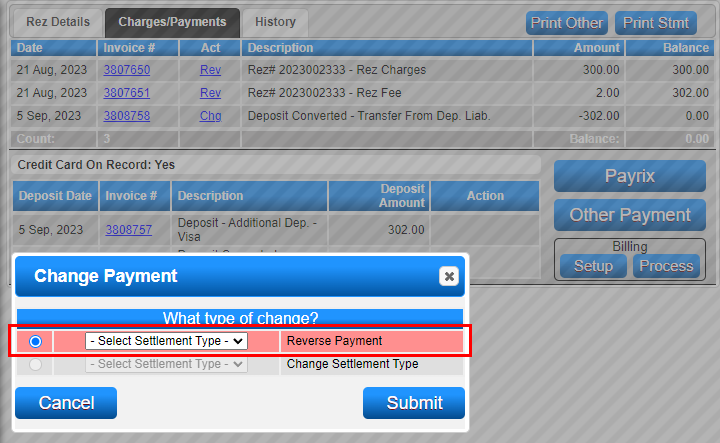
- The Change Payment box will appear. Only the "Reverse Payment" option is available.
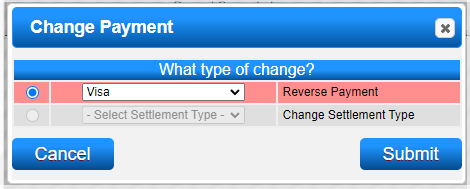
- Select the same payment type used in the original transaction and click "Submit." It is important to select the same payment type to ensure that End of Day is not 'out.'
- Confirmation:
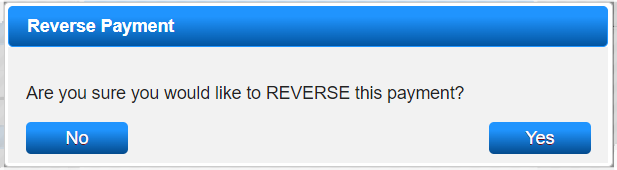
- Click "Yes" on the pop-up message.
- Apply Correct Payment:
- The correct payment amount/type can now be applied to the reservation.
If the Description displays as "Payment Made":
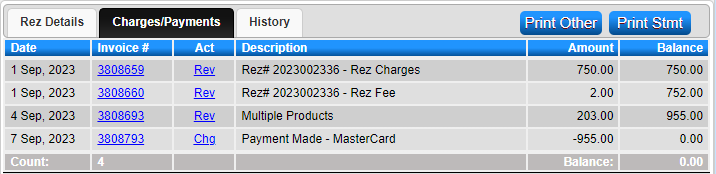
- Change Payment Type:
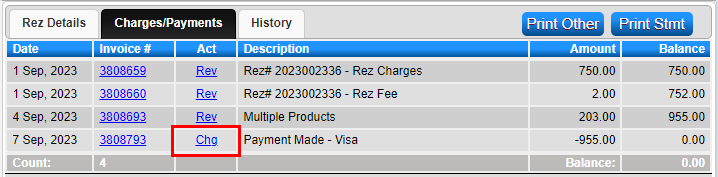
- Navigate to the reservation's Charges/Payments tab.
- If it displays as "Payment Made" within the Description section, click on "Chg" next to "Payment Made - Payment Type."
- Select Correct Payment Type:
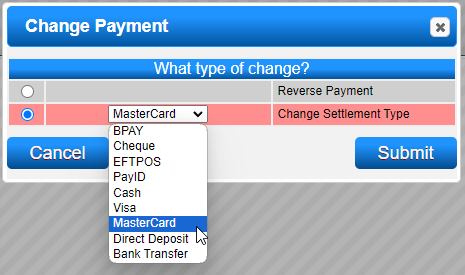
- Click on the "Change Settlement Type" option to select the correct payment type required.
- Confirmation:
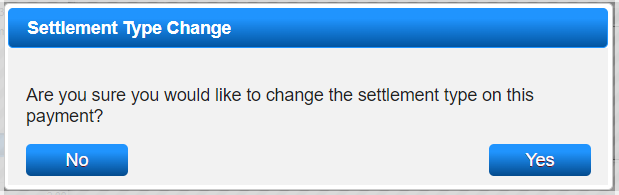
- Click "Yes" to the pop-up message.
- Verify Payment Type:
- The payment will now display under the new payment type selected.
Troubleshooting
After End of Day Cutoff has been completed
- Once the End of Day cutoff has been completed, payments cannot have the payment type changed to another payment type.
- The payment will need to be reversed off, and a new payment must be applied to the reservation using the correct payment type.