Down to the Minute Booking Rules Setup
Last modified on:
Overview
Booking rules can be created to meet your Down to the Minute Booking rules and restrictions. These rules apply to both the staff Availability Grid and the customers’ Online Availability Grid. Staff have the option to override the rule if required; customers purchasing online must follow the rule.
Prerequisites
- Access to the Admin tab for rule setup.
- Understanding of the different rule types and their applications.
Steps
Location
- Click on a Menu button.
- Select the Admin tab.
- Click on Rule Setup within Administrative.
Creating Rules
- Booking Rules will apply for ‘per unit’ and not ‘per Unit Type’.
- Click Add.
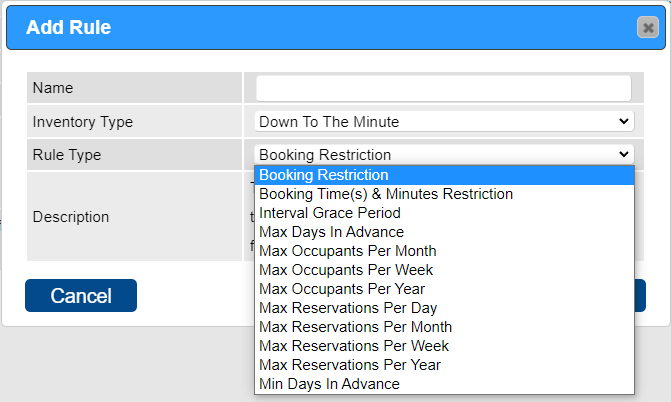
- The Add Rule box will display, allowing for the Name to be entered.
- Select Down To The Minute from the Inventory Type and then select the required Rule Type.
- Enter the name of the Rule for your reference.
- The Rule Setup panel will display to create the required rule.
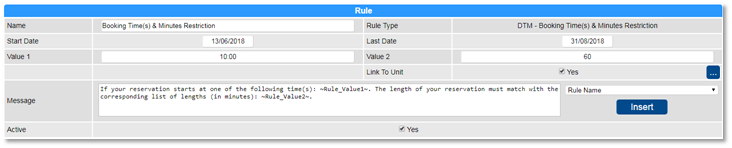
Note: Rules will not fire until ‘Link to Unit’ is enabled – units must be ticked on. Multiple rules can be created for different time frames.
Rule Types
There are multiple Rule Types available for Down to the Minute restrictions:
- Booking Restriction
- Booking Time(s) & Minutes Restriction
- Interval Grace Period
- Max Days In Advance
- Max Occupants Per Month
- Max Occupants Per Week
- Max Occupants Per Year
- Max Reservations Per Day
- Max Reservations Per Week
- Max Reservations Per Month
- Max Reservations Per Year
- Min Days In Advance
Rule Type: Booking Restriction
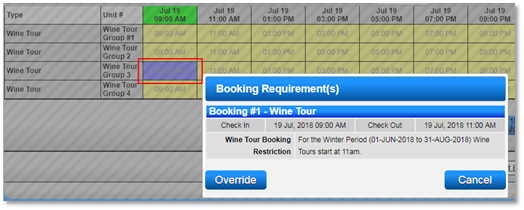
- Restricts the creation of any DTM booking within the set date range and time period.
- Start Date: Select the start date of the rule.
- Last Date: Select the end date of the rule.
- Start Time: Select the reservation start time for the rule.
- Last Time: Select the reservation last time for the rule.
- Link To Unit: Select the unit(s) the rule applies to.
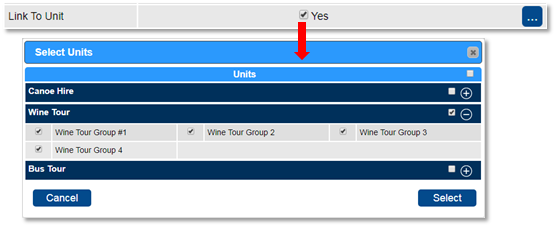
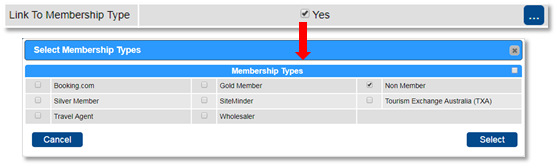
- Link to Membership Type: If the rule applies to a Membership Type, tick Yes and select the Membership Type.
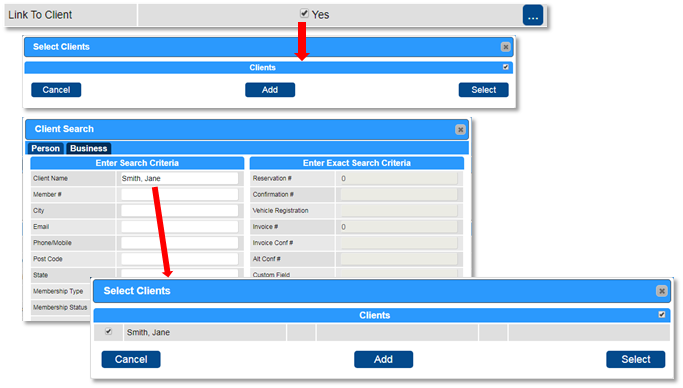
- Link to Client: If the rule applies to selected Client, tick Yes to select the Clients that the rule applies to.
- Days of Week: Select the days the rule applies to.
- Message: A default message will apply. The message can be edited to display any required information entered.
- Active: When the rule setup is complete.
Rule Type: Booking Time(s) & Minutes Restriction
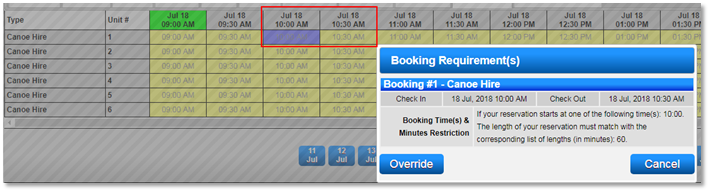
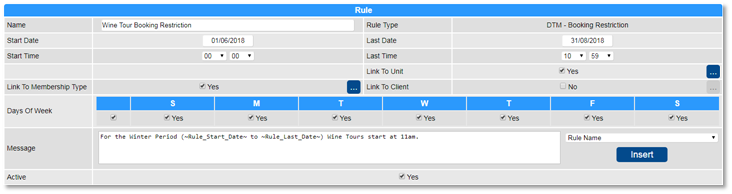
- Ensures any reservation starting at a selected time must be a required duration of time.
- Start Date: Select the start date of the rule.
- Last Date: Select the end date of the rule.
- Value 1: Required start time.
- Value 2: Required length of time.
- Link To Unit: Select the unit(s) the rule applies to.
- Message: A default message will apply. The message can be edited to display any required information entered.
- Active: When the rule setup is complete.
Note: If a rule applies to multiple start times, a separate rule will need to be created for each start time.
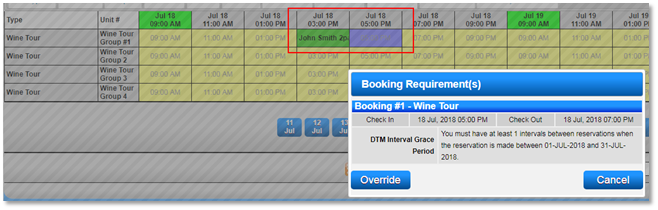
Rule Type: Interval Grace Period
- Allows for a grace period (break) between bookings for a selected DTM unit.
- Start Date: Select the start date of the rule.
- Last Date: Select the end date of the rule.
- Amount: Enter the number of time intervals required between bookings.
- Link To Unit: Select the unit(s) the rule applies to.
- Message: A default message will apply. The message can be edited to display any required information entered.
- Active: When the rule setup is complete.

Rule Type: Max Occupants per Week/Month/Year
- Triggers after the selected total amount of occupants have been booked into a DTM unit.
- Start Date: Select the start date of the rule.
- Last Date: Select the end date of the rule.
- Amount: Enter the maximum number of occupants allowed with bookings for the DTM unit.
- Link To Unit: Select the unit(s) the rule applies to.
- Message: A default message will apply. The message can be edited to display any required information entered.
- Active: When the rule setup is complete.
Note: Ensure that the Maximum Occupant amounts do not conflict each other if created for each duration.

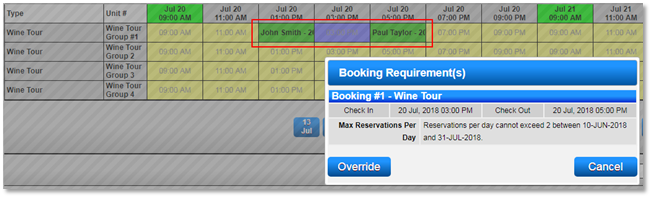
Rule Type: Max Reservations Per Day/Week/Month/Year
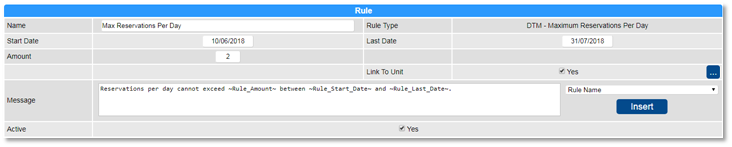
- Restricts the number of reservations that can be created for a DTM unit for the selected duration.
- Start Date: Select the start date of the rule.
- Last Date: Select the end date of the rule.
- Amount: Enter the maximum number of reservations allowed for the DTM unit.
- Link To Unit: Select the unit(s) the rule applies to.
- Message: A default message will apply. The message can be edited to display any required information entered.
- Active: When the rule setup is complete.
Rule List
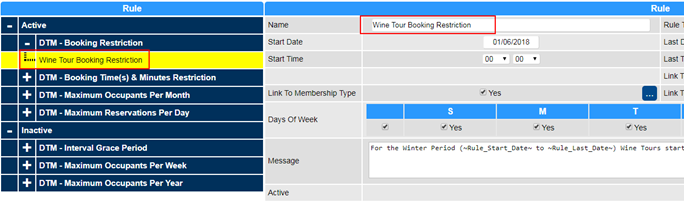
- After a rule has been created, it will display within the Rule List on the left.
- Active and Inactive rules will display under their Rule Type.
- Rules will display by the Rule Name.
- Created rules can be deleted using the Delete button.
Booking Rule Messages
- When the set rules are not met, a message will display informing the operator and guests of the set rule.
- These messages can be customized from the system set message if required.
System set messages include:
- Booking Restriction: Reservations cannot exist between ~Rule_Start_Time~ and ~Rule_Last_Time~ between ~Rule_Start_Date~ and ~Rule_Last_Date~.
- Booking Time(s) & Minutes Restriction: If your reservation starts at one of the following time(s): ~Rule_Value1~. The length of your reservation must match with the corresponding list of lengths (in minutes): ~Rule_Value2~.
- Interval Grace Period: You must have at least ~Rule_Amount~ intervals between reservations when the reservation is made between ~Rule_Start_Date~ and ~Rule_Last_Date~.
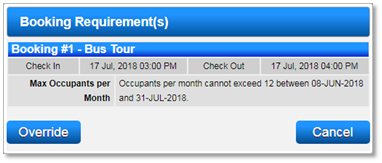
- Max Occupants per Month: Occupants per month cannot exceed ~Rule_Amount~ between ~Rule_Start_Date~ and ~Rule_Last_Date~.
- Max Occupants per Week: Occupants per week cannot exceed ~Rule_Amount~ between ~Rule_Start_Date~ and ~Rule_Last_Date~.
- Max Occupants per Year: Occupants per year cannot exceed ~Rule_Amount~ between ~Rule_Start_Date~ and ~Rule_Last_Date~.
- Max Reservations per Day: Reservations per day cannot exceed ~Rule_Amount~ between ~Rule_Start_Date~ and ~Rule_Last_Date~.
- Max Reservations per Week: Reservations per week cannot exceed ~Rule_Amount~ between ~Rule_Start_Date~ and ~Rule_Last_Date~.
- Max Reservations per Month: Reservations per month cannot exceed ~Rule_Amount~ between ~Rule_Start_Date~ and ~Rule_Last_Date~.
- Max Reservations per Year: Reservations per year cannot exceed ~Rule_Amount~ between ~Rule_Start_Date~ and ~Rule_Last_Date~.
Troubleshooting
For additional help, refer to the following resources: