Searching for Reservations in Availability Grid
Last modified on:
Overview
There are multiple ways to search for reservations.
Prerequisites
- Access to the Availability Grid
- Client's name for search
Steps
Grid Search
- On the Availability Grid, click Search.
- Enter the Client’s Name into the Search field and press Search.
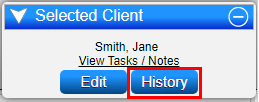
- The Selected Client box will display on the right-hand side of the Availability Grid.
- Click History to view the Client’s reservation history.
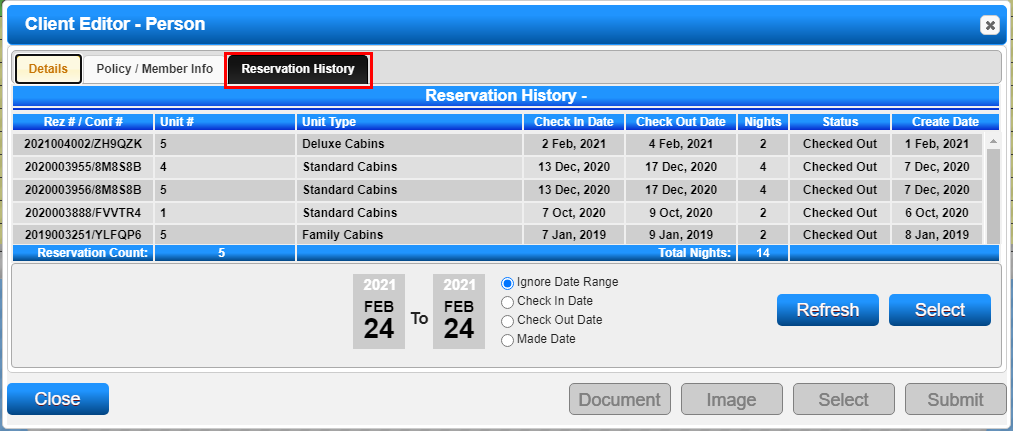
- This will direct you to the Reservation History tab of the Client Editor record for the client.

Guest List Search Filter
- On the Availability Grid, press Guest List to locate a guest’s reservation.
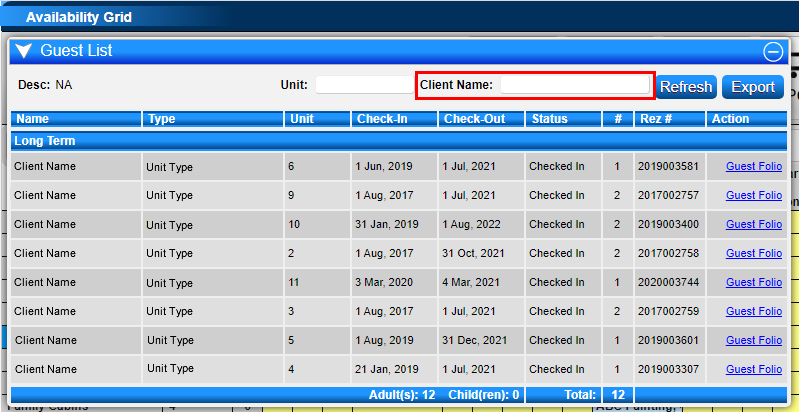
- Enter the Client’s Name into the Search field and press Search.
- The reservation will display in the Guest List display panel.
- To expand the date range, select the dates from the top of the grid and then press Guest List.

Client Editor
- The Client Editor contains all the reservations created for the client.
- Click Search on the Availability Grid and search for the Client’s name.
- Click on the Edit button, then select the Reservation History tab. This will contain all the reservations for the selected Client, displayed from newest to oldest.
- Click on a reservation and press Select to open the Guest Folio.
Arrival/Departure Panel
- Click on the In/Out button on the Availability Grid to open the Arrivals/Departures panel.
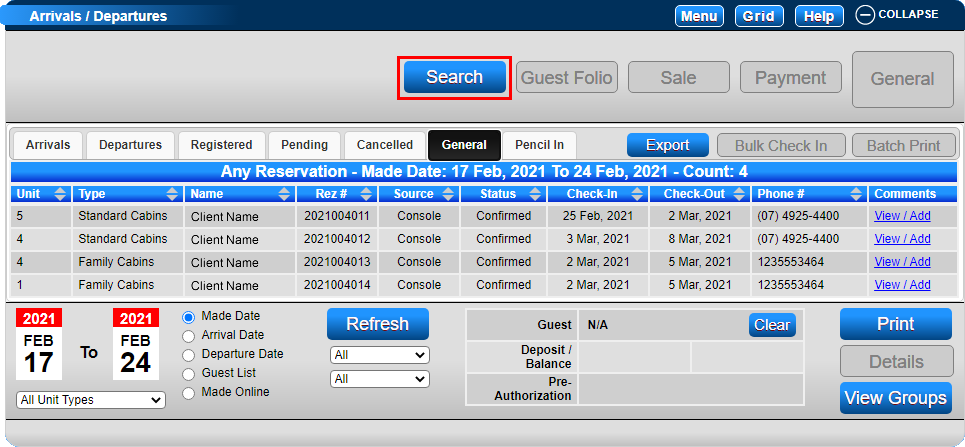
- The General tab contains all reservations within the selected date range and selected radio button.
- Click Search and enter the Client’s Name.
- All reservations created for the Client will display.
Reservation Manager
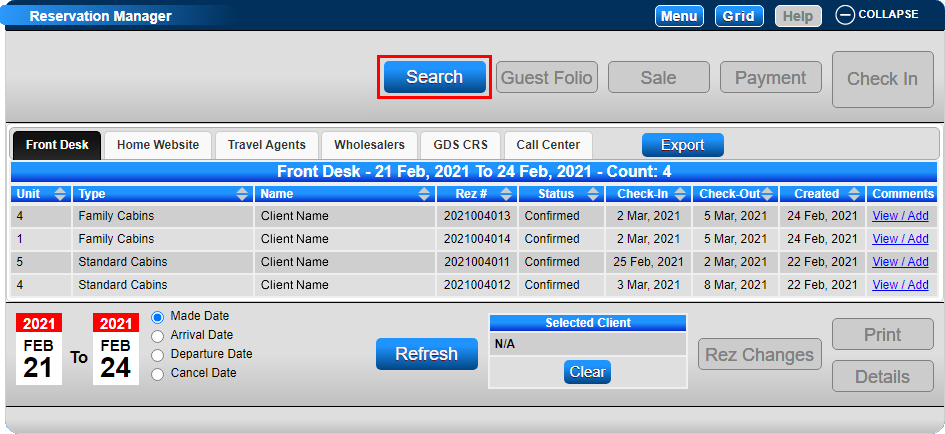
- The Reservation Manager contains a breakdown of all reservations according to their booking sources.
- Click on a Menu button and select Reservation Manager within the Channel section. Alternatively, click on Channel within the Menu Bar.
- The tabs will display reservations based on their booking source:
- Front Desk: Reservations made on the console.
- Home Website: Reservations made through the Online Booking Interface (RezRobot).
- Travel Agents: Travel Agency-based reservations. The Agency column will display the Travel Agent assigned to the reservation.
- Wholesalers: Wholesaler-based reservations. The Wholesaler column will display the Wholesaler assigned to the reservation.
- GDS/CRS: All Channel-based reservations (e.g., Booking.com, Expedia). The Provider column will display the Booking Channel the reservation was made through.
- Click on the required tab and click Search to search for the Client Name or Reservation/Confirmation #.
Troubleshooting
For further assistance, refer to the help document: Click here to print the Help Document