Channel OTA Reservation Log Management
Last modified on:
Overview
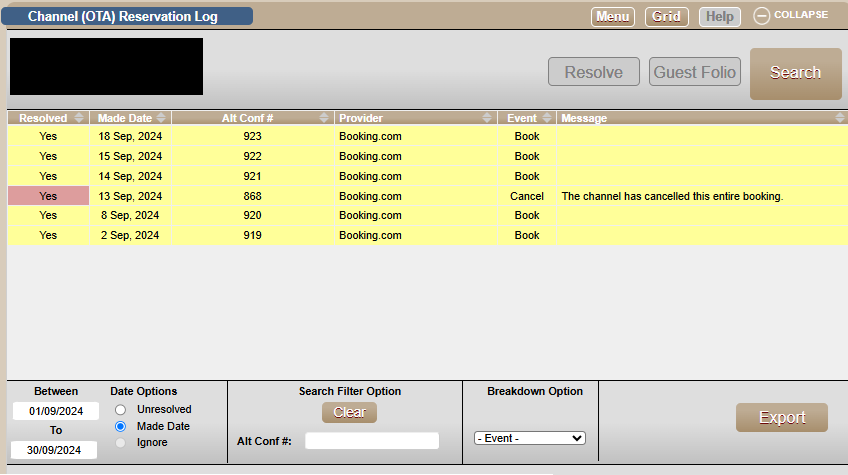
This panel allows a user to review all OTA logs. When a booking, modification, or cancellation request is sent from the OTA through the Channel Manager, a log is created to audit this process. All logs created by default will be unresolved, and this will be the default listing of the logs. The panel allows a user to review each log by selecting the log and then clicking the Guest Folio button to pull up the reservation. Once everything is confirmed or dealt with (if required), the user would click the Resolve button to indicate it has been dealt with.
Prerequisites
- Access to the Channel (OTA) Reservation Log panel.
Steps
Location
- Navigate to the Menu.
- Select Main.
- Choose Channel (OTA) Reservation Log.
Filters
- Date Range: Set a date range to review all logs between the desired date range and then click Search. This is only applicable to the Made Date filter.
- Unresolved: This will ignore the date range and show all logs that have not been updated as Resolved.
- Made Date: List all logs between the desired date range.
- Ignore: If a specific Alt Confirmation number is entered, the date range will be ignored as it will return based on the Alt Confirmation entered.
- Alt Conf #: If a specific Alt Confirmation number is entered, the date range will be ignored as it will return based on the Alt Confirmation entered.
- Event: Filter based on type of modification log. Whether a new booking (book), a modification of a reservation (modify), or a cancellation request (cancel).
Events
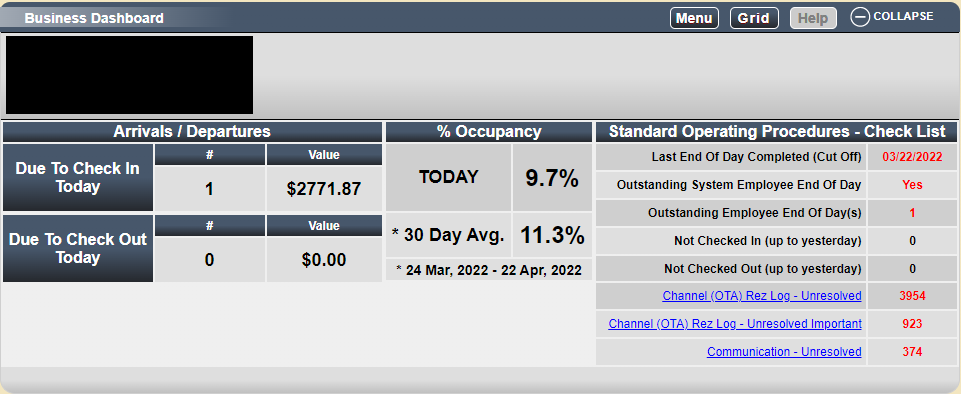
- Book: This indicates that a new reservation has been created. This will display on the counter for Channel (OTA) rez Log - Unresolved on the Dashboard when it is unresolved.
- Modify: This indicates that the reservation has been modified (Arrival/departure dates). This will display on the counter for Channel (OTA) rez Log - Unresolved on the Dashboard when it is unresolved.
- Cancel: A cancellation has been requested. The system will not automatically cancel the reservation; thus, a user will have to cancel the reservation based on the applicable cancellation policy. Any time a cancellation request log is created, this will appear on the dashboard as Channel (OTA) rez Log - Unresolved Important and will constantly appear when the Grid is loaded until it has been resolved to make sure the inventory is managed appropriately.
Export
- This will provide an export option of the listed logs which can then be printed or exported as a CSV file.
Troubleshooting
- Ensure that the correct filters are applied to view the desired logs.
- Verify that the logs are marked as resolved once the necessary actions have been taken.