Adding Credit Card Fees to Reservations
Last modified on:
Overview
This document provides instructions on how to add a Booking (or Credit Card) fee to a reservation. There are multiple options available for applying fees:
- Automatically applied Rez Fee
- Manually applied Surcharge
- Manually applied POS charge
Prerequisites
Ensure you have access to the system's setup and configuration options.
Steps
Rez Fee
A Rez Fee can be created to automatically apply to reservations at the time of booking.
- Click on the Menu button, select the Setup tab, and click on Rez Fee Policy Setup.
- Click Add and enter the name of the Rez Fee Policy, e.g., Booking Fee.
- Click Submit.
- Within the Policy Applicability, select the applicability for the policy to 'fire' on.
- Configure the following options:
- Link To Unit Type: Apply to all or selected Unit Types.
- Link To Rate Group: Apply to all or selected Rate Groups.
- Link To Source (Created): Apply to all or selected Sources.
- Applies To: Choose how the policy applies (Any Reservation, Days Before Check In, or Days After Made Date).
- Applies Days (or more) and Applies Days (or less): Specify the number of days for applicability.
- Rez Length (Days or more) and Rez Length (Days or less): Specify the reservation length.
- Check In Date Between: Define the check-in date range. - Enter the Policy Fee:
- Flat Amount: Set a flat amount, e.g., $25.00.
- Percentage: Set a percentage of the Reservation Charges, e.g., 50%.
- Nights: Specify the number of nights charged as the Reservation Fee.
- Minimum Amount: Set a minimum amount, ideal when using a percentage. - Set additional options:
- Priority: Define the priority of the Reservation policy.
- Charge Tax After Fee Calculated: Enable for tax-exclusive businesses.
- Apply After Tax: Enable for tax-inclusive businesses.
- Active: Enable to make the policy active.
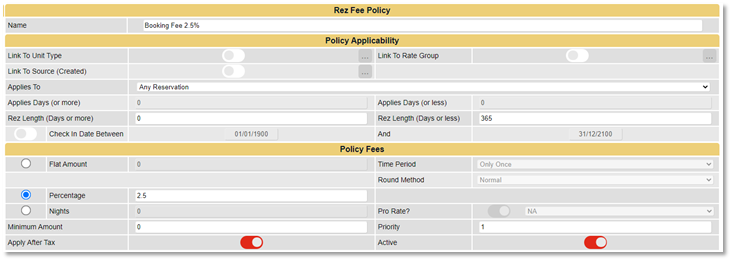
Click here for more information on Rez Fee Policy Setup
Manually Applied Surcharge
A Surcharge can be set up in Discount Setup to allow operators to select from the Discount dropdown to apply to the reservation.
- Click on the Menu button, select the Setup tab, and click on Discount Setup, within the Pricing and Rates section.
- Click Add.
- Enter the Label - Name of the Surcharge, e.g., Booking Fee.
- If the fee is a Percentage, enter it into Percentage 1.
- If the fee is a Flat Rate, enter it into Flat Rate.
- Enable the Flat Rate Per Day flag if the fee applies for each day of the reservation.
- Ensure the Percentage or Flat Rate entered is positive.
- The Surcharge will now display in the Discount dropdown for selection, any time prior to Check In.
Click here for more information on Discount/Surcharge Setup
Manually Applied POS Charge
A Product can be set up to allow operators to process through a Sale transaction onto the reservation.
- Click on the Menu button, select the Setup tab, and click on Product Setup.
- Click Add.
- Enter the Product Label - Name.
- Select the required Product Group.
- Set GL Type to Revenue Only.
- If the product will be common/regular, tick the POS Hot Button? flag.
- Tick the required Tax.
- Ensure a GL Code is assigned to the Product within GL Ref #1 for accounting and reporting purposes.
- Once the product is created, assign a set fee amount.
- Click on the Menu button, select the Setup tab, and click on Product Rates Setup, within the Pricing and Rates section.
- Click on the + symbol next to the Product Group and enter the fee amount into the New Rate column. The amount can be overridden during the sale process.
Click here for more information on Product Setup
Troubleshooting
For any issues encountered during setup, refer to the linked resources for detailed guidance on each setup process.