Manually Applying and Handling Security Deposits
Last modified on:
Overview
Security Deposits can be manually applied to a reservation at any time. They can be taken prior to, at check-in, or at a later time and are held in a Deposit Liability account. Security Deposits can be refunded to the guest at any point before check-out. All Security Bonds held are displayed in the Security Bond Ledger Panel, accessible via Accounts > Security Bond tab to view balances.
A Retained Security Deposit Product Group needs to be created before creating any Security Products to ensure that the revenue from non-returned Security Deposits is handled correctly.
Prerequisites
- A Retained Security Deposit Product Group must be set up.
- Access to the Accounts > Security Bond tab.
Steps
Location
- Click on the Menu button.
- Select the Setup tab.
- Click on Product Group Setup.
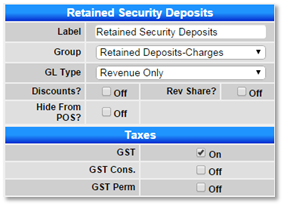
Product Group Setup
- Click Add.
- Label: Retained Security Deposits.
- Press Submit and refresh the screen.
- Scroll up to the Product Setup panel and click Add.
- Label: Retained Security Deposit.
- Group: Retained Security Deposits.
- GL Type: Revenue.
- Tax: Select GST.
- Press Submit to finalize.
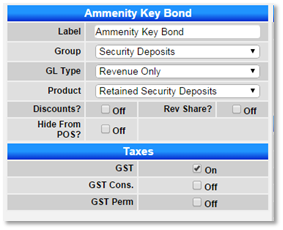
Security Deposit Product(s) Setup
- Click Add.
- Label: Enter the name of the Security Deposit (e.g., Key Bond).
- Group: Security Deposits.
- GL Type: Revenue.
- Product: Retained Security Deposits.
- Taxes: Tick on the applicable Tax (Generally, Security Deposits have no Tax, only the Retained Product has Tax).
- Press Submit to finalize the new Security Deposit Product.
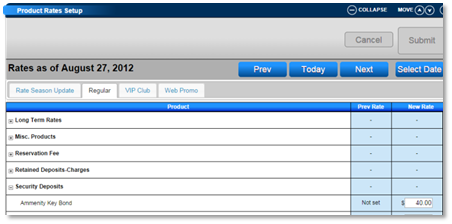
Manually Security Deposit Rate Setup
To set the base rate for the Manual Security Deposit:
- Click on the Menu button.
- Select the Setup tab.
- Click on Product Rate Setup within the Pricing and Rates section.
- Enter the base rate for the Security Deposit.
- Press Submit to finalize.
- The price can be overridden when adding to a reservation.
- If no base rate is set, the rate can be entered when adding to a reservation.
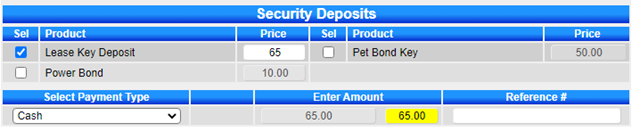
Applying Security Deposit(s) on Reservations
To process a Security Deposit on a Reservation:
- After submitting the reservation, change to the Charges/Payments tab (if no deposit is required).
- Click the Payment button. (If Payment Express is active, click the Other Payment button).
- The created Security Deposits are available to be selected.
- Select the Security Deposit(s) – the security deposit amount will display in the Amount box.
- Select the Payment Type and click Post.
- Press Submit to finalize.
- After processing the Security Deposit, the required deposit/balance is available to be paid.

Handling Security Deposit(s) at Check Out
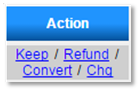
Before a reservation can be checked out, the Security Deposit needs to be handled – Kept, Refunded, or Converted back.
- To Keep the Security Deposit: Select Keep. The amount held in the Security Deposit Ledger is then removed and applied to the product “Retained Security Deposit”.
- To Refund the Security Deposit back to the Guest: Select Refund. The Payment box will display to process the refund. Select the Payment Type for the refund (e.g., Cash). Click Post and Submit to finalize the refund.
- To Change the payment type used: Select Chg and select the correct Payment Type.
- To Convert the Security Deposit into a Payment to the Guest Folio balance: Select Convert. The Security Bond amount is refunded to the Charges/Payments to reduce any balance. Note: The balance must be greater than the Security Bond amount, as there is no ability to overpay a reservation.
Troubleshooting
For further assistance, refer to the help document: Click here to print the Help Document