Changing Client Membership Type in Client Editor
Last modified on:
Overview
By default, all clients are Non Members. When new membership types are created, these can be allocated to client records within the Client Editor.
Prerequisites
- Access to the Availability Grid
- Client's name for search
Steps
Search for the Client Record
- Click on the Search button on the Availability Grid.
- Enter the client’s name and click Search.
- If multiple results appear, select the required client.
- The Selected Client box will appear on the top right of the Availability Grid. Click Edit.
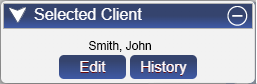
- The Client Editor can also be accessed within a client’s reservation. In the Guest Folio, the Edit button will display next to the client’s name. Click Edit.
Client Editor
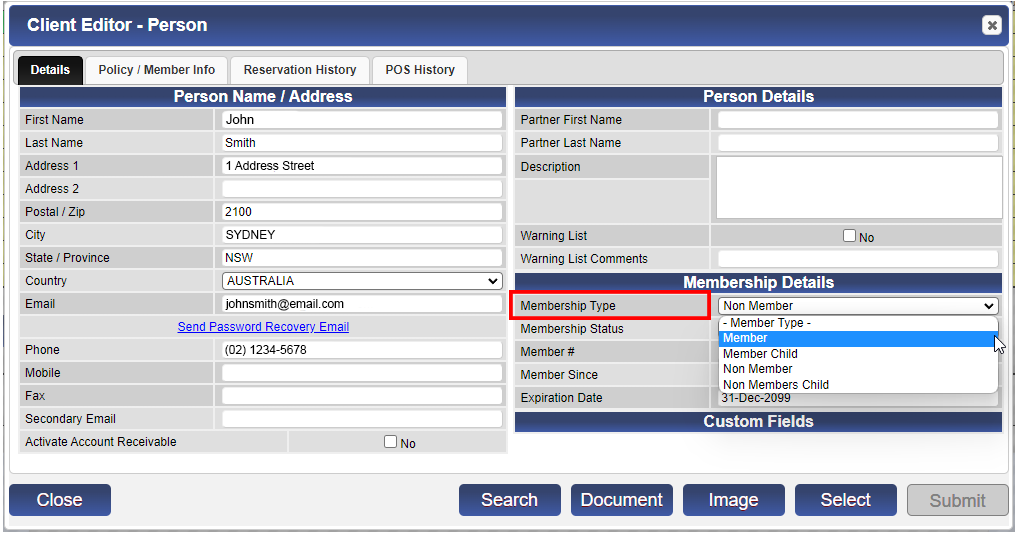
- The Client Editor will display containing all the client’s details.
- Within the Membership Details, click on the Membership Type dropdown to select the required membership type.
- Click Submit to finalize.
- The client will now have the permissions, inventory segment, discounts, and rate group associated with that membership type.
Membership Status
- The membership status can be adjusted to Suspended or Inactive when the client is no longer allowed to make bookings, or the client record is no longer valid.
- When searching for Client records, by default the Active client records will display. To view inactive or suspended member statuses, adjust the Member Status dropdown option to All Statuses or a selected status.
Troubleshooting
- For further assistance, please call 888 777-0602 (Aust/NZ 61 7 4925 4400) or email us at support@digitalrez.com.