Configuring Discounts and Surcharges in System
Last modified on:
Overview
This panel controls the discounts and surcharges that are offered to your clients. Discounts provide a rebate on a reservation charge, while surcharges increase the basic reservation cost. You can configure these as flat rate or percentage-based and relate them to memberships, coupons, or any factors affecting client rates on reservation-related fees.
Prerequisites
- Access to the Setup tab in the system menu.
Steps
Location
- Click on a Menu button.
- Select the Setup tab.
- Click on Discount Types.
Add
- Click the Add button to add a new Discount Type.
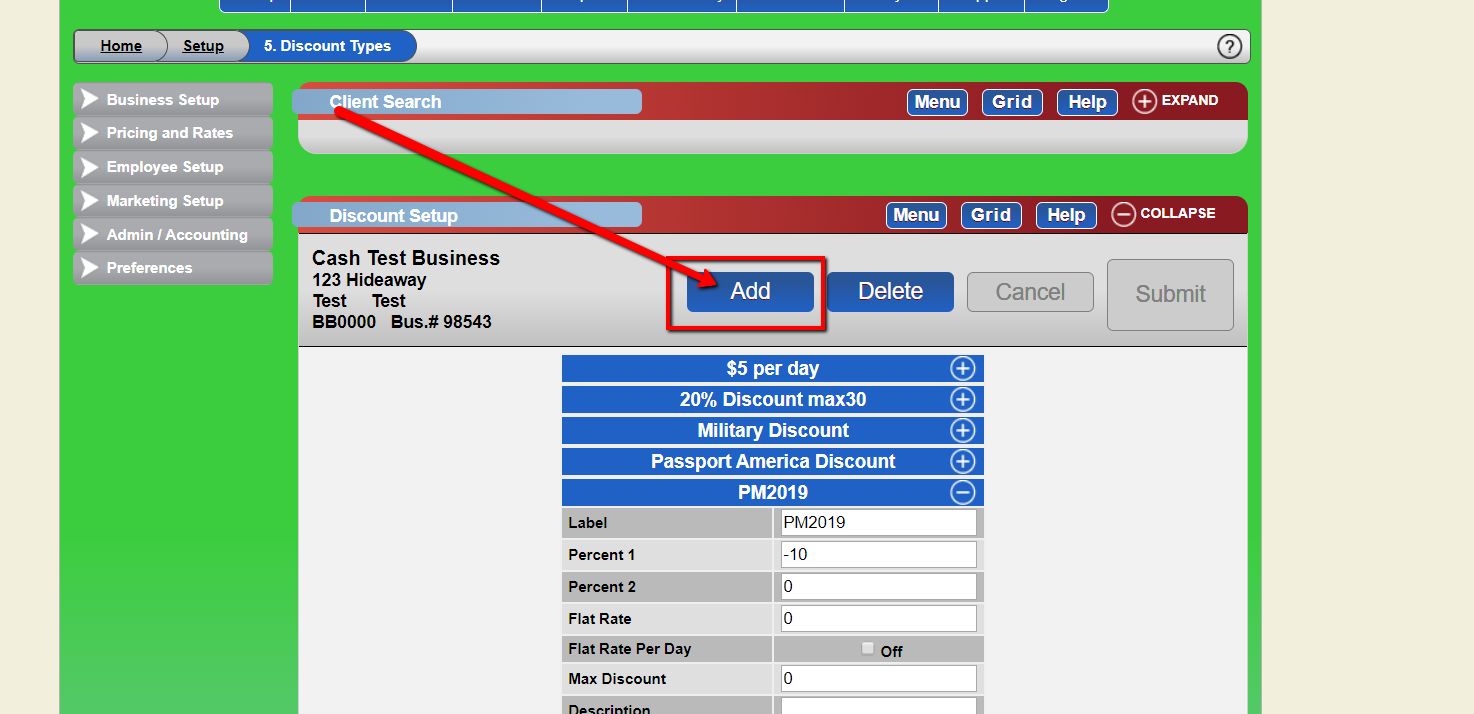
Creating a New Discount Type
- Click Add: Initiate the process to create a new Discount Type.
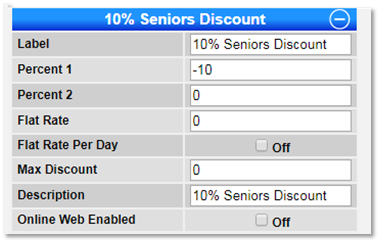
- Label: Enter the name of the discount or surcharge (e.g., Seniors Discount).
- Percent 1: Enter the percentage value of the discount or surcharge. Use a minus (-) sign for discounts (e.g., -10).
- Percent 2: (For Northern Hemisphere clients) Enter an additional percentage value if applicable. This applies to the total charges after Percent 1 adjustments.
- Flat Rate: Enter a flat rate for a one-time discount or surcharge (e.g., -$5.00).
- Flat Rate Per Day: Check if the Flat Rate applies Per Day. Note: Only a Percentage or a Flat Rate can be used, not both.
- Max Discount: Enter the maximum discount or surcharge for the reservation duration (e.g., -10% discount, Max Discount = $40).
- Description: Provide a description of the discount or surcharge.
- Online Web Enabled: Check if the discount or surcharge is available for online booking.
- Delete: Click the Delete button to remove the specified Discount Type.
Troubleshooting
Reporting
- The Discount Report is available to track the number of times a discount was applied and the discounted amount.
- Click on a Menu button, select the Reports tab, and click on Discount Report within the Manager section.
- A discount column is also displayed in the Type Revenue & Occupancy panel.
For further assistance, click here to print the Help Document.