Setting Up Rates for Pricing System
Last modified on:
Overview
This guide provides a step-by-step process for setting up rates for the first time.
Prerequisites
- Access to the system with appropriate permissions to modify rate settings.
Steps
- Access Rates Setup
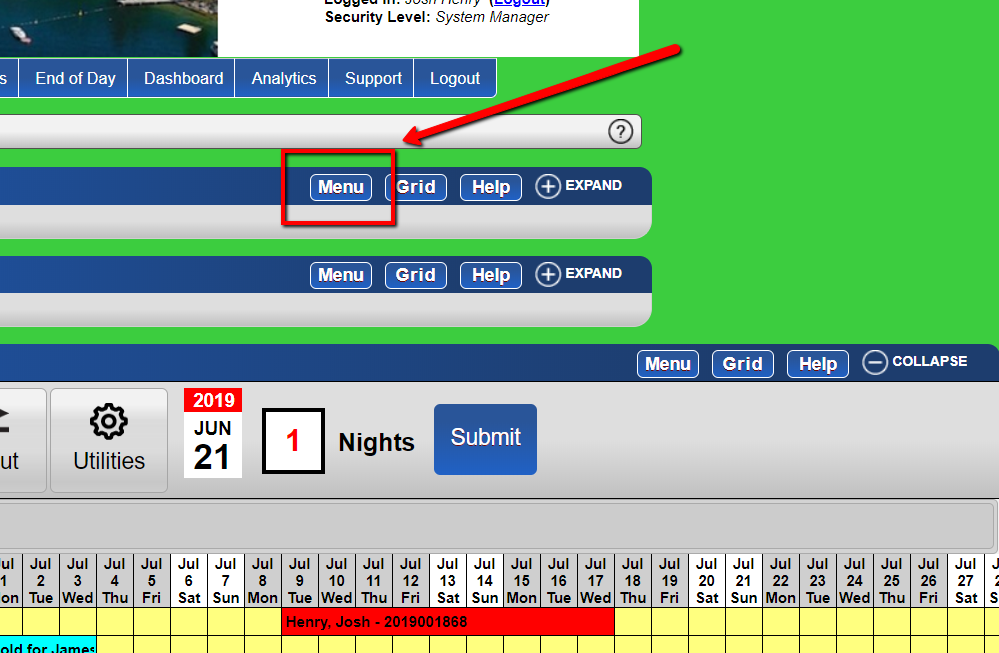
- Click the Menu button.
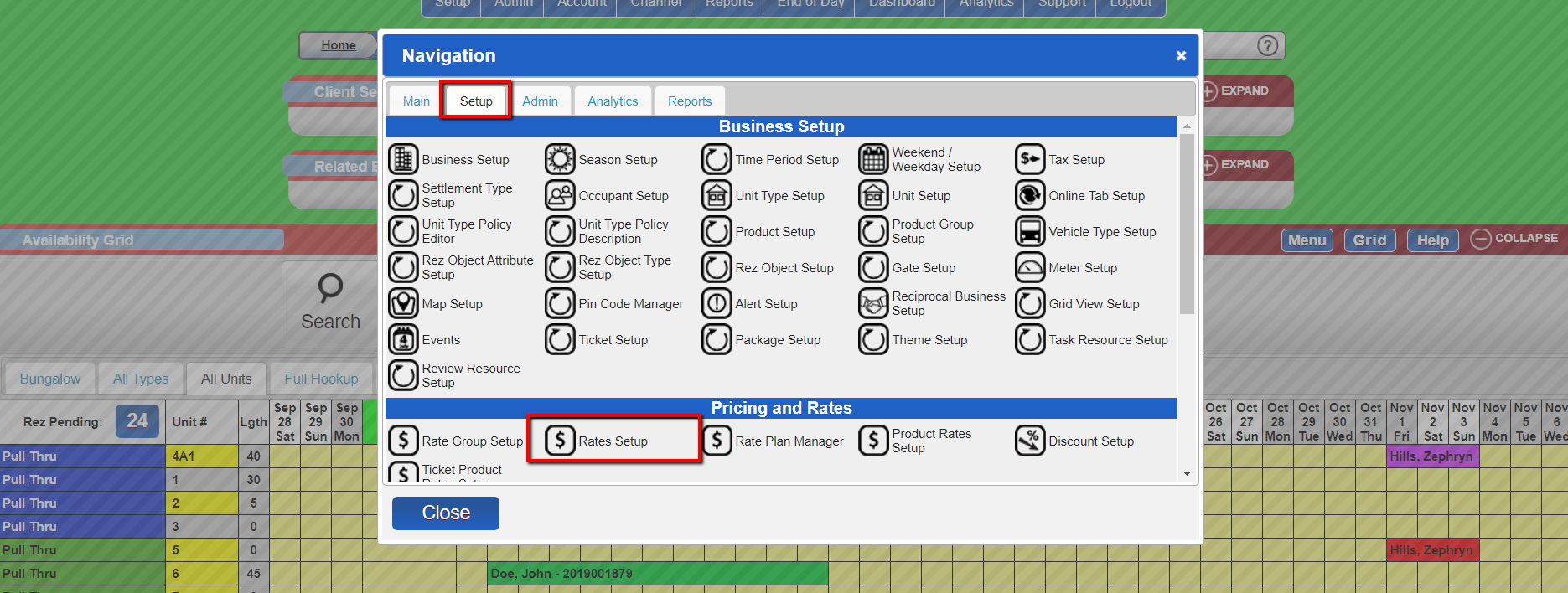
- Navigate to the Setup tab.
- Select Rates Setup within the Pricing and Rates section.
- Select Rate Group
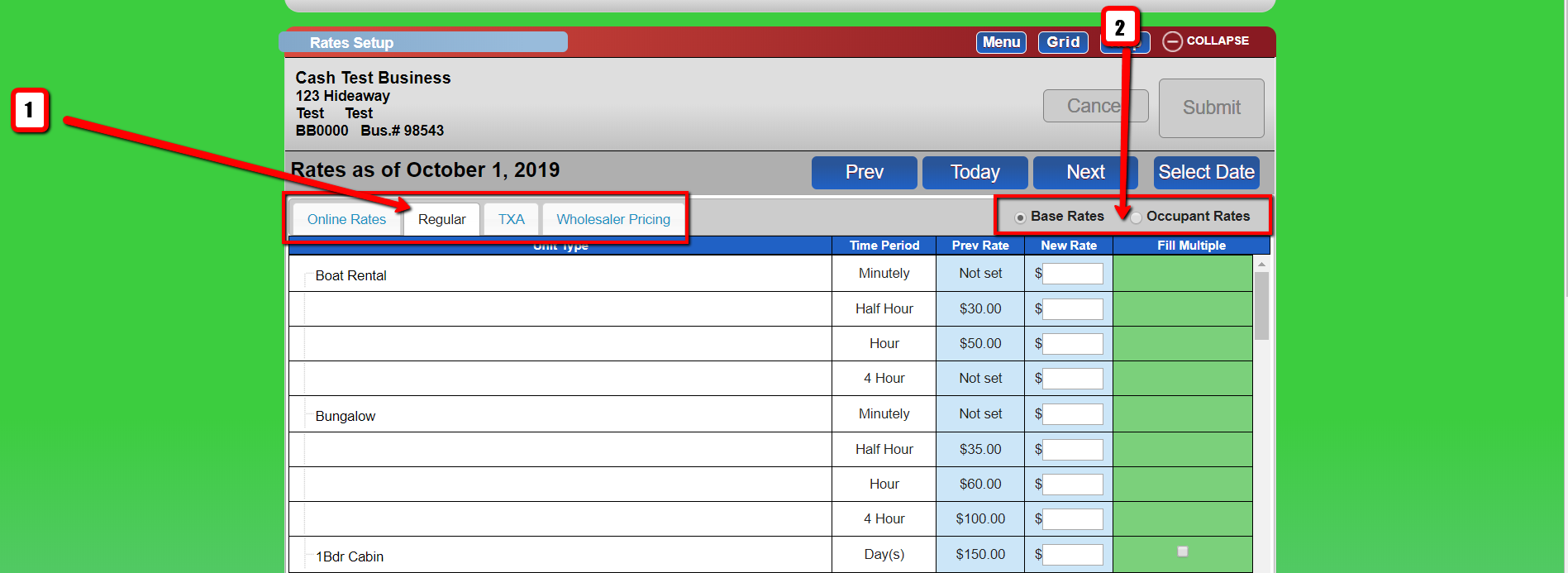
- Choose the Rate Group you wish to modify.
- Select the rates to change: Base Rates or Occupant Rates.
- Base Rates: The base Unit Type rates.
- Occupant Rates: Charges for additional occupants exceeding the included value. Enter 0 if no extra charges apply. Leave the New Rate blank if the occupant type is not allowed.
- Set Effective Date for Rate Changes
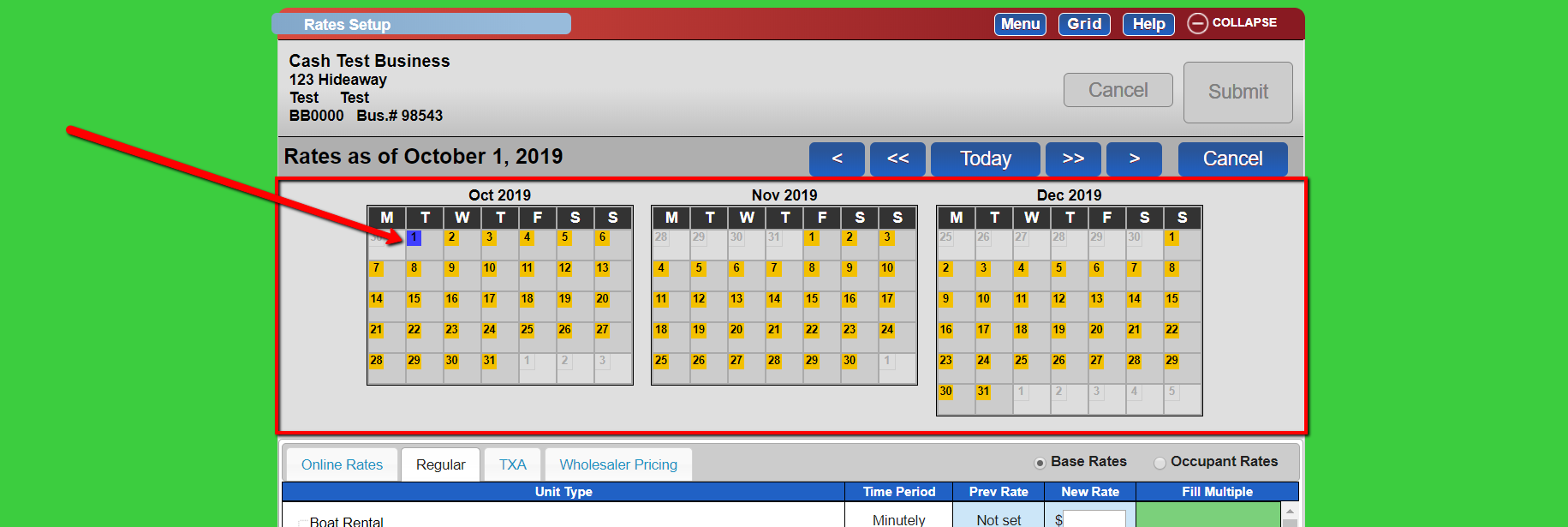
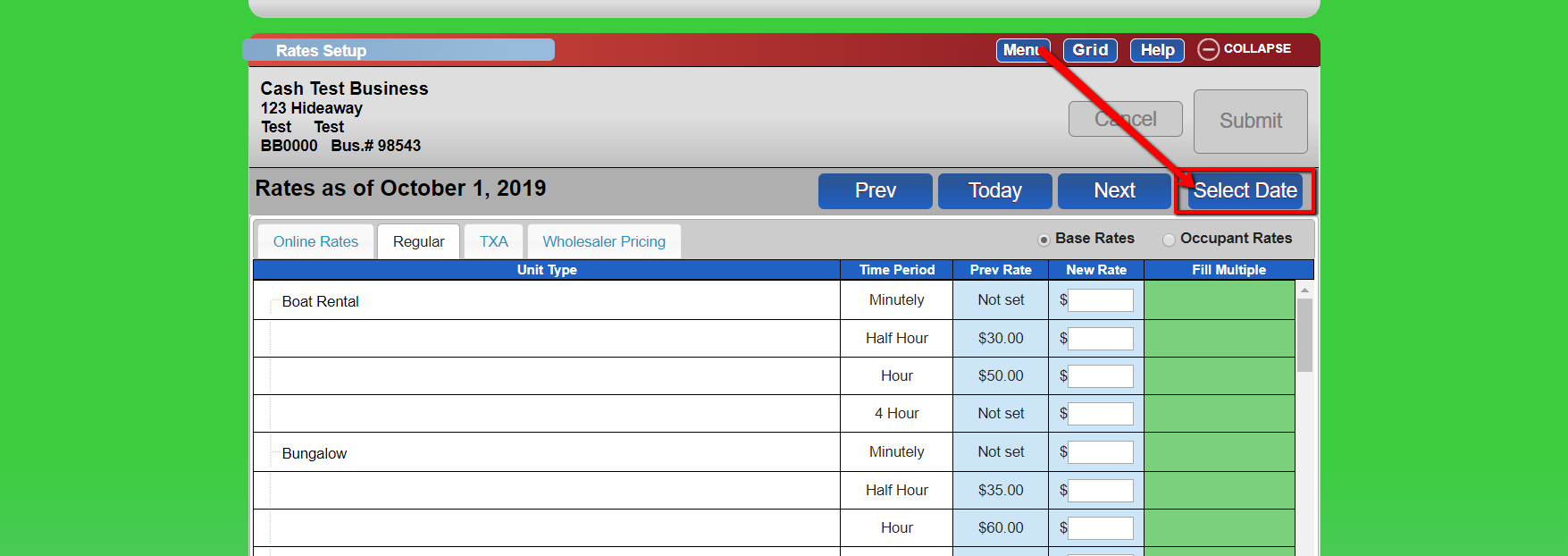
- Select Select Date.
- Choose the desired date on the calendar.
- Rates will update to reflect the chosen date.
- Enter New Rates
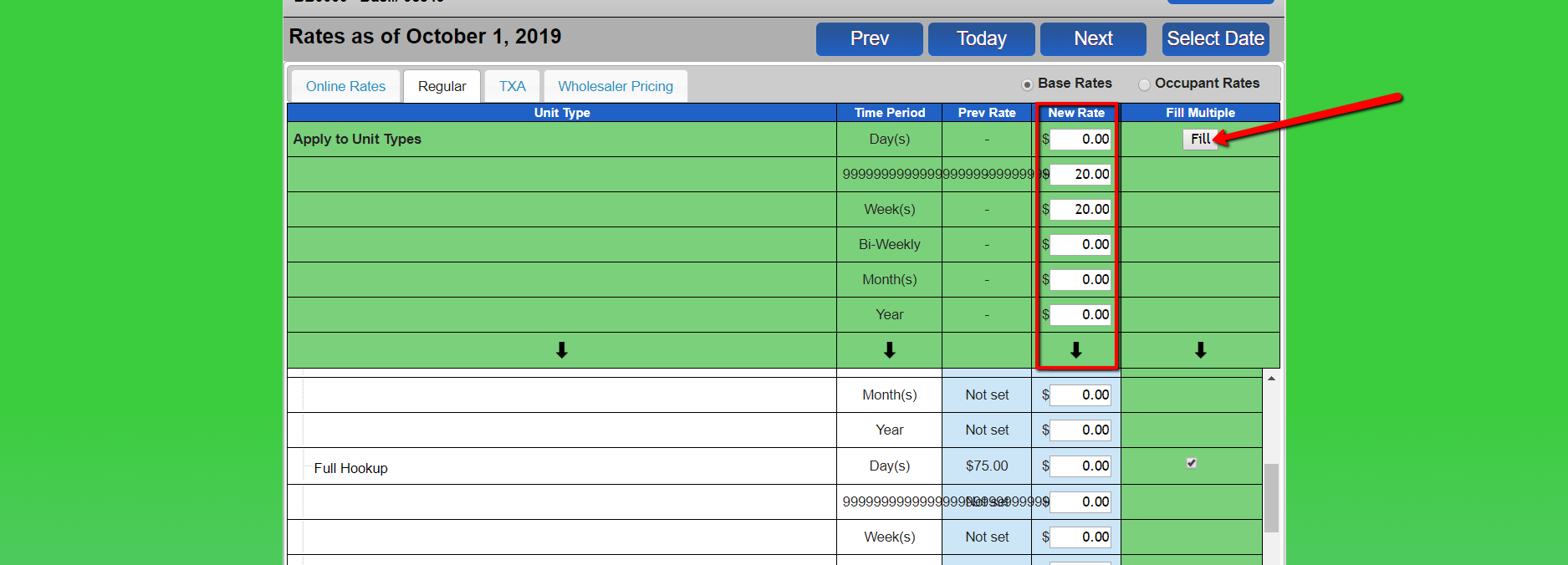
- Input the new rates in the New Rate column for the required Unit Type and Time Periods.
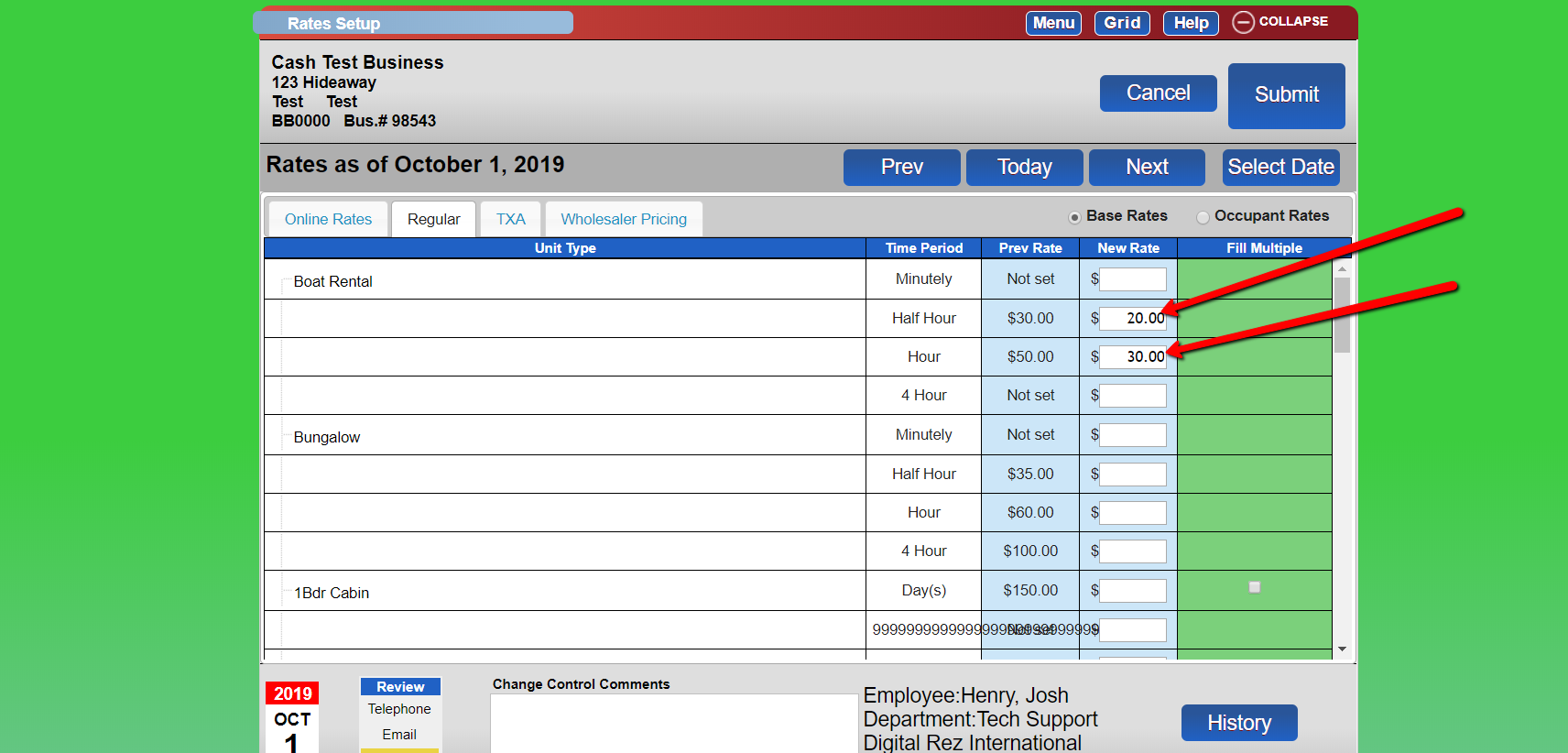
- Fill Multiple Rates
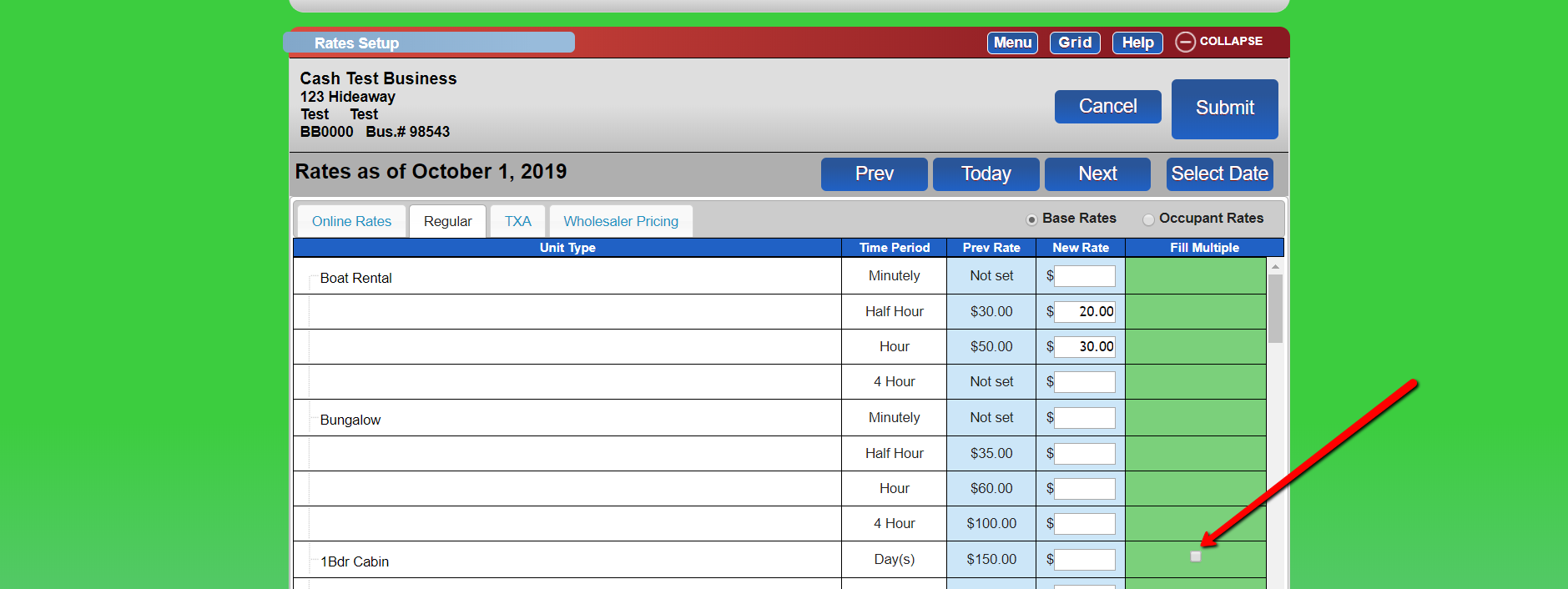
- Use the Fill Button to apply the same rate to multiple unit types.
- Select the squares corresponding to unit types with the same rates.
- Fill in the rates and click Fill when finished.
- Finalize Changes
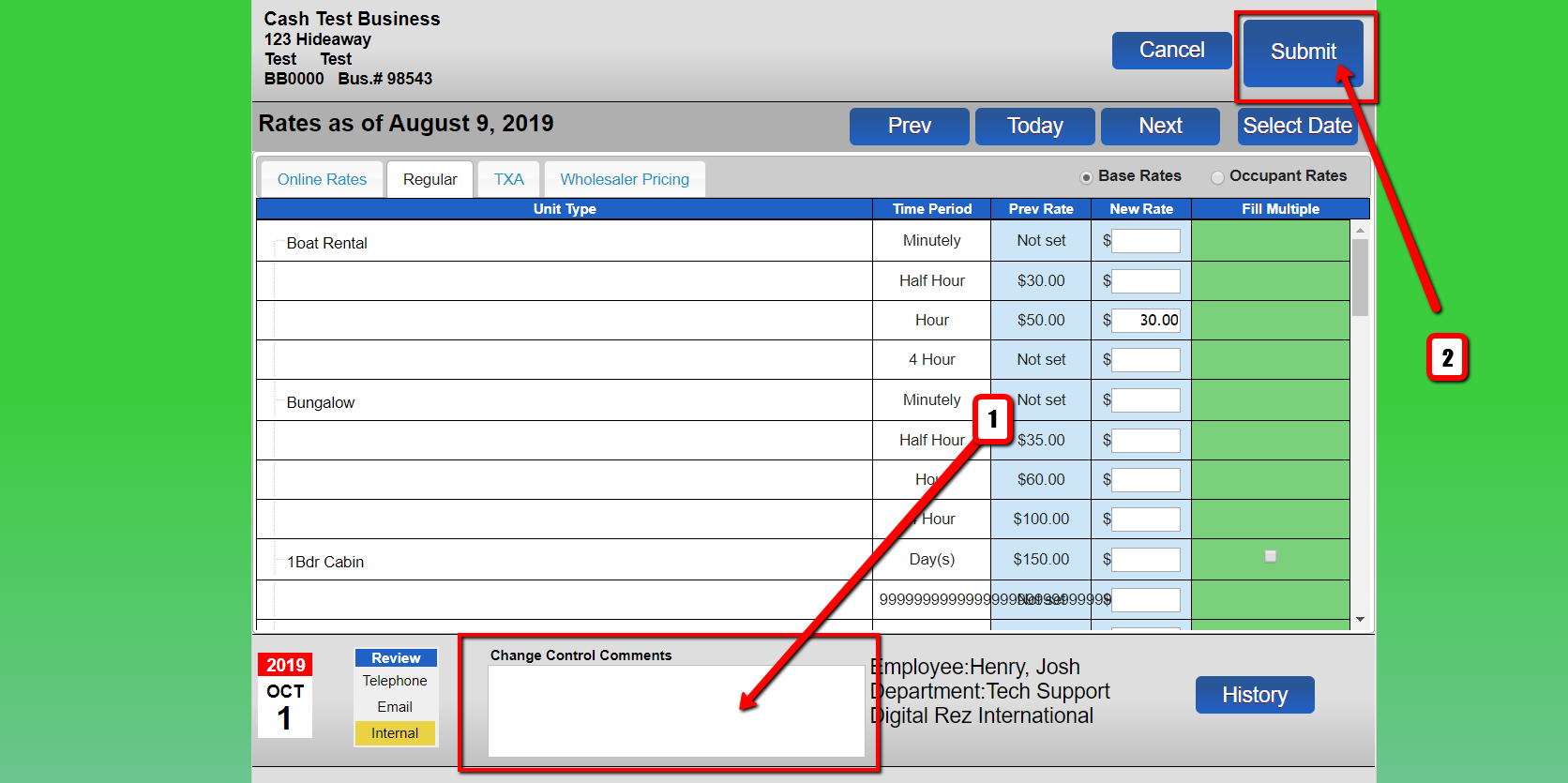
- Add a change control comment.
- Click Submit to finalize the rate changes.
Troubleshooting
Action Buttons
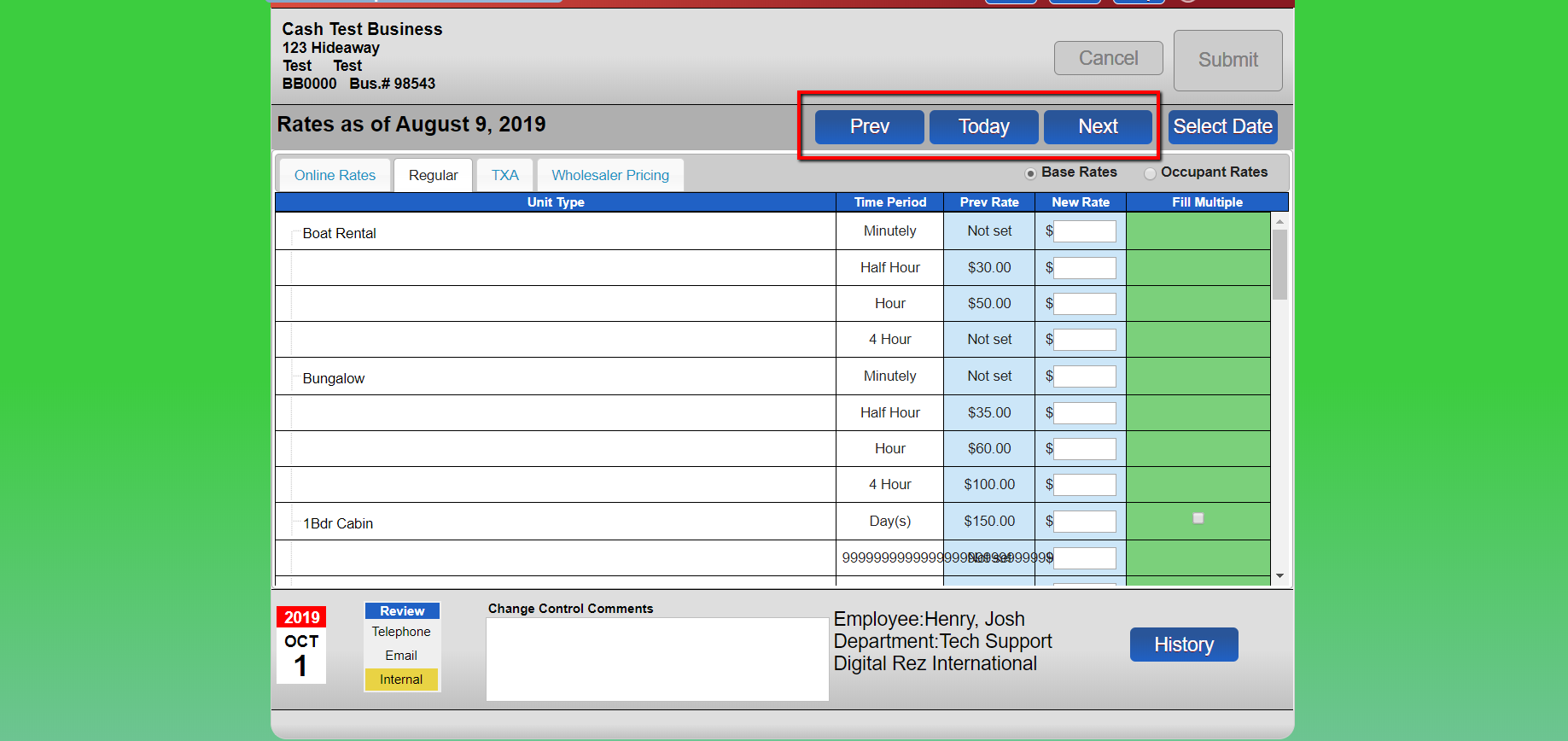
- Today button: View current rates.
- Prev button: View previous rate changes.
- Next button: View future rate changes.
- Select Date: Choose a new date for rate changes.
- TIP: Dates highlighted in green on the calendar indicate a rate change on that date.